












Bold and italic are the only emphasis most headings ever get, and both are easy to overlook.
Highlights mode draws a hand-drawn mark over one phrase — an underline, a circle, a check mark — and animates it as the reader arrives.
For every Heading Animation setting in one place, see the Heading Animation feature guide.
Before You Start
- Edition: Pro — the Heading Animation block needs Nexter Blocks Pro.
- Block to enable: Heading Animation, switched on under Nexter > Blocks in your WordPress dashboard.
Steps
- Add the Heading Animation block and set Type to Highlights.
- Type the phrase to mark into the Highlight Text field.
- Pick a Highlight Style from the eleven shapes.
- Use Prefix and Postfix for the words either side of the highlighted phrase, and set the Title Tag.
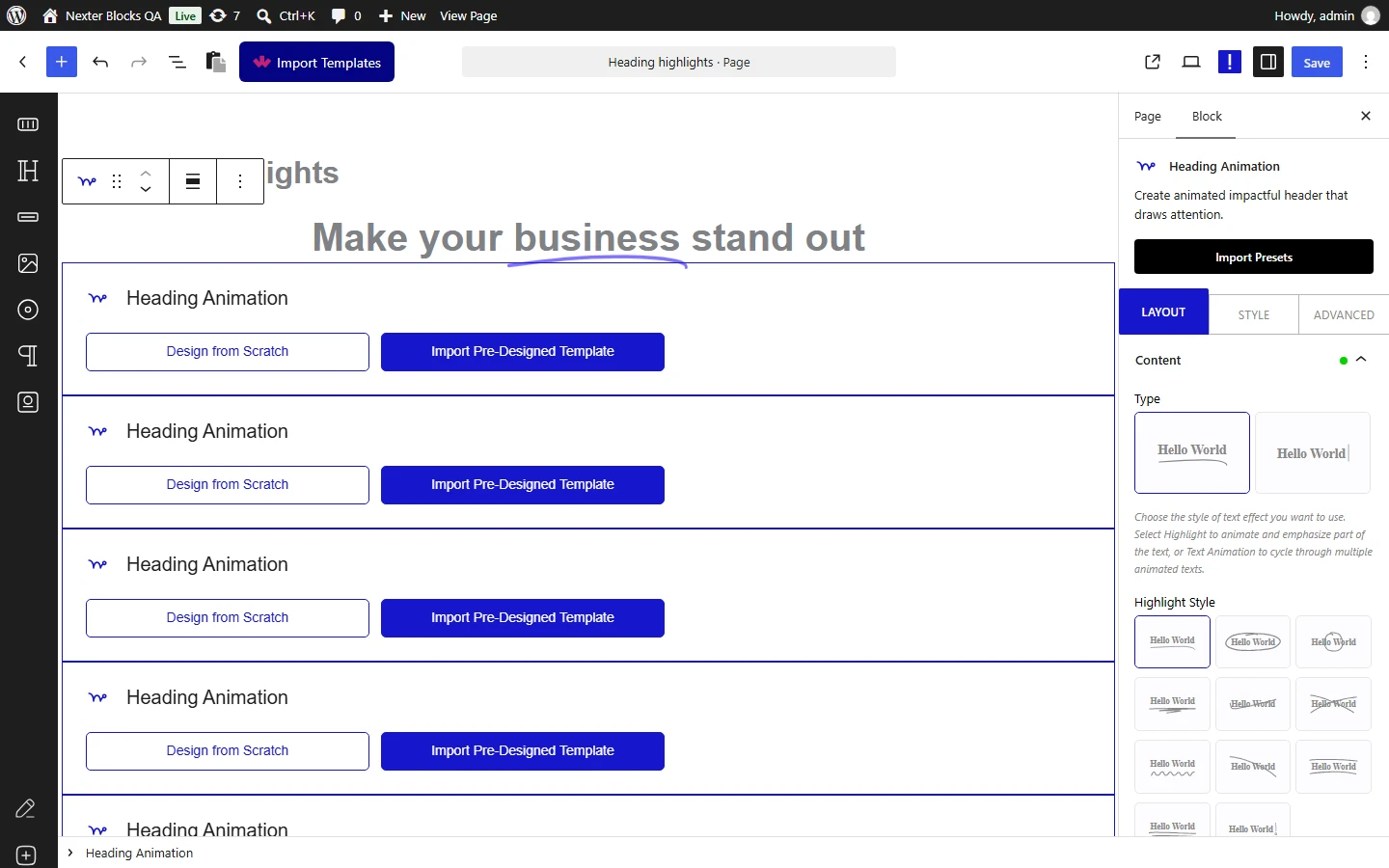
The highlight only appears once the Highlight Text field has something in it. Measured: with that field empty the block renders the surrounding text and no shape at all.
The Eleven Shapes
Every shape is drawn as an SVG over the text, and each one is a different drawing — all eleven were published and read back to confirm it. They are shown here in the order they appear in the editor.
| Shape | Best suited to |
|---|---|
| Underline | A straight emphasis under a phrase, the closest to marking up printed text |
| Wide Circle | Circling a longer phrase — it stretches to the text width |
| Tiny Circle | Circling a single short word; it keeps its round shape rather than stretching |
| Zigzag | A looser, more informal underline |
| Check Mark | Marking something as done, included or approved |
| Cross Mark | Striking through or marking something as excluded |
| Curly Line | A wavy underline, softer than the zigzag |
| Diagonal | A rising slash across the phrase |
| Double Line | Two lines, above and below the phrase |
| Double Underline | Two stacked underlines for stronger emphasis |
| Exclamation Mark | A drawn exclamation beside a short phrase |











How It Behaves
- Most shapes stretch to the width of the highlighted phrase — measured, ten of the eleven are drawn with their aspect ratio released so they fit whatever text you mark.
- Tiny Circle is the exception and keeps its proportions — measured, it is the only shape that is not stretched, so it stays round. That makes it right for one short word and wrong for a long phrase.
- Cross Mark, Double Line, Double Underline and Exclamation Mark are drawn with two strokes rather than one — measured as two separate paths each.
- The highlight sits behind or across the text rather than replacing it, so the phrase stays selectable and readable by search engines.
Set the Title Tag to match the heading level this text really is on the page — measured, the tag you choose is the tag that renders. Use one h1 per page.
Limitations
- One highlighted phrase per block. The Highlight Text field takes a single phrase; use a second block for a second highlight.
- Highlights and Text Animation are separate Types — a block does one or the other, so a rotating headline cannot also carry a highlight.
- Tiny Circle does not stretch, so it will not enclose a long phrase — pick Wide Circle for that.
- The shapes are a fixed set of eleven drawings; custom SVG paths are not supported here.
Troubleshooting
No shape appears over my text
The Highlight Text field is empty. Measured: the block renders the prefix and postfix but draws no shape until that field has content.
My circle looks squashed or stretched
Wide Circle stretches to the phrase width by design. If you want a round circle over one short word, use Tiny Circle instead — measured, it is the one shape that keeps its proportions.
The highlight covers the wrong words
Only the text in Highlight Text is marked. Move anything that should stay unmarked into the Prefix or Postfix field.
I want the heading to cycle through words as well
That is the other Type. See the feature guide — one block does one or the other.
