












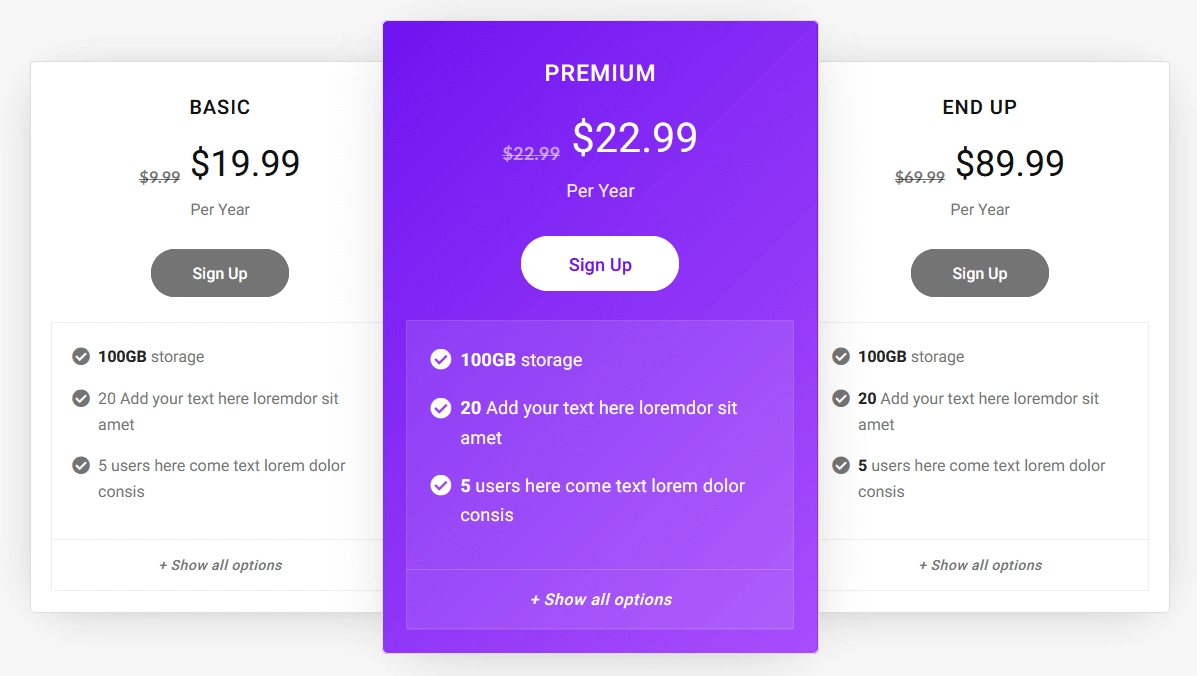
Three plans in a row are read as equals unless something says otherwise.
Scaling one of them up slightly breaks that symmetry — the eye lands on the bigger card first, before anyone has read a single price.
For every Pricing Table setting in one place, see the Pricing Table feature guide.
Before You Start
- Edition: Pro — this feature needs Nexter Blocks Pro. Measured on a published page: without Pro it has no effect at all.
- Block to enable: Pricing Table, switched on under Nexter > Blocks in your WordPress dashboard.
Steps
- Add the Pricing Table block for the plan you want to highlight.
- Find the Scale setting and raise it slightly above 1.
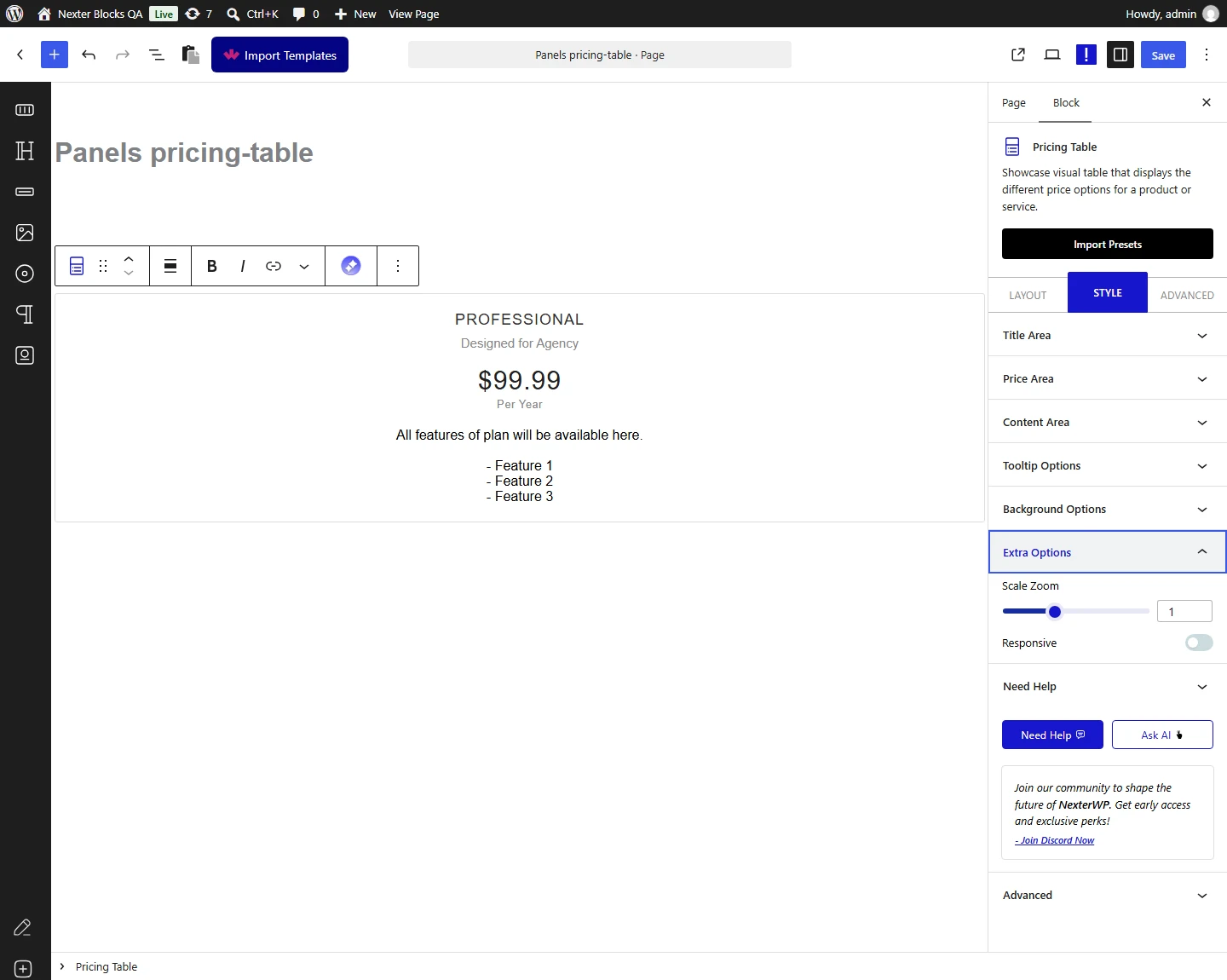
- Set separate values for tablet and mobile if the larger card crowds narrow screens.
- Check the result against the plans either side of it.
How It Behaves
- The plan is scaled with a CSS transform — measured on a published page, a scale of 1.15 rendered as
transform: matrix(1.15, …)while an unscaled plan stayed at 1. - Without Nexter Blocks Pro the setting has no effect at all — measured with Pro switched off, the transform stayed at 1.
- Scaling is visual only: it does not change the plan’s content, its position in the row, or how much space it occupies in the layout.
- Separate tablet and mobile values exist because a card that looks good 15% larger on a desktop can overlap its neighbours on a narrow screen.
Limitations
- Pro only. Measured: the setting is inert without Nexter Blocks Pro.
- Because the card is scaled rather than resized, a large value can make it overlap the plans beside it — keep it modest and check at tablet width.
- Scaling can soften text rendering slightly at unusual values; small increments read best.
- Only the block you set it on is scaled — it is a per-plan setting, not a layout mode.
Troubleshooting
The scale setting does nothing
It needs Nexter Blocks Pro. Measured with Pro deactivated, the plan’s transform stayed at 1 whatever the setting said.
My highlighted plan overlaps the ones next to it
Lower the scale, or set smaller tablet and mobile values. The card is scaled in place, so it grows over its neighbours rather than pushing them aside.
I want to highlight a plan without Pro
Use a ribbon instead — it works on the free plugin and marks the plan just as clearly.
