












Three plans priced side by side leave the reader to work out which one you actually want them to choose.
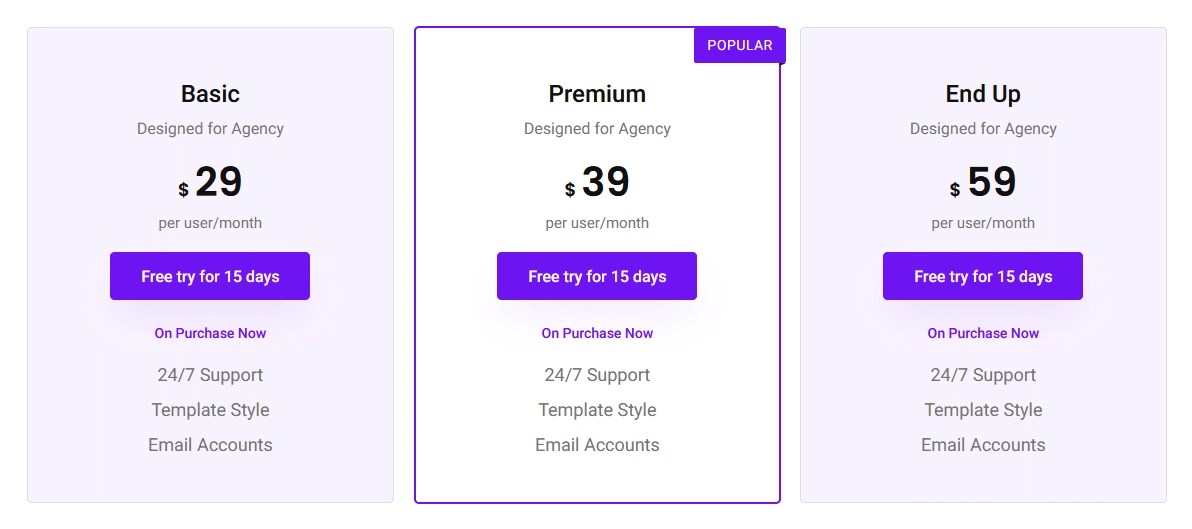
A ribbon answers that before they start comparing — one short word in the corner of the plan you are steering people towards.
For every Pricing Table setting in one place, see the Pricing Table feature guide.
Before You Start
- Edition: Free — measured working identically with and without Nexter Blocks Pro.
- Block to enable: Pricing Table, switched on under Nexter > Blocks in your WordPress dashboard.
Steps
- Add the Pricing Table block and set up the plan as usual.
- Switch the Ribbon toggle on.
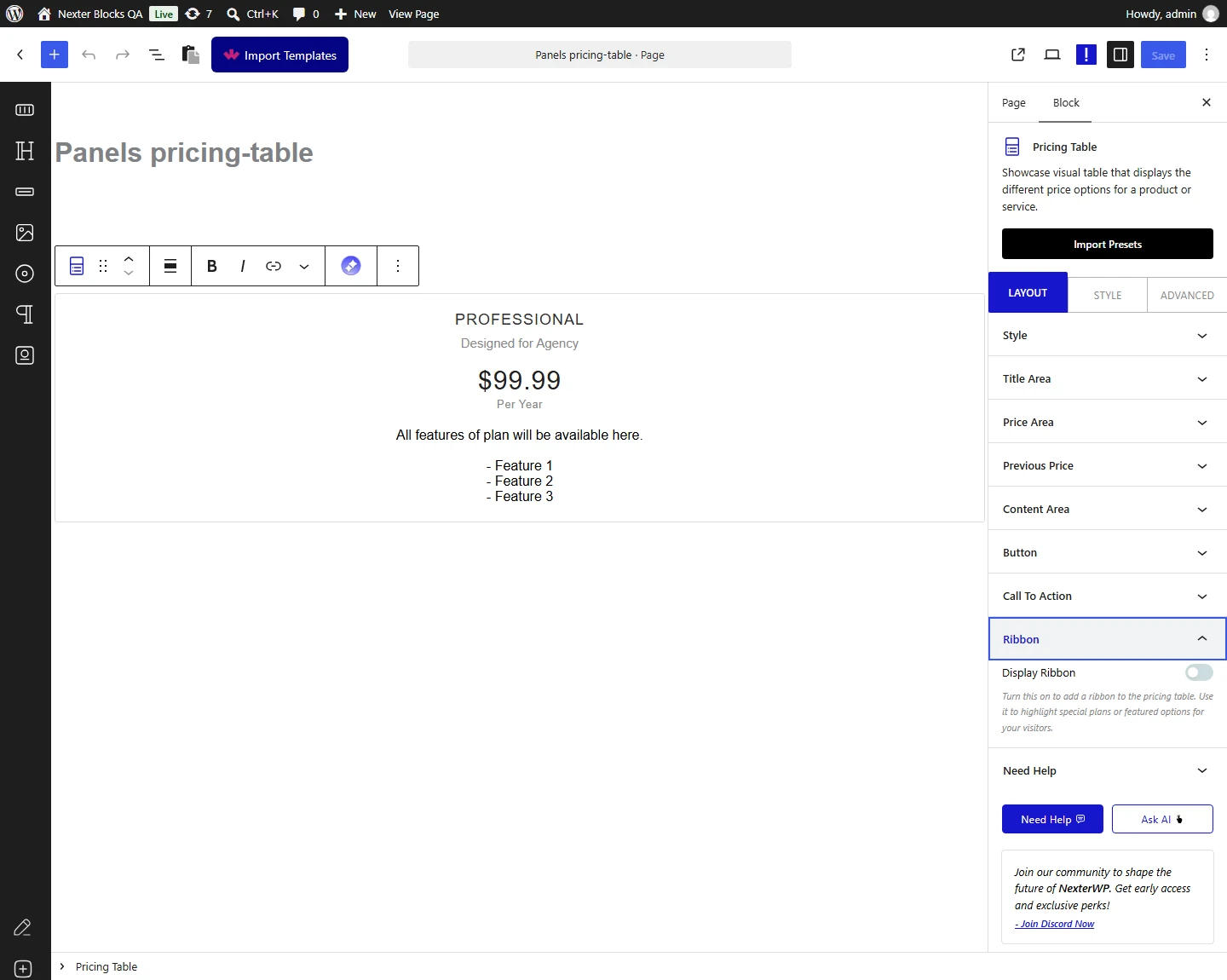
- Type the ribbon text — “Recommended”, “Most popular” or similar.
- Pick a ribbon style, then check it on the published page.
How It Behaves
- The ribbon renders in the corner of the plan, over the table’s own background — measured on a published page.
- It works without Nexter Blocks Pro — measured identically with Pro active and with Pro switched off.
- The ribbon is part of that one block, so only the plan you add it to carries it.
- Ribbon text is plain text; keep it to one or two words so it fits the corner shape.
Limitations
- One ribbon per plan — the toggle is a single on/off for the block.
- Long ribbon text will overflow or wrap awkwardly; the shape is sized for a short label.
- The ribbon sits in a fixed corner position for each ribbon style rather than being freely placed.
- A ribbon marks a plan but does not change it — to make the plan itself stand out, combine it with the scale highlight (Pro).
Troubleshooting
My ribbon text is cut off
Shorten it. The ribbon is sized for one or two words, so “Most popular” fits where a full sentence will not.
The ribbon is not showing
Check the Ribbon toggle is on for that specific block — each pricing table is its own plan, so switching it on for one does not affect the others.
Every plan has a ribbon
You have switched the toggle on in more than one block. Turn it off in the plans that should not carry one — the point of a ribbon is that only one plan has it.
