How to Create a Hamburger Mobile Menu with Pattern in WordPress?

Key Takeaways

  • Nexter Blocks includes a Navigation Menu block that allows users to create an off canvas mobile menu using a Pattern.
  • Users can create a Pattern for the mobile menu by navigating to Appearance > Patterns > Add New Pattern.
  • The Responsive Mobile Menu toggle must be enabled in the Mobile Menu tab to specify the minimum width for the mobile menu.
Table of Contents

Do you want to add custom content to your mobile off canvas mobile menu in WordPress? Using the Pattern, you can add unique content to your off canvas menu.

With the Navigation Menu block from the Nexter Blocks, you can easily use a Pattern as an off canvas menu for the mobile menu.

To check the complete feature overview documentation of the Nexter Blocks Navigation Menu block, click here.

Requirement  – This block is a part of the Nexter Blocks, make sure it’s installed & activated to enjoy all its powers.

To do this, first, you have to create a Pattern with the menu content.

You can go to Appearance > Patterns > Add New Pattern to create a Pattern.

Then, add the Navigation Menu block to the header template and follow the steps –

Note: To create the header template, you can use the free Nexter Builder. 

1. From the Navigation Bar tab, select the appropriate Type, Layout and menu.

2. Then go to the Mobile Menu tab and enable the Responsive Mobile Menu toggle.

navigation menu mobile menu off canvas select pattern

In the Open Mobile Menu(Screen Width) section, you can specify the minimum width for enabling the mobile menu.

3. Don’t select anything in the Mobile Menu section.

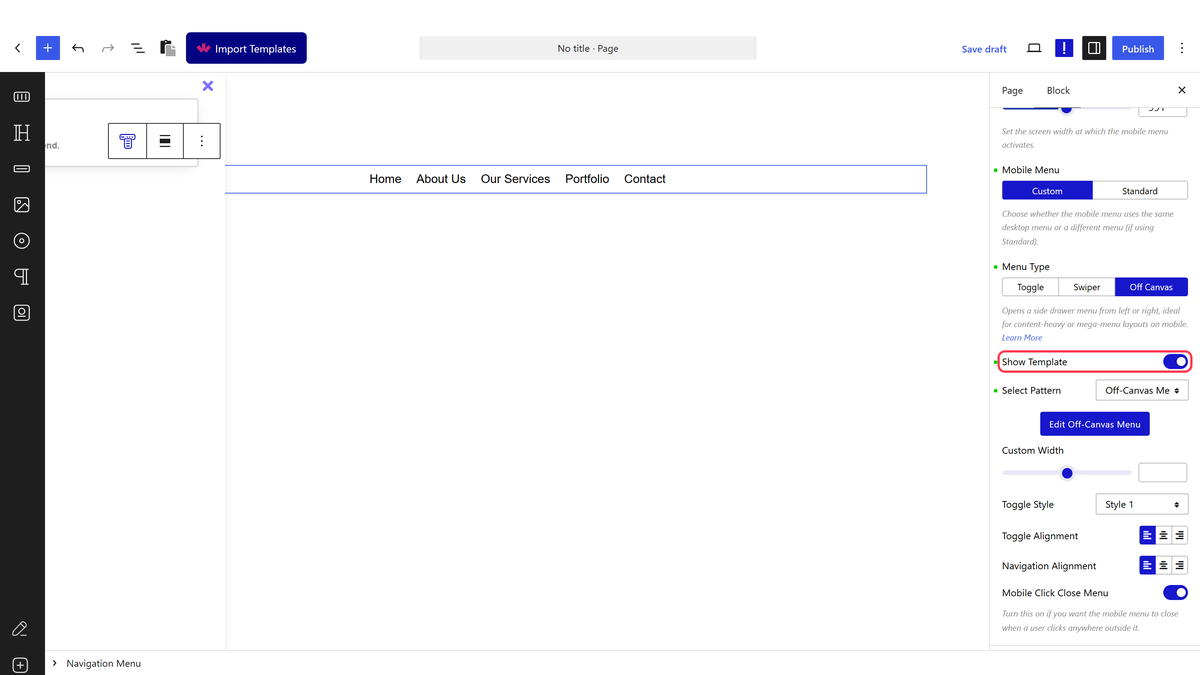
4. Then, from the Menu Type section, select Off Canvas.

5. Now enable the Show Template toggle and then, select your mobile menu pattern from the Pattern dropdown.

Note: You can also create a Pattern from here by clicking on the Create Pattern button.

You can set the popup width from the Custom Width section.

From the Toggle Style dropdown, you can select different toggle styles.

From the Toggle Alignment section, you can align the toggle button.

From the Navigation Alignment section, you can align the mobile menu items.

Now you’ll see your Pattern as the off canvas mobile menu.

About the Author

Photo of Aditya Sharma CMO of NexterWP
CMO at POSIMYTH Innovations · NexterWP · 7 years experience

He has spent years in the WordPress ecosystem building, breaking, and optimizing sites until they actually perform. He works at the intersection of speed, growth, and usability, helping creators ship websites that load fast and convert. An active WordPress community contributor sharing through tools, tutorials, and direct collaboration. Tested practice, not theory.

WordpressThemesElementorn8nAIClaudeAutomationServer

Share your Thoughts

Get Instant Answers to all your questions about Nexter Blocks,
Extensions & Theme trained on 1000+ Docs and Videos

Still in Doubt? Let’s Assist You

Have Feedback or Questions?

Join our WordPress Community on Facebook!

Related Frequently Asked Questions

What should I do if my mobile menu isn't displaying after following the steps?

If your mobile menu isn't showing, check that you've enabled the Responsive Mobile Menu toggle in the Mobile Menu tab. This setting is crucial for activating the mobile version of your menu. Additionally, ensure that you've set the minimum width for the mobile menu in the Open Mobile Menu section. If these settings are correct and it still doesn't display, verify that your Pattern is properly created and selected in the Pattern dropdown.

What are the best practices for setting up a mobile menu with Nexter Blocks?

When setting up a mobile menu with Nexter Blocks, ensure that you select Off Canvas as the Menu Type for a smooth user experience. It's also advisable to enable the Show Template toggle to display your selected Pattern correctly. Pay attention to the popup width in the Custom Width section to ensure it fits well on various devices. These practices help create an effective and visually appealing mobile menu.

Last reviewed: April 14, 2026

Related Docs