












A hover logo lets a small icon expand into your full logo, or a mono logo turn into full colour, when visitors point at it.
The free Site Logo block in Nexter Blocks does this with its Double mode.
For every Site Logo setting in one place, see the Site Logo block guide.
Before You Start
- Edition: Free — works in Nexter Blocks (free) and with Nexter Blocks Pro.
- Block to enable: Site Logo, switched on under Nexter > Blocks in your WordPress dashboard.
- Two logo files: the normal logo and the hover logo, ideally the same height.
Steps
- Open your header template or page and add the Site Logo block.
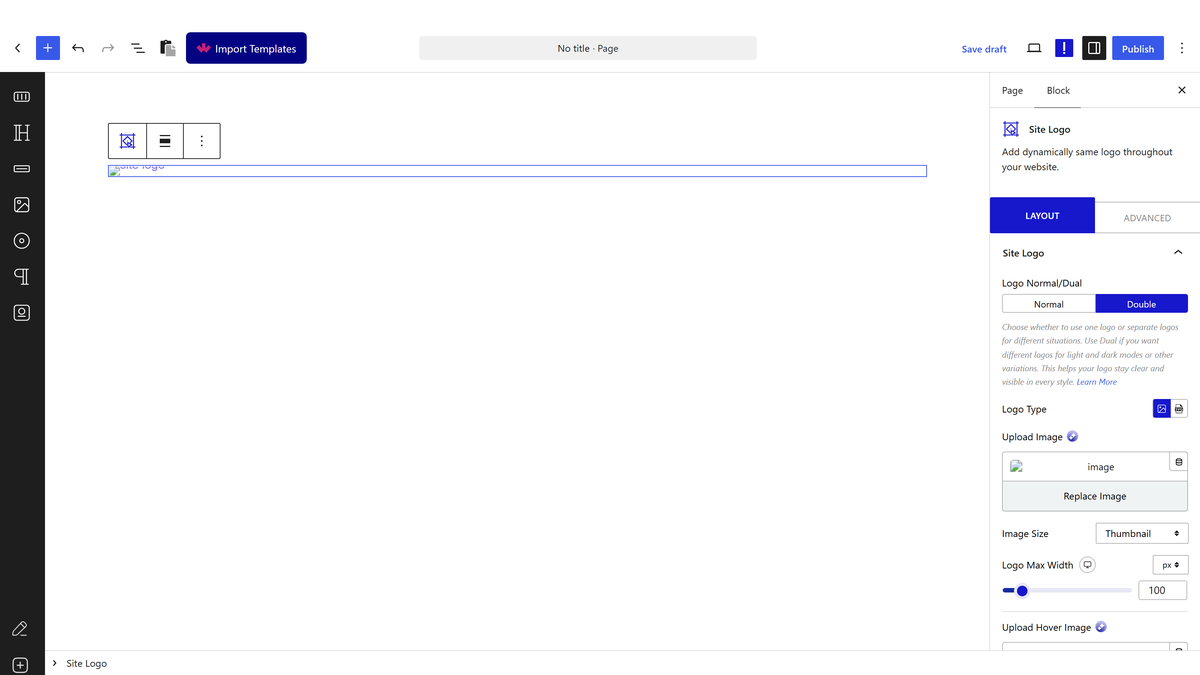
- In the Site Logo panel, select Double under Logo Normal/Dual.
- Choose Image or SVG under Logo Type, upload the normal logo and set Image Size to Full.
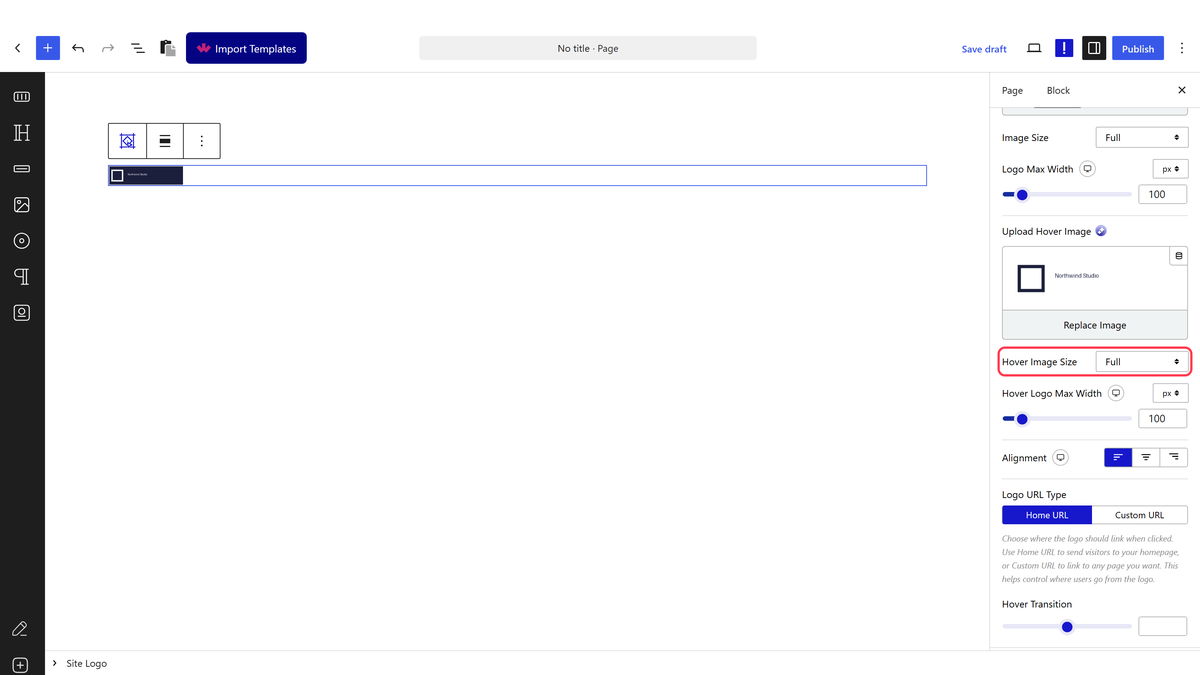
- Upload the second logo in Upload Hover Image (or Upload Hover SVG) and set Hover Image Size to Full.
- Set Logo Max Width and Hover Logo Max Width, and optionally a Hover Transition time in seconds.
- Save, then hover over the logo on your site.
Hover Settings
| Setting | What it does | Default |
|---|---|---|
| Logo Normal/Dual | Double turns on the hover logo | Normal |
| Upload Hover Image / Upload Hover SVG | The logo shown on hover | Placeholder image |
| Hover Image Size | Which image size WordPress serves for the hover logo | Thumbnail |
| Hover Logo Max Width | Width of the hover logo, per device | 100px |
| Hover Transition | How long the swap takes, in seconds | 0.3 seconds |
How It Behaves
- Before hover, only the normal logo is visible. While the pointer is over it, the hover logo takes its place.
- Both logos use the same link from Logo URL Type.
- Touch screens have no hover, so phone visitors normally see only the normal logo.

Limitations
- Both image sizes default to Thumbnail, a 150×150 crop. Set both to Full so wide logos are not cut off.
- The help text says “Dual”, but the option is labelled Double.
- Sticky Logo is meant for Normal mode. Use one or the other.
Troubleshooting
Nothing changes on hover
Check that Double is selected and a file is set in Upload Hover Image. Without one, the placeholder image is used.
The hover logo is a different size
Match Hover Logo Max Width to Logo Max Width, and use logo files of the same height.
