












A video background hero is one of those design choices that looks great on a template preview and turns into a performance problem the moment a real site owner drops in a 40MB export from their phone. Done properly, it is a few kilobytes of extra weight and a genuinely stronger first impression than a static image. Done carelessly, it is the single biggest reason a homepage fails its Core Web Vitals score. Here is how to add one in WordPress using Nexter Blocks’ Container block, without the second outcome.
What a Video Background Actually Needs
Before touching any settings, get the file itself right. A hero background video should be short (5 to 15 seconds, looped), muted, silent by design since browsers block autoplay-with-sound anyway, compressed as an MP4 (H.264) for the broadest support, and ideally under 3 to 5MB. If your source file is a 4K phone recording, downscale it to 1920px wide and re-export at a lower bitrate first. No amount of theme-level optimization fixes a source file that is simply too heavy.
Where the Setting Lives in Nexter Blocks
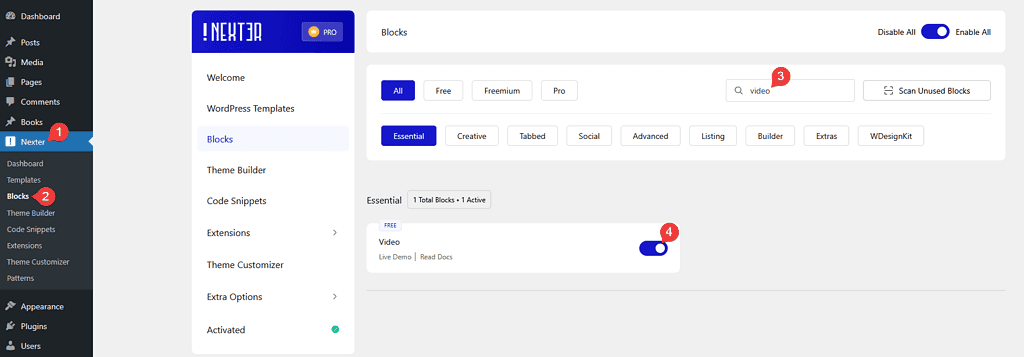
The video background option sits inside the Container block’s background settings, alongside the color, gradient and image background types Nexter Blocks already supports. Add a Container block where you want the hero to sit, open its Background panel, and switch the background type to Video. From there you upload the file directly or paste a hosted MP4 URL, the same panel that handles Nexter’s deep-layer background effects like scroll-triggered animation and creative gallery layers for container backgrounds.
Also Read: Gutenberg Core Web Vitals: How to Speed Up a Block-Theme WordPress Site for the wider performance picture a hero video setting fits into.
Step by Step
- Add a Container block to the page, and set it to full-width or full-height depending on how much of the viewport the hero should fill.
- Open the container’s Background settings and set the background type to Video.
- Upload your compressed MP4, or paste the URL of an already-hosted file.
- Set a static fallback/poster image. This is what shows before the video loads, and what displays if video playback fails for any reason.
- Add an overlay color at low opacity over the video so your heading and button text stay readable regardless of what is happening in the footage.
- Place your heading, subtext and a button inside the same container, stacked on top of the video layer.
Walking Through a Real Example
Say you are building the homepage for a small studio and you have a 20-second drone clip of the workspace that you want as the hero background. Start by trimming it down to the best 8 seconds in any basic video editor, footage that already loops reasonably well at the cut point, since a hero video that visibly jumps at the loop point looks worse than no motion at all. Export at 1920×1080, H.264, and check the resulting file size. If it is still over 5MB, drop the bitrate rather than the resolution; a slightly lower-bitrate 1080p file compresses better and still looks sharp at hero size than a heavily downscaled one does.
In the Container block, set the background type to Video and upload that file. For the poster image, grab a single clean frame from the video itself rather than an unrelated stock photo, so there is no visual jump between the fallback image and the video once it loads. Add a dark overlay at around 30 to 40 percent opacity so white heading text stays legible over both light and dark moments in the footage, then place your H1, a one-line subheading, and a single call-to-action button inside the same container.
Hosting and Delivery: Where the File Actually Lives Matters
A compressed, well-sized video file can still load slowly if it is being served inefficiently. Uploading it directly into the WordPress media library and serving it straight from your own hosting works fine for a small to mid-size site, but if your host is not fronted by a CDN, visitors farther from your server’s physical location will see a noticeably slower first load. If your site already runs behind a CDN for images and static assets, confirm video files are actually covered by the same caching rules rather than being served uncached by default, which some CDN configurations do unless video mime types are explicitly included in the rule set. For higher-traffic sites, hosting the file on a dedicated video CDN and pasting that hosted URL into the Container block’s video field, rather than uploading directly to WordPress, is worth the extra setup step, since it takes the file off your own web server’s bandwidth entirely.
Also Read: How to Create a Landing Page in WordPress (With and Without a Plugin) if this hero section is going on a dedicated landing page rather than the homepage.
Do Not Lazy-Load the Hero Video
Lazy loading is the right default for almost every image and video further down a page, deferring anything below the fold until a visitor actually scrolls to it. A hero background is the one deliberate exception. It is visible the instant the page loads, so lazy-loading it does not save any real bandwidth, it just adds a visible delay before the hero shows its intended background instead of a blank or placeholder state.
Fallback Image and Mobile Behavior
Always set a real fallback/poster image, not a black or blank frame. It is what visitors on a slow connection see while the video buffers, and it is what search engine crawlers effectively “see” for that section since they do not render autoplaying video the way a browser does. On mobile, seriously consider showing the static fallback image only and skipping the video entirely. Mobile data caps and slower connections make autoplay video a worse trade there than it is on desktop, and most page builders, Nexter Blocks included, let you set different background behavior per breakpoint for exactly this reason.
When to Skip Video Entirely
A video background earns its keep when motion actually communicates something, a product in use, a space, an action, that a static image cannot. It is a worse choice when it is decorative only, when your hosting cannot serve video efficiently, or when the site’s audience skews toward slower connections. In those cases, a well-compressed animated loop treated purely as a lightweight background texture, or simply a strong static photograph with good typography over it, will outperform a “real” video background on both load time and, usually, on how it actually looks.
Video Background vs the Alternatives
It helps to actually weigh the option against what it is competing with, instead of defaulting to video because it looks modern. A static hero image is the lightest option by far, loads instantly, and is the safest default when you are not sure motion adds anything. A muted looping video adds real production value when the footage is genuinely worth watching, at the cost of extra weight and more moving pieces to get right. A subtle CSS or Lottie animation, a slow gradient shift, a light parallax effect, an animated SVG, often gets you most of the “this feels alive” effect of video at a fraction of the file size, and it is worth trying before you commit to shooting or sourcing video footage at all. None of these is universally correct. The right call depends on whether you actually have footage worth showing, and how much your audience’s typical connection speed can absorb.
Accessibility: Autoplay Video Is Not a Free Pass
Autoplaying background motion is a real accessibility consideration, not an edge case to ignore. Some visitors have vestibular disorders that make constant motion on a page genuinely uncomfortable, and modern browsers expose a prefers-reduced-motion setting specifically so a site can respect that preference. Where you can, fall back to the static poster image when a visitor has reduced motion turned on at the OS level, and never rely on the video itself to convey information the rest of the page does not also state in text.
Where This Actually Works Well
- SaaS product hero. Showing the actual interface in motion communicates more in five seconds than a paragraph of copy.
- Restaurant, venue or hospitality site. Ambient footage of the space itself, since atmosphere is the actual product being sold.
- Event or conference site. Highlight footage from a previous year sets expectations before a single word of copy is read.
- Creative agency or studio portfolio. Motion as part of the brand statement itself.
Troubleshooting: When It Does Not Behave
A handful of issues account for most video background problems. If the video is not autoplaying at all, the near-universal cause is that it is not actually muted, browsers block autoplay with sound by default regardless of any other setting, so double-check that the muted attribute is genuinely applied rather than just the in-editor volume turned down. If it plays once and stops instead of looping, check that loop is enabled in the background settings rather than assuming a single upload loops by default. If the video looks fine on desktop but never appears on mobile, that is very often intentional, many builders default to a static fallback on mobile for exactly the performance reasons covered above, so check your mobile-specific background setting before assuming something is broken. And if the page feels slow specifically after adding the video, re-check the file size and bitrate first, almost every “video background is killing my page speed” complaint traces back to a source file that was never actually compressed before upload.
Quick Reference Checklist
- File: 5 to 15 seconds, muted, H.264 MP4, ideally under 3 to 5MB.
- Setting: Container block > Background > type set to Video.
- Fallback: a real poster image pulled from the footage itself, not a blank frame.
- Overlay: a dark layer at roughly 30 to 40 percent opacity so text stays legible.
- Mobile: static fallback only, unless you have specifically tested video performance on a mobile connection.
- Accessibility: respect
prefers-reduced-motionwhere you can. - Loading: exclude the hero container from any sitewide lazy-loading rule.
Wrapping Up
Compress the source file first, set the background type to Video in the Container block’s background settings, always give it a real fallback image, and think seriously about turning video off for mobile. Get those things right and a video background hero adds polish without becoming the reason your homepage fails its performance score.
Frequently Asked Questions
Does autoplaying background video hurt SEO?
Not directly. Google does not penalize autoplay video by itself, but a heavy, unoptimized file that slows down Core Web Vitals can indirectly hurt rankings, which is why the file size and compression matter more than the feature itself.
What’s the maximum file size I should upload for a background video?
There’s no hard limit, but staying under roughly 5MB for a short 5 to 15 second loop keeps load time reasonable on most connections. Anything larger is worth compressing further, or trimming shorter, before upload.
Can I use an animated GIF instead of a real video?
Technically yes, but a GIF is usually far larger than an equivalent H.264 video for the same visual result. A muted, looped MP4 is almost always the lighter choice for a hero background.
Does Nexter Blocks support YouTube or Vimeo as a background source?
The Container block’s video background is built around a direct file upload or a hosted MP4 URL, not an embedded platform player. For actual YouTube or Vimeo video content, use a dedicated video embed block instead, which is a different use case than a background layer.
Suggested Reading
- Gutenberg Core Web Vitals: How to Speed Up a Block-Theme WordPress Site
- Nexter Blocks Smooth Scroll and Glassmorphism Effects: A 2026 Design Tutorial
- How to Create a Landing Page in WordPress (With and Without a Plugin)
- Nexter Theme Header Builder: Building a Sticky, Transparent, or Mega-Menu Header
