How to Send a Message to a Slack Channel from a WordPress Form?

Key Takeaways

  • Nexter Blocks includes a Form block that connects WordPress forms to a Slack channel for real-time alerts.
  • Users must provide a Slack User OAuth Token and a Channel Name to enable message notifications in Slack.
  • The Form block allows customization of form fields and supports sending messages to a selected Slack channel upon submission.
Table of Contents

Want real-time alerts in Slack whenever someone submits your WordPress form? By connecting your form to a Slack channel, you can instantly notify your team, track leads, or manage support requests without missing a beat. 

With the Form block from Nexter Blocks, you can easily connect a Slack channel to your WordPress form.

To check the complete feature overview documentation of the Nexter Blocks Form block, click here.

Requirement  – This block is a part of the Nexter Blocks, make sure it’s installed & activated to enjoy all its powers.

Learn via Video Tutorial

YouTube video

For this, you must have a Slack User OAuth Token and a Channel Name.

Get a Slack User OAuth Token

Create an account in Slack if you don’t already have one. Once you are logged into your account, follow the steps – 

Note: You must have a workspace in your Slack account; if not, then create a workspace in Slack.

1. Go to the Slack API.

2. Click on Your apps in the top menu.

slack oauth 1

3. On the next page, click on the Create an App button.

slack oauth 2

4. It will open a pop-up; click on From scratch.

slack oauth 3


5. In the next screen, add your app name.

6. Then select the appropriate workspace and click on the Create App button.

slack oauth 4

7. In the Settings page, click on OAuth & Permissions from the left sidebar.

slack oauth 5


8. In the OAuth & Permissions page, scroll down to the Scopes section. In the User Token Scopes section, add the necessary scopes. For example, to read messages, add channels: history; to post messages, add chat: write.

9. Then scroll up to the page and click on the Install to (Your Workspace Name) button.

slack oauth 7

10. If you are the admin of the workspace, then just click on the Allow button, and your app will be installed.

slack oauth 8

On the next screen, you’ll see your User OAuth Token; copy it into a notepad.

slack oauth 9

Find a Slack Channel Name

In your Slack app, all the names under the Channel dropdown are channel names. A Slack channel name starts with #, so copy the channel name where you want to send the messages.

slack channel name 1

Use the Form Block

Now, add the Form block to the page and select the appropriate form type, then follow the steps –

1. Add the required form fields and customize them as per your requirements.

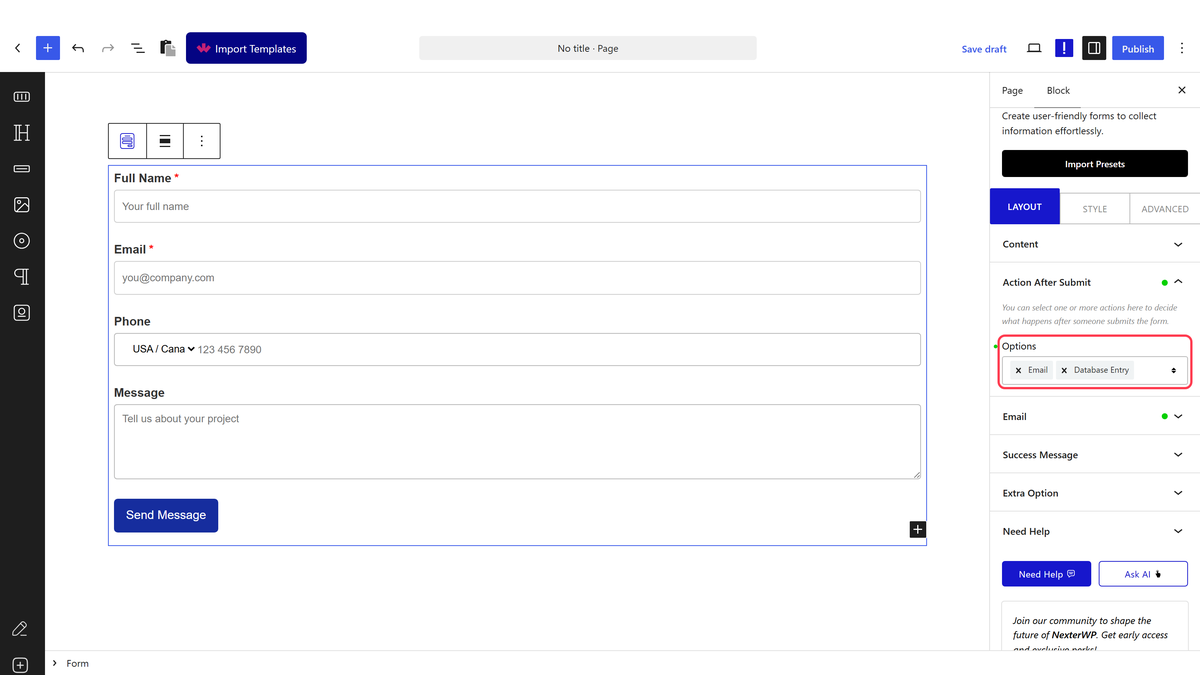
2. Then select the main form block and go to the Action After Submit tab and select Slack from the Options dropdown.

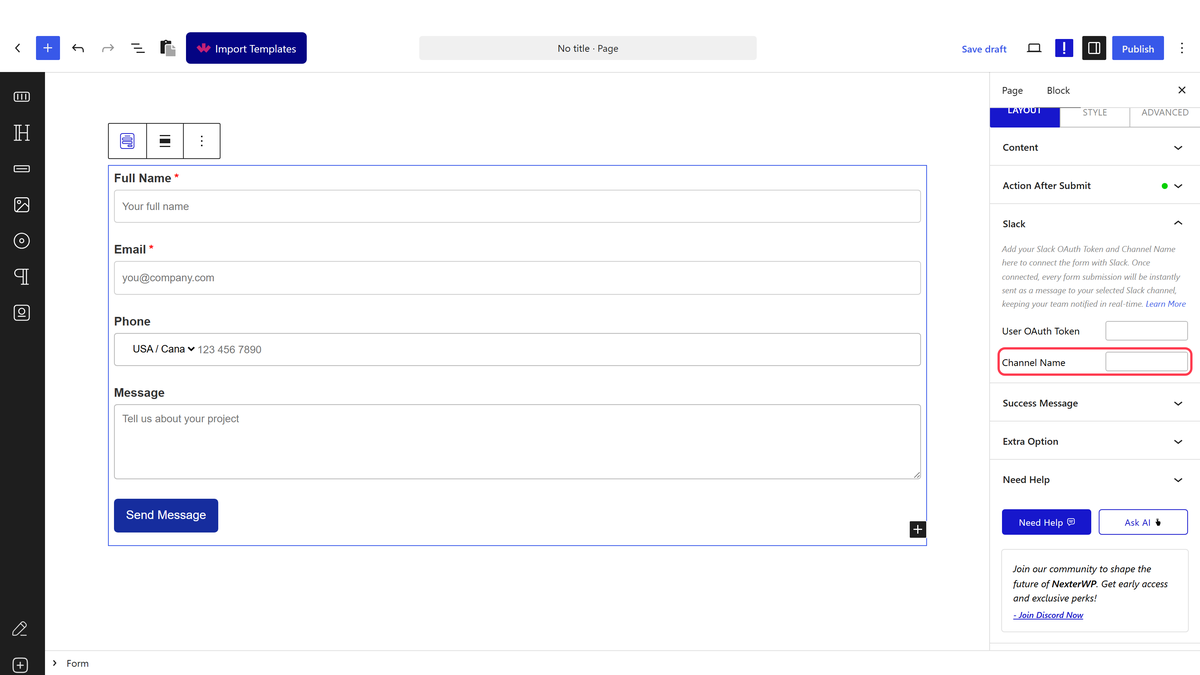
3. Now you’ll see the Slack tab, open it.

4. Then add your User OAuth Token and the channel name where you want to send the message in the User OAuth Token and Channel Name fields.

Note: Make sure to add the channel name with # in front.

Now, when a user fills out your form, it will add a message in your selected Slack channel.

About the Author

Photo of Aditya Sharma CMO of NexterWP
CMO at POSIMYTH Innovations · NexterWP · 7 years experience

He has spent years in the WordPress ecosystem building, breaking, and optimizing sites until they actually perform. He works at the intersection of speed, growth, and usability, helping creators ship websites that load fast and convert. An active WordPress community contributor sharing through tools, tutorials, and direct collaboration. Tested practice, not theory.

WordpressThemesElementorn8nAIClaudeAutomationServer

Share your Thoughts

Get Instant Answers to all your questions about Nexter Blocks,
Extensions & Theme trained on 1000+ Docs and Videos

Still in Doubt? Let’s Assist You

Have Feedback or Questions?

Join our WordPress Community on Facebook!

Related Frequently Asked Questions

What should I do if my Slack User OAuth Token isn't working?

If your Slack User OAuth Token isn't working, double-check that you've followed the steps to create the app correctly in the Slack API. Ensure that you've added the necessary scopes in the OAuth & Permissions section, such as 'channels:history' for reading messages and 'chat:write' for posting messages. If you're not the admin of the workspace, you may need to request permission to install the app.

Can I send messages to multiple Slack channels from one WordPress form?

The tutorial does not mention sending messages to multiple Slack channels from one form. However, you can create multiple forms, each configured with a different channel name. This way, you can manage notifications across various channels based on the forms submitted.

What is the best way to customize my WordPress form before sending messages to Slack?

Customize your WordPress form by adding relevant fields that match your needs, such as name, email, and message. This ensures that the information sent to Slack is useful and actionable. Use the Form block from Nexter Blocks to easily modify the form fields and set up notifications effectively.

What happens if I forget to include the '#' in my Slack channel name?

If you forget to include the '#' in your Slack channel name, the message will not be sent to the intended channel. Slack requires the channel name to start with '#' to recognize it correctly. Always double-check the channel name format before finalizing your form settings.

How can I find my Slack channel name for the integration?

To find your Slack channel name, open your Slack app and look for the names listed under the Channel dropdown. Remember that a Slack channel name starts with '#', so copy the channel name exactly as it appears, including the '#', to ensure proper integration with your WordPress form.

Last reviewed: April 14, 2026

Related Docs