How to Make a GDPR Compliant Form in WordPress?

Key Takeaways

  • Nexter Blocks Form block allows users to add an acceptance checkbox for GDPR compliance.
  • Users can customize the Agree to Terms field text directly in the editor or from the Label field under the Content tab.
  • The Required toggle can be enabled to make the acceptance checkbox mandatory before form submission.
Table of Contents

Are you looking to make your WordPress form GDPR compliant? For WordPress users, creating a GDPR-compliant form is not just a legal obligation; it is also a crucial step towards building trust with your audience.

With the Form block from Nexter Blocks, you can easily add an acceptance checkbox to make your form compliant with GDPR.

To check the complete feature overview documentation of the Nexter Blocks Form block, click here.

Requirement  – This block is a part of the Nexter Blocks, make sure it’s installed & activated to enjoy all its powers.

To do this, add the Form block to the page and select the appropriate form type, then follow the steps – 

1. Add the required form fields and customize them as per your requirements.

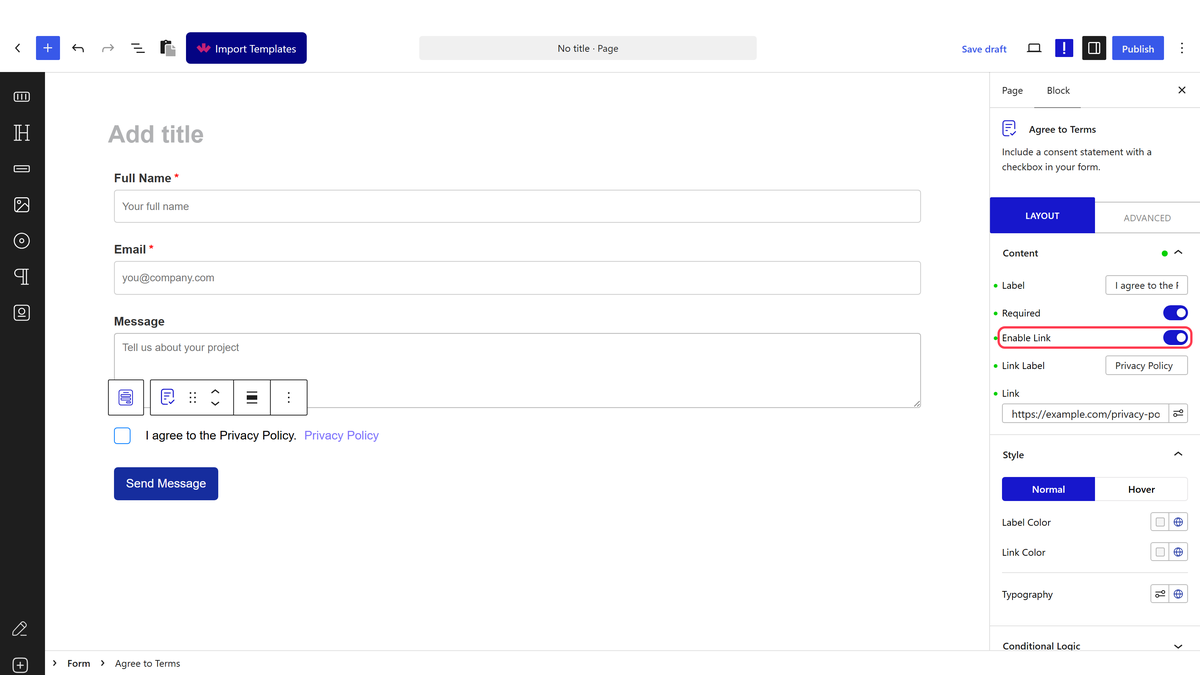
2. Then add the Agree to Terms field. It will add an acceptance checkbox.

3. Edit the text as per your requirement. You can edit the text directly in the editor or do it from the Label field under the Content tab.

4. Then enable the Required toggle to make it mandatory. 

You can also add a link to the text by enabling the Enable Link toggle, or you can directly select the text and add a link from the editor. You can use this feature to link to your terms and conditions or privacy policy page.

From the Style tab, you can customize the style of the text.

Now your users have to check the acceptance checkbox before submitting the form.

About the Author

Photo of Aditya Sharma CMO of NexterWP
CMO at POSIMYTH Innovations · NexterWP · 7 years experience

He has spent years in the WordPress ecosystem building, breaking, and optimizing sites until they actually perform. He works at the intersection of speed, growth, and usability, helping creators ship websites that load fast and convert. An active WordPress community contributor sharing through tools, tutorials, and direct collaboration. Tested practice, not theory.

WordpressThemesElementorn8nAIClaudeAutomationServer

Share your Thoughts

Get Instant Answers to all your questions about Nexter Blocks,
Extensions & Theme trained on 1000+ Docs and Videos

Still in Doubt? Let’s Assist You

Have Feedback or Questions?

Join our WordPress Community on Facebook!

Related Frequently Asked Questions

What should I do if the acceptance checkbox isn't appearing in my form?

If the acceptance checkbox isn't showing up, ensure that you have added the Agree to Terms field correctly. This field is essential for making your form GDPR compliant. You can add it by selecting the appropriate form type in the Nexter Blocks Form block and customizing the fields as needed.

What is the best way to customize the acceptance checkbox text?

To customize the acceptance checkbox text, you can edit it directly in the editor or modify it from the Label field under the Content tab. This allows you to tailor the message to fit your site's tone and clearly communicate what users are agreeing to, which is crucial for compliance.

What happens if I forget to enable the Required toggle for the acceptance checkbox?

If you forget to enable the Required toggle for the acceptance checkbox, users may submit the form without agreeing to your terms, which can lead to non-compliance with GDPR. Always ensure this toggle is enabled to make the checkbox mandatory before form submission.

Is the Nexter Blocks Form block compatible with other page builders?

The Nexter Blocks Form block is designed primarily for Gutenberg, but it also supports Elementor and Bricks. This flexibility allows you to create GDPR compliant forms regardless of the page builder you prefer, as long as you have the necessary blocks installed and activated.

Last reviewed: April 14, 2026

Related Docs