












A footer with several link columns usually treats them as separate lists. They don’t have to be.
Interactive Links, set to Global, connects several Stylish List blocks — one per footer column, say — so hovering a link in any of them dims every other block in the group at once.
For every Dynamic Device setting in one place, see the Icon List block guide.
Before You Start
- Edition: Free — the Stylish List block works in Nexter Blocks (free) and Nexter Blocks Pro.
- Block to enable: Stylish List, switched on under Nexter > Blocks in your WordPress dashboard.
- Two or more Stylish List blocks, one for each column that should react together.


Steps
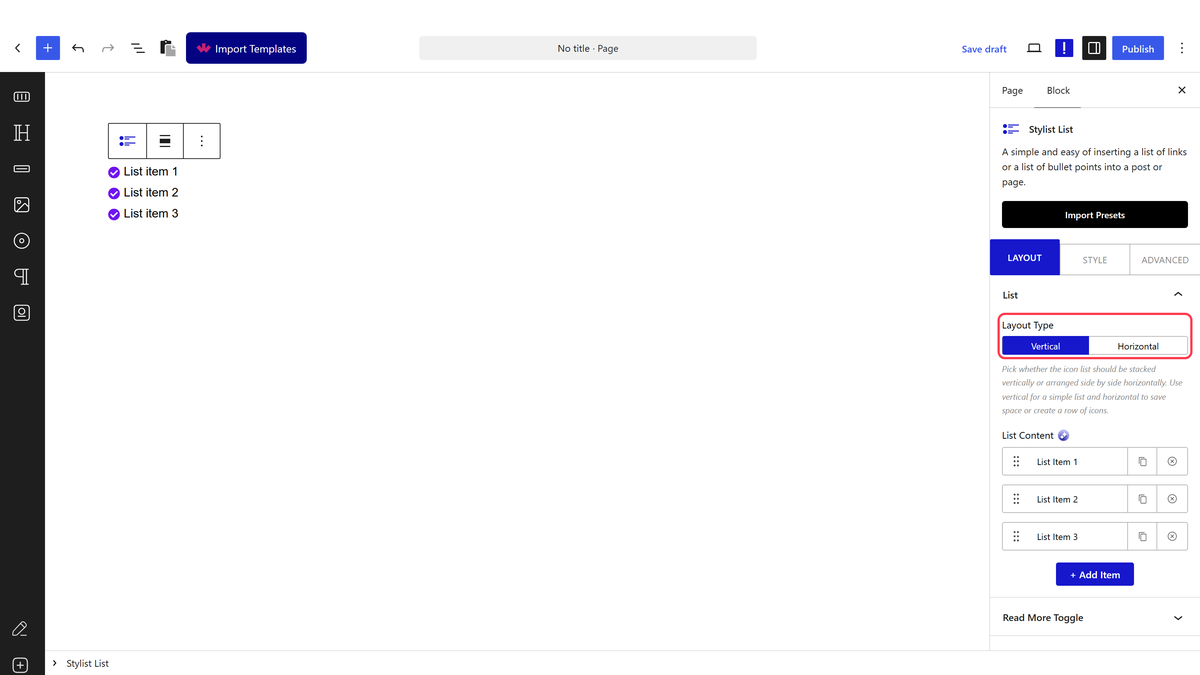
- Add the Stylish List block and add a row for each item, with its own text and icon.
- Switch on Interactive Links under Layout > Interactive Hover Connection.
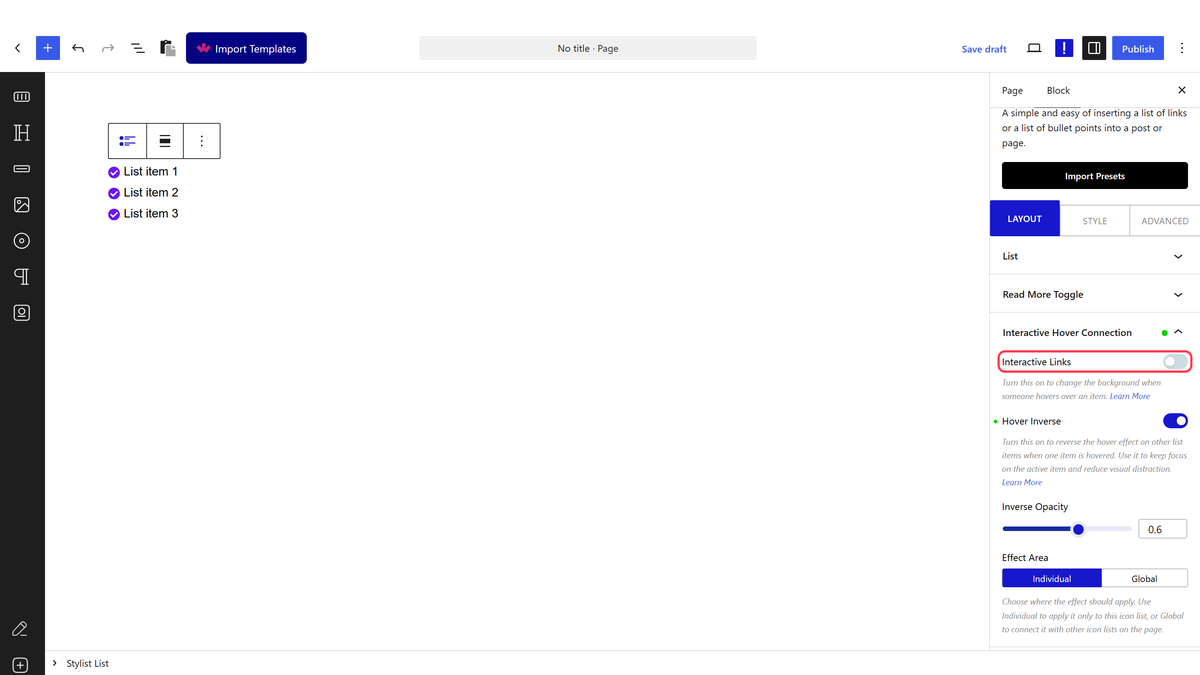
- Set Effect Area to Global.
- Give every list block that should react together the same Global ID.
- Repeat for each footer column’s Stylish List block.
Global reaches other Stylish List blocks on the same page. Measured with two separate blocks sharing the same Global ID: hovering an item in one dimmed items in both, even though only one was ever touched.
How It Behaves
- Individual mode stays inside one block — hovering an item dims only the other items in that same list, measured as opacity dropping to 60% on everything except the hovered item.
- Global reaches other Stylish List blocks on the same page. Measured with two separate blocks sharing the same Global ID: hovering an item in one dimmed items in both, even though only one was ever touched.
- The connection is the Global ID, nothing else. Any Stylish List block set to Global with the same ID joins the group, regardless of where it sits on the page.
- Inverse Opacity controls how much the rest fades, not just on or off — the default measured at 0.6, and it can be set anywhere from barely noticeable to nearly invisible.
Limitations
- Only connects other Stylish List blocks — it does not reach navigation menus or other block types.
- Every block in a group needs the exact same Global ID, typed identically — a typo silently leaves a block out of the group.
- There is no visual indicator in the editor that two blocks share a group — keep a note of the ID you used.
Troubleshooting
Hovering one column doesn’t affect the others
Check every column’s Stylish List block has Effect Area set to Global and the exact same Global ID — measured, a mismatched ID leaves that block out of the group entirely.
The dimming is barely noticeable, or too strong
Adjust Inverse Opacity — lower values fade the rest more.
I only want the effect inside one list, not across the footer
Set Effect Area to Individual instead of Global.
