












Finding a stock photo that matches a layout takes longer than it should, and the result usually looks like stock. The AI image generator creates one from a description, inside the editor.
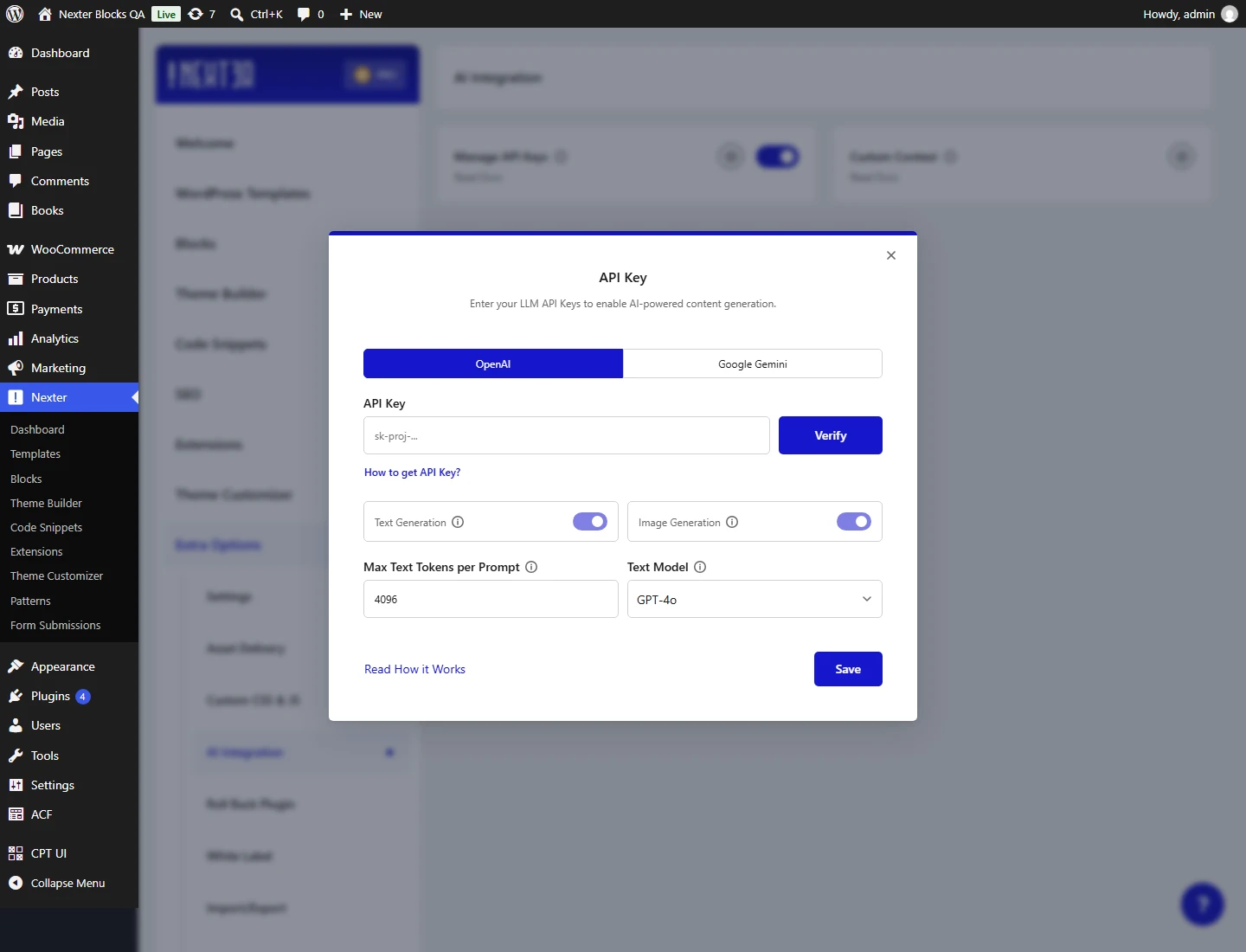
As with text, it uses your own OpenAI or Google Gemini account.
Before You Start
- An API key of your own, from OpenAI or Google Gemini, on a plan that allows image generation.
- You have to be an administrator. Measured across four roles: the AI endpoints require the
manage_optionscapability, which administrators have and editors, authors and subscribers do not. An editor cannot generate AI content. - The AI integration switched on in Nexter’s settings.
Required Setup
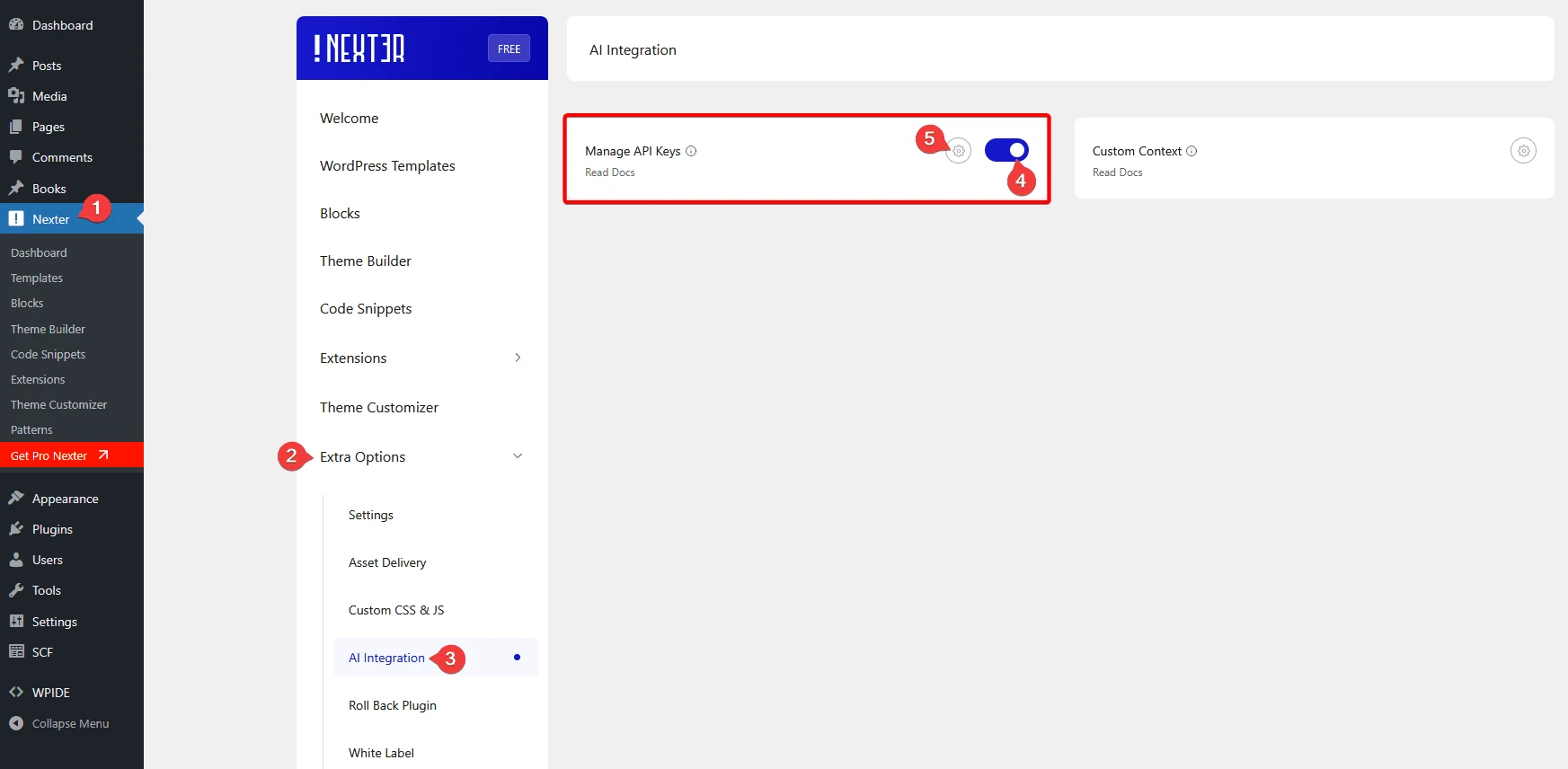
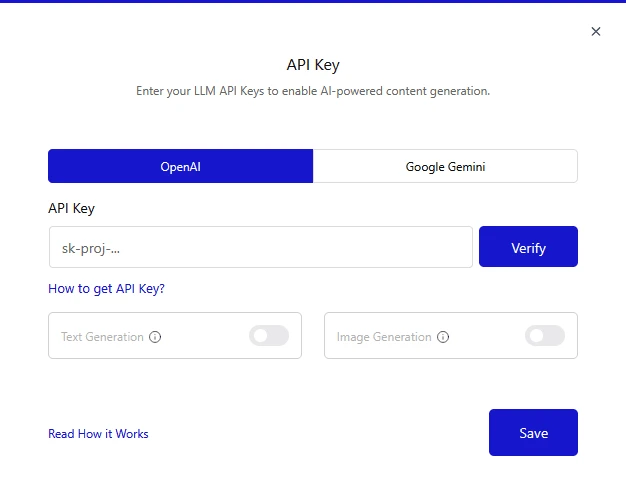
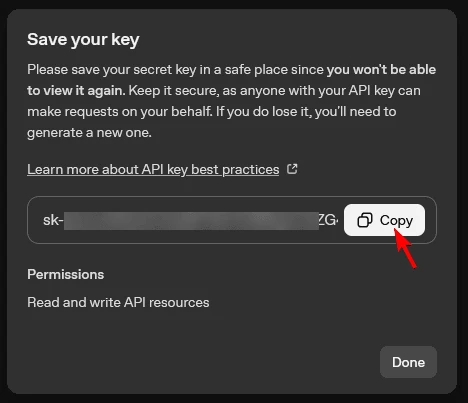
Enable the integration and add your provider key.
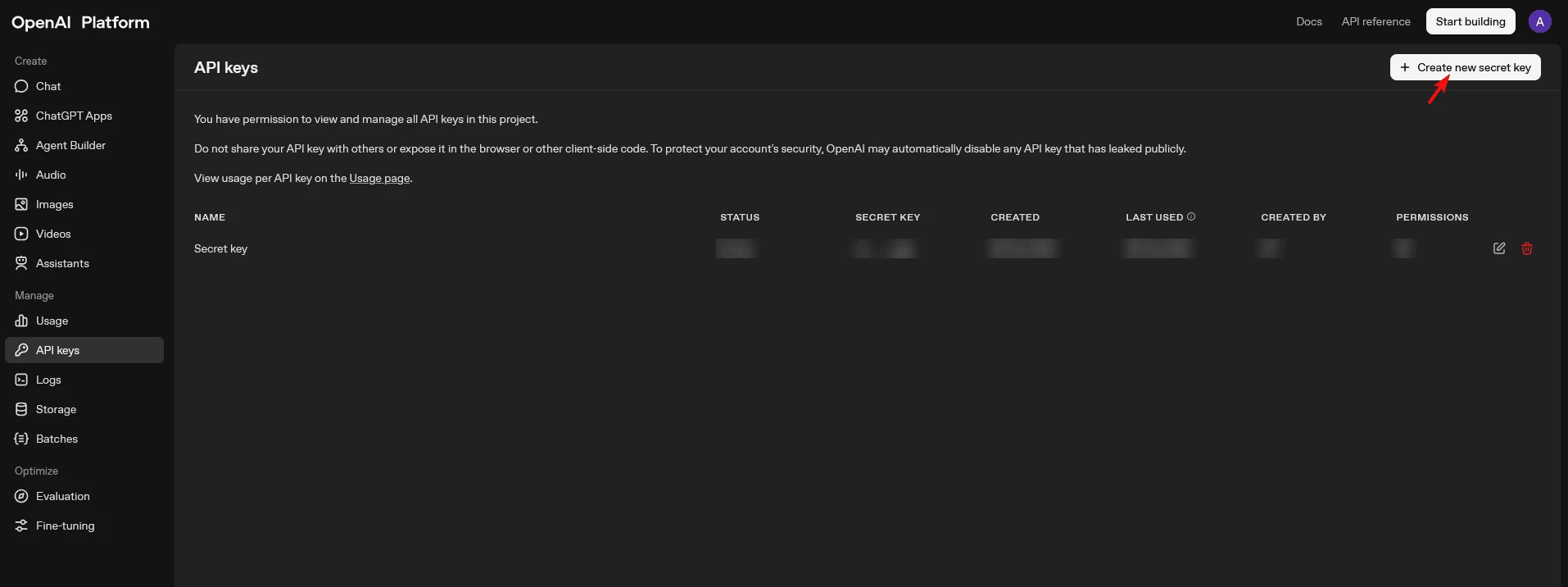
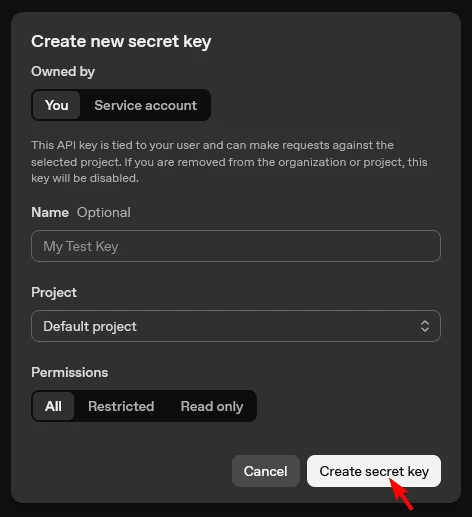
How Your Key Is Stored
- Your API key is stored encrypted. Measured: the settings are written as an encrypted blob and decrypted when used, so the key is not sitting in the options table in readable form.
- You have to be an administrator. Measured across four roles: the AI endpoints require the
manage_optionscapability, which administrators have and editors, authors and subscribers do not. An editor cannot generate AI content. - It costs your visitors nothing. Measured: the AI layer is loaded only inside wp-admin or on its own REST endpoints, so no AI code runs on a front-end page view.
Generating An Image
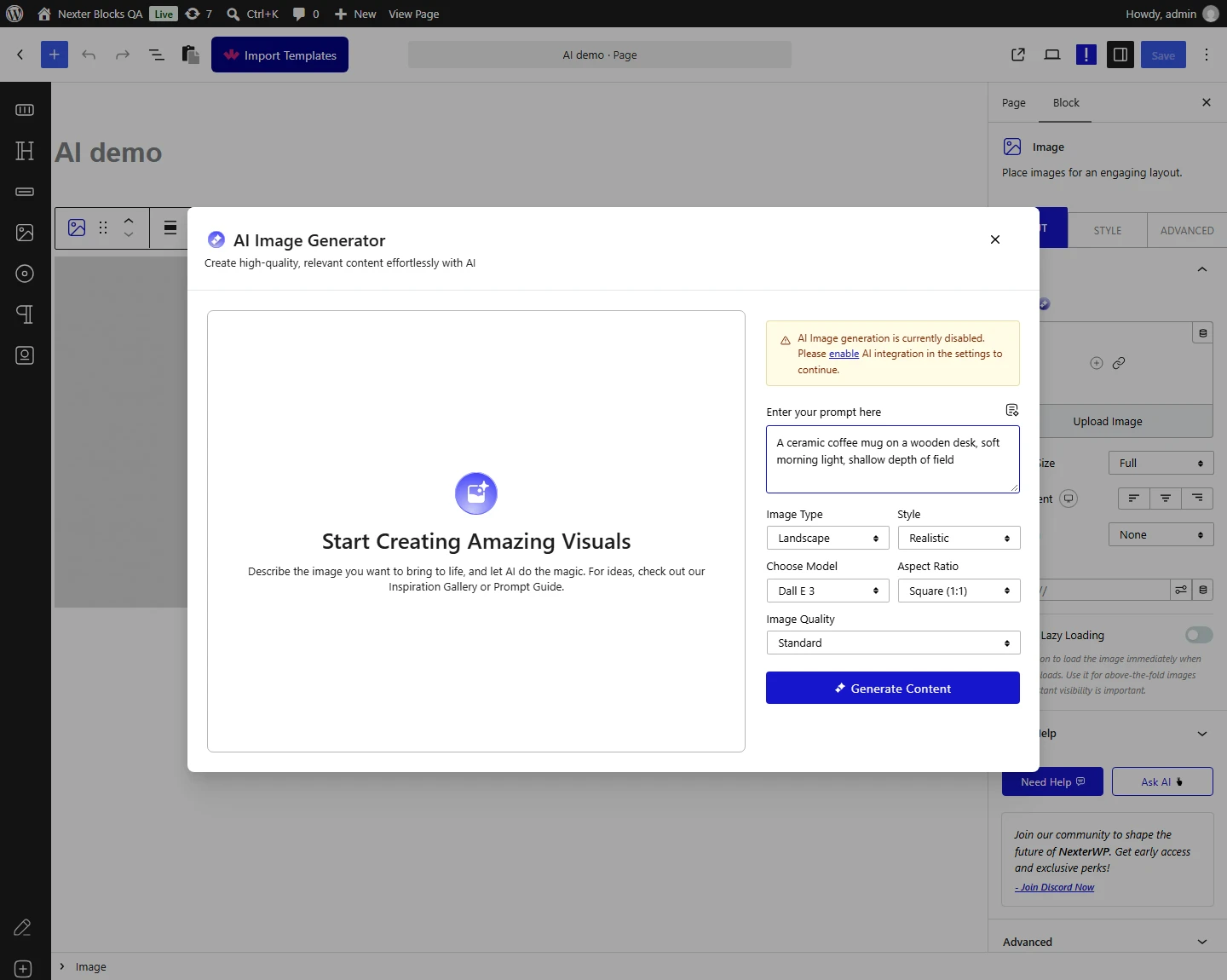
- Generated images are saved into your media library through a dedicated endpoint, so they behave like any other upload afterwards.
- OpenAI models you can choose: GPT Image 1, GPT Image 1 Mini, Dall E 2 and Dall E 3. A new generator dialog shows Dall E 2 (
dall-e-2); choosing Dall E 3 adds the Aspect Ratio and Image Quality fields. Google’s Imagen models are handled through a separate call. - Requests go directly from your site to the provider — measured as OpenAI’s image generations endpoint and Google’s generative language endpoint.
- If you enable both providers, Gemini is used. Measured from the selection logic: Gemini is checked first, and OpenAI is only reached when Gemini is off or has no key. Enabling both does not load-balance or fall back.
Editing And Regenerating
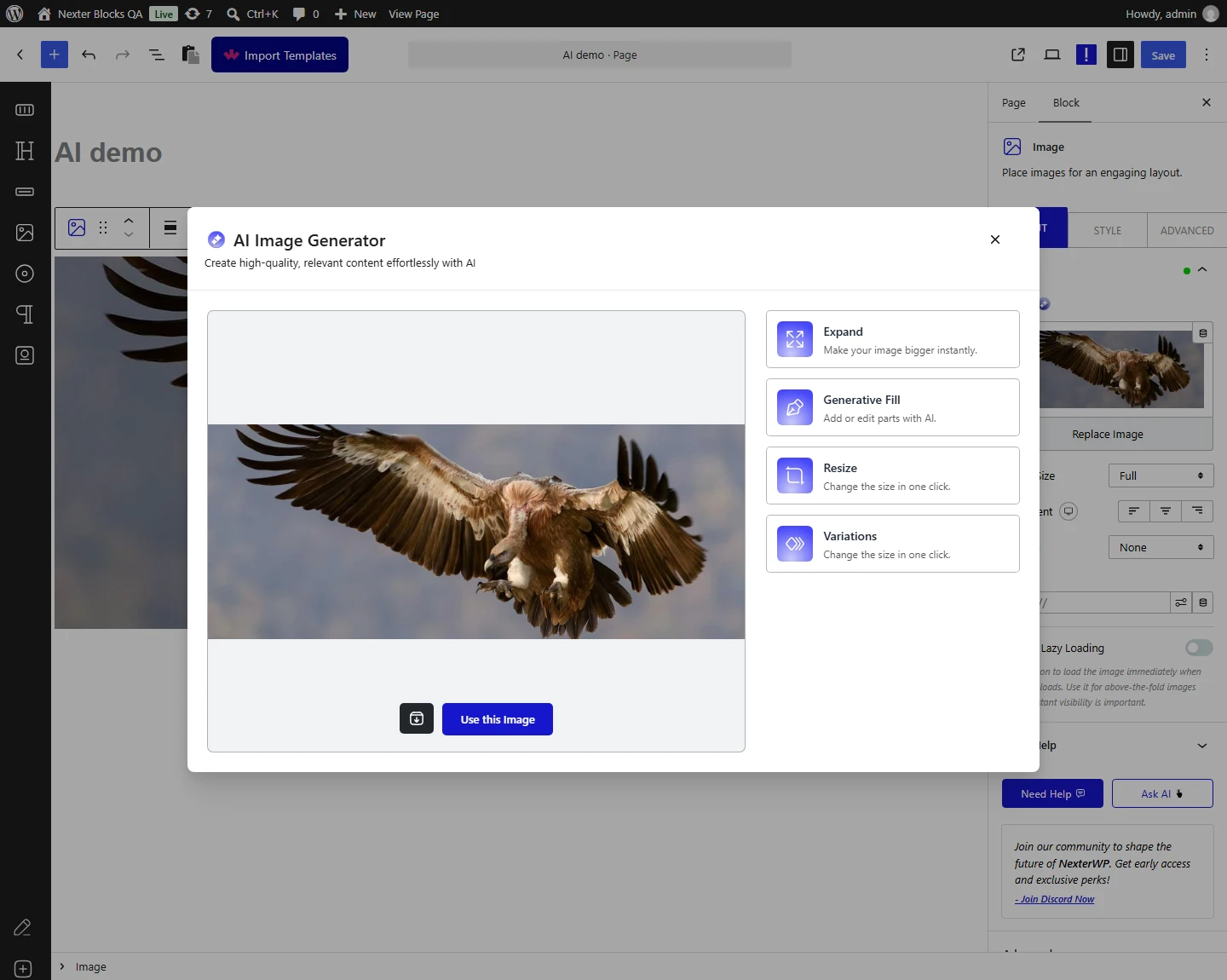
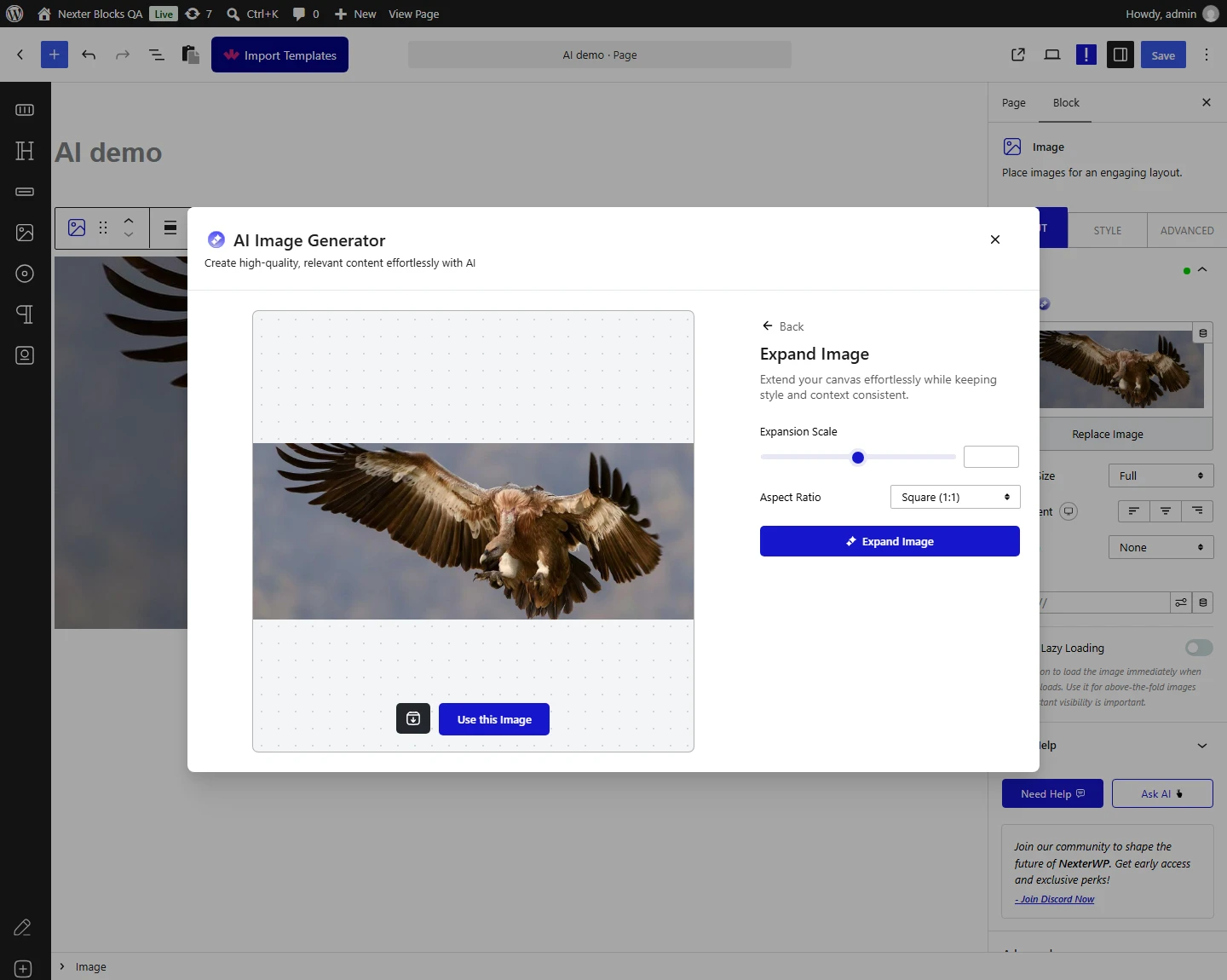
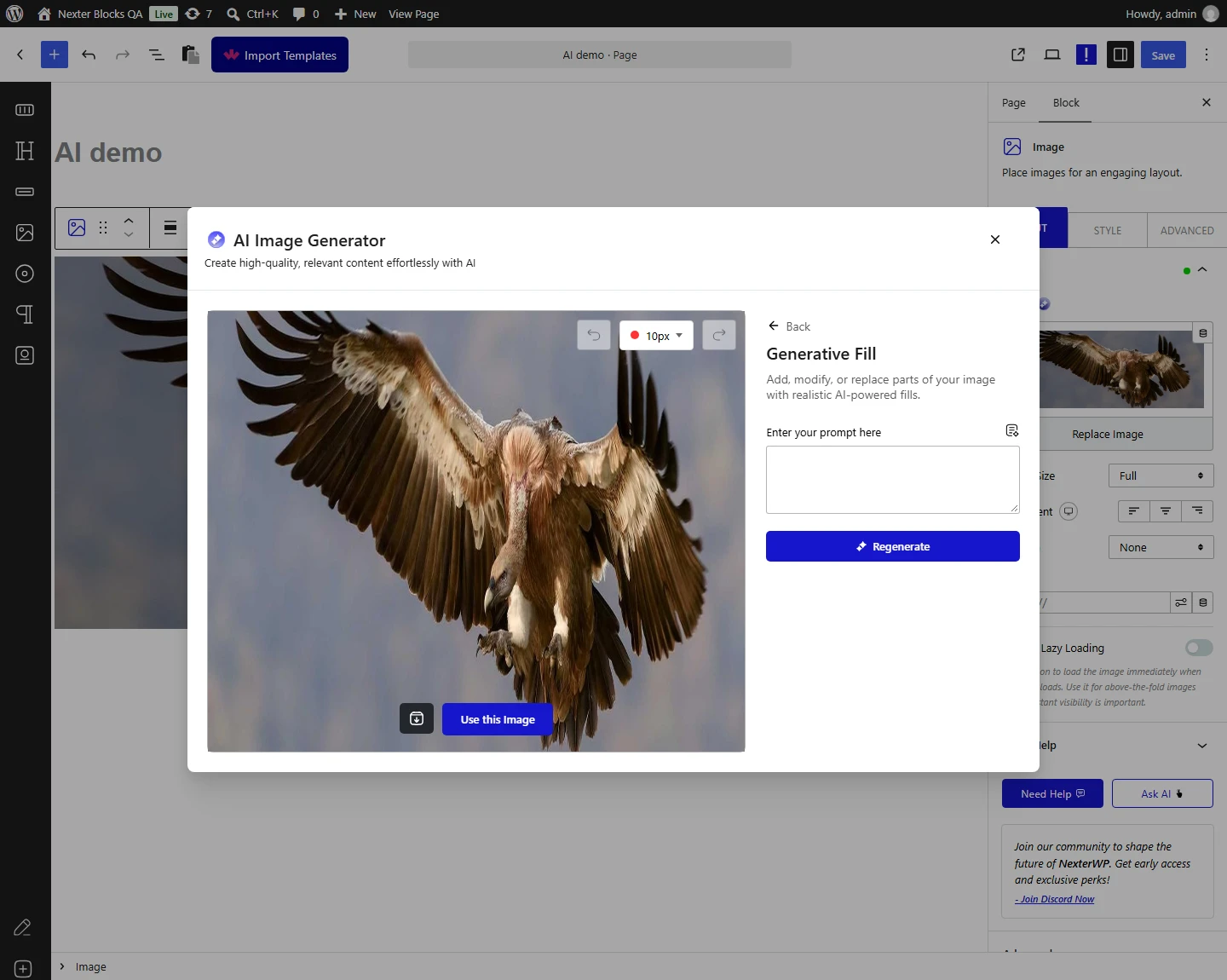
A generated image can be regenerated, edited, expanded or varied without leaving the editor.
- Each of those is its own operation — measured as separate endpoints for editing, expanding, resizing and variations — and each one is a fresh billed request to your provider.
- The generator opens from the AI icon beside the Image field of a block. Besides the prompt it has Number of Images, Image Type and Style fields.
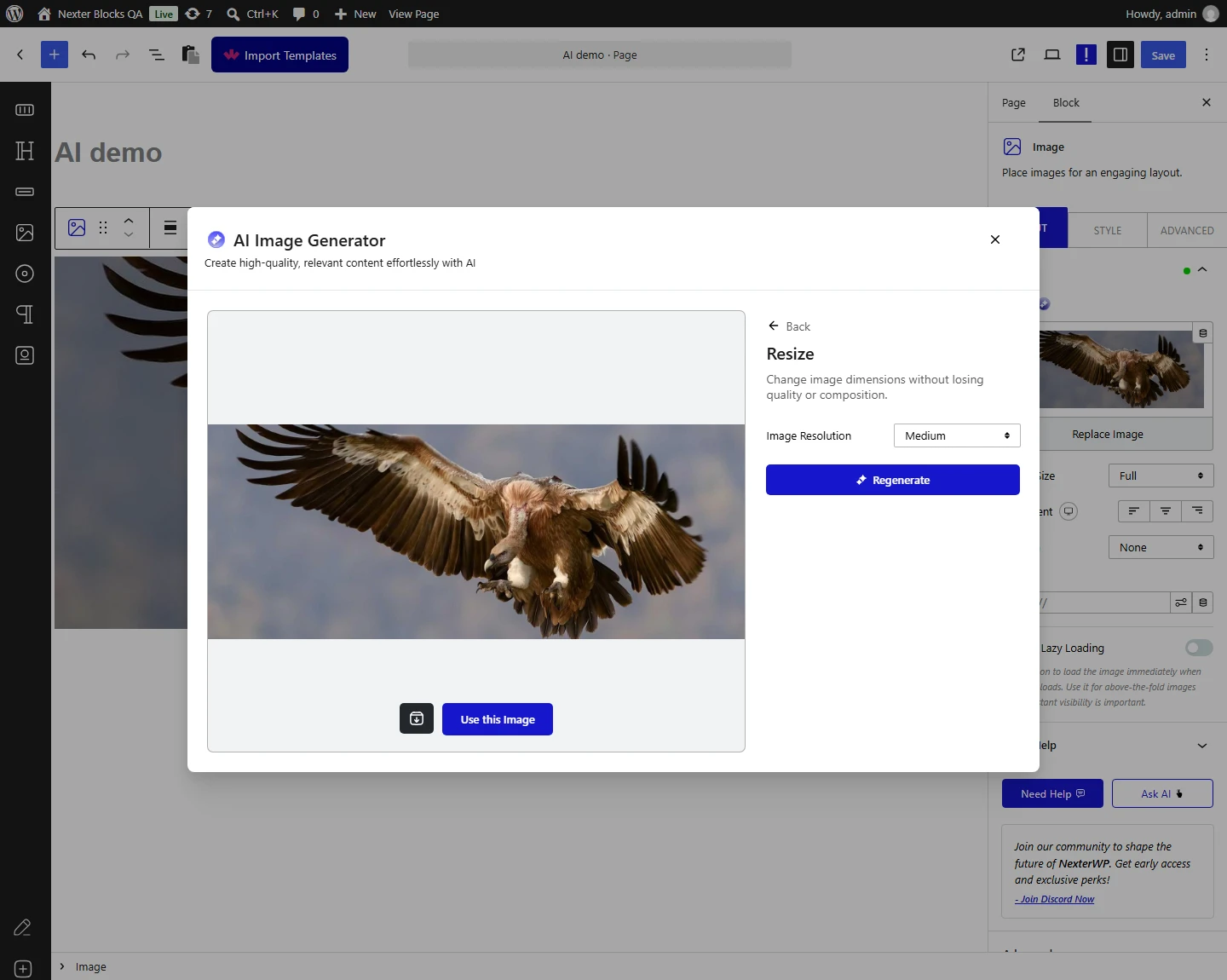
- The edit tools open from the image. With an image in the block, the AI button in the block toolbar offers Expand, Generative Fill, Resize and Variations. Expand takes an Expansion Scale and an Aspect Ratio (Square, Landscape or Portrait). Generative Fill takes a brush size and a prompt. Resize takes an Image Resolution of Normal, Medium or High.
- Prompt enhancement is also a request. Improving a prompt costs a call before you have generated anything.
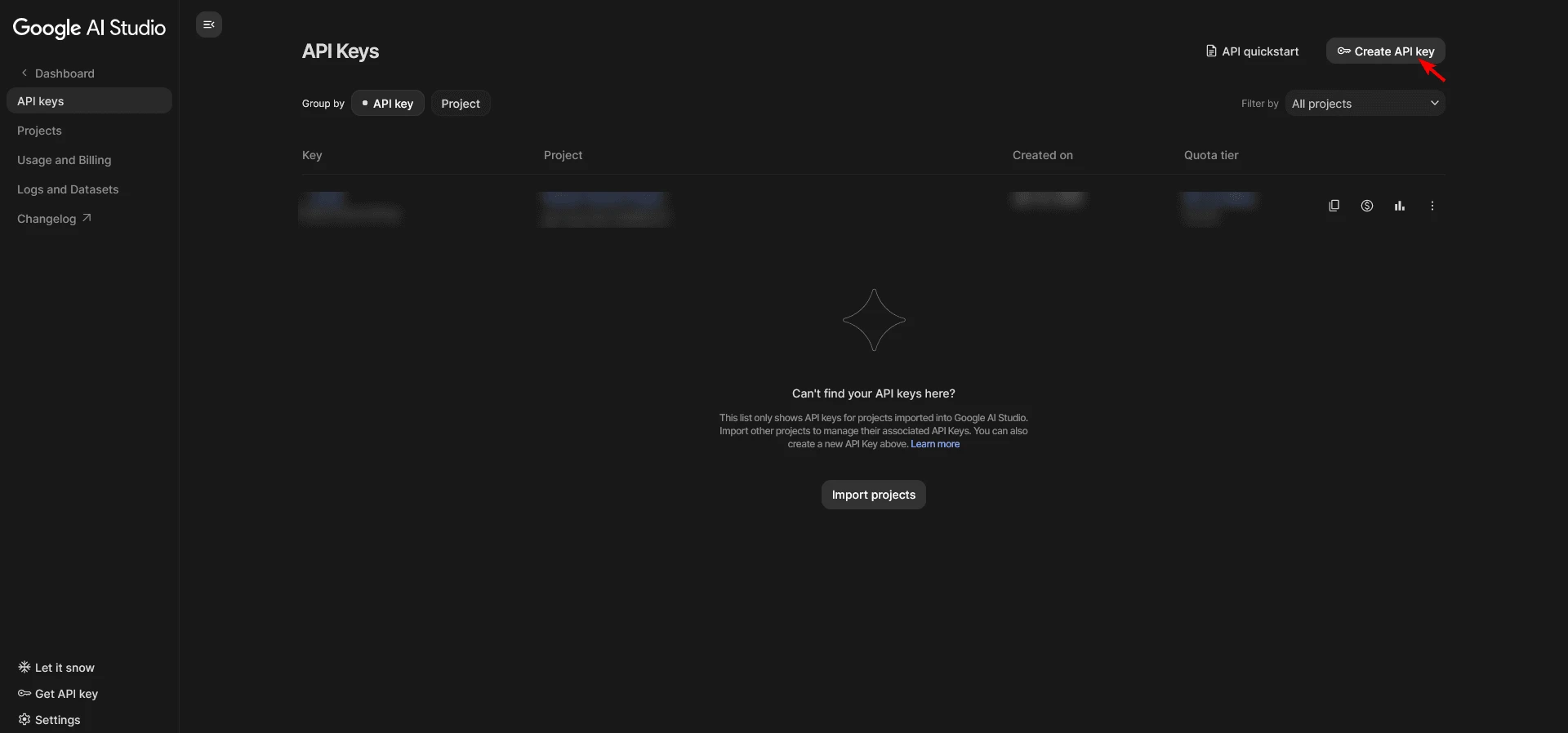
Using Google Gemini
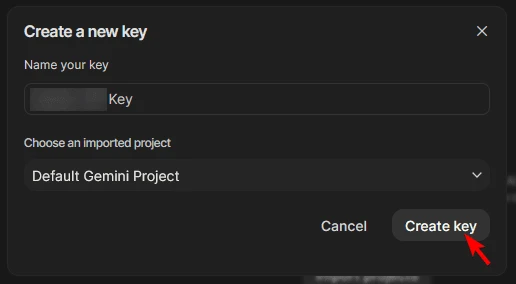
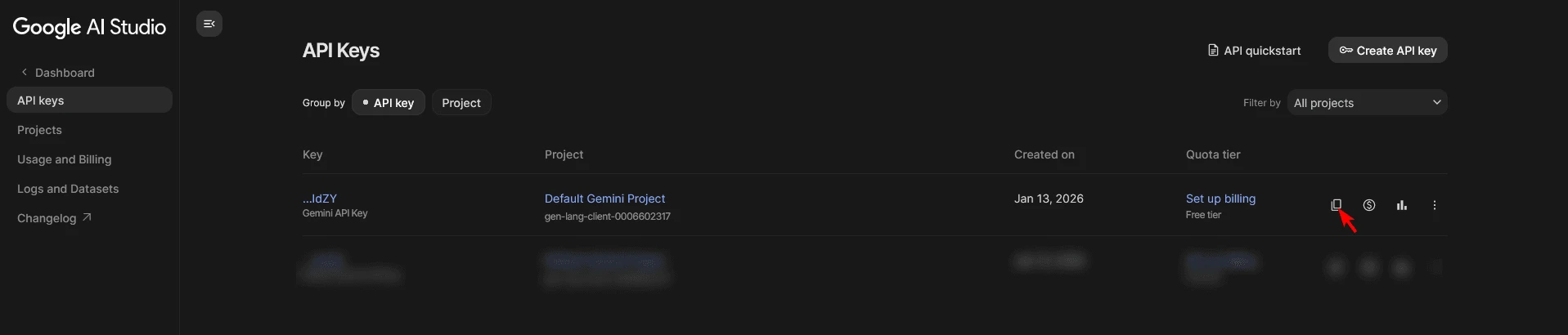
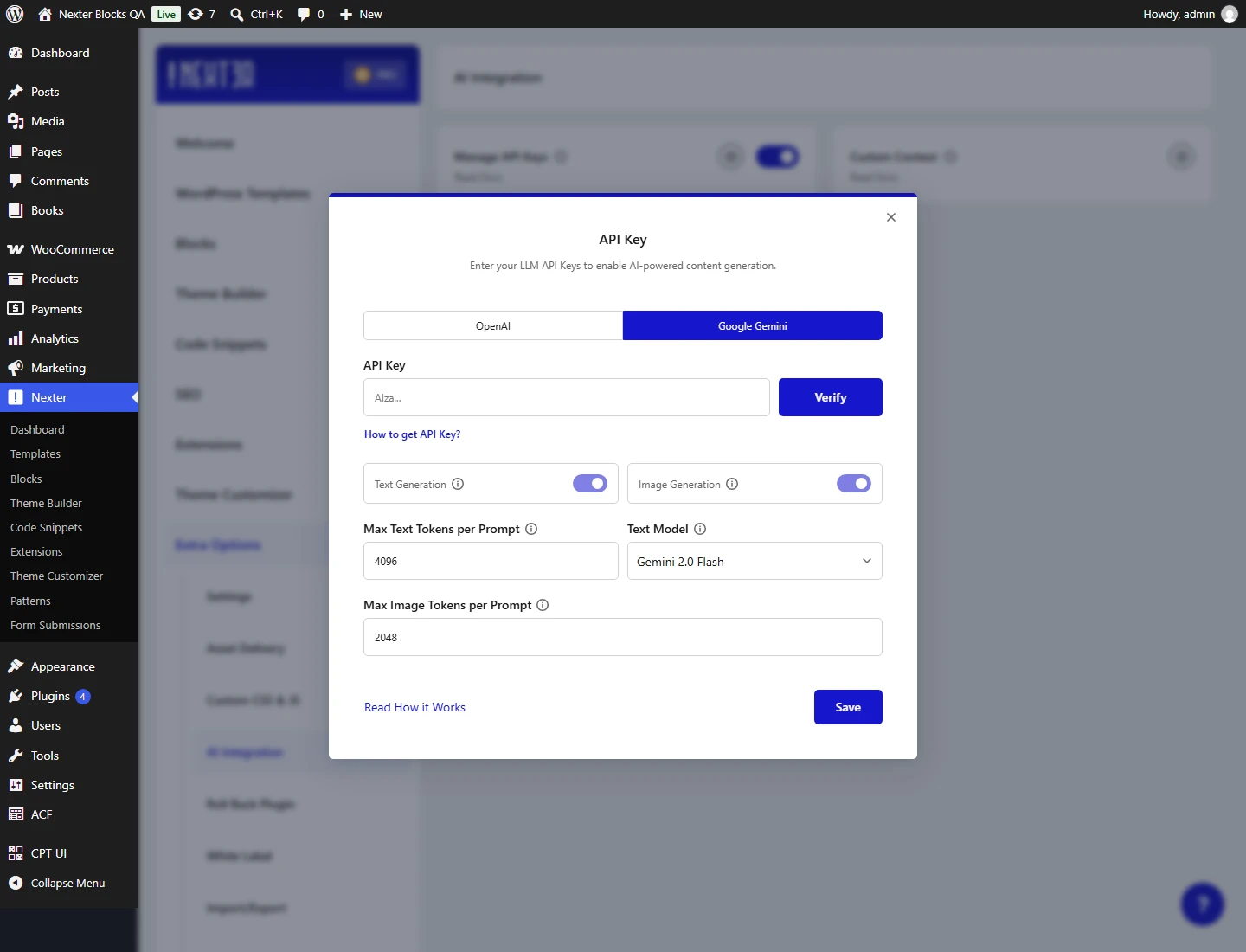
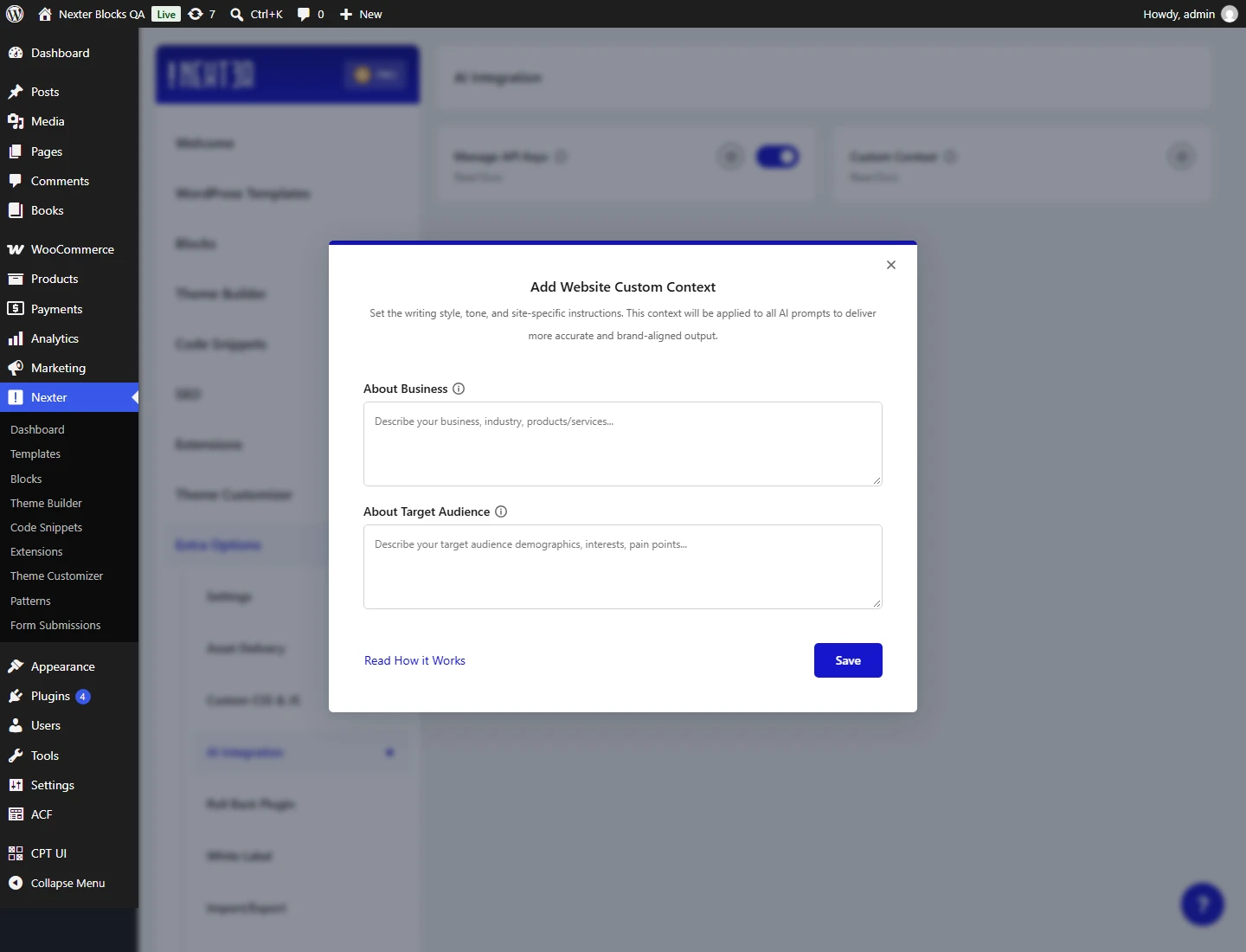
Gemini is configured the same way, with its own key and model selection.
Limitations
- What this page verified, and what it did not. Setup, permissions, storage, provider selection and the exact failure messages were measured on a site with no API key. Generation itself was not exercised, so nothing here describes output quality, token cost or rate limits.
- You pay the provider directly, per image and per edit, with no running total shown in the editor. Image generation is materially more expensive than text.
- Administrators only.
- Generated images still need alt text. Nothing writes it for you, and an image without it is inaccessible.
- Check the licence terms of your provider for commercial use of generated images. That is between you and them; this plugin does not alter it.
- Model names change. The defaults here are current to this version.
Troubleshooting
The AI options are not in the editor
The integration is not enabled, or you are not an administrator.
Generation fails immediately
With nothing configured, image generation reports Settings not found while text reports No AI service is enabled or API key is missing. Both mean the same thing: add a key and enable the provider.
The image generated but is not in my media library
Saving is a separate step from generating. Check that the save completed, and that the user has permission to upload files.
I set an OpenAI key but Gemini is being used
Gemini takes precedence when both are enabled.
