












Rebuilding a section you already designed on another site is wasted work. Cross-Domain Copy Paste lets you copy a Nexter section from one WordPress site and paste it into a different one, with its settings intact.
It works because the copy goes through your computer’s clipboard rather than browser storage, so the two sites do not need to know about each other at all.
Before You Start
- Edition: Free.
- Nexter Blocks installed on both sites. The paste is validated against Nexter block markup, so the destination has to understand it.
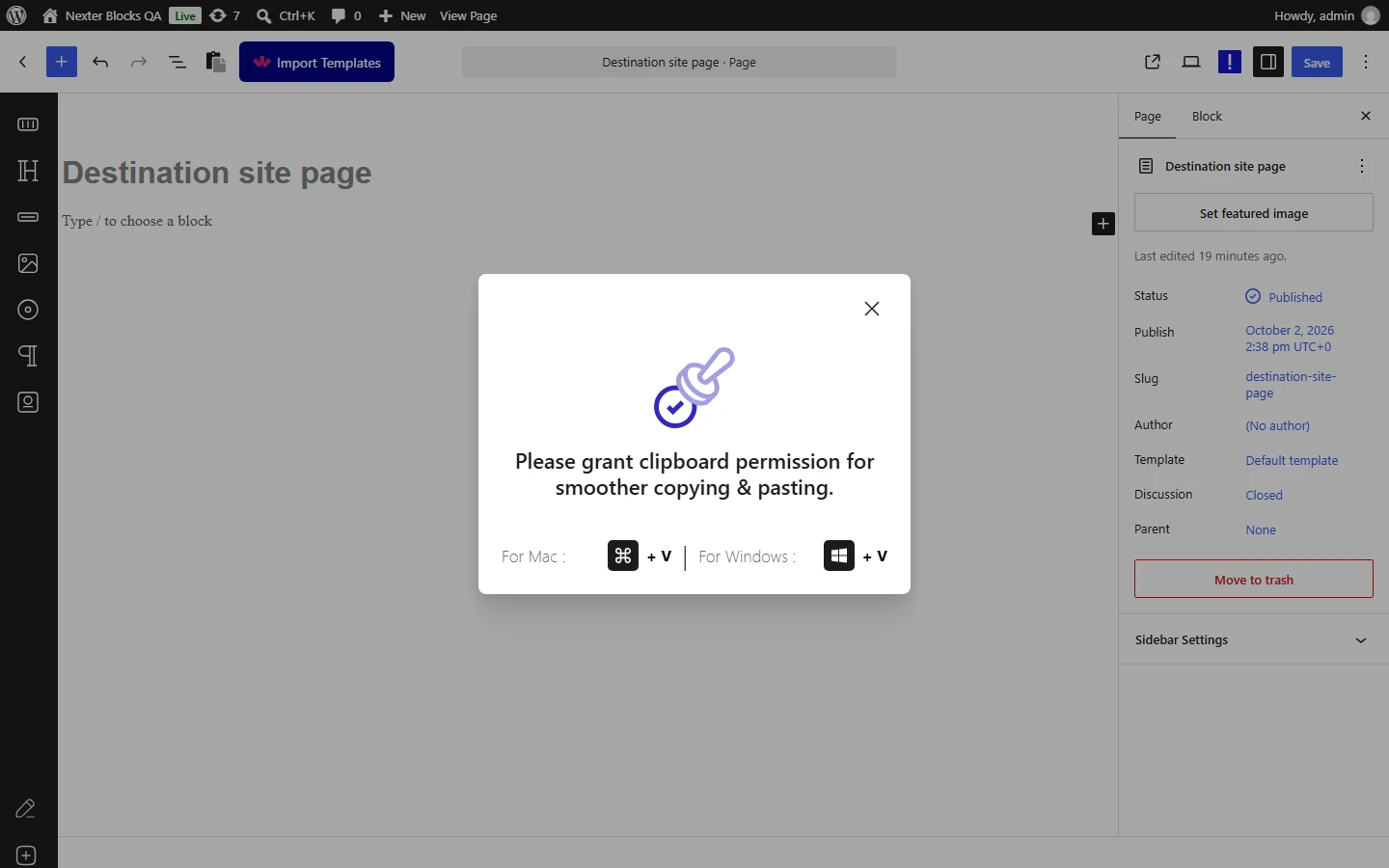
- A browser that allows clipboard reading. If it does not, the editor shows a dialog asking you to press Ctrl+V (Cmd+V on a Mac) instead.
What Is Cross-Domain Copy Paste?
It is a copy and paste that survives crossing between two unrelated WordPress sites. You copy on the source site, switch to the destination site’s editor, and paste.
How It Works
- The clipboard is the transport. The editor reads your system clipboard, which belongs to your computer rather than to either website. That is what makes it cross-domain — no shared login, no connection between the sites, no server in the middle.
- Only Nexter markup is accepted. The pasted text is checked for Nexter block delimiters before anything happens, so ordinary text or another plugin’s blocks on their own are ignored rather than producing a broken paste.
- The clipboard content may be block markup or JSON. Both forms are recognised.
- Sections without images paste directly, with no server request.
- Sections with images make one request to the destination site, which downloads each image into its own Media Library and points the pasted blocks at the new copies.
How to Use It
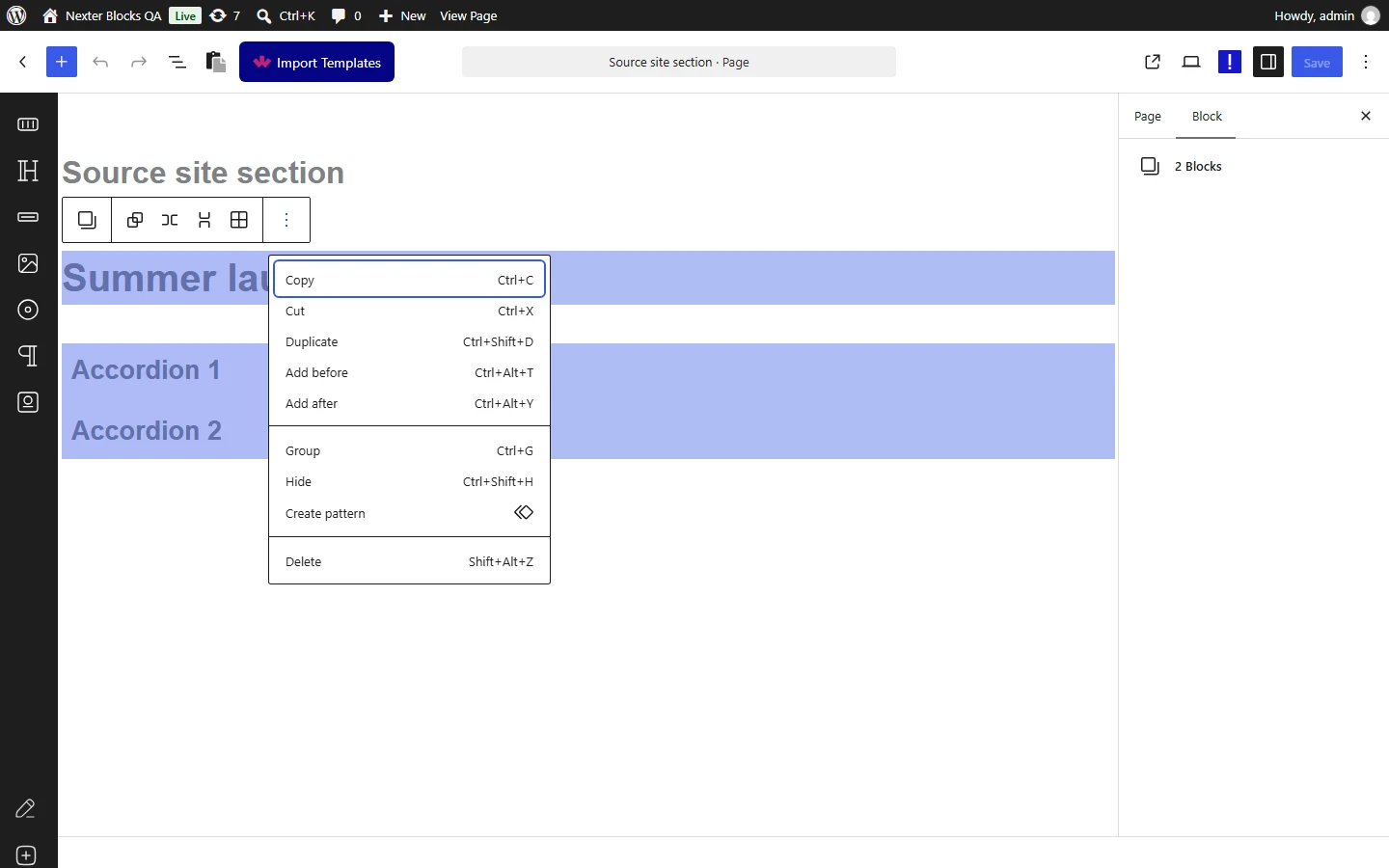
- On the source site, select the section. Click the first block and Shift-click the last, or select a single block. Open the block options (⋮) and choose Copy, or press Ctrl+C (Cmd+C on a Mac). This is the normal WordPress copy — nothing extra is needed on the source side.
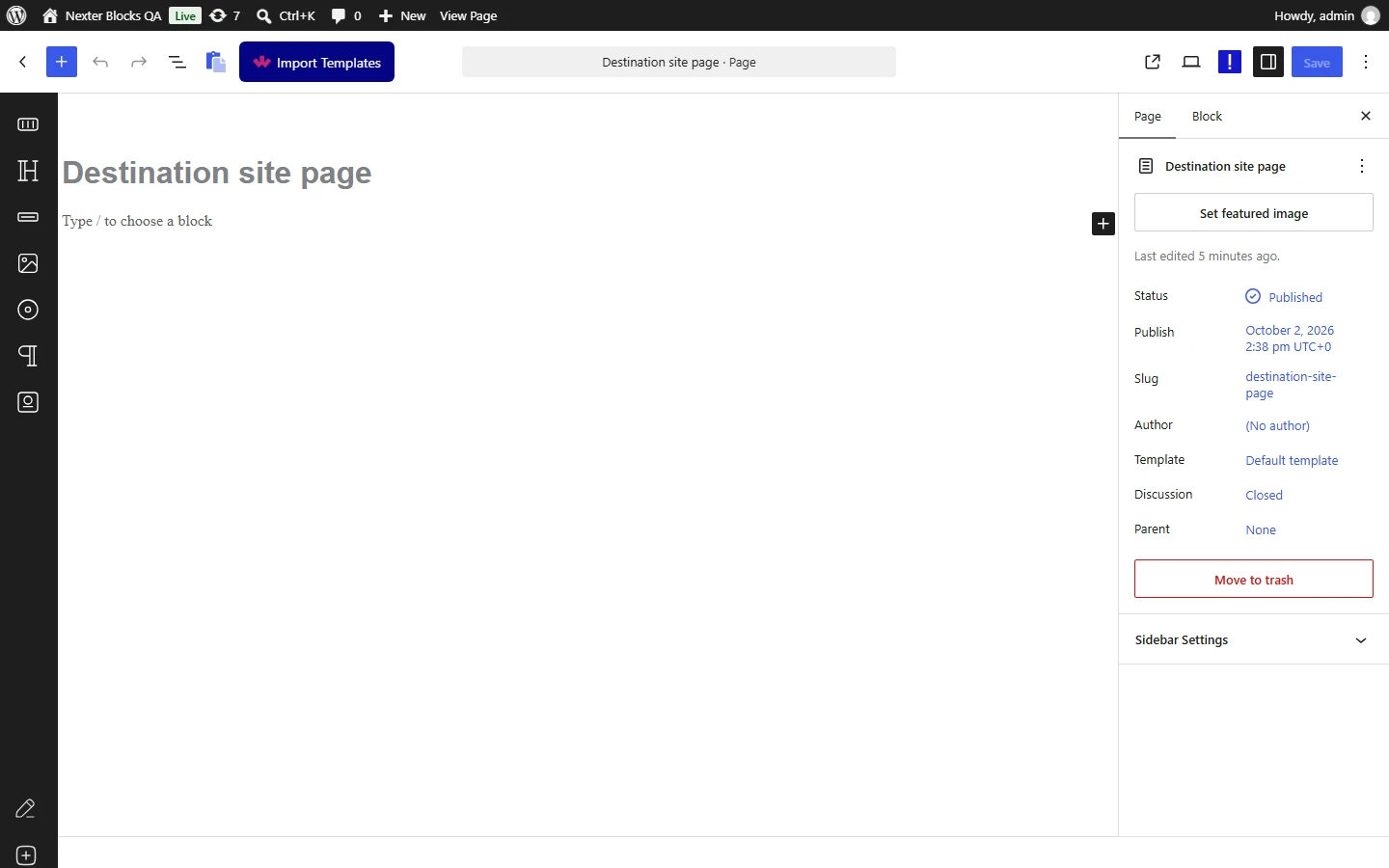
- Open the editor of the page on the destination site. In the top toolbar, next to Import Templates, click the clipboard icon. Its tooltip reads Paste.
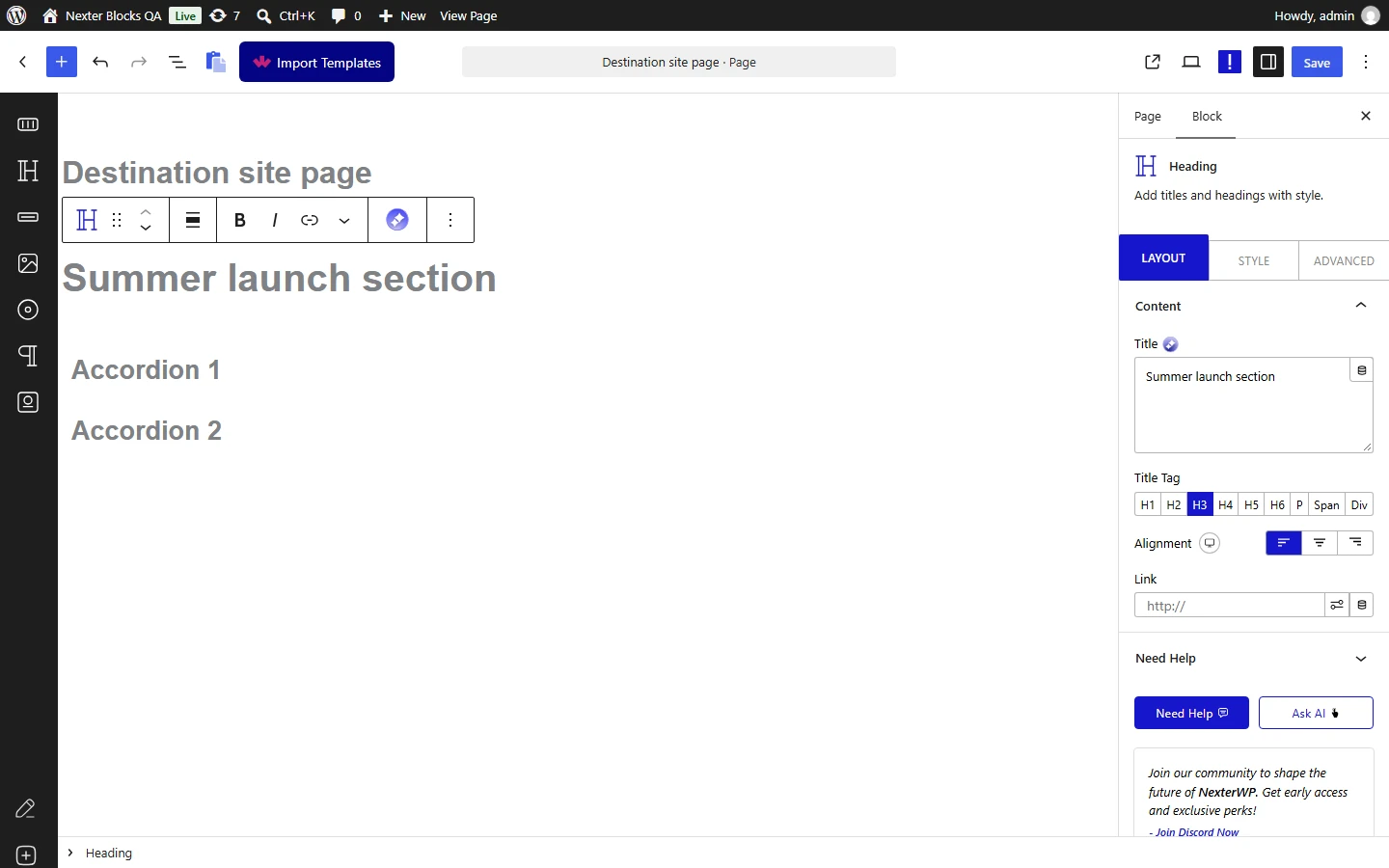
- The section is inserted at the end of the page with its settings. Move it where you want it and publish.
Sections With Images
When the copied section contains an image, the paste button briefly turns into a spinner while the destination site downloads each image from the source site’s address and adds it to its Media Library. The pasted blocks then use those local copies.
Limitations
- The source images must be reachable from the destination server. If the source site is private, behind a login or on a local address, the image cannot be downloaded and the pasted block arrives without it. Measured with an image on a local address: the section pasted but the image field was empty.
- A failed image request leaves the spinner running. If the request to the destination site errors or times out, the editor does not show a message, the spinner stays and nothing is inserted. Reload the editor and try again, or remove the images first.
- Both sites need Nexter Blocks. Pasting into a site without it will not work, because the paste button and the markup check come from the plugin.
- Pro blocks need Pro on the destination. A section built from Pro blocks will not render on a site running only the free plugin.
- It copies the section, not the site. Global styles, fonts and theme settings do not travel with it, so the same section can look different on the destination.
- Dynamic content does not carry over. Anything bound to a post, product or custom field on the source site has nothing to bind to on the destination.
- The clipboard holds one thing at a time. Copying anything else in between replaces it.
Troubleshooting
The spinner never stops
The section contains an image and the request that downloads it failed or timed out. Reload the editor, copy the section again and retry. If it keeps happening, check that the destination site can reach the source site’s images, or remove the images from the copied section, paste the layout, then add the images on the destination site.
Nothing happens when I paste
The clipboard does not contain Nexter block markup. Copy the section again on the source site, and do not copy anything else in between.
The browser will not let the editor read the clipboard
Some browsers and permission settings block clipboard reading. The editor then shows a dialog asking you to press Ctrl+V (Cmd+V on a Mac) — do that with the editor focused.
The section pasted but looks different
Styling that lives outside the section — global styles, fonts, theme settings — does not travel with it. Match those on the destination site.
Some blocks are missing after pasting
Those are probably Pro blocks and the destination site does not have Nexter Blocks Pro active.
