How to Add Google reCAPTCHA in WordPress Form?

Key Takeaways

  • Nexter Blocks allows users to easily add Google reCAPTCHA to WordPress forms.
  • Users must obtain a Google reCAPTCHA Site Key and Secret Key before integrating it with Nexter Blocks.
  • The Form block in Nexter Blocks requires customization of form fields and selection of reCAPTCHA from the Security Options dropdown.
Table of Contents

Are you looking to add Google reCAPTCHA to your WordPress form? Google reCAPTCHA offers an effective solution, helping to distinguish between human users and automated bots, thereby enhancing the security of your online forms.

With the Form block from Nexter Blocks, you can easily add Google reCAPTCHA to your WordPress form.

To check the complete feature overview documentation of the Nexter Blocks Form block, click here.

Requirement  – This block is a part of the Nexter Blocks, make sure it’s installed & activated to enjoy all its powers.

For this, you must have your Google reCAPTCHA Site Key and Secret Key.

Get Google reCAPTCHA Site Key and Secret Key

Make sure you are logged into your Google account, and then go to this link.

1. Add a label in the Label field. You can use your domain name for easy identification.

2. Then select the reCAPTCHA type you want to use from the reCAPTCHA type section.

3. After that, you have to add your domain name in the Domains field. Make sure to add the domain name without http or https.

You can add multiple domain names.

4. Then click the Submit button.

create google recaptcha

On the next page, you’ll get your Google reCAPTCHA Site Key and Secret Key.

google recaptcha key

Add the Google reCAPTCHA v3 Site Key and Secret Key in Nexter Blocks

Once you have both Google reCAPTCHA Site Key and Secret Key, go to

  • Nexter Blocks Extra Options Settings.
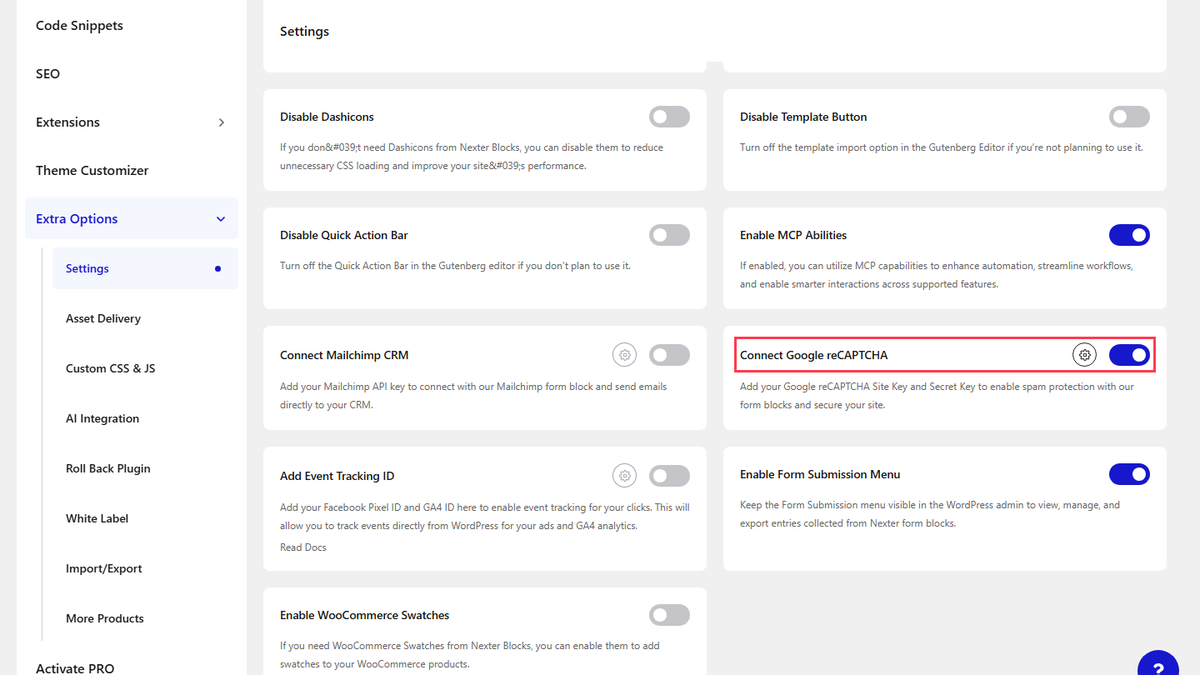
  • Scroll down to the Connect Google reCAPTCHA section and enable the toggle.
  • Then click on the settings icon.
  • In the popup, enter your Google reCAPTCHA Site Key and Secret Key and click the Save button.
  • Then click the Save Settings button on the Settings page.

add recaptcha site key secrect key nexter blocks settings new

Use the Form Block

Now, add the Form block to the page and select the appropriate form type, then follow the steps –

1. Add the required form fields and customize them as per your requirements.

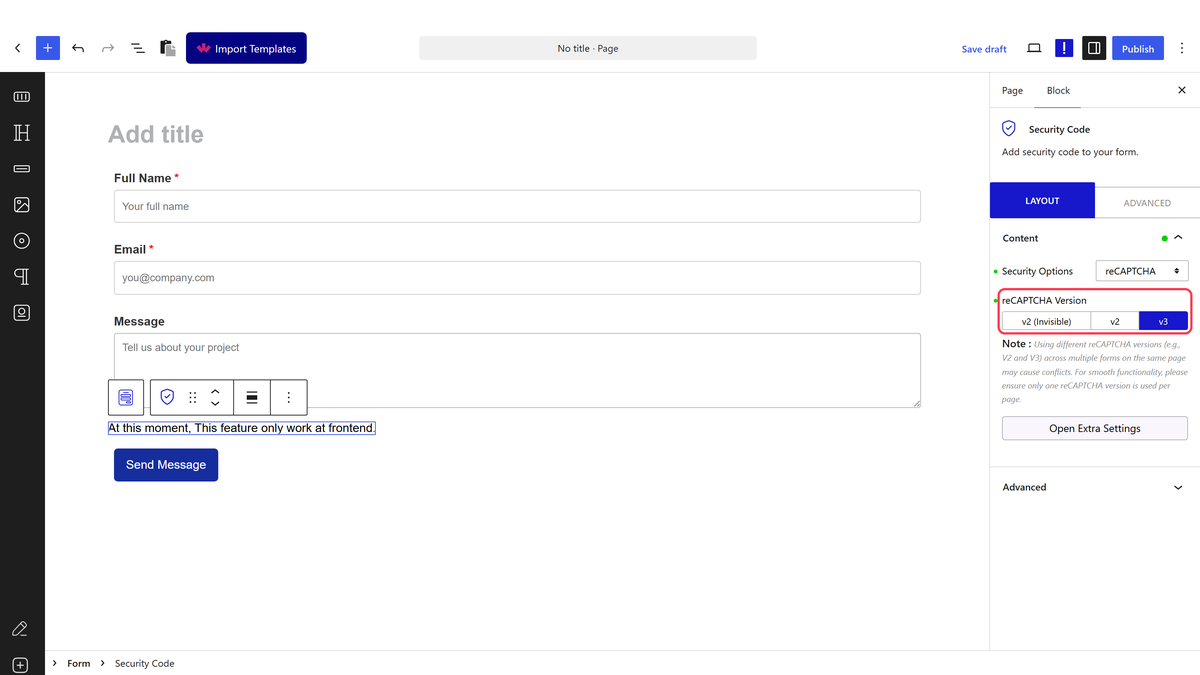
2. Then add the Security Code field.

3. After that, select reCAPTCHA from the Security Options dropdown.

4. Then select the appropriate Google reCAPTCHA version from the reCAPTCHA Version section. 

Note: Make sure to select the same Google reCAPTCHA version that you selected while generating the Site Key and Secret Key.

Now your form will have Google reCAPTCHA security.

About the Author

Photo of Aditya Sharma CMO of NexterWP
CMO at POSIMYTH Innovations · NexterWP · 7 years experience

He has spent years in the WordPress ecosystem building, breaking, and optimizing sites until they actually perform. He works at the intersection of speed, growth, and usability, helping creators ship websites that load fast and convert. An active WordPress community contributor sharing through tools, tutorials, and direct collaboration. Tested practice, not theory.

WordpressThemesElementorn8nAIClaudeAutomationServer

Share your Thoughts

Get Instant Answers to all your questions about Nexter Blocks,
Extensions & Theme trained on 1000+ Docs and Videos

Still in Doubt? Let’s Assist You

Have Feedback or Questions?

Join our WordPress Community on Facebook!

Related Frequently Asked Questions

What should I do if I don't receive the Google reCAPTCHA Site Key and Secret Key?

If you don't receive your Google reCAPTCHA Site Key and Secret Key, double-check that you've correctly added your domain name in the Domains field without http or https. Ensure you've submitted the form after filling in all required fields. If issues persist, try using a different Google account or clearing your browser cache before attempting again.

Can I use Google reCAPTCHA with any WordPress form plugin?

Google reCAPTCHA can be integrated with the Form block from Nexter Blocks, which is designed specifically for this purpose. If you're using other plugins, compatibility may vary, so it's best to check their documentation. NexterWP focuses on providing a seamless experience with its own blocks and extensions.

What is the best practice for selecting the reCAPTCHA version?

When adding Google reCAPTCHA to your form, select the same version that you used when generating your Site Key and Secret Key. This ensures compatibility and functionality. If you're unsure, reCAPTCHA v3 is generally recommended for its advanced bot detection capabilities.

What happens if I forget to enable the Google reCAPTCHA toggle in Nexter Blocks?

If you forget to enable the Google reCAPTCHA toggle in Nexter Blocks, your form will not have the added security against bots. This could lead to spam submissions, compromising the integrity of your data. Always ensure this setting is activated after entering your keys.

How do I customize the form fields after adding Google reCAPTCHA?

After adding Google reCAPTCHA to your form using the Form block, you can customize the form fields by adding the required fields and adjusting their settings as needed. This flexibility allows you to tailor the form to your specific requirements while maintaining security.

Last reviewed: April 14, 2026

Related Docs