












A short list of links — social profiles, a phone number, a booking form — does not need a whole navigation bar, but it does need to stay within reach.
The Circle Menu keeps those links behind one button and fans them out when the visitor wants them, either on an arc or in a straight line.
Before You Start
- Edition: Pro — the Circle Menu block needs Nexter Blocks Pro.
- Block to enable: Circle Menu, switched on under Nexter > Blocks in your WordPress dashboard.
Video Tutorial

Steps
- Add the Circle Menu block to your page.
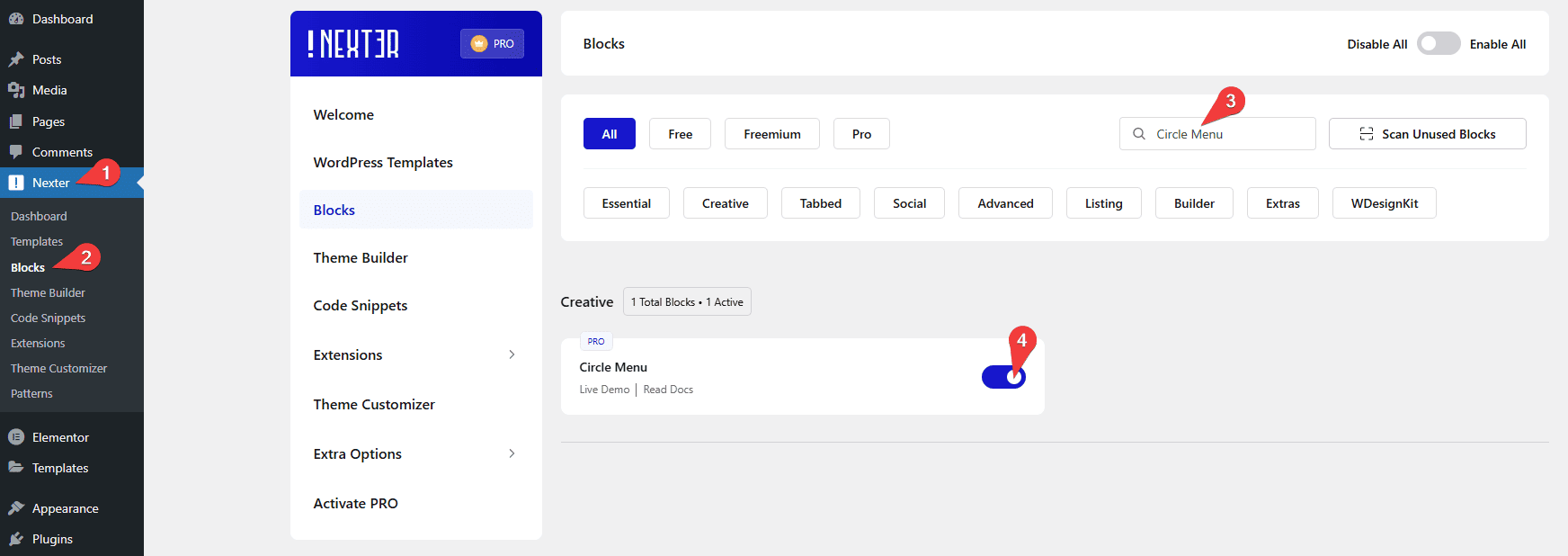
- Choose a Layout: Circle to fan the items out on an arc, or Straight for a row or column.
- Pick the Direction the menu should open in.
- Add your links in the Menu List — each item takes an icon, a title and a URL.
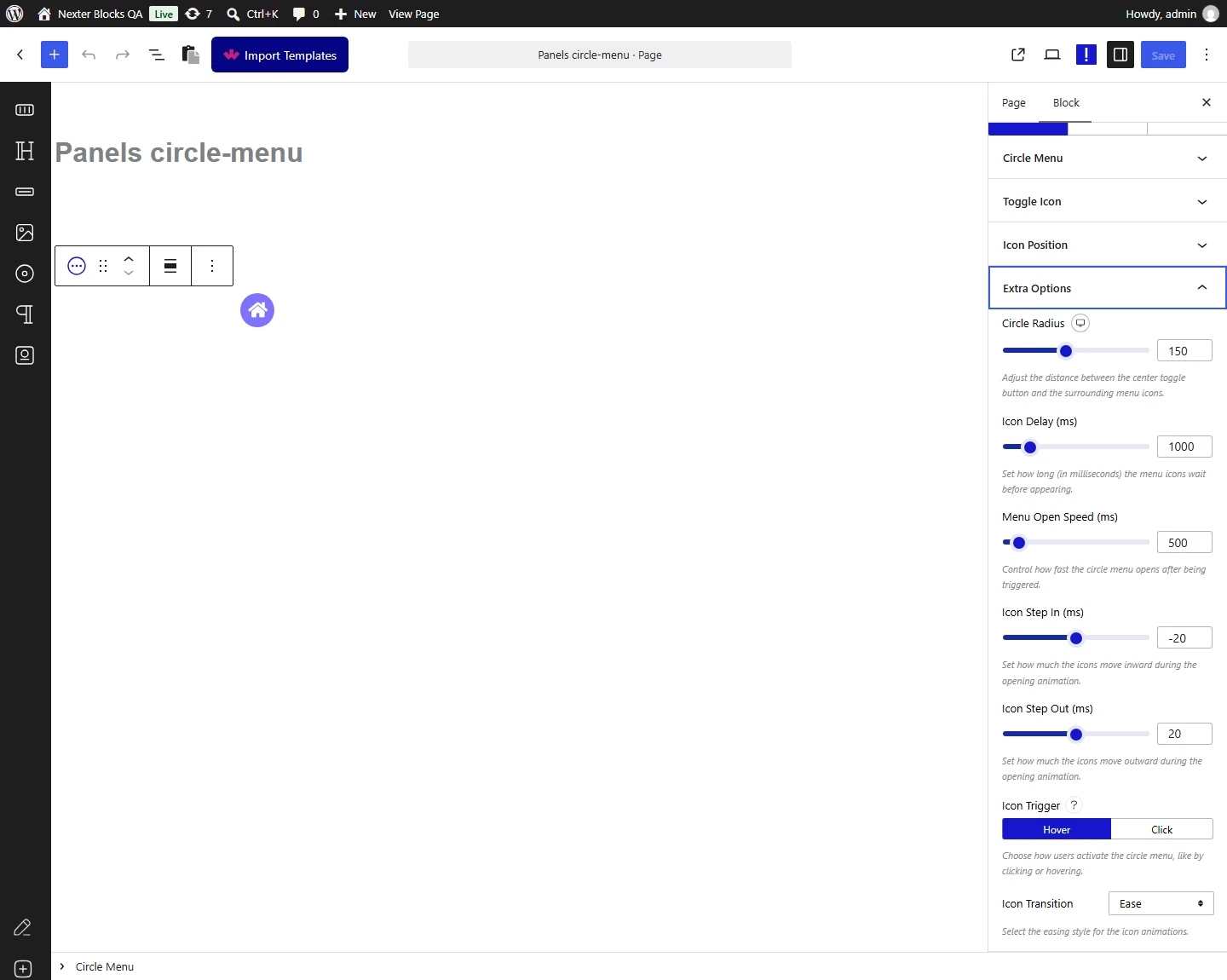
- Set the toggle button’s own icon or image, and its position on the page.
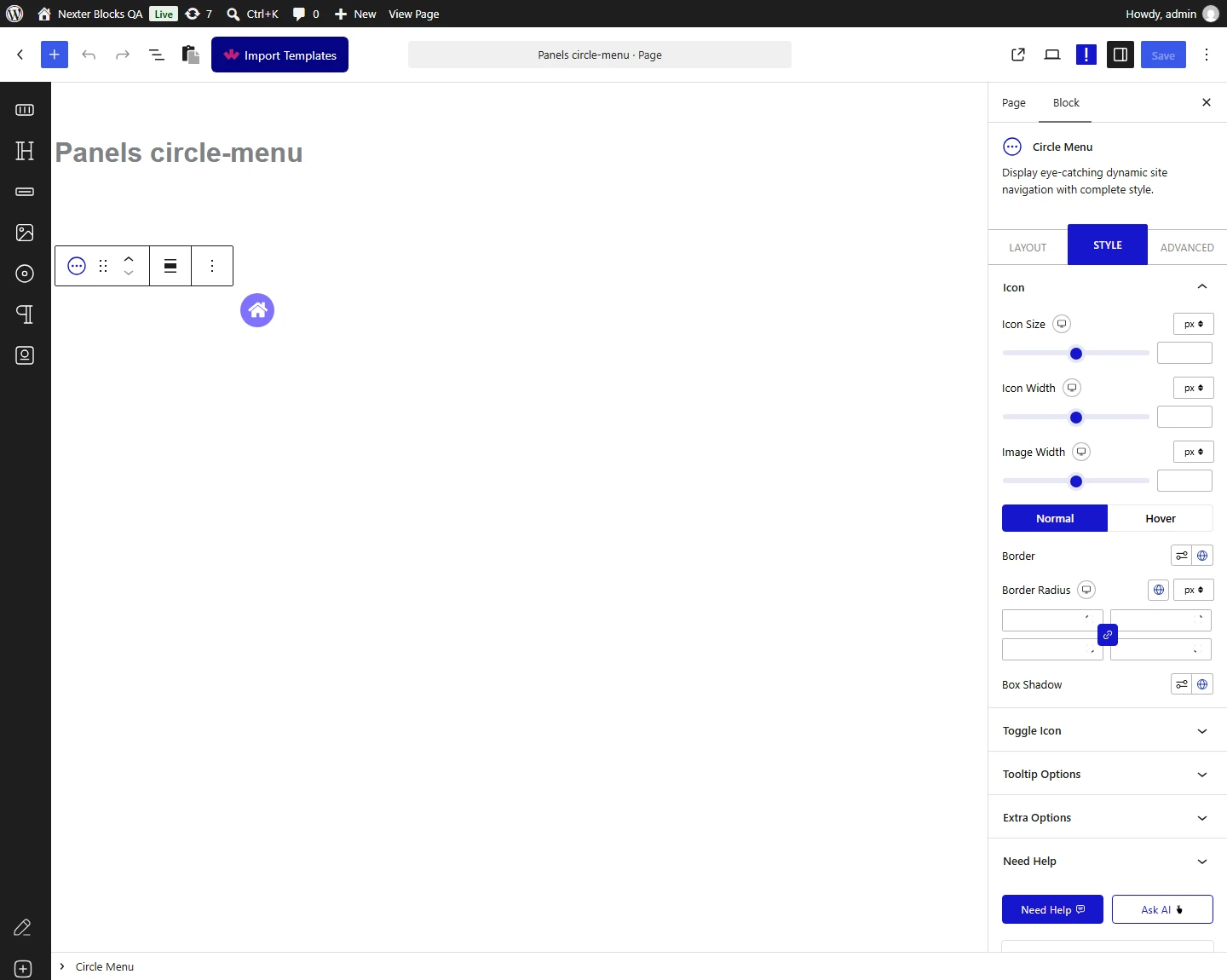
- Open Extra Options to tune the radius, speeds and the open trigger.
How It Behaves
| Layout | Measured on a published page |
|---|---|
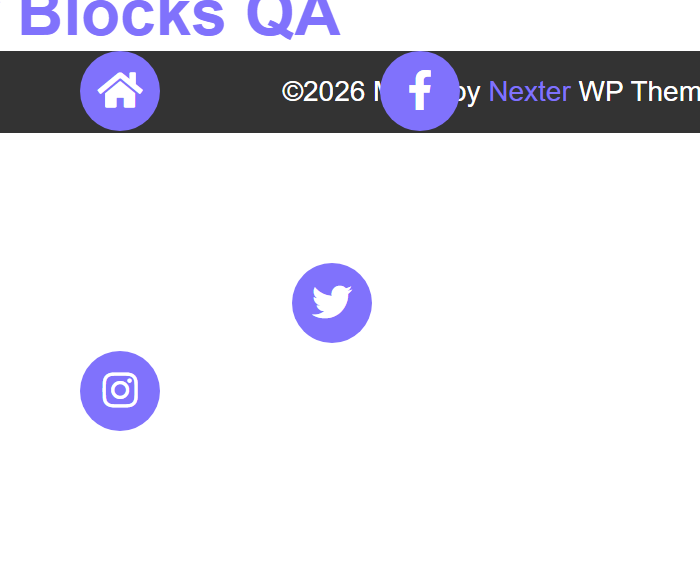
| Circle | The items fan out along an arc around the toggle. With the default radius the four test items sat 150px out; at radius 300 every distance doubled exactly. |
| Straight | The items step out in a line — measured at 40px intervals to the right, or upwards when the direction is set to top. |
Circle Radius is a plain pixel distance from the toggle button. Measured on a published page: at 150 the four items sat 150px out along the arc, and at 300 every distance doubled exactly.
- The toggle button is the first item in the menu; your links follow it.
- Circle layout opens on hover by default, and can be switched to click — see opening the menu on click.
- Straight layout always opens on click. Measured: hovering the toggle did not open it. The Icon Trigger setting belongs to the circle layout only.
- Every menu item renders as a real link, so the menu is normal navigable markup.
- The open and close behaviour does not preview inside the block editor — the editor says so on the control itself. Save and view the page to see it work.
Limitations
- Angle Start and Angle End do not work. They appear when Direction is set to None, but measured on a published page they never reach the front end — the menu falls back to the same quarter-circle as the default, whatever you set. Use one of the eight Direction presets instead. This is a known bug and has been reported to the development team.
- Icon Trigger applies to the circle layout only — a straight menu opens on click whatever that setting says.
- The menu is a list of icon links, not a multi-level navigation — for site navigation with sub-menus use the Navigation Menu block instead.
- A long list quickly crowds the arc; keep a circle menu to a handful of items and raise the radius if they overlap.
Troubleshooting
Angle Start and Angle End do nothing
They are currently broken — measured, the values never reach the page and the menu keeps the default quarter-circle. Use the Direction presets instead; this has been reported to the development team.
My straight menu will not open on hover
Straight menus open on click by design — measured. Switch the Layout to Circle if you want the menu to open on hover.
Nothing happens when I hover in the editor
The open and close behaviour does not preview inside the block editor — the editor says so on the control itself. Save and view the page to see it work.
My menu items overlap each other
Raise the Circle Radius so the arc is longer, or move some links out of the menu. The radius is a plain pixel distance, so doubling it doubles the space between items.
