












Key Takeaways
- A role is just a named bundle of capabilities. A capability is one specific permission, like
publish_postsoredit_users. WordPress ships six roles and dozens of capabilities. - The WordPress documentation states plainly that “One particular role should not be considered to be senior to another role.” Roles describe responsibilities, not rank, which is the opposite of the pyramid most guides draw.
- Administrator does not mean the same thing on every site. On Multisite, an Administrator loses fifteen capabilities to the Super Admin, including
install_plugins,update_core,edit_usersandunfiltered_html. - The capability that actually carries security weight is
unfiltered_html, which lets a user post raw HTML and JavaScript. Editors hold it on a single site and lose it on Multisite. - Contributor is defined by what it lacks. It has
edit_posts,delete_postsandread, but nopublish_postsand noupload_files, so no publishing and no image uploads. - Hiding a menu item is not the same as removing a capability. Test roles before you trust them, and know which of your changes are cosmetic and which are real.
Say you hire a freelance writer and you want them to draft posts without touching your theme. Or a client asks for a login so they can fix a typo, and you would rather they could not deactivate a plugin while they are in there. Both questions land in the same place: which WordPress user role do you hand out, and what does that role actually let someone do?
Most guides answer with a pyramid. Administrator at the top, Subscriber at the bottom, everyone else stacked in between. It is a tidy picture and it quietly misleads you, because it hides the two things that matter most: roles are bundles of individual permissions, and the same role name can mean two different things depending on how your site is installed.
This guide covers all six default roles, the capabilities behind them, the full comparison table, and the handful of permissions that cause real problems in practice.
What a Role Actually Is (and What a Capability Is)
WordPress uses roles to give a site owner control over what users can and cannot do. A role is a name attached to a set of tasks. Each of those individual tasks is called a capability.
The documentation puts the relationship simply: each role “is allowed to perform a set of tasks called Capabilities,” and there are many of them, including publish_posts, moderate_comments and edit_users. A default set of capabilities ships with each role.
That default set is not fixed. Capabilities can be added to or removed from a role with the add_cap() and remove_cap() functions, and entirely new roles can be created or dropped with add_role() and remove_role(). This is the part the pyramid diagram cannot show you. Roles are editable containers, not fixed tiers.
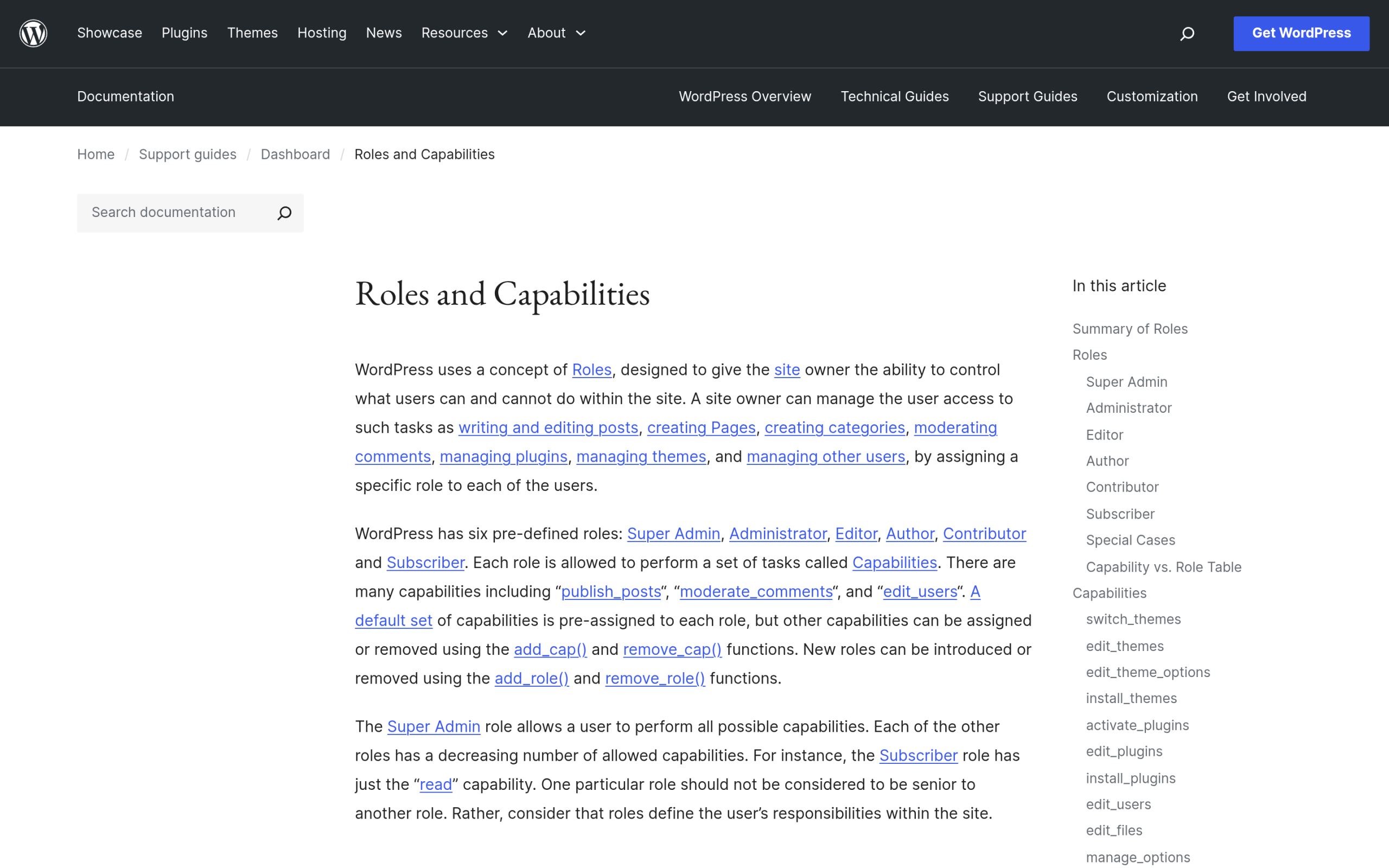
The single most useful line in that documentation is also the most ignored: “One particular role should not be considered to be senior to another role. Rather, consider that roles define the user’s responsibilities within the site.” An Editor is not a junior Administrator. It is a different job description with a different permission set.
The Six Default WordPress User Roles
WordPress has six pre-defined roles. Five of them exist on every install. The sixth, Super Admin, only appears once you set up a network.
- Super Admin is somebody with access to the site network administration features and all other features.
- Administrator (slug
administrator) is somebody who has access to all the administration features within a single site. - Editor (slug
editor) is somebody who can publish and manage posts including the posts of other users. - Author (slug
author) is somebody who can publish and manage their own posts. - Contributor (slug
contributor) is somebody who can write and manage their own posts but cannot publish them. - Subscriber (slug
subscriber) is somebody who can only manage their profile.
When you install WordPress, an Administrator account is created automatically. Every user who registers after that gets whatever role is set as the default, which lives in Settings and then General in your dashboard. If you run open registration and never changed that setting, it is worth checking today.
Also Read: If open registration is causing you grief, stopping spam registrations on WordPress tackles the intake problem that role settings alone will not fix.
The Full Capability Comparison Table
Here is what each role can actually do, from the permission that everyone has to the ones reserved for a network owner. Read it from the bottom up. Every role has read. Each step up adds capabilities rather than seniority.
| Capability | Super Admin | Administrator | Editor | Author | Contributor | Subscriber |
|---|---|---|---|---|---|---|
read | Yes | Yes | Yes | Yes | Yes | Yes |
edit_posts | Yes | Yes | Yes | Yes | Yes | No |
delete_posts | Yes | Yes | Yes | Yes | Yes | No |
publish_posts | Yes | Yes | Yes | Yes | No | No |
upload_files | Yes | Yes | Yes | Yes | No | No |
edit_published_posts | Yes | Yes | Yes | Yes | No | No |
delete_published_posts | Yes | Yes | Yes | Yes | No | No |
edit_others_posts | Yes | Yes | Yes | No | No | No |
edit_pages and publish_pages | Yes | Yes | Yes | No | No | No |
moderate_comments | Yes | Yes | Yes | No | No | No |
manage_categories | Yes | Yes | Yes | No | No | No |
read_private_posts | Yes | Yes | Yes | No | No | No |
unfiltered_html | Yes | Single site only | Single site only | No | No | No |
manage_options | Yes | Yes | No | No | No | No |
switch_themes | Yes | Yes | No | No | No | No |
edit_theme_options | Yes | Yes | No | No | No | No |
list_users and promote_users | Yes | Yes | No | No | No | No |
customize | Yes | Yes | No | No | No | No |
install_plugins and install_themes | Yes | Single site only | No | No | No | No |
update_core, update_plugins, update_themes | Yes | Single site only | No | No | No | No |
edit_users, create_users, delete_users | Yes | Single site only | No | No | No | No |
manage_network and manage_sites | Yes | No | No | No | No | No |
create_sites and delete_sites | Yes | No | No | No | No | No |
The “Single site only” rows are where most confusion starts, so they get their own section next.
Administrator vs Super Admin: The Fifteen-Capability Difference
On a standalone WordPress install, Administrators are in effect Super Admins. They hold every capability that exists on that site. Turn that same site into a network and the role quietly shrinks.
Fifteen capabilities move to the Super Admin only. An Administrator on Multisite no longer has:
update_core,update_pluginsandupdate_themesinstall_pluginsandinstall_themesdelete_pluginsanddelete_themesedit_pluginsandedit_themesedit_filesedit_users,add_users,create_usersanddelete_usersunfiltered_html
On top of that, the Super Admin holds ten capabilities that exist nowhere else, all of them network level: create_sites, delete_sites, manage_network, manage_sites, manage_network_users, manage_network_plugins, manage_network_themes, manage_network_options, upgrade_network and setup_network.
This is why a site owner who moves to a network sometimes feels demoted on their own site. Nothing broke. The role name stayed the same while the permission set behind it changed.
Also Read: Deciding whether a network is right for you in the first place is a separate call, and WordPress Multisite compared with separate sites walks through the trade-offs before you commit.
Why a Contributor Cannot Publish or Upload Images
Contributor is the role people misunderstand most, because it is defined by absence. The whole role is three capabilities: edit_posts, delete_posts and read.
There is no publish_posts, so a Contributor can write and save a draft but cannot push it live. The documentation is specific about what publish_posts controls: the user can “See and use the ‘publish’ button when editing their post,” and without it “they can only save drafts.”
There is also no upload_files, which is the part that catches writers off guard. A Contributor cannot add an image to their own draft. If you are onboarding freelance writers and they keep emailing you screenshots, that missing capability is why.
Author is the next step and adds exactly what a self-sufficient writer needs: publish_posts, upload_files, edit_published_posts and delete_published_posts. An Author manages their own work and cannot touch anyone else’s.
Editor adds the “other people” permissions: edit_others_posts, delete_others_posts, the full set of page capabilities, moderate_comments, manage_categories and read_private_posts. An Editor runs the content operation without being able to change settings, switch themes or manage users.
The Capabilities That Trip People Up
A handful of permissions behave in ways their names do not suggest. These are the ones worth knowing before you edit a role.
unfiltered_html Is the Real Security Line
This capability allows a user “to post HTML markup or even JavaScript code in pages, posts, comments and widgets.” The documentation attaches its own warning: enabling it for untrusted users “may result in their posting malicious or poorly formatted code.”
On a single site, both Administrators and Editors have it. On Multisite, only Super Admins do. So “just make them an Editor” is a meaningfully different decision depending on your install. If you are handing out Editor access to people you do not know well, this is the capability to think about, not the theme settings.
unfiltered_upload Is Off for Everyone by Default
This one is not granted to any role at all, including Super Admins. It only becomes grantable once you define ALLOW_UNFILTERED_UPLOADS as true in your configuration. Even then, on a Multisite install only Super Admins can be given it.
moderate_comments Needs edit_posts to Be Useful
A user can hold moderate_comments and still not reach the moderation screen. The documentation notes that a user “needs the edit_posts Capability in order to access this.” Capabilities are not always independent, which is why removing one can break another in a way that looks like a bug.
Two Capabilities Are Legacy
edit_files is listed with a blunt note: “No longer used.” And add_users was replaced in WordPress 4.4 by promote_users. If you are reading an older tutorial that leans on either one, that is your signal it has aged out.
promote_users is the one that matters now. It enables the “Change role to…” dropdown in the admin user list, and it does not depend on edit_users. A user can change other people’s roles without being able to edit their profiles.
Also Read: Permission errors often surface as one specific message, and the “Sorry, you are not allowed to access this page” fix traces it back to the capability behind it.
How to Change a User Role in WordPress
Changing an existing user’s role takes about ten seconds.
- Go to Users and then All Users in your dashboard.
- Tick the user or users you want to change.
- Pick the new role from the “Change role to…” dropdown and apply it. This dropdown is the
promote_userscapability at work. - To change the role every new registrant receives, go to Settings and then General and set the New User Default Role.
One caution. If you only have one Administrator account, do not demote it. Create and verify a second Administrator first, because there is no in-dashboard route back once you have removed your own access.
Testing and Tidying Roles Without Locking Yourself Out
Assigning a role is the easy half. Knowing what that person will actually see when they log in is the half people skip, and it is where the surprises live.
The Nexter Extension bundles this as one of its 50 plus modules rather than making you install a single-purpose plugin for it. Two are relevant here, and they do different jobs.
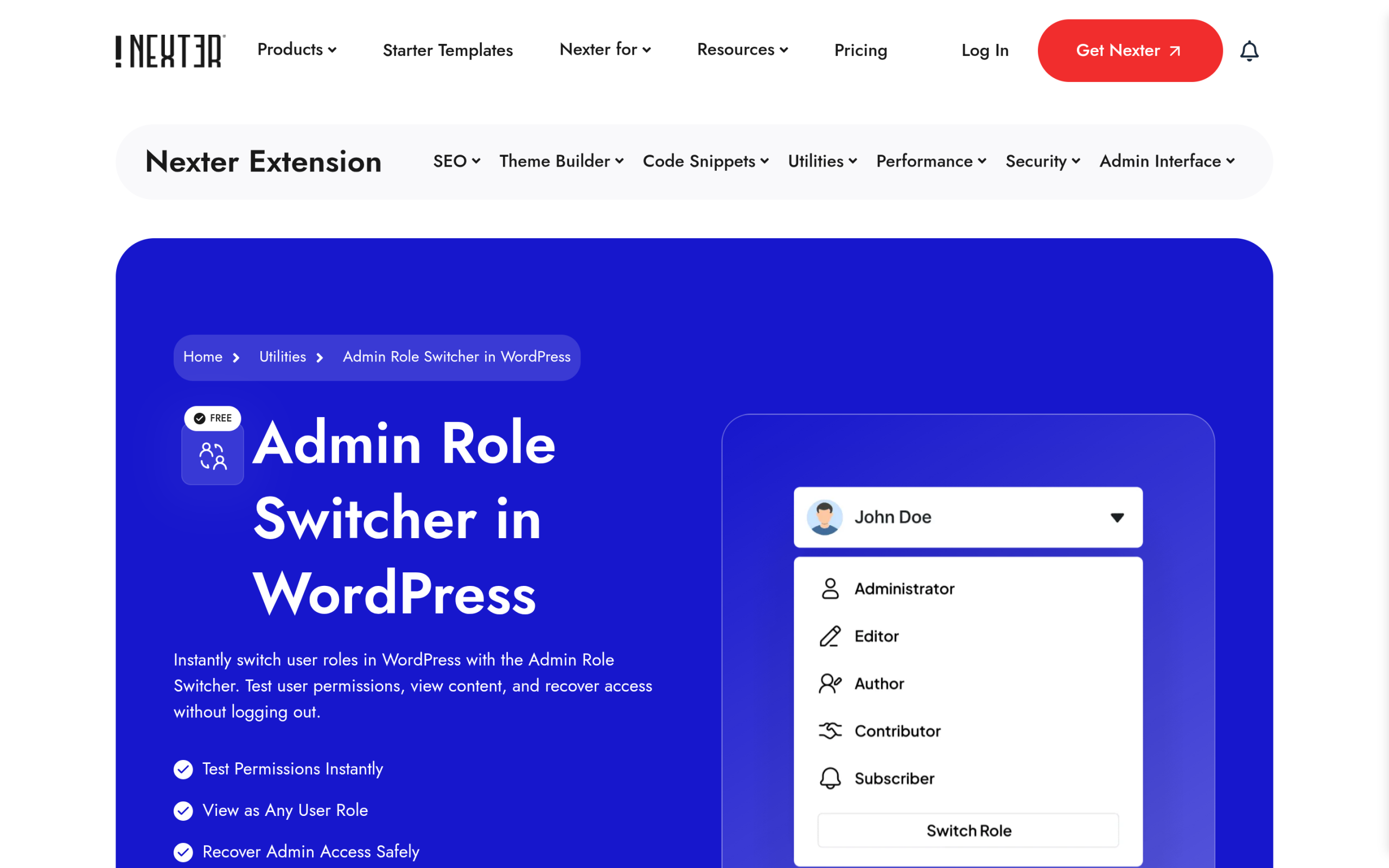
Admin Role Switcher is free and it answers the “what will they see” question directly. It lets an administrator temporarily switch between roles from the dashboard to “Preview how different roles experience your site, including visible menus, restricted pages, and available dashboard options.” Crucially for anyone who has ever locked themselves out, there is a way back: “Use the built-in recovery link sent to the admin email to restore full access safely while testing different roles.”
Admin Menu Organizer is a Pro module, and it is worth being precise about what it does, because this is exactly where people fool themselves. It can reorder, rename or hide admin menu items, and it offers two hide modes that are not equivalent:
- Hide until toggled conceals the item from the sidebar, but as the documentation states, “the pages will remain accessible by URL.” This is tidying, not security.
- Always hide for user role(s) is the stronger option. With role-based hiding, “The menu item will not be visible to those users even if they access it by URL directly.”
Keep the distinction in mind whichever tool you use. A cleaner dashboard reduces mistakes and support tickets, which is a genuine benefit. But if a user still holds manage_options, hiding the Settings link has not taken that permission away. Capabilities are the lock. Menus are the signage.
Also Read: For the narrower version of this job, disabling the WordPress admin bar for everyone except administrators is the most common cleanup people want first.
Which Role to Give Whom
Matched to the jobs these roles actually get used for.
| The person | Give them | Why |
|---|---|---|
| Freelance writer, first few drafts | Contributor | Writes and edits their own drafts, cannot publish. You review everything. Note they cannot upload images. |
| Trusted staff writer | Author | Publishes and manages their own posts and uploads media, cannot touch anyone else’s content. |
| Managing editor or content lead | Editor | Full control of all posts, pages, categories and comments, no access to settings, themes, plugins or users. |
| Client who wants to fix typos | Editor | Enough to edit real content, not enough to deactivate a plugin or switch the theme. |
| Developer or agency doing the build | Administrator | Needs plugin, theme and settings access. Remove it when the engagement ends. |
| Newsletter or membership signup | Subscriber | Only read, which is the correct default for someone who just needs an account. |
The general rule is the boring one. Give the narrowest role that lets the person finish their work, and revisit it when their work changes. Roles are cheap to change and expensive to over-grant.
Also Read: Access control is one layer of a wider job, and the WordPress security hardening checklist covers where roles sit among the rest.
Frequently Asked Questions
How many user roles does WordPress have?
Six pre-defined roles: Super Admin, Administrator, Editor, Author, Contributor and Subscriber. Five exist on any install. Super Admin only appears on a Multisite network. You can also create your own roles with add_role().
What is the difference between a role and a capability?
A capability is one specific permission, such as publish_posts. A role is a named bundle of capabilities assigned to a user. You can add or remove individual capabilities from any role with add_cap() and remove_cap().
Which WordPress role can publish posts but not change settings?
Editor. It holds publish_posts, edit_others_posts, the page capabilities, moderate_comments and manage_categories, but not manage_options, switch_themes, install_plugins or the user management capabilities. It is the right answer for most client and managing editor accounts.
Is it safe to give someone the Editor role?
For content work, generally yes. The one thing to weigh is unfiltered_html, which lets a user post raw HTML and JavaScript and which Editors hold on a single site install. On Multisite that capability belongs to Super Admins only, so the same role is more contained there.
Why can my Contributor not upload an image?
Contributor does not include upload_files. It only has edit_posts, delete_posts and read. Move the user to Author, or add the upload_files capability to the Contributor role deliberately.
Suggested Reading
- WordPress Multisite vs Separate Sites: How to Actually Choose
- How to Restrict Content to Registered Users in WordPress
- Fix “Sorry, You Are Not Allowed to Access This Page”
- How to Customize the WordPress Admin Dashboard
- How to Add Two-Factor Authentication to WordPress
- How to Make a WordPress Site Private
