












Say you inherit a WordPress site. It has 34 plugins, four of which nobody recognises, an admin account called “admin2” that has not logged in since 2023, and no backup anyone has ever restored. You have an afternoon to make it safe. Where do you start?
Most hardening guides answer that question with a list of 25 equally weighted steps, which quietly implies that hiding your WordPress version number matters as much as removing an abandoned plugin. It does not. The published vulnerability data is lopsided, and once you see how lopsided, the order of work becomes obvious.
This checklist is sorted by what actually gets WordPress sites compromised, from the steps that stop real attacks down to the ones that mostly make you feel busy.
Where WordPress Sites Actually Get Hacked
Patchstack tracks disclosed vulnerabilities across the WordPress ecosystem and publishes an annual whitepaper. Its State of WordPress Security in 2026 report, covering calendar year 2025, found 11,334 new vulnerabilities across the ecosystem, a 42% increase on the year before.
The split is the part worth memorising:
- 91% of those vulnerabilities were found in plugins
- 9% were found in themes
- 6 were reported in WordPress core. Not 6%. Six.
Of the 2025 total, 1,966 vulnerabilities (17%) carried a high severity score, and Patchstack notes that more high-severity issues surfaced in 2025 than in the previous two years combined. A further 4,124 (36%) were judged serious enough to need protection rules written for them.
So WordPress core is not your problem. The code you added on top of it is. Every plugin and theme is another vendor whose security practices you have silently adopted, and the abandoned ones never get patched at all.
It is worth setting expectations the way WordPress itself does. The official hardening documentation puts it plainly: security “is not about perfectly secure systems,” it is “risk reduction, not risk elimination.” Nothing below makes a site unhackable. The goal is to stop being the easy target that automated scanners are built to find.
Also Read: How to find and remove malware from WordPress if you suspect the site is already compromised. Harden after you have cleaned, not before.
Tier 1: The Five Steps That Stop Real Attacks
If you only get through this section, you have removed most of your realistic risk. These five map directly onto how sites are actually breached.
1. Audit and Delete Plugins You Do Not Need
This is the highest-yield thing you can do, because it attacks the 91%. Open Plugins and go through the list honestly. For each one ask whether the site would break without it, when it was last updated, and whether the developer still ships releases.
Deactivating is not enough. A deactivated plugin still has its files on disk, and some vulnerabilities are reachable in files that WordPress never loads through the plugin system. Delete what you are not using. The same applies to themes, where you only need your active theme and one default fallback.
2. Update Core, Plugins, and Themes on a Schedule
Most exploited vulnerabilities are not secret. They are disclosed, patched, and then exploited on sites that never applied the patch. The window between a public disclosure and mass scanning is short.
Turn on automatic updates for anything you trust to update cleanly, and put a recurring calendar reminder on the rest. If you are nervous about updates breaking a live site, that is a staging problem rather than a reason to skip patching.
Also Read: How to control WordPress automatic updates so you get the patches without surprise breakage, and how to set up a staging site to test the risky ones first.
3. Turn On Two-Factor Authentication
Password reuse is the reason credential attacks keep working. A leak on an unrelated service becomes a WordPress login attempt within days. Two-factor authentication breaks that chain, because a stolen password on its own stops being enough.
Enable it for every account that can publish or install, not just your own. An editor account with a reused password is still a way in.

4. Limit Login Attempts and Clean Up User Roles
Out of the box, WordPress will let a script guess passwords against your login form indefinitely. Rate limiting turns an unlimited guessing game into a handful of tries.
While you are there, audit accounts. Delete users who have left, downgrade anyone who does not need Administrator, and check for accounts you did not create. Give each person the lowest role that lets them do their job, because a compromised Subscriber account is a much smaller problem than a compromised Administrator.


5. Take Backups You Have Actually Restored
A backup you have never tested is a guess. Plenty of site owners discover during an incident that the nightly job had been failing for months, or that it only captured files and not the database.
Store copies off the server, so that whatever compromises the site cannot also delete the recovery path, and restore one to a staging environment at least once so you know the process works and how long it takes.
Tier 2: Config and Server Hardening That Earns Its Keep
These steps will not stop a vulnerable plugin from being exploited, but they limit what an attacker can reach afterwards. They come straight from the official WordPress hardening documentation.
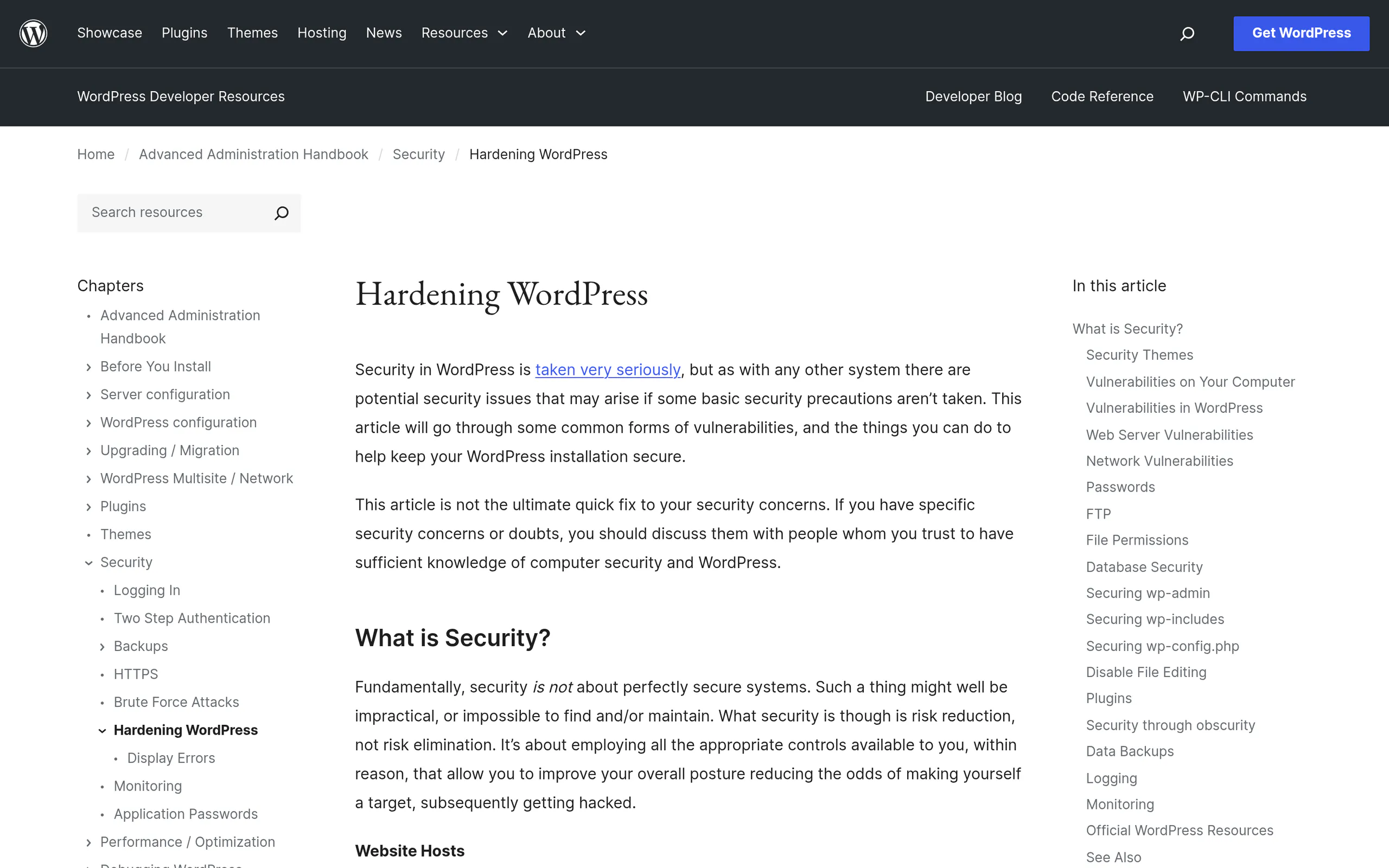
Set Sane File Permissions
WordPress recommends 755 for directories and 644 for files. If you find anything set to 777, fix it. That permission lets any user on the server write to the file, and it is a common leftover from someone debugging an upload problem.
Lock Down wp-config.php
This file holds your database credentials and security keys, so it deserves stricter treatment than the rest of the install. WordPress suggests permissions of 400 or 440, and moving the file one directory above the WordPress installation where your hosting allows it.
You can also deny direct web access to it in your server config:
<Files "wp-config.php">
Require all denied
</Files>
Disable the Built-In File Editor
WordPress ships with a theme and plugin editor in the dashboard. If someone gets into an Administrator account, that editor is a direct route to running code on your server. Very few teams use it. Turn it off by adding this to wp-config.php:
define( 'DISALLOW_FILE_EDIT', true );Trim Database Privileges
For normal operation, the WordPress database user only needs SELECT, INSERT, UPDATE and DELETE. Granting it full administrative rights over MySQL gives a successful SQL injection far more room to work. Note that schema changes during major updates or plugin installs may need broader rights temporarily.
Tier 3: The Security Theater You Can Skip
Every popular checklist includes these, usually without saying what they are worth. They are not harmful. They are just widely oversold, and doing them while ignoring Tier 1 is how sites get compromised by people who thought they had done the work.
Hiding Your WordPress Version Number
The reasoning is that attackers fingerprint your version and target known flaws. In practice, scanners do not read your meta generator tag and then decide what to try. They fire the payload at every site they find and see what responds. With six core vulnerabilities disclosed in all of 2025, your core version is close to the least interesting thing about your site.
Changing the Login URL
This one is genuinely useful, but for a different reason than most guides give. Moving the login page off /wp-login.php cuts a large amount of automated noise, which means cleaner logs and less wasted server load. That is a real benefit.
What it is not is protection. It is obscurity, and the official documentation lists it under exactly that heading. Anyone who finds the new URL is back to guessing passwords, which is why it belongs behind two-factor authentication and rate limiting rather than instead of them.

Also Read: How to change the WordPress login URL, including the lockout warning to read before you do it.
Disabling XML-RPC Without Checking First
Disabling XML-RPC is standard advice, and it does close off an old brute-force amplification route. Just check what depends on it first. Some mobile publishing apps, older Jetpack features and certain integrations still use it, and a broken publishing workflow is a real cost against a mostly historical risk.
Where a Hardening Layer Fits
Several Tier 1 and Tier 3 items above are login controls, and you can either add a separate plugin for each one or use a single extension that covers them together.
Nexter Extension is one option. It bills itself as “The Power Up Extension for Your WordPress Website” with 50+ extensions, and its security set includes Advanced Security, Two Factor Authentication, Limit Login Attempts, Custom Login URL, Login Email Notification, Captcha Spam Protection and Content Protections. It ships with a 30 Days Money Back Guarantee.

Be clear about what that does and does not cover. Nexter Extension is a hardening layer. It is not a firewall and it is not a malware scanner. It will not inspect incoming traffic for attack payloads, and it will not find or clean an existing infection. For those jobs you want a dedicated security plugin, and you should run only one firewall, because two will fight each other.
The honest stack for most sites is one scanner or firewall plugin, plus a hardening layer for the login and access controls, plus off-site backups.
Your 2026 WordPress Hardening Checklist
Work top to bottom. Stopping after Tier 1 still leaves you in better shape than a site that did every Tier 3 item and none of these.
| Step | Tier | Why It Matters | Effort |
|---|---|---|---|
| Delete unused plugins and themes | 1 | Attacks the 91% of vulnerabilities found in plugins | 30 min |
| Update core, plugins and themes | 1 | Most exploits target already-patched, publicly disclosed flaws | 20 min |
| Enable two-factor authentication | 1 | A stolen password stops being enough on its own | 10 min |
| Limit login attempts and audit user roles | 1 | Ends unlimited password guessing; shrinks the blast radius | 20 min |
| Set up off-site backups and test a restore | 1 | An untested backup is a guess, not a recovery plan | 45 min |
| File permissions 755 directories / 644 files | 2 | Stops world-writable files being overwritten | 15 min |
| wp-config.php at 400 or 440, moved up a level | 2 | Protects database credentials and security keys | 15 min |
| Add DISALLOW_FILE_EDIT | 2 | Removes a direct admin-to-code-execution route | 5 min |
| Trim database user privileges | 2 | Limits what a SQL injection can reach | 15 min |
| Change the login URL | 3 | Cuts bot noise. Obscurity, not protection | 10 min |
| Hide the WordPress version | 3 | Minimal real effect; only 6 core flaws in all of 2025 | 5 min |
| Disable XML-RPC | 3 | Closes an old route; check integrations first | 10 min |
Frequently Asked Questions
Is WordPress Itself Insecure?
No. Patchstack recorded just six vulnerabilities in WordPress core during 2025, against 11,334 across the wider ecosystem. The risk sits in third-party plugins and themes, which is why plugin discipline outranks every other step on this list.
Do I Need a Security Plugin if I Follow This Checklist?
Most sites should still run one. This checklist covers configuration and access control. A security plugin adds the things configuration cannot do, mainly malware scanning and traffic filtering. Run one, not several.
How Often Should I Run Through This?
Updates and backup checks belong on a weekly or monthly rhythm. The plugin audit and user review are worth repeating quarterly, and any time you take over a site you did not build.
My Site Says “Not Secure” in the Browser. Is That a Hack?
No. That warning means the site is served over HTTP without a valid SSL certificate, or is loading some assets over HTTP on an HTTPS page. It is a certificate and configuration issue, not a compromise, though it is still worth fixing.
Suggested Reading
- Best WordPress Security Plugins: 6 Compared
- How to Add Two-Factor Authentication to WordPress
- Best WordPress Backup Plugins
- Ways to Protect Content in WordPress
- How to Log Into Your WordPress Website Securely
