












Key Takeaways
- Spam registrations are automated bot sign-ups that bloat your user table, open the door to bigger security attacks, and weaken the quality signals search engines read.
- If your site does not need open sign-ups, the fastest fix is unchecking “Anyone can register” under Settings > General.
- For sites that genuinely need registration, layer your defenses: a custom form, CAPTCHA, email activation, and manual approval.
- Nexter Blocks adds reCAPTCHA, a white-label login screen, and two-factor authentication to your WordPress login and registration forms.
- No single method stops everything. Combine two or three based on whether you run a blog, a membership site, or a store.
A client messaged me on a Monday morning, half panicked: their WordPress user list had filled up overnight with accounts that had garbled usernames and throwaway email addresses, and not one of them had ever logged in. It looked alarming, but it was the most ordinary problem on the web. Bots had found their open registration form and started signing up on autopilot.
Spam registrations are more than a cluttered user table. Fake accounts are often the first probe before a bigger attack, they pad your database until pages load slower, and they bury the handful of real users you actually want to talk to.
The good news is that your registration form is one of the easiest entry points to lock down. This guide walks through the five methods I reach for, in the order I usually try them, so you can pick the ones that fit how your site works.
What are WordPress spam user registrations?
WordPress spam user registrations are fake or automated sign-ups on your site, usually created by bots scanning the web for forms with no protection. Once an account exists, it can post spam content, poke at restricted areas, or sit dormant until it is used in a later attack.
Left alone, these accounts pile up fast. They clog your user database, make it harder to find legitimate members, and can slow your site as the database grows. They also tend to trigger a stream of unwanted notification emails. Spam sign-ups usually happen for a few predictable reasons:
- Your registration settings have no restrictions in place.
- There is no CAPTCHA, so bots clear your forms without any security check.
- You are using the default WordPress form, which is an easy, well-known target for automated attacks.
- The site’s overall security is thin, so the form is just the first weak spot a bot finds.
Why stop spam registrations on WordPress?
Spam sign-ups are common on any WordPress site that leaves registration unguarded. Here is why it is worth shutting them down rather than deleting accounts one by one forever.
1. Protect your site’s security
A wave of fake registrations is often step one in a larger attack, such as brute-force attempts on your backend. Every junk account is a small foothold, and a flood of them is bots testing where your site gives way. Closing the registration door early cuts off that probe and lowers the risk of unauthorized access.
2. Preserve site performance
Thousands of fake users bloat your database, and a bloated database eats server resources. The result shows up as slower queries and slower page loads for the real visitors you care about. Keeping the user table clean keeps the site quick.
3. Improve user experience
Unchecked registration spam tends to spill into the front end as junk comments, low-quality posts, or fake reviews. That noise distracts genuine visitors and chips away at trust in your site. A clean member base keeps the experience focused on real people.
4. Reduce administrative burden
Sorting real members out of a sea of fake accounts is slow, thankless work, and it pulls you away from running the site. Spam accounts also generate a steady drip of notification emails that clutter your inbox. Stopping the sign-ups at the source means you stop doing the cleanup at all.
5. Keep your search engine ranking
Search engines weigh credibility and engagement when they rank a site. A site full of spam accounts churning out low-quality content can read as poor quality, and that can drag your rankings down, making it harder for real users to find you. Protecting registration is quietly an SEO move too.
Also Read: Lock down the other main entry point too, how to secure your WordPress login page.
Stop spam registrations on WordPress [5 easy ways]
1. Disable user registrations in WordPress
Start here, because it is the simplest fix and it solves the problem completely for a lot of sites. Not every site needs open public registration. If yours does not, turn it off and the spam stops at the source. You can still add members by manual approval or invitation when you need to.
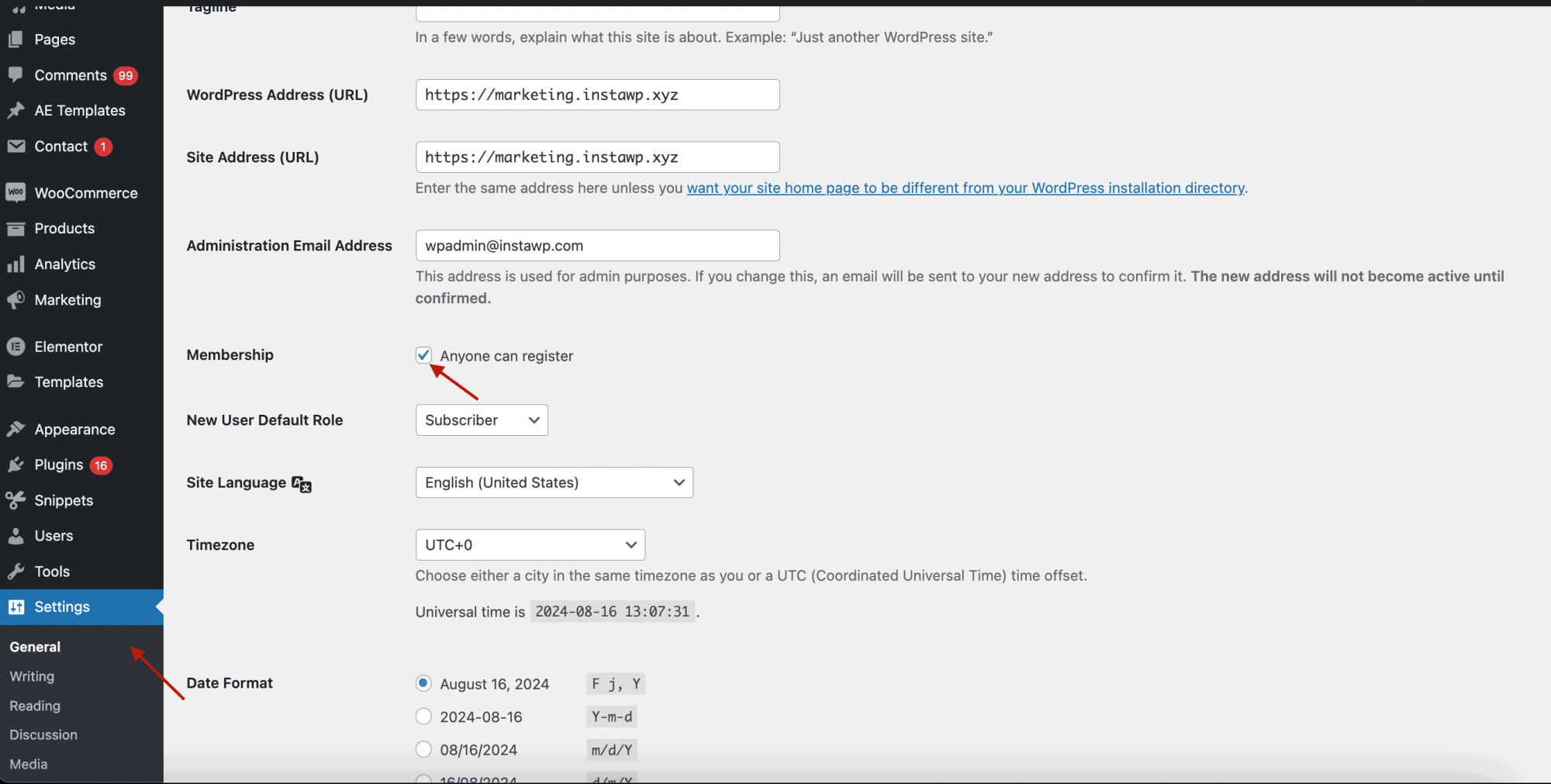
From your WordPress dashboard, go to Settings > General.
Scroll to the Membership option. By default the “Anyone can register” box is checked, which means public sign-ups are open. Uncheck that box, then scroll down and click Save Changes.
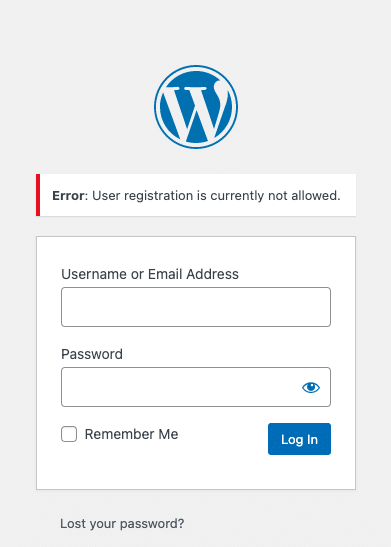
Open your login page in an incognito window to confirm it worked. You should see the message “User registration is currently not allowed.”
Note: If you turn registration off entirely, think about who that affects. For a membership site or an online store, disabling sign-ups would block legitimate customers, so one of the later methods will fit better.
If you keep registration open, it also helps to move the login and registration screens off their default URLs so bots cannot find them as easily. You can set up custom login and registration URLs that are harder to guess.
2. Build a custom user registration form
If your site needs sign-ups, the default WordPress form is the worst one to leave exposed. It is basic, predictable, and offers almost nothing in the way of security. A custom form lets you add the checks that actually slow bots down, and as a bonus you can style it to match your brand.
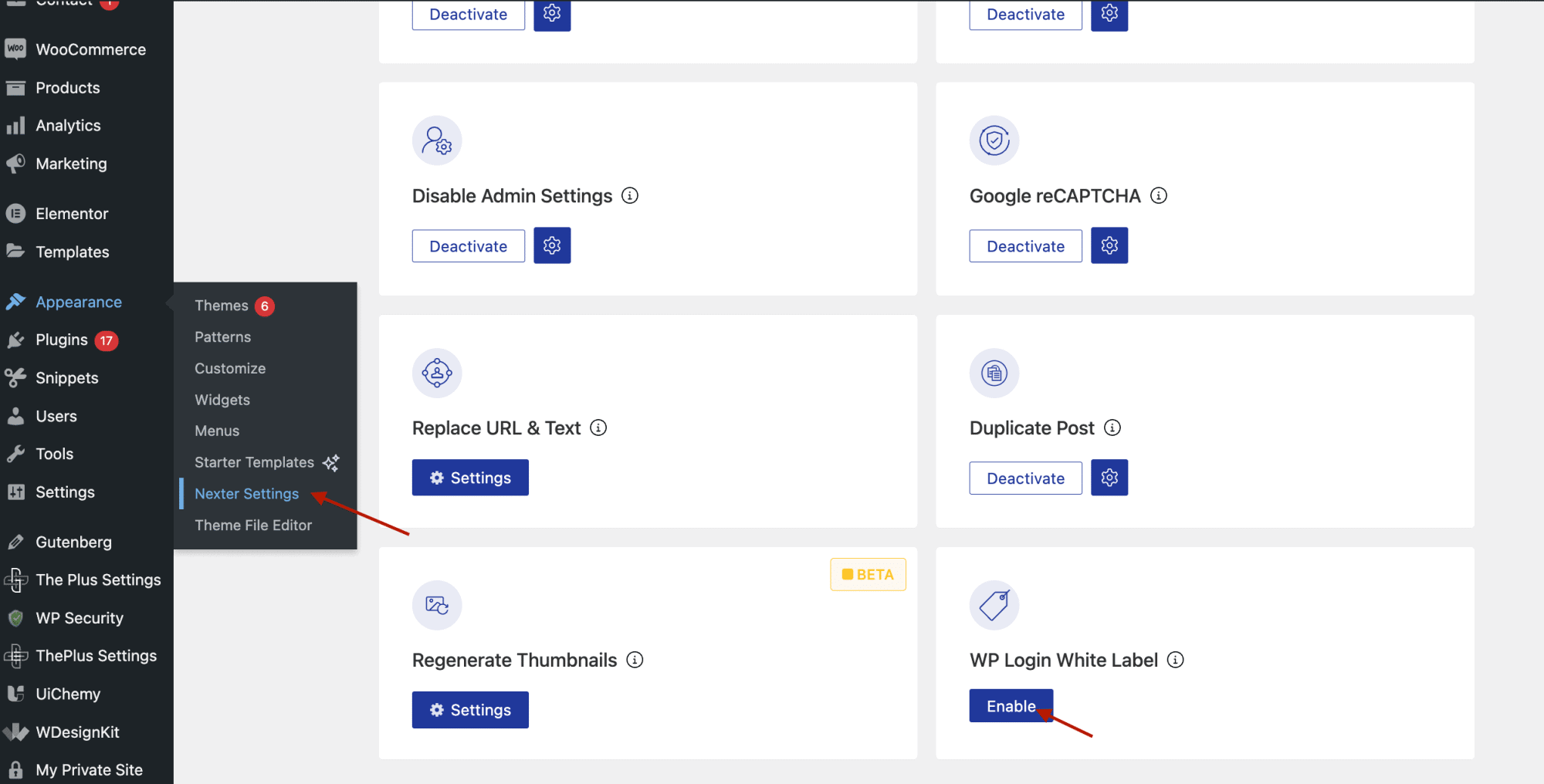
Here I am using Nexter Blocks to customize the form and bolt on extra security. After installing Nexter Blocks, go to Appearance > Nexter Settings > Extra Options.
Click Enable under WP Login White Label to take over the login and registration screens. From here you can add form fields that help filter out fake registrations.
To add a stronger layer, turn on CAPTCHA for the login and registration forms under the Google reCAPTCHA settings. We will set that up properly in method four.
One more step worth taking is two-factor authentication. Go to Nexter Settings > Security, enable the two-factor authentication option, choose which user roles it applies to, and customize the 2FA message.
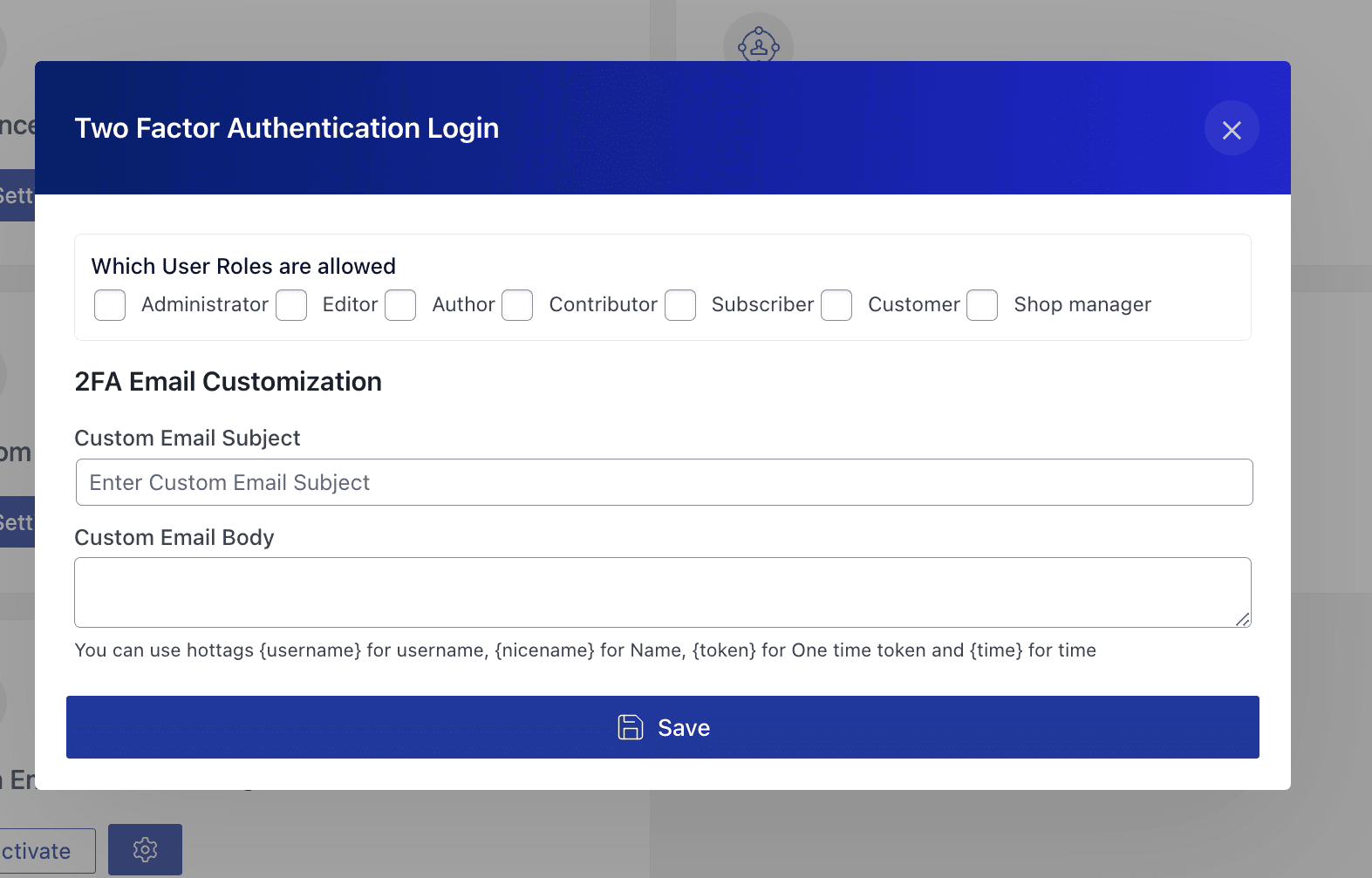
Tip: Add a honeypot field to your custom form. It is a hidden field that real users never see but bots tend to fill in, which gives you a clean way to catch and reject automated sign-ups.
Also Read: Building on Elementor instead? Here is how to create custom login and registration forms in Elementor.
3. Turn on email activation for user registration
Email activation will not stop a bot from filling out your form, but it stops the account from going live. The bot never confirms the email, so it never gets a working login. It is a quiet, low-friction filter that weeds out most automated sign-ups.
Most registration form plugins can send an activation email to every new sign-up automatically. Open your plugin’s settings page and switch on the activation email option.
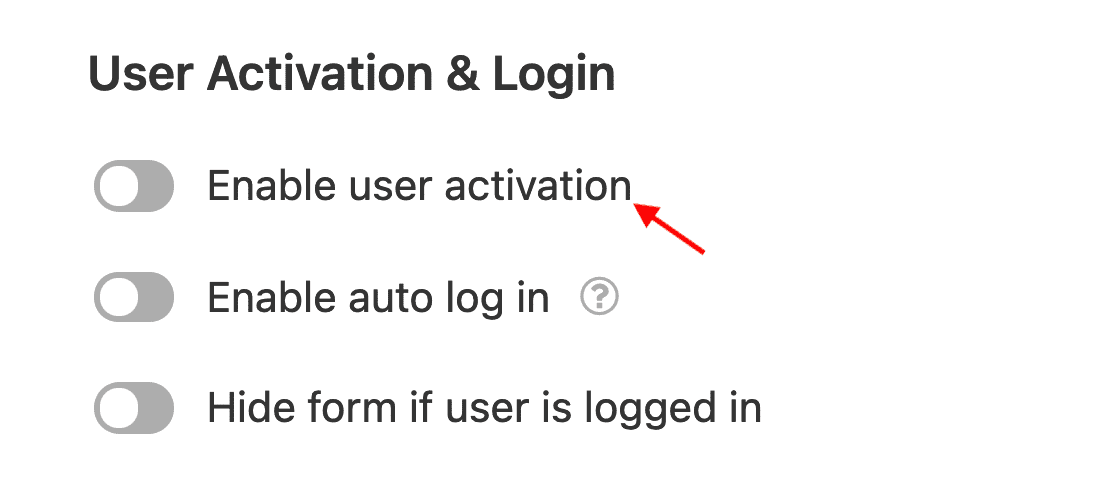
The activation email usually contains a link the user clicks to verify the account and log in. One thing to plan for: legitimate emails sometimes land in spam, so add a note asking users to check that folder, and offer a way to resend the activation email through your custom form.
4. Use CAPTCHA to block registration form spam
CAPTCHA is the workhorse here. It puts a test in front of the form that bots struggle to pass and humans clear without much thought. There are several options, including Google reCAPTCHA and Cloudflare Turnstile, and Google reCAPTCHA is the one most sites reach for first.
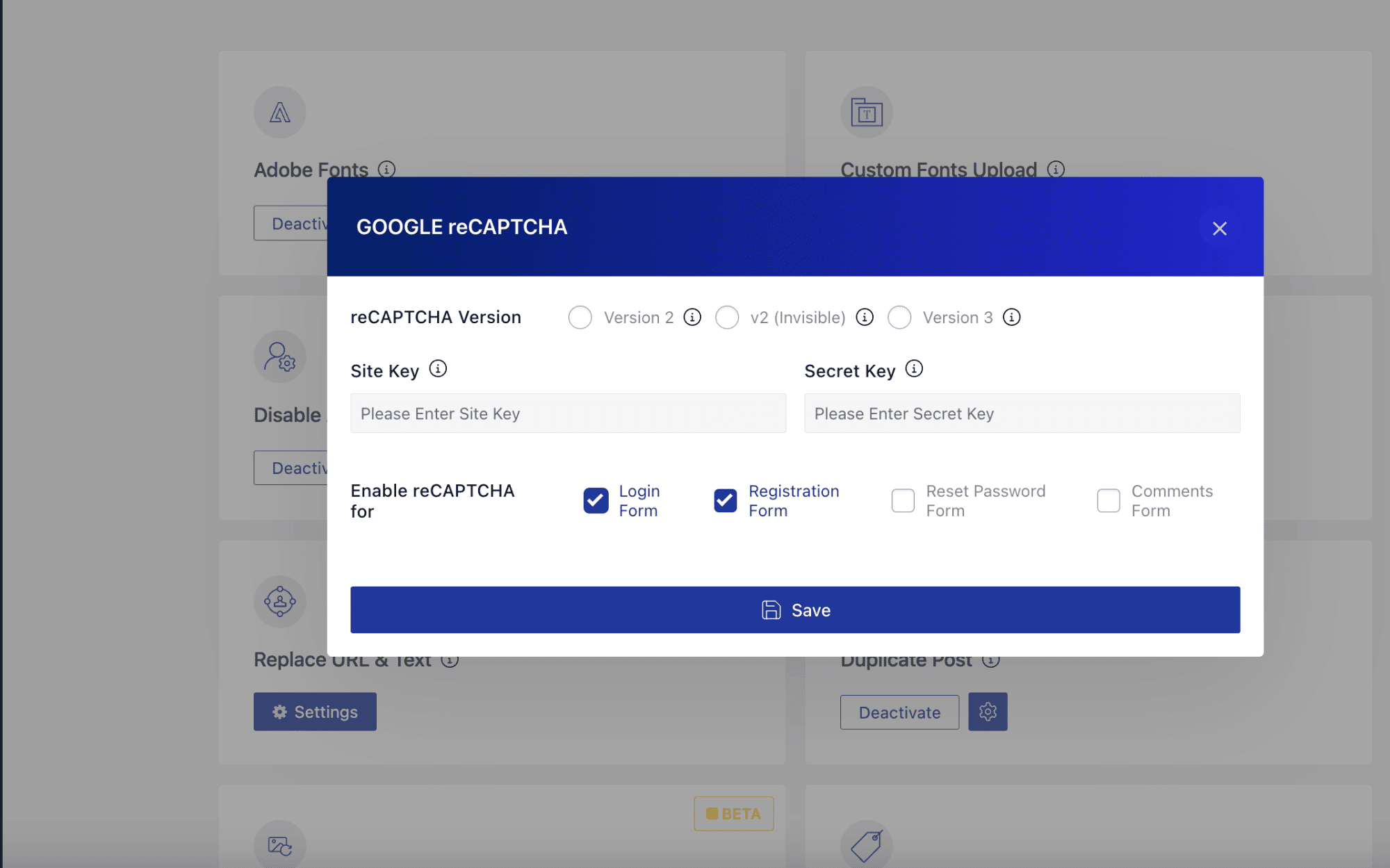
To use Google reCAPTCHA you need a plugin that supports it. With Nexter Blocks, go to Nexter Settings > Extra Options and turn on the Google reCAPTCHA option.
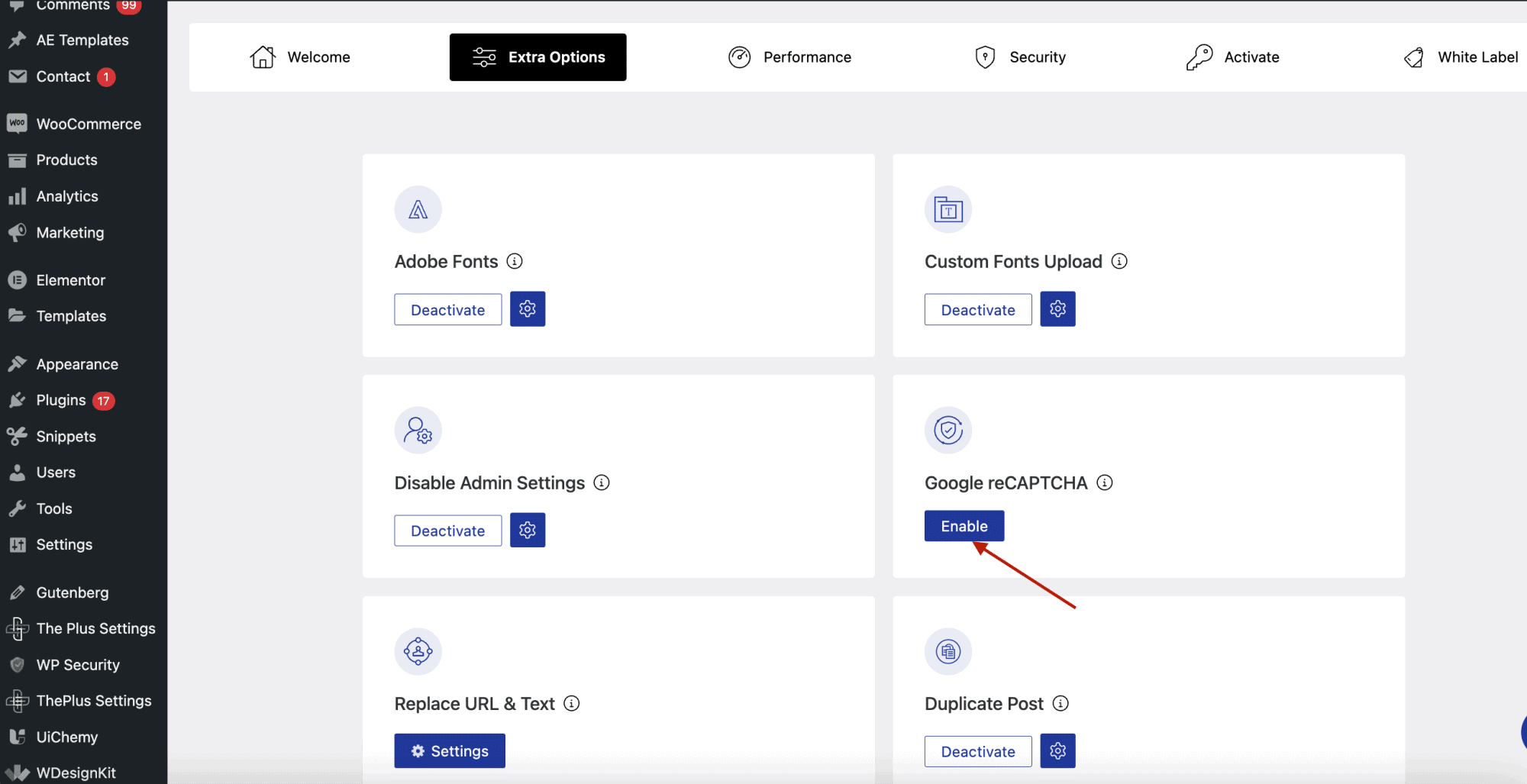
You will need a site key and a secret key, which you generate from the Google reCAPTCHA admin console.
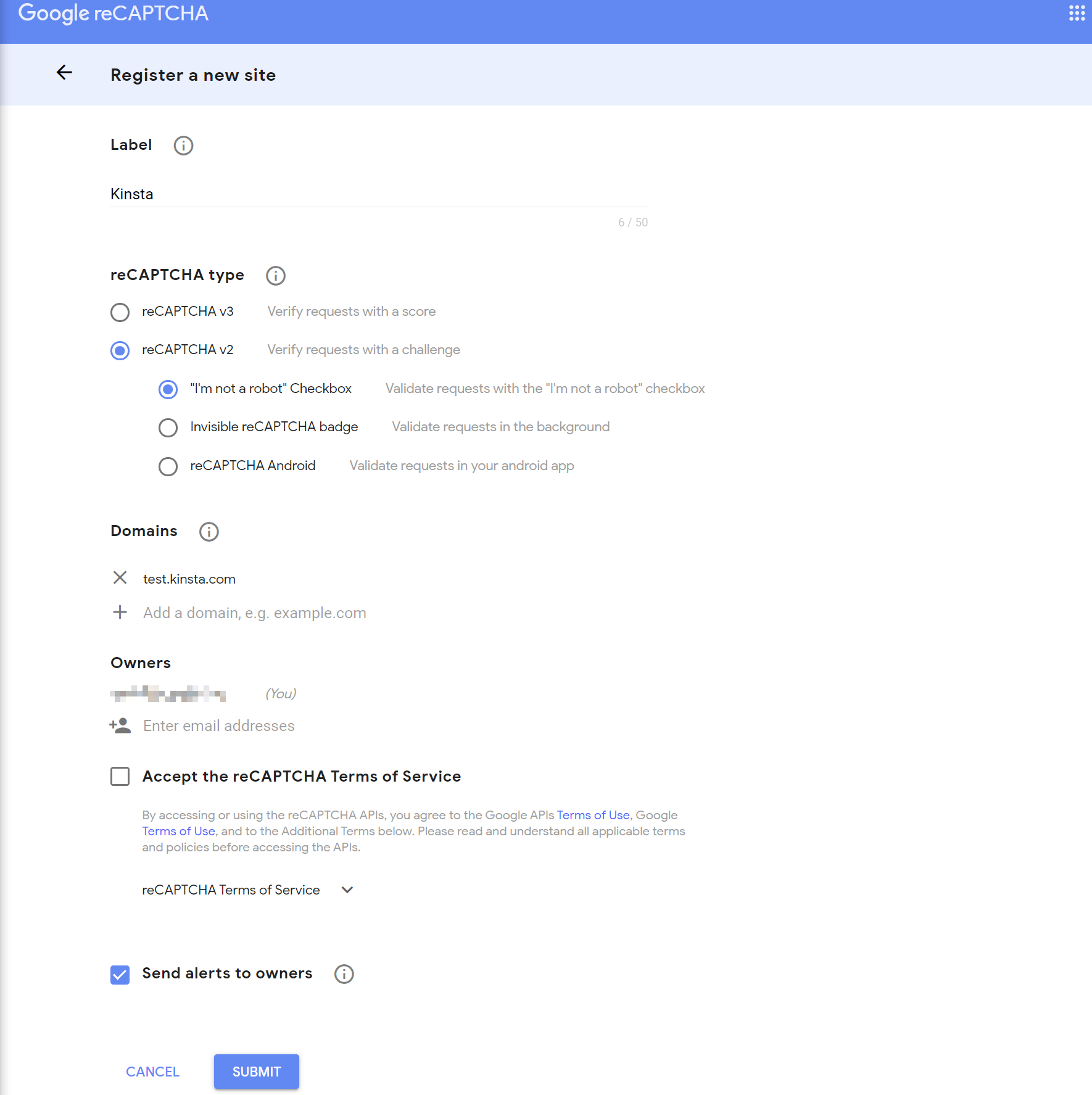
reCAPTCHA v3 is the latest version and runs in the background without making users solve a puzzle. After you paste in your keys, tick the checkboxes for Login Forms and Registration Forms and click Save.
Note: Not every CAPTCHA is accessible to users with disabilities. Lean toward accessible options like reCAPTCHA’s invisible mode, or pair it with an accessibility-friendly alternative so you do not lock out real people while blocking bots.
Also Read: Not sure which to use? Here are the 8 key differences between CAPTCHA and reCAPTCHA.
5. Require manual approval for user registration
When you want full control over who gets in, require manual approval for every sign-up. Nothing goes live until you say so. It is the most hands-on method, so it suits smaller or higher-trust sites, and it pairs well with the automated filters above. To set it up you use a dedicated plugin such as WP Approve User.
Once the plugin is installed, go to the Users menu in your dashboard. You will find a new Unapproved view holding every fresh sign-up that is waiting on you. From there you can view, approve, or delete each account based on whether you want to grant access.
Your existing users are approved automatically when you activate the plugin, so you only review new accounts from that point on.
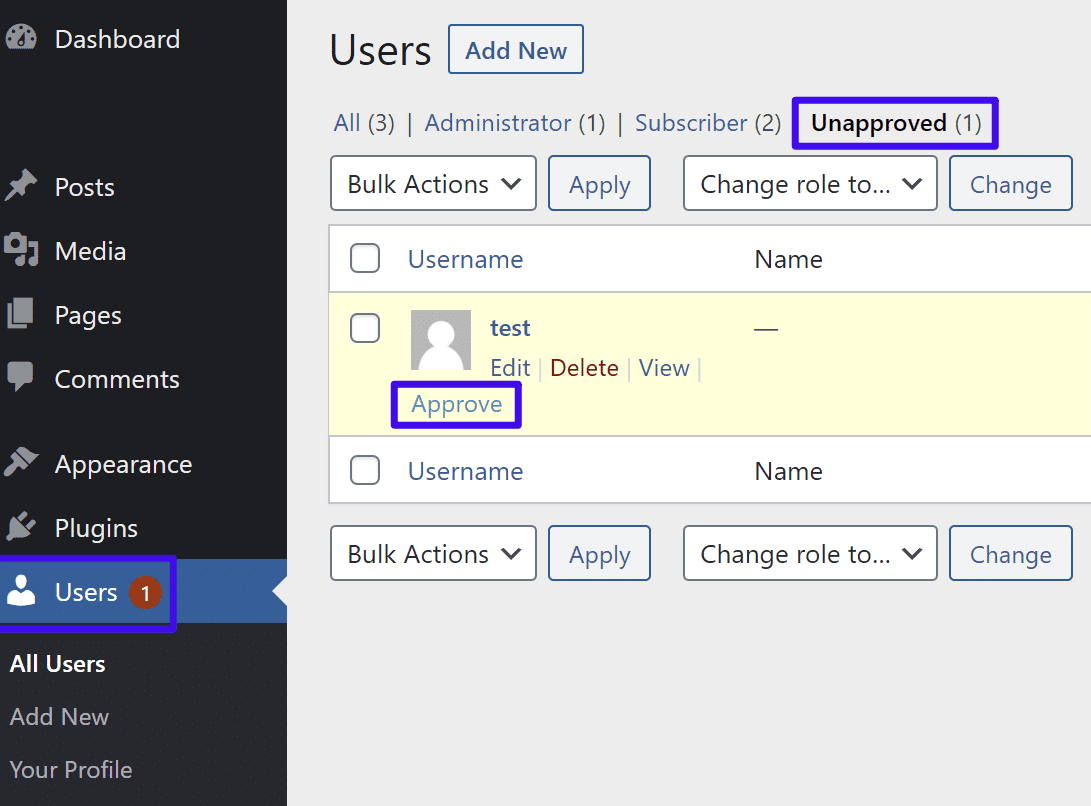
If more than one admin manages the site, agree on a simple rule for who gets approved and who gets rejected, so approvals stay consistent no matter who is on duty.
Wrapping up
Spam registrations show up in different shapes, so the fix is usually a combination rather than a single switch. Turning registration off ends it outright when you do not need sign-ups. When you do, stack a custom form, CAPTCHA, email activation, and manual approval until the bots give up and the real members get through.
For the build itself, Nexter Blocks gives you 90+ Gutenberg blocks plus the login white-label, reCAPTCHA, and two-factor tools used above, all in one plugin. If you work in Elementor, The Plus Addons for Elementor brings 120+ widgets for your design needs, and WDesignKit offers a cross-builder template and widget library to start from.
Suggested reading
- Best anti-spam plugins for WordPress: compare the dedicated plugins that catch spam your form filters miss.
- Best popup plugins for WordPress: build sign-up and lead forms that convert without inviting spam.
- WordPress robots.txt for AI crawlers: control which bots are allowed to crawl your site in the first place.
- WordPress robots.txt generator: a simple way to set crawl rules without editing files by hand.
Stay updated with Helpful WordPress Tips, Insider Insights, and Exclusive Updates – Subscribe now to keep up with Everything Happening on WordPress!
FAQs on Spam Registrations
Why do spammers register on my site?
Spammers register on your site to exploit it for various purposes, like posting spam content, inserting malicious links, or attempting to gain unauthorized access. These registrations are often automated by bots designed to search for vulnerable websites where they can carry out these activities. Such attacks disrupt website function.
What should I do if I suspect I have fake registrations?
If you suspect you have fake registrations, review your user list and look for suspicious patterns, such as accounts with nonsensical usernames or email addresses. You can delete these accounts manually or use security plugins designed to detect and remove spam registrations. Additionally, tighten your site’s security by enabling CAPTCHA or email verification.
What are some signs that I might have fake registrations?
Signs of fake registrations include a sudden increase in new users, especially with generic or random usernames and email addresses. You might also notice accounts that never log in after registering or accounts that are linked to spam or malicious activities, such as posting irrelevant content or adding suspicious links.
Why prevent spam bots from registering on membership sites?
Preventing spam bots from registering on membership sites is crucial to maintaining a secure and trustworthy environment for your members. Spam bots can flood your site with fake accounts, leading to potential security breaches and unwanted content. By blocking these registrations, you protect your real users and your website.
Is it normal for WordPress blogs to get a lot of spam comments?
Yes, it’s common for WordPress blogs to receive a significant amount of spam comments. These comments are often generated by bots looking to post malicious links or irrelevant content on your site. Implementing anti-spam measures, such as using CAPTCHA or installing a spam filter plugin, can help reduce spam comments.
