












Running a WordPress site and want to share content only with registered users?
Whether it’s exclusive articles, downloadable resources, or member-only pages, restricting content to registered users is a smart way to protect valuable information and build a focused community.
Luckily, WordPress makes this easy. With built-in user roles, free plugins, and simple settings, you can control who sees what without needing advanced technical skills.
It’s a great way to create a more personalized, membership-friendly experience.
In this blog, we’ll dive into the methods to show you how to restrict content to registered users.
Let’s dive in!
What is User Registration in WordPress?
WordPress lets you manage who can access your site and what they can see by creating registered user accounts.
Assigning different user roles and adjusting your registration settings gives you fine control over access and site actions.
When someone registers on your WordPress site, you can assign them a specific user role. Each role has its own capabilities and permissions. The most common roles are:
- Administrator: Full control over the site
- Editor: Can publish and manage posts, including those written by others
- Author: Can write and publish their own posts
- Contributor: Can write posts, but cannot publish them
- Subscriber: Can only manage their own profile
You can control which roles have access to certain content areas. For most membership sites, new users are given the “Subscriber” role by default.
Understanding these roles helps you decide which users should see restricted content.
How Does WordPress Handle User Registration by Default?
WordPress allows user registration, but keeps it turned off by default for security reasons. To let users register, you must enable this option in your site settings.
Go to Settings > General in your dashboard. Set the “Membership” checkbox to “Anyone can register.”

You can also select the default role for new users using the “New User Default Role” dropdown.
It is important to monitor user registrations to prevent spam accounts. Consider using a plugin for email confirmation or CAPTCHA to protect your site during the registration process.
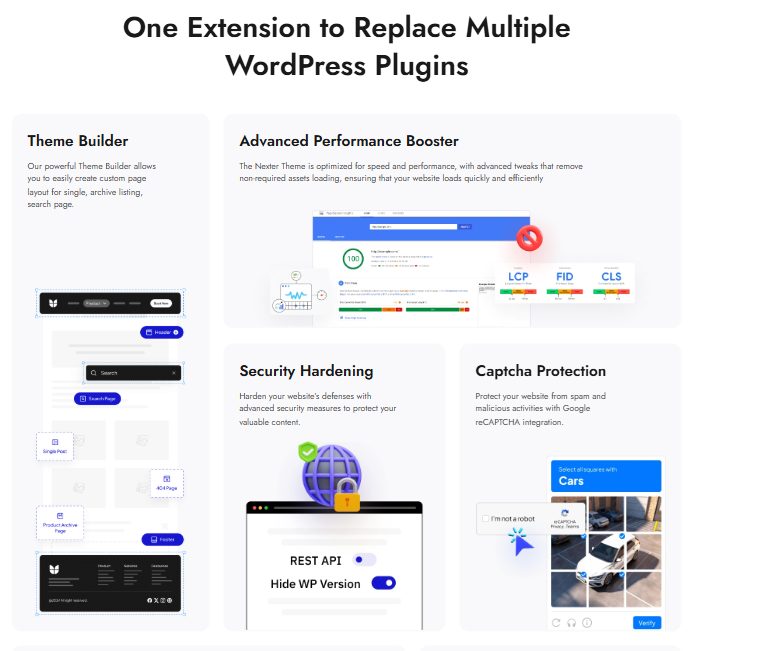
You can use Nexter Extension, which will help you enable CAPTCHA, two-factor authentication, and other essential protections, all in one lightweight toolkit, so you don’t have to rely on 50+ separate plugins.
These steps help you maintain control and security while allowing new users to sign up.
How to Restrict Content to Registered Users in WordPress
There are several reliable ways to limit content access on your WordPress site. Each method offers a different balance of control, ease of use, and flexibility to fit your needs.
Method 1: Using Built-In WordPress Features
WordPress includes a built-in content visibility feature that lets you control who can view your posts and pages.
If you want to restrict content access to specific users, the Password Protected option is ideal.
To enable this, open the post or page you want to protect in the WordPress editor.
On the right-hand panel, locate and click the Status section to expand it.
Under Status & visibility dropdown, select Password Protected.

Enter a password in the field that appears. After that, update or publish the post to apply the change.
Now, only users with the correct password can view the content, even if they’re not logged in.
This method is different from the Private option, which restricts access to logged-in users with at least the Author role.
Method 2: Manual Coding Approaches
If you are comfortable editing your site’s theme files, you can use code to check if a user is logged in and show or hide content. WordPress provides the is_user_logged_in() function to handle this.
Here’s a simple example:

You can add this code to your theme’s template files or use a shortcode in custom plugins.
One of the easiest ways to add custom PHP, CSS, JS, or HTML to your site without the hassle of creating a child theme is by using the Code Snippets feature in the Nexter Extension plugin.
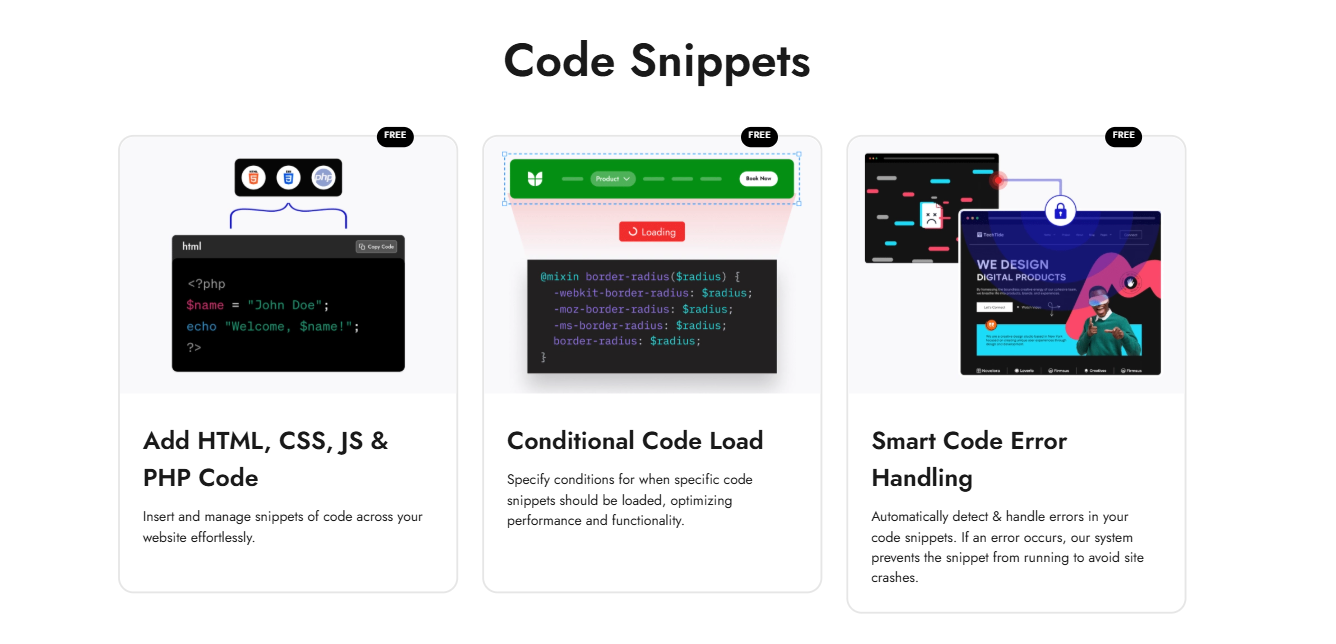
To use this feature, you need to first install and activate the Nexter Extension.
To read in detail how to use Code Snippets, you can read this doc: How to add Code Snippets for FREE in WordPress? (HTML, CSS, JS & PHP)
This approach gives you full control but requires some knowledge of PHP and WordPress structure.
It’s best for custom cases where plugins don’t fit your needs.
Suggested Read: How to Disable WordPress Admin Bar for All Users Except Administrators
Method 3: Using Membership Plugins
Membership plugins are the easiest way to protect content for registered users. Popular options include
These plugins allow you to set rules for posts, pages, or specific sections for different user roles or specific users.
After choosing your desired plugin, install it from the WordPress dashboard by going to Plugins > Add New.

Search for your plugin and click ‘Install Now‘, then click ‘Activate‘. Or you can also download the plugin from the official website, upload the zip file, and then Install and Activate.

One popular membership plugin is ARMember, which offers powerful membership management, content restriction, subscription billing, and user registration tools in one place.
Once you’ve installed and activated ARMember on your site, you can create unlimited membership plans with flexible billing cycles by going to ARMember → Manage Plans.
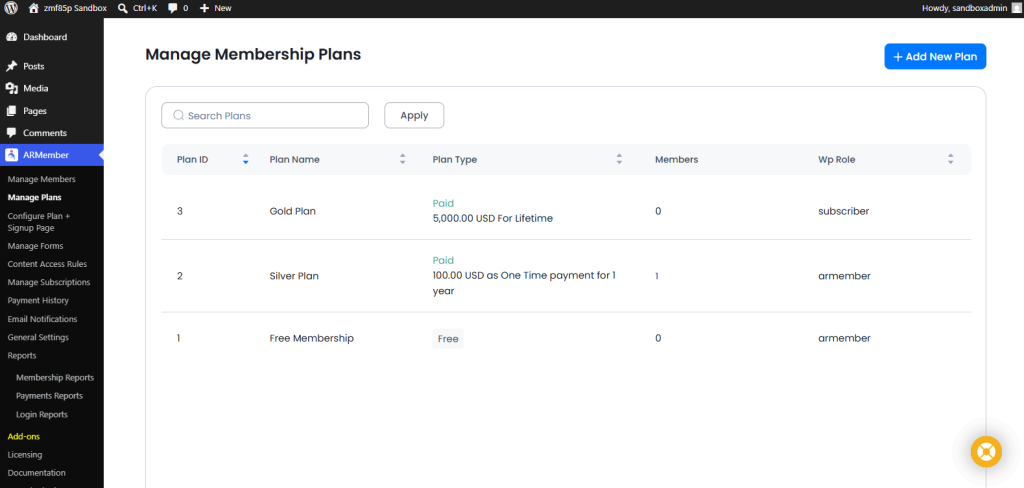
Now click on “Add New Plan“.
Enter your plan’s name, description, member role, Inherit Access Rules Of Membership Plan, and plan type.

After setting up your membership plan, head over to the Content Access Rules page for protecting your content with just a simple tick on.
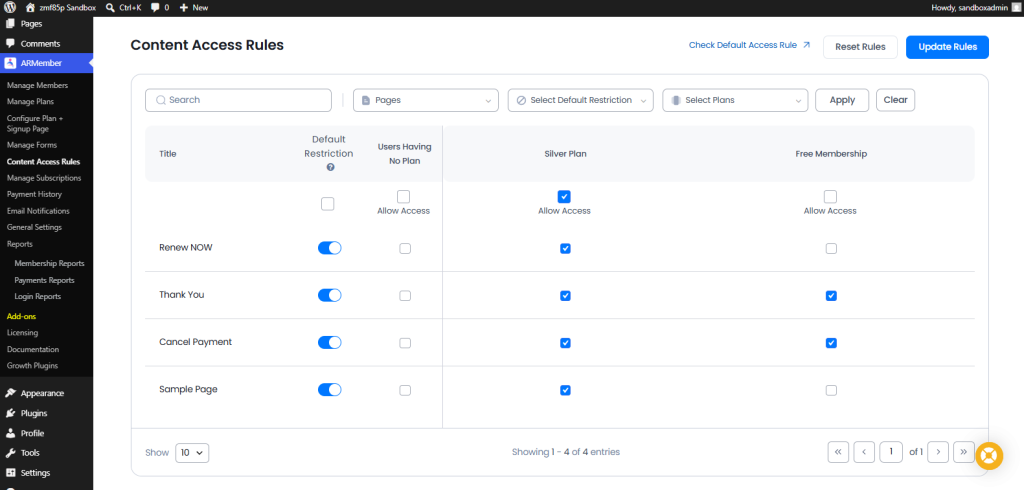
That’s it! Restricting content with ARMember is as simple as that, in just a few steps.
However, if you want a faster setup, ARMember’s smart setup wizard lets you create membership plans and configure content restrictions right from the start. Using this, you can launch your membership site in less than 5 minutes, even if you’re a beginner or non-tech savvy.
This makes it a practical choice for membership sites, online courses, premium communities, and member-only resource hubs.
While ARMember offers an easy way to protect and manage members-only content, many site owners also use MemberPress for the same purposes. For comparison, here’s how the process works using MemberPress.
Once you’ve installed and activated MemberPress on your site, you’ll start by creating a membership level under the “Memberships” section.
Next, click on the Add New button.
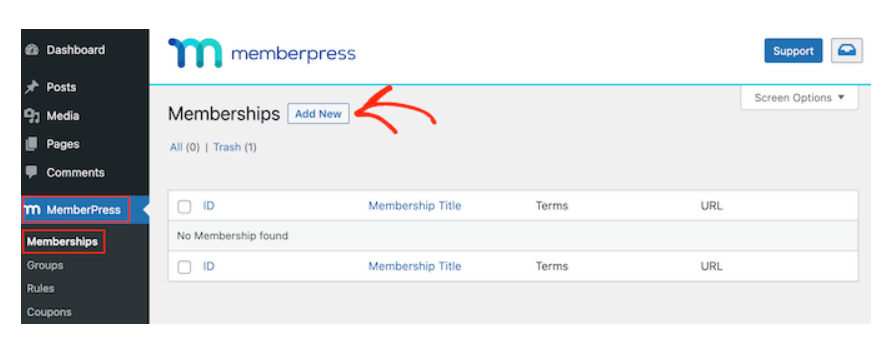
Fill in all the details, and set the membership plan.
After publishing your membership, you’ll head over to the “Rules” section to define which content should be protected.
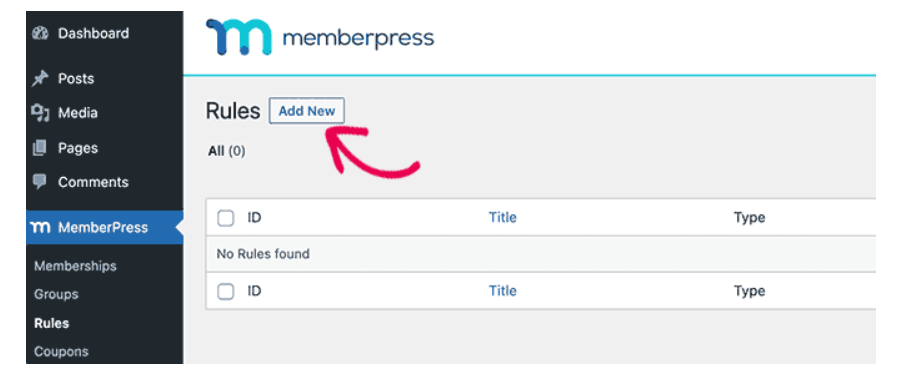
You can restrict individual pages, posts, categories, or even tags. Then, you simply assign the membership level that grants access to that content.
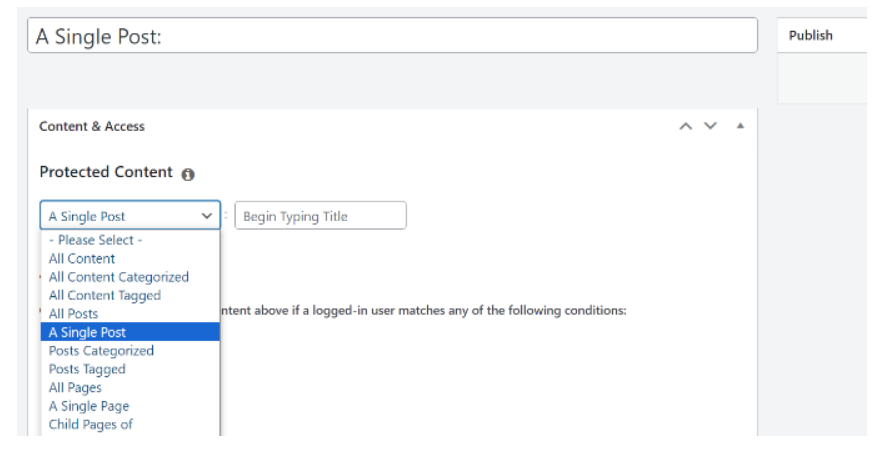
With this setup, only users who register or purchase a membership will be able to view the restricted content, no need for manual password sharing or complicated role settings.
It’s a great way to manage exclusive content while offering a smooth experience for your audience.
Bonus: Set Display Conditions Right From WordPress Block Editor
If you’re a WordPress user and you want a simple solution to restrict content to registered users only, you can use Nexter’s Display Conditional Rules Block.
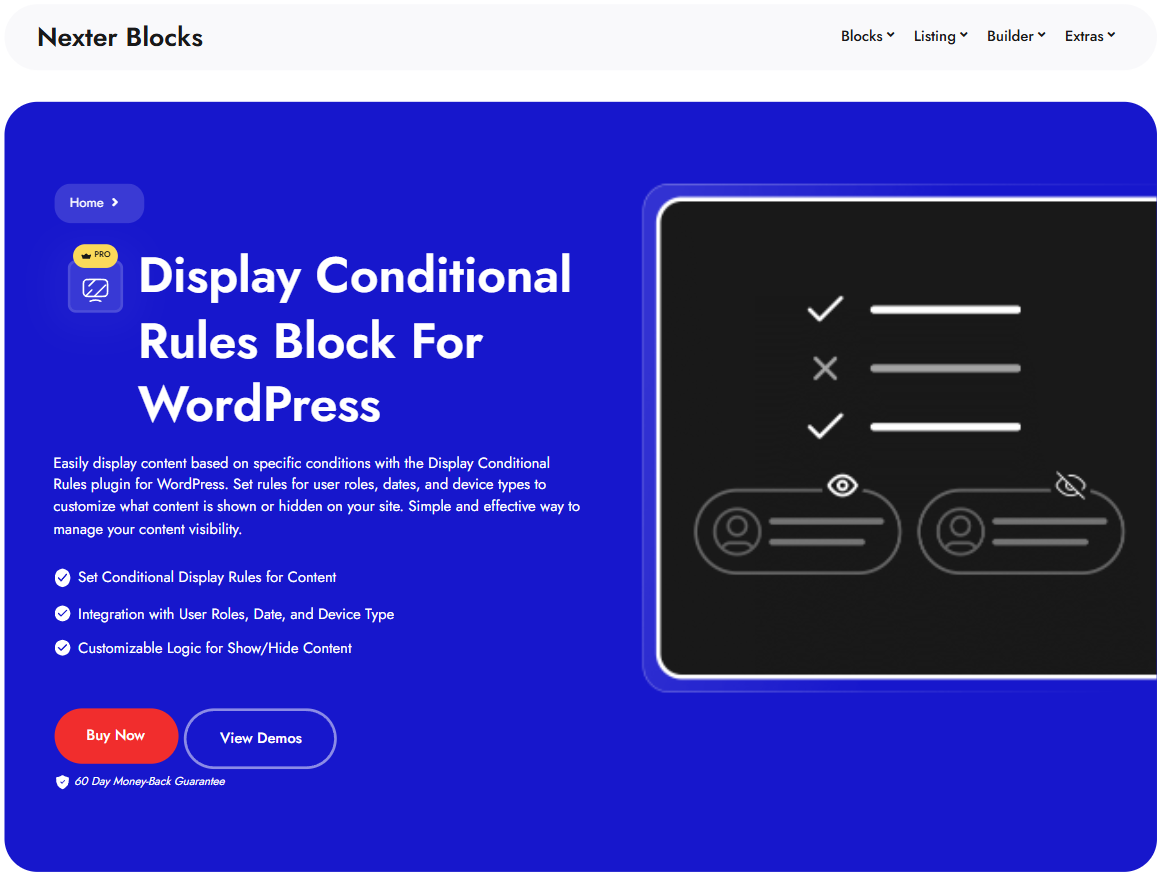
Nexter Blocks makes it easy to show or hide content depending on whether a user is logged in.
This feature is especially helpful for membership sites, private sections, or personalized messages.
First, make sure that Nexter Blocks is installed and activated.
Then open the Nexter Blocks dashboard and select Blocks, and search for the Display Rules block. Once found, make sure it’s toggled on.
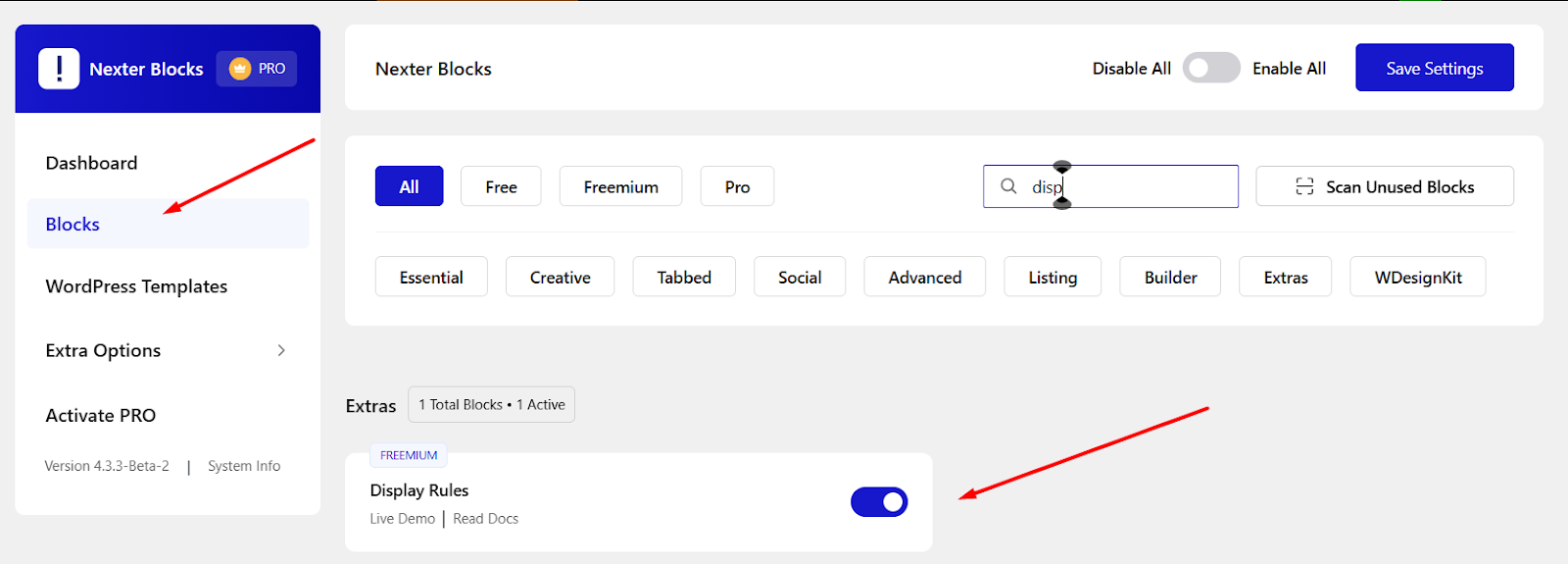
Then, open the post or page where you want to apply the Display Conditions block.
Now, simply select the block or section you want to control, then look for the Nexter: Display Rules option in the editor settings.

Then select Item 1 and then from the dropdown choose the Login Status option or User Role option, the one that fits your needs.

Once applied, the block will automatically appear or stay hidden based on the selected option status, no extra coding needed.
It’s a simple yet powerful way to personalize your WordPress site with Nexter Blocks.
To read an in-depth tutorial of Nexter Display Conditions Block, you can refer to this doc – How to Set WordPress Display Conditions Based on Visitor/Login Status?
Best Practices for Restricting WordPress Content
Keep these key practices in mind when limiting access to your content:
- Plan your content structure in advance. Decide which pages, posts, or sections need to be restricted to avoid unintentionally hiding important public information like menus or contact pages.
- Choose a reliable membership or content restriction plugin. Look for a plugin that offers flexible control over who can access specific content.
- Keep the restriction rules straightforward. Simple, clear settings help avoid confusion for both you and your users when managing access levels.
- Test your restrictions regularly by logging in with different user roles. Make sure that visitors, registered users, and admins are seeing the correct content based on their permissions.
- Use content teasers or previews if you’re trying to encourage sign-ups. A short visible snippet can motivate users to register and access the full content.
- Ensure restricted content is not indexed by search engines if it’s meant to stay private. Use SEO tools or plugin settings to block bots from accessing protected areas.
Already restricted content to registered users? Want to control visibility based on specific page content in this guide? Learn here – How to Set WordPress Display Conditions Based on Single Page Content?
Stay updated with Helpful WordPress Tips, Insider Insights, and Exclusive Updates – Subscribe now to keep up with Everything Happening on WordPress!
Wrapping Up
Restricting content to registered users is a great way to deliver exclusive value, protect sensitive information, and build a more engaged online community.
Whether you use WordPress’s built-in features, a dedicated membership plugin, or simple conditional logic, the key is choosing a method that fits your workflow and technical comfort level.
And if you’re looking to go beyond just content restriction, say, by improving security, adding smart display conditions, or customizing your design without code, there’s a flexible solution worth exploring – Nexter Blocks.
Apart from Display Conditions, Nexter Blocks provides 90+ useful Gutenberg blocks, including Content Protection,Login Form Block, Infobox, and more.
Explore all the 90+ Gutenberg blocks here.
FAQs on How to Restrict Content to Registered Users in WordPress
What does it mean to restrict content in WordPress?
Restricting content means limiting access to specific pages, posts, or sections of your website so only registered or logged-in users can view them. This is commonly used for membership sites, premium content, or private areas.
Can I show a message to users who aren’t logged in?
Yes, many plugins (or custom code snippets) let you display a custom message to logged-out users, encouraging them to log in or register to view the restricted content.
Is it possible to protect only part of a post or page?
Absolutely. Some content restriction plugins and page builders like Nexter Blocks allow you to hide or display specific sections of a post or page based on the user’s login status.
Will restricted content affect my SEO?
If set up properly, it won’t harm your SEO. You can show a teaser or summary to search engines and visitors while keeping the full content restricted. Just make sure private content isn’t indexed by search engines using noindex tags or plugin settings.
