How to Set WordPress Display Conditions Based on Visitor/Login Status?

Key Takeaways

  • Nexter Blocks Display Rules extension allows setting display conditions based on user login status, role, browser, and operating system.
  • Users can create personalized experiences by selecting Login Status from the Rule dropdown to show content exclusively to logged-in users.
  • Nexter Blocks enables display conditions based on user roles, allowing specific content visibility for roles like Customer or Staff.
  • Display conditions can be tailored for different operating systems, providing customized content such as download instructions for Windows or Mac.
Table of Contents

Having a website that is tailored to the needs of its users is of utmost importance in today’s digital landscape. Understanding how to set display conditions based on visitor status in WordPress can help you create a more user-friendly website tailored to a visitor’s needs. The Display Rules extension from the Nexter Blocks allows you to do that exactly. You can set display rules based on the user’s login status, role, browser, and operating system to provide a personalized experience.

To check the complete feature overview documentation of the Nexter Blocks Display Rules extension, click here.

Requirement  – This extension is a part of the Nexter Blocks, make sure it’s installed & activated to enjoy all its powers.

Note: Here, we are using blocks from the Nexter Blocks.

To add display conditions based on the user’s different status using the Display Rules extension, add any block from the Nexter Blocks on the page. 

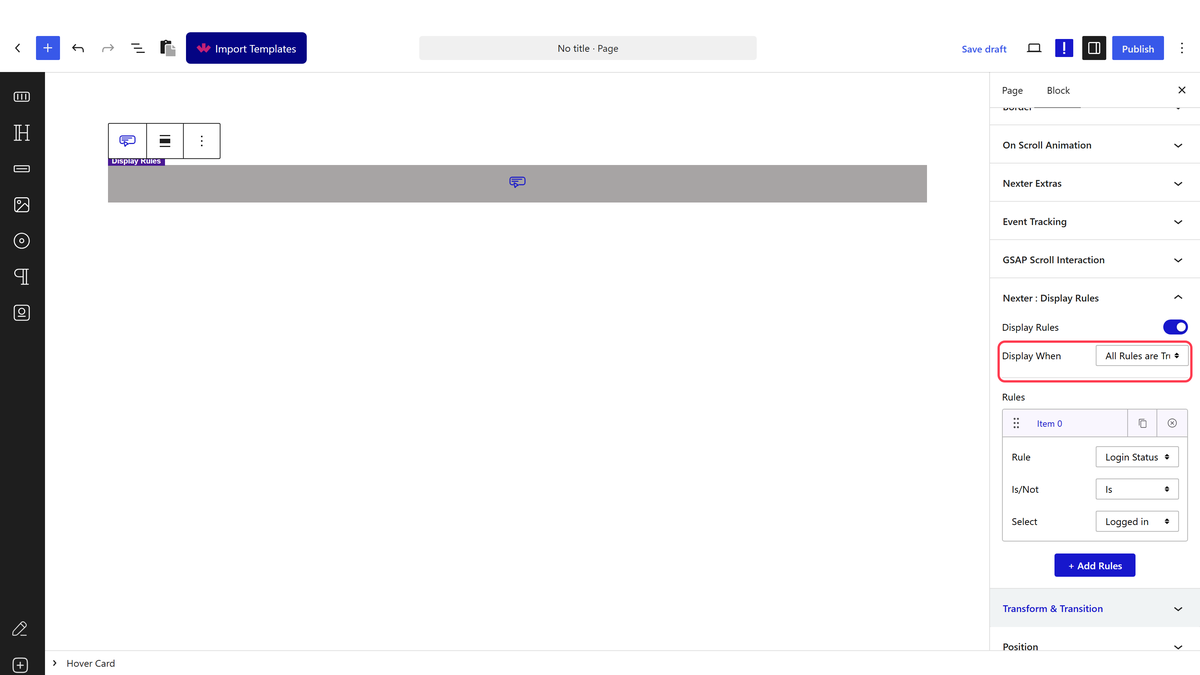
1. Go to Advanced > Nexter : Display Rules

2. Turn on the Display Rules toggle.

3. After selecting the appropriate option from the Display When dropdown, go to the Rules section. Here you have to set the actual display condition. You can have one or multiple conditions/rules.

4. To set the user-based display rules, click on the Item 0 tab. In the Rule dropdown, you’ll find different options under the Visitor label.

How to Set WordPress Display Conditions Based on User Login Status?

Providing a more personalized experience depending on the login status of the user is a powerful and effective way to engage the audience. This option allows you to set display rules based on the user’s login status. This can be a handy feature for a membership site, where you can provide additional content to the logged-in users. 

To set visibility rules based on a user’s login status – 

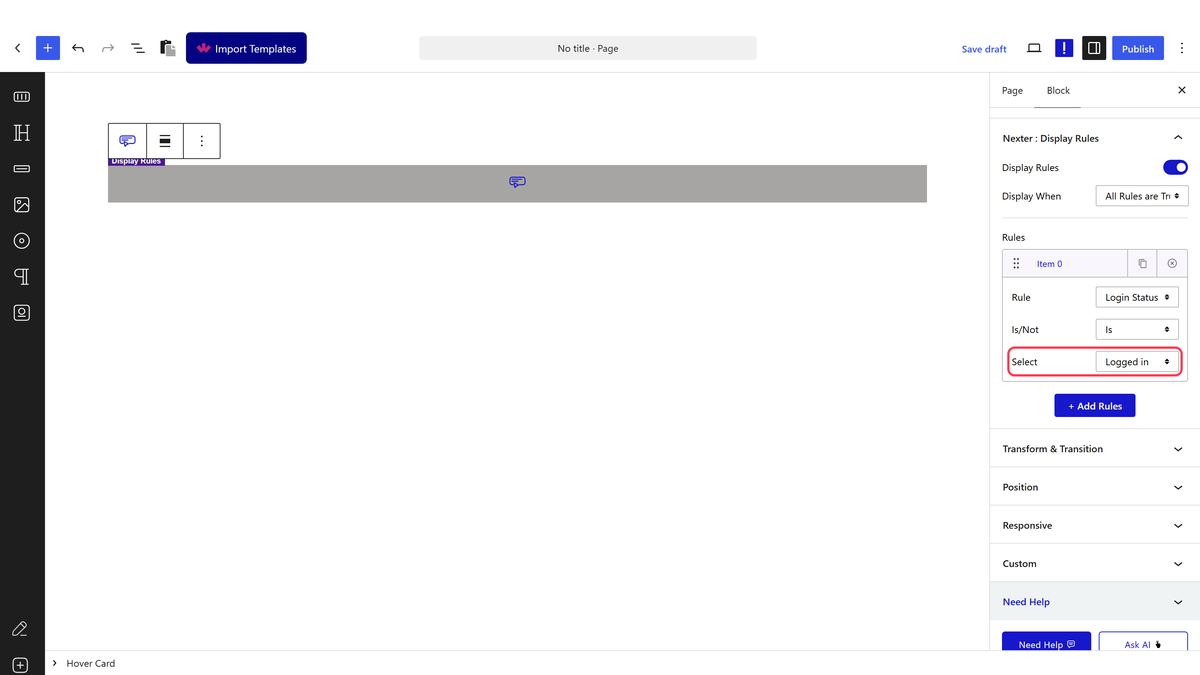
1. Select Login Status from the Rule dropdown under the Item 0 tab.

display rules login status new

2. Then, in the Is/Not dropdown, you have two options – 

Is – This will make the statement true.

Not – This will make the statement false.

3. In the last dropdown, you’ll have to choose Logged In

For example, if you want to show content to logged-in users only, then after selecting Login Status from the Rule dropdown, choose Is from the second dropdown.

This will make the content visible to logged-in users only.

If the option is set to Not in the second dropdown, it will reverse the condition.

How to Set WordPress Display Conditions Based on Different User Roles?

With this option, you can set display conditions based on the user’s role. This can be especially useful for businesses or websites that require different levels of access for their staff and customers.

Understand different roles in WordPress.

Note: This rule applies only to logged in visitors.

To set display conditions based on the user role – 

1. Select User Role from the Rule dropdown under the Item 0 tab.

display rules user role new

2. Then, in the Is/Not dropdown, you have two options – 

Is – This will make the statement true.

Not – This will make the statement false.

3. In the last dropdown, you’ll have to choose the appropriate user role.

For example, if you want to show a file download button on a page to the customers only. To do this, select the block, then after selecting User Role from the Rule dropdown, choose Is from the second dropdown.

Then from the last dropdown, select Customer.

This will make the button visible to the users with the customer role only.

If you choose Not from the second dropdown, it will reverse the condition.

Similarly, you can set rules for other user roles.

How to Set WordPress Display Conditions Based on Operating System?

This option allows you to set display conditions based on the user’s operating system. This can be a convenient feature if you offer OS specific content on your website so you can show content accordingly to the visitors.

To set display conditions based on operating systems – 

1. Select Operating System from the Rule dropdown under the Item 0 tab.

display rules operating system new

2. Then, in the Is/Not dropdown, you have two options – 

Is – This will make the statement true.

Not – This will make the statement false.

3. In the last dropdown, you’ll have to select the targeted operating system.

In a software download website, you can customize the download button text and provide different instructions based on the user’s operating system (e.g., “Download for Windows” or “Download for Mac”) to guide them to the appropriate version of the software.

How to Set WordPress Display Conditions Based on Visitor Browser?

Similar to the operating system option, if you show browser-specific content like addons or in-browser apps on your website, you can use this option. This feature can be helpful in ensuring your website content is tailored for different browsers and provides the best user experience for all users. 

To set display conditions based on a browser – 

1. Select Browser from the Rule dropdown under the Item 0 tab.

display rules browsers new

2. Then, in the Is/Not dropdown, you have two options – 

Is – This will make the statement true.

Not – This will make the statement false.

3. In the last dropdown, you’ll have to choose the targeted browser.

For example, we have an in-browser app for Chrome and Safari browsers. Now we want to show different buttons on both browsers for their respective download options. 

For this, select a button; after selecting Browser from the Rule dropdown, choose Is from the second dropdown.

Then from the last dropdown, select Chrome.

Now that button will be visible to Chrome users only.

Following this process, you can also set conditions for the Safari browser.

Also, read How to Set WordPress Display Conditions Based on Date & Time.

About the Author

Photo of Aditya Sharma CMO of NexterWP
CMO at POSIMYTH Innovations · NexterWP · 7 years experience

He has spent years in the WordPress ecosystem building, breaking, and optimizing sites until they actually perform. He works at the intersection of speed, growth, and usability, helping creators ship websites that load fast and convert. An active WordPress community contributor sharing through tools, tutorials, and direct collaboration. Tested practice, not theory.

WordpressThemesElementorn8nAIClaudeAutomationServer

Share your Thoughts

Get Instant Answers to all your questions about Nexter Blocks,
Extensions & Theme trained on 1000+ Docs and Videos

Still in Doubt? Let’s Assist You

Have Feedback or Questions?

Join our WordPress Community on Facebook!

Related Frequently Asked Questions

What if the display conditions based on user login status aren't working?

If the display conditions based on user login status aren't functioning, check if the Display Rules extension from Nexter Blocks is properly installed and activated. Ensure that you've selected 'Login Status' from the Rule dropdown and configured the Is/Not options correctly. For instance, if you want to show content only to logged-in users, make sure 'Is' is selected and 'Logged In' is chosen in the last dropdown.

What are the best practices for setting display conditions based on operating systems?

When setting display conditions based on operating systems, it's best to tailor your content specifically for each OS. For instance, if you have software that runs differently on Windows and Mac, use the Operating System rule to provide clear instructions and download options for each platform. This ensures users receive the most relevant information and enhances their experience on your site.

What happens if I set conflicting display conditions for the same content?

If you set conflicting display conditions for the same content, the most specific condition will typically take precedence. For example, if you have one rule that shows content to logged-in users and another that hides it from users with a specific role, the latter may override the former. It's crucial to plan your conditions carefully to avoid unintended visibility issues.

Last reviewed: April 14, 2026

Related Docs