












Picture the moment. You are editing a page, you hit Update, and instead of a saved post the screen goes white with one line of text: Allowed memory size of 268435456 bytes exhausted. Or a plugin refuses to activate, or an import stalls halfway through. Nine times out of ten the culprit is the same thing: WordPress ran out of the PHP memory it was allowed to use.
The good news is that the fix is usually a one-line change, and WordPress already tries to give itself more memory automatically. The catch is knowing which layer to edit and why your host sometimes overrides you. This guide walks through how to check your current limit, how to raise it at the right layer, and how to stop the problem from coming back.
What the WordPress Memory Limit Actually Is
The memory limit is the maximum amount of PHP memory a single request on your site is allowed to use. Themes, plugins, imports, and image processing all draw from this pool. When a task needs more than the ceiling, PHP stops it and throws the fatal “Allowed memory size exhausted” error.
Here is the part most guides skip. WordPress does not leave you at the raw server default. Per the official wp-config.php documentation, WordPress will attempt to increase memory allocated to PHP to 40MB for a single site and 64MB for multisite through the WP_MEMORY_LIMIT constant. Admin-side screens get a separate, higher ceiling through WP_MAX_MEMORY_LIMIT, which defaults to 256MB. So if you are seeing errors below those numbers, your web host is capping PHP under what WordPress is asking for, and that is what you actually need to change.

How to Check Your Current Memory Limit
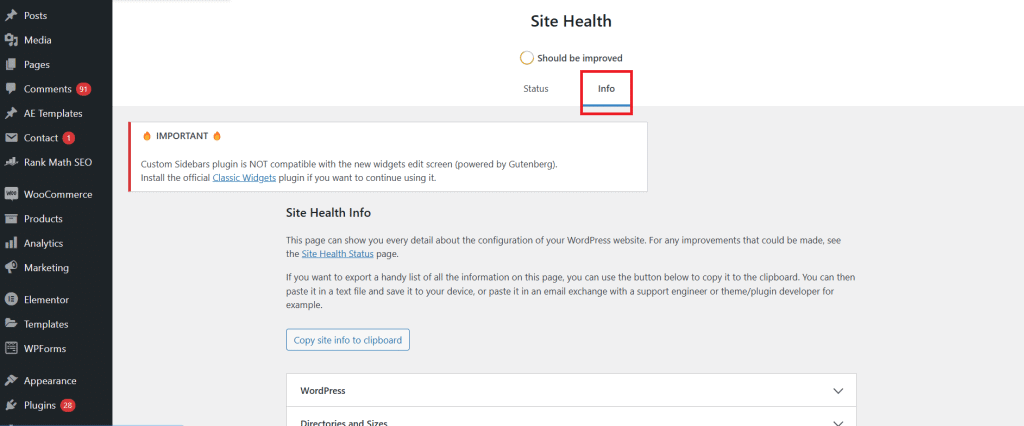
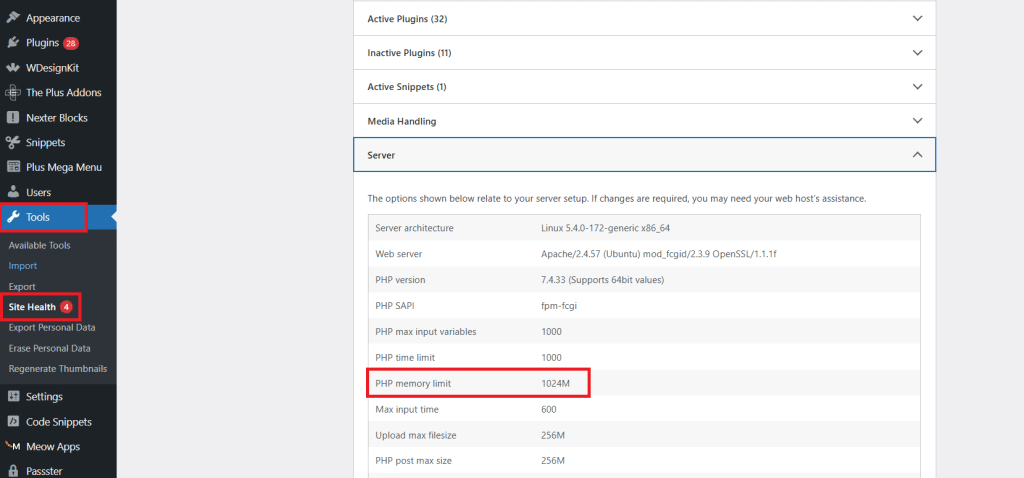
Before you change anything, find out what you are working with. The fastest way needs no code at all. In your WordPress dashboard, go to Tools > Site Health > Info, then open the Server section. The “PHP memory limit” value there is your real, live ceiling.
If you prefer to confirm it in code, add echo WP_MEMORY_LIMIT; to a small snippet for the WordPress value, or load a temporary file with phpinfo(); for the full server picture. Note both the WordPress limit and the underlying PHP memory_limit, because the lower of the two is what your site is bound by.
Also Read: How to Fix the WordPress White Screen of Death since an exhausted memory limit is one of the most common causes of a blank white page.
Signs Your Site Actually Needs More Memory
Raising the limit is not something you do for fun, and setting it absurdly high can hide a real problem. Increase it when you see clear symptoms, not as a blanket precaution. The usual signs are:
- The fatal error “Allowed memory size of X bytes exhausted” in the editor, on the front end, or in your debug log.
- A plugin or theme that will not activate, or an update that fails partway.
- Large imports, backups, or WooCommerce actions that time out or stall.
- The white screen of death appearing right after you install something memory-hungry.
If your site is instead slow rather than crashing, memory is probably not the issue. Look at caching and hosting first: our guides on clearing your WordPress cache and choosing a WordPress host are better starting points for speed.
How to Increase the WordPress Memory Limit
There are several places you can raise the limit, and they sit at different layers. The rule of thumb is to start closest to WordPress and move outward only if the change does not take: edit wp-config.php first, then the PHP configuration your host controls. Try the methods below in order and re-check Site Health after each one.
Method 1: Edit wp-config.php (Start Here)
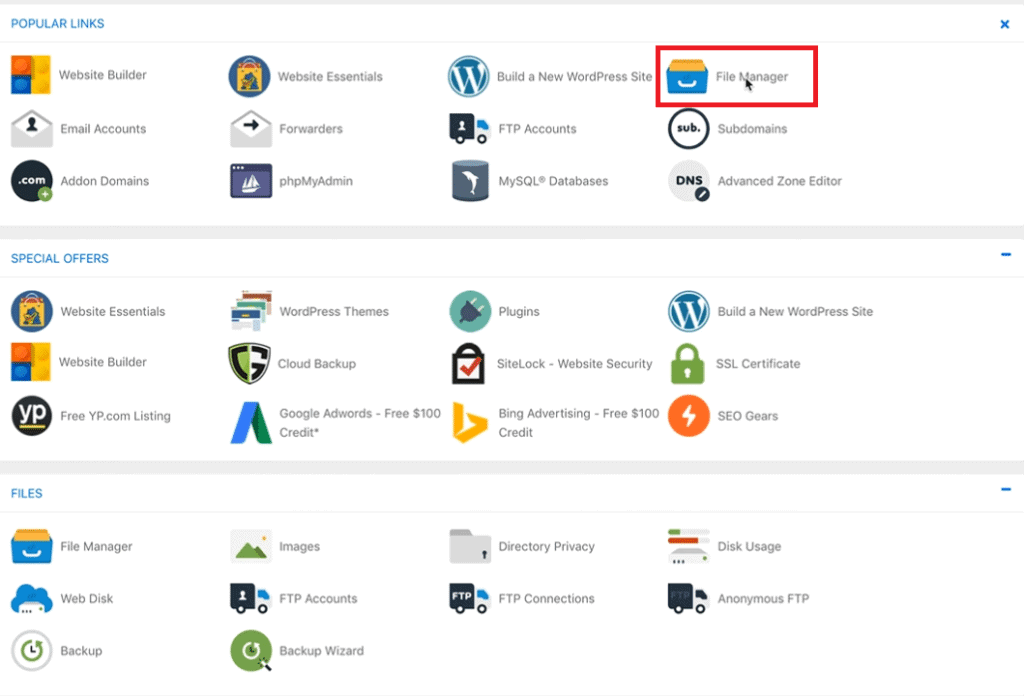
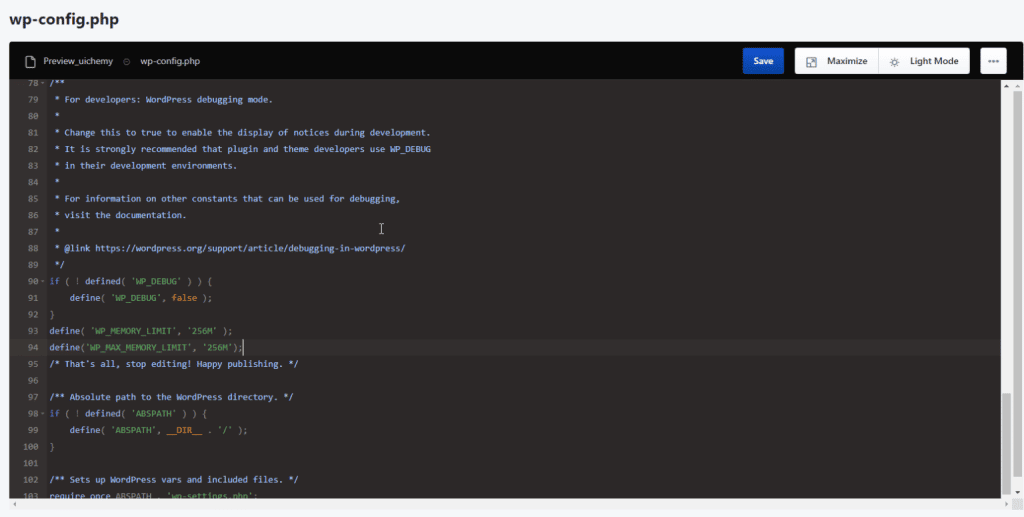
This is the WordPress-native way and the first thing to try. Connect to your site with FTP or your host file manager, and open wp-config.php in the root folder. Just above the line that reads That’s all, stop editing! Happy publishing, add:
define( 'WP_MEMORY_LIMIT', '256M' );
define( 'WP_MAX_MEMORY_LIMIT', '512M' );
The first line sets the front-end limit; the second raises the admin-side ceiling for heavier back-end tasks. Save the file, reload your site, and check Site Health again. If the value updated, you are done.
Method 2: Edit the php.ini File
If the wp-config change did not raise the ceiling, your host PHP configuration is overriding it. On servers where you can edit php.ini, find or add this line:
memory_limit = 256MOn shared hosting you often will not see a global php.ini, but many hosts read a per-folder .user.ini that accepts the same line. Add it in your site root, wait a minute or two for the change to register, and re-check.
Method 3: Edit the .htaccess File
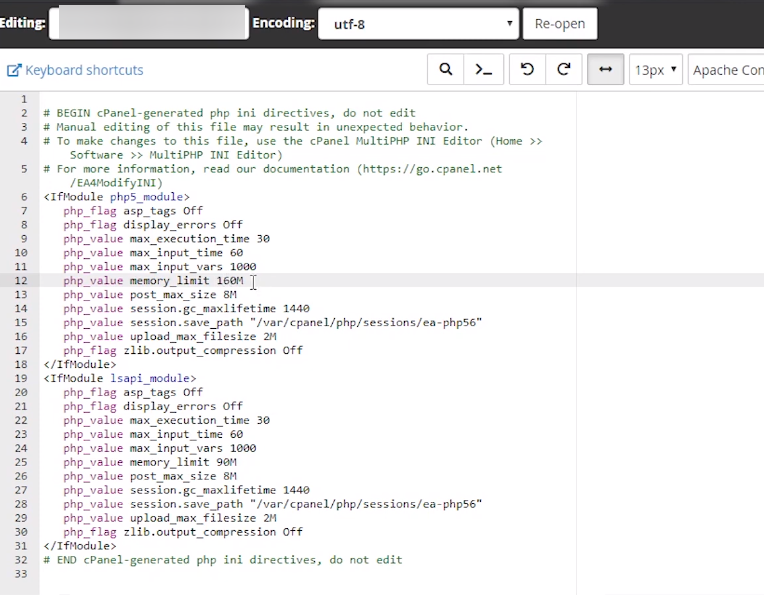
On Apache servers, you can raise the limit from .htaccess in your site root. Add this line near the top:
php_value memory_limit 256MThis one is hit or miss. Many managed and hardened hosts ignore or block php_value directives, and a bad edit here can trigger a 500 error, so keep a backup of the original file. If the site errors out, remove the line and use another method instead.
Also Read: How to Clear Your WordPress Cache because a server or object cache can keep serving the old limit until you flush it.
Method 4: Increase Memory via cPanel
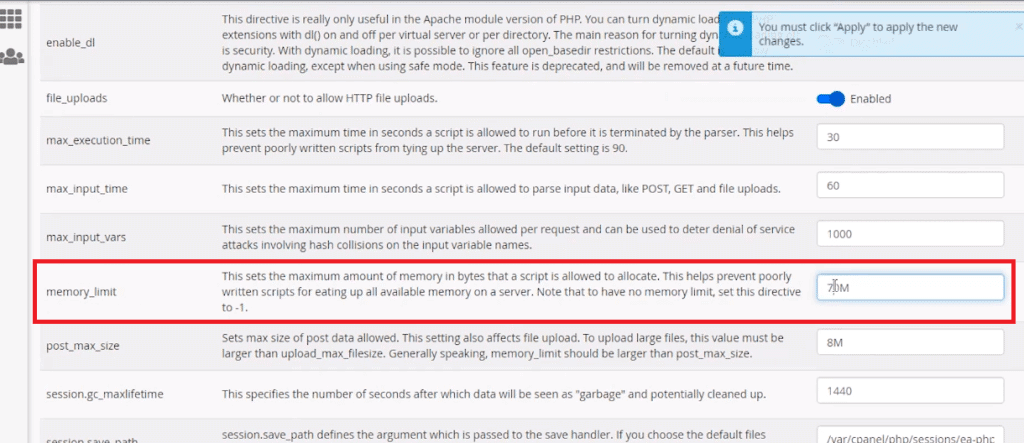
If your host uses cPanel, you can change PHP settings without touching files. Log in and open MultiPHP INI Editor, or Select PHP Version > Options on some setups, pick your domain, and set memory_limit to the value you want. Save, and the host applies it for you.
Method 5: Ask Your Web Host
If none of the above sticks, the ceiling is set at the server level and locked down, which is common on entry-level shared plans. Open a support ticket and ask them to raise your PHP memory_limit to 256M. Most reputable hosts will do it in minutes, and if they will not, that tells you something useful about the plan.
Why Your Change Did Not Stick
This trips up a lot of people, so it is worth stating plainly: the lowest limit in the chain wins. If your host caps PHP at 128M, defining WP_MEMORY_LIMIT as 256M in wp-config will not magically override it, because WordPress cannot request more than PHP is configured to allow. That is why the layered order matters. When a wp-config edit shows no change in Site Health, the answer is almost always the host PHP configuration, in php.ini, .user.ini, or a cPanel setting, not another WordPress tweak.
It is also worth checking that you edited the right file and did not accidentally leave the site in a broken state. If a change locks you out or leaves the site stuck in maintenance mode or throwing an unexpected error, revert your last edit and try the next method.
Prevent Memory Bloat in the First Place
Raising the limit treats the symptom. If you keep hitting the ceiling, something on the site is eating more memory than it should. A few habits keep memory demand low:
- Run fewer, better plugins. Every active plugin loads code on each request, so deactivating and deleting the ones you do not use frees real memory.
- Avoid stacking two plugins that do the same job, which is one of the common WordPress mistakes to avoid anyway.
- Keep PHP itself current. Newer PHP versions are more memory efficient than older ones.
- Choose a lightweight theme, because a heavy theme framework sets the memory floor for every page load.
That last point is where your foundation matters. A bloated theme can consume more memory before a single plugin loads. The free Nexter Theme is built for exactly this: it weighs less than 20KB, ships as a pure Vanilla JS theme with no jQuery dependency, and is billed as the lightest starter theme for WordPress. It will not raise your memory limit for you, and it is not a fix for the error itself, but a leaner foundation means each page load asks for less memory to begin with. Pairing it with sensible Core Web Vitals habits keeps both memory and speed in check.
Wrapping Up
Increasing the WordPress memory limit is usually a one-line change, but doing it well means checking your current limit first, editing at the right layer, and understanding that your host has the final say. Start with wp-config.php, move to your PHP configuration if it does not take, and ask your host when the ceiling is locked. Then keep memory demand low with fewer heavy plugins and a lightweight foundation, so you are not back here next month.
Suggested Reading
- How to Fix the WordPress White Screen of Death
- How to Clear Your WordPress Cache: Every Layer Explained
- How to Fix WordPress Stuck in Maintenance Mode
- 10 Common WordPress Mistakes to Avoid
- Best WordPress Hosting Providers
Stay updated with Helpful WordPress Tips, Insider Insights, and Exclusive Updates – Subscribe now to keep up with Everything Happening on WordPress!
What is the default WordPress memory limit?
WordPress tries to raise PHP memory to 40M on a single site and 64M on multisite through the WP_MEMORY_LIMIT constant, and your web host can set it higher or lower.
What happens if I don’t increase my memory limit?
If you don’t increase the website memory limit, it can slow down your website, show the Allowed memory size exhausted error, or even cause the website to crash.
Is increasing the memory limit safe?
Yes, increasing the memory limit is safe as long as you don’t exceed your hosting provider’s available resources and create a backup of WordPress files to avoid any issues later.
What is the recommended memory limit for WordPress?
The recommended memory limit for WordPress depends on your website size and requirements. While 128M is sufficient for most sites, larger or resource-intensive sites may need 256M or more.
Can I increase the memory limit on shared hosting?
It depends on your host. Some shared hosting providers allow you to increase the memory limit but have a cap on memory usage.
Why is my hosting provider not allowing me to increase memory?
Your host may not allow you to increase memory because it has limited PHP memory on lower-tier plans to prevent excessive resource usage.
Does increasing memory improve site speed?
While increasing memory does not directly improve the site speed, it can help prevent errors and improve stability for a resource-intensive website.
