












A 408 request timeout means a page started to load, then stalled because the server stopped waiting for the full request to arrive. It is annoying for visitors and, if it keeps happening, it costs you traffic and trust.
The good news is that a 408 is usually quick to fix once you know whether the holdup is on the visitor side or your own server. This guide explains what the error really is, what triggers it on WordPress, and six fixes to clear it and keep it from coming back.
What Is a 408 Request Timeout Error?
The 408 Request Timeout is an HTTP status code the server sends when it gives up waiting for a complete request from the browser. Every server sets a window for how long it will hold a connection open. If the full request does not arrive in that window, the server closes the connection and returns a 408.
Because 408 sits in the 4xx range, it is classed as a client-side error, and it often is one: a slow or dropped connection is the most common trigger. On a WordPress site, though, the cause is just as often at your end, such as a large upload, an overloaded server, or a timeout setting that is too short to finish the job.
Two quick points that save confusion. A 408 is not the same as a 504 Gateway Timeout: a 504 means one server waited too long on another server upstream, while a 408 is about the original request never completing. And if you reached this page looking for a SIP 408 in a VoIP app like Zoiper or Asterisk, that is a different protocol with its own causes; this guide covers the web and WordPress version.
What Causes a 408 Timeout Error?
Knowing where the delay comes from tells you which fix to try first. The triggers fall into two groups.
Visitor (Client) Side
- Slow or unstable connection: a weak Wi-Fi signal or dropped mobile data can delay the request so it never fully reaches the server in time.
- A stale browser cache: old cached files or cookies can hold up the request the browser tries to send.
- A VPN, proxy, or strict firewall: security tools sitting between the visitor and your site can throttle or stall the connection.
Site and Server Side
- A timeout setting that is too short: if your server only waits a few seconds, a normal but slightly slow request gets cut off.
- Server overload or thin resources: high traffic or low CPU and memory mean requests queue up and run past the limit.
- Heavy or poorly coded plugins: a slow plugin or a heavy database query can push processing time over the edge.
- Large uploads: sending a big file can take longer than the server is willing to wait.
Also Read: How to Fix 400 Bad Request Errors if you are seeing a 400 alongside the 408.
How to Fix a 408 Request Timeout Error
Work through these from the quickest visitor checks to the server fixes, and stop as soon as the page loads again. If you are a visitor seeing this on someone else site, the first two steps are the ones for you.
1. Check Your Connection and Reload
Start with the simplest cause. Confirm your internet is stable, switch from Wi-Fi to a wired or mobile connection if you can, and reload the page. A one-off 408 often clears on the next try because the original request simply got delayed.
2. Clear Your Browser Cache and Pause Security Tools
Clear your browser cache and cookies, then try again, or open the site in a private window to rule the cache out. If it loads in private mode, stale data was the cause. Temporarily turning off a VPN, proxy, or aggressive firewall also tells you quickly whether one of those is stalling the request.
3. Deactivate Heavy or Recently Added Plugins
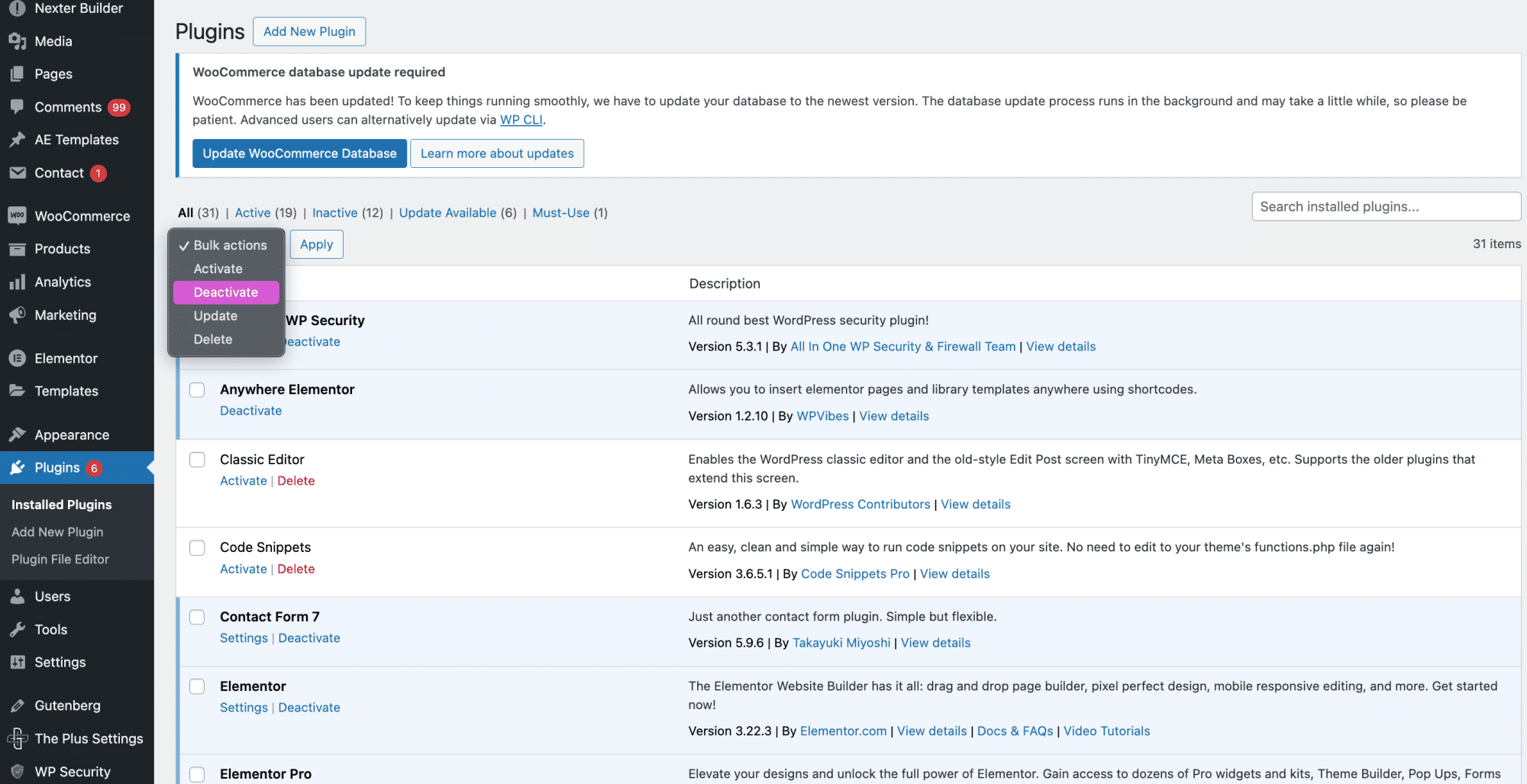
If the 408 only started after installing or updating a plugin, that plugin is the prime suspect. In your WordPress dashboard, deactivate all plugins, then reactivate them one at a time, testing the page after each. When the error returns, you have found the plugin to replace or remove. If you cannot reach the dashboard, rename the plugins folder over FTP to switch them all off at once.
4. Undo Recent Site or Database Changes
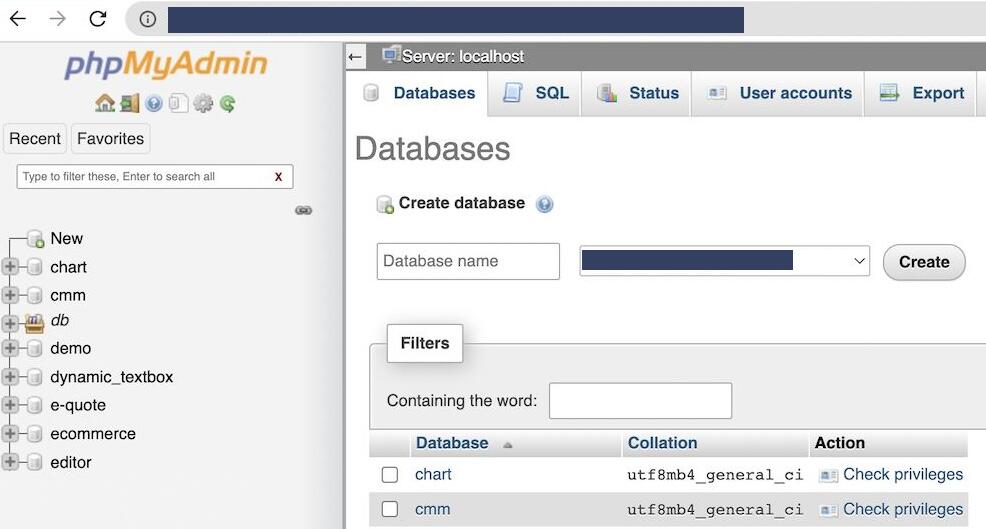
A recent theme change, custom code, or database edit can quietly add load that tips requests over the timeout. Roll back the most recent changes one at a time and test in between. If a database change is the cause, open your database tool such as phpMyAdmin and review or revert the recent edits and heavy queries. Always back up before you touch the database.
5. Raise the PHP and Server Timeout Limits
WordPress has no timeout setting of its own. The limit comes from PHP and your web server, so raise both to give requests more room. Common values look like this:
; php.ini
max_execution_time = 300

# .htaccess (Apache)
php_value max_execution_time 300
Timeout 300

# nginx
fastcgi_read_timeout 300;
Increase the values gradually rather than setting them very high, since a long timeout can hide a real performance problem. On managed hosting some of these are locked at the server level, so if you cannot edit them, ask your host to raise the limits for you.
6. Reduce Server Load With Caching and Cleanup
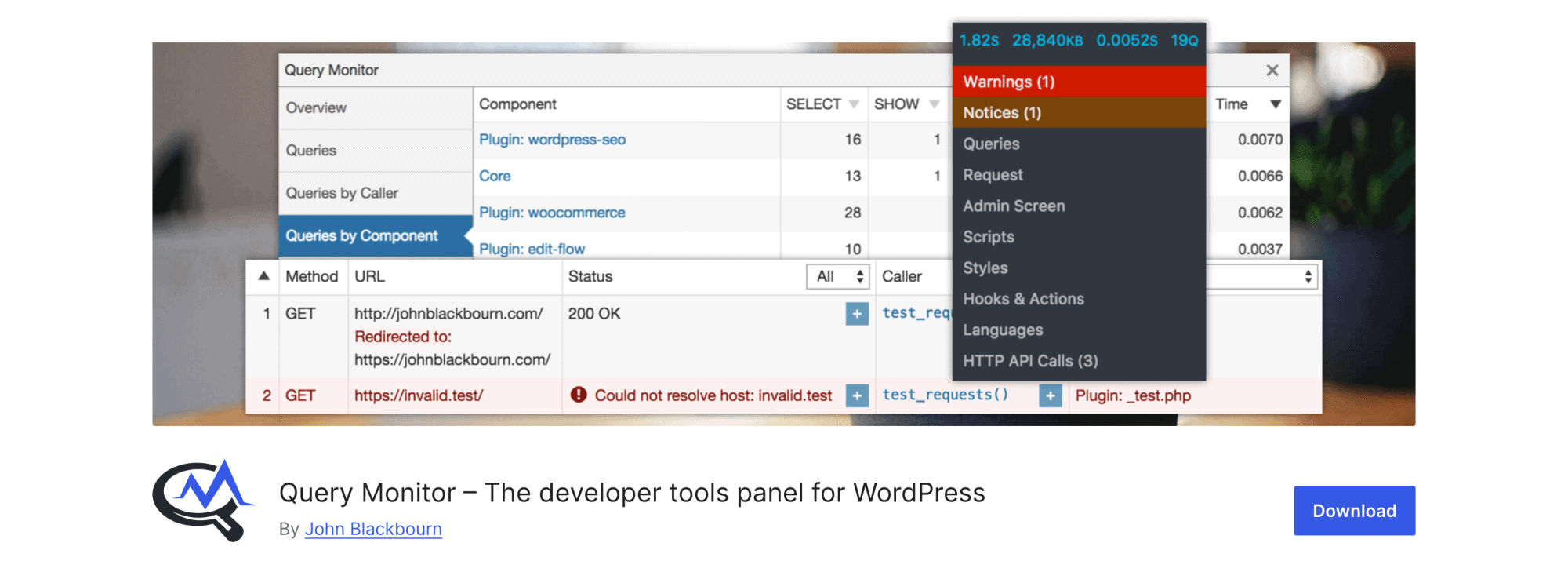
The lasting fix is to make requests finish faster so they never reach the limit. Add a caching plugin so most pages serve without hitting PHP, optimize large images and your database, and upgrade your hosting plan if the server is consistently short on resources. To find what is slow, install the free Query Monitor plugin and look at its slow-query and HTTP-request reports, then optimize whatever shows up.
If your site runs behind Cloudflare or another CDN, check that layer too. A timeout reported there can show up as a 408 or, when the origin server is too slow to answer, a 524. Clearing the CDN cache and confirming its timeout settings rules it out.
Also Read: How to Increase the WordPress Memory Limit when thin server resources are behind the timeouts.
Suggested Reading
- How to Fix 400 Bad Request Errors
- Tips to Speed Up Your WordPress Website
- Best WordPress Cache Plugins
- 5 Best WordPress Backup Plugins
Wrapping Up
A 408 request timeout looks alarming but usually traces back to one of a few causes: a slow connection, a heavy plugin, or a server timeout that is too tight. Start with the visitor-side checks, move to deactivating plugins and reviewing recent changes, then raise your timeout limits and reduce load so requests finish well inside the window.
Because slow, bloated pages are a common trigger, a lightweight setup helps prevent timeouts in the first place. Nexter Blocks adds 90+ Gutenberg blocks that are built for performance, so you can design rich pages without piling on the load that leads to 408 errors.
Stay updated with Helpful WordPress Tips, Insider Insights, and Exclusive Updates – Subscribe now to keep up with Everything Happening on WordPress!
FAQs on 408 Request Timeout Error
What is the difference between 408 and 504 status code?
A 408 timeout error is a client-side issue and means that the client took too much time to send a request to the server. On the other hand the 504 status code is a server-side issue and indicates a gateway timeout. This means that the server did not receive a timely response from the upstream server.
Is it important to fix the 408 request timeout error?
Yes, it is important to fix the 408 error to ensure your website’s visitors have a pleasant experience. When users encounter this error, they may perceive your site as slow or unreliable which could lead to frustration. You can maintain your website’s performance and reliability by fixing the 408 timeout error.
Does 408 request timeout error affect SEO?
A 408 request timeout error can affect your website’s SEO if the issue occurs frequently. Search engines may struggle to crawl and index your site if they encounter timeout errors repeatedly. This can lead to lower rankings in search results as search engines prioritize sites that load promptly and reliably.
How do I increase the request timeout limit in WordPress?
WordPress has no single timeout setting of its own. The limit comes from PHP and your web server. Raise PHP max_execution_time through php.ini, .htaccess, or your host panel, then increase the matching server value: Timeout in Apache or fastcgi_read_timeout in nginx. On managed hosting some of these are locked, so ask your host to raise them if you cannot edit them yourself.
Is a 408 request timeout error a server-related issue?
A 408 request timeout error is generally not a server-related issue but rather a client-side problem. It indicates that the client’s request was not completed within the server’s allowed time frame due to slow internet connections or long processing times. However, server configuration settings like short timeout thresholds can also cause issues.
