












The first WordPress site I built had eleven links crammed into one flat top bar. Visitors rarely clicked past the third one, and the pages buried at the end may as well have not existed. The fix was not a redesign. It was a dropdown menu that tucked the extra pages under a few clean parent items.
That is the quiet power of a good WordPress dropdown menu. It groups related pages under a single heading, cuts the clutter in your header, and guides people to what they came for without making them think. When navigation is confusing, visitors bounce. When it is organized, they stay and explore.
This guide covers two ways to build one: the built-in WordPress menu tools that ship with every install, and the Nexter Blocks Navigation Menu block for a more flexible, no-code dropdown right inside the Gutenberg editor. Pick the path that fits your theme and your comfort with settings.

What Is a Dropdown Menu in WordPress?
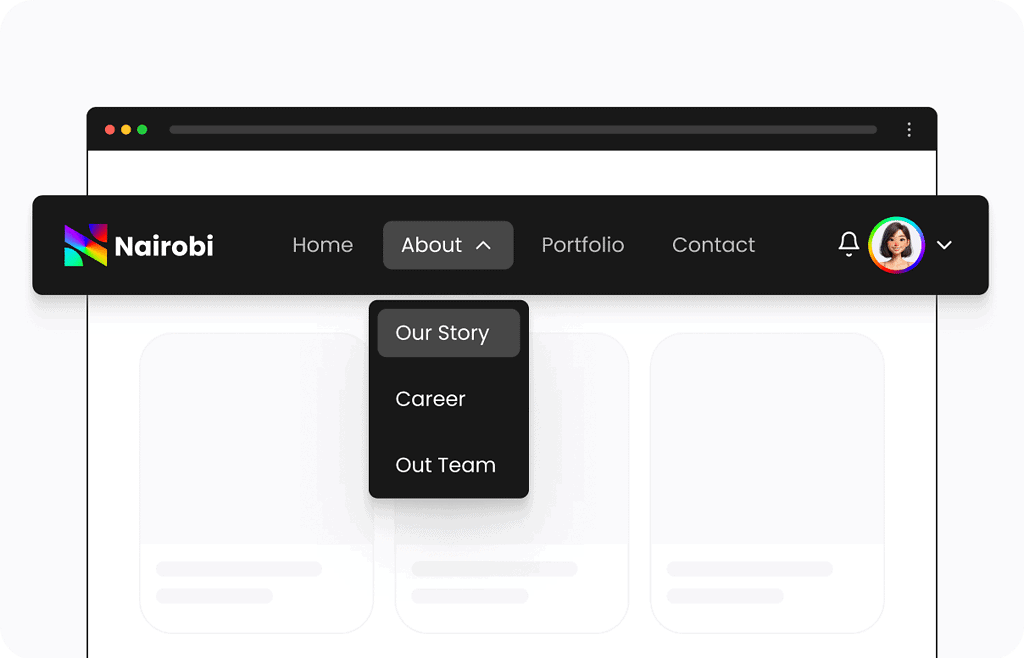
A dropdown menu is a navigation pattern where a set of submenu links appears when a visitor hovers over or taps a main menu item. Instead of showing every page as a top-level link, you nest related pages under a parent, so “About” can reveal Team, Careers, and Contact without cluttering the bar.
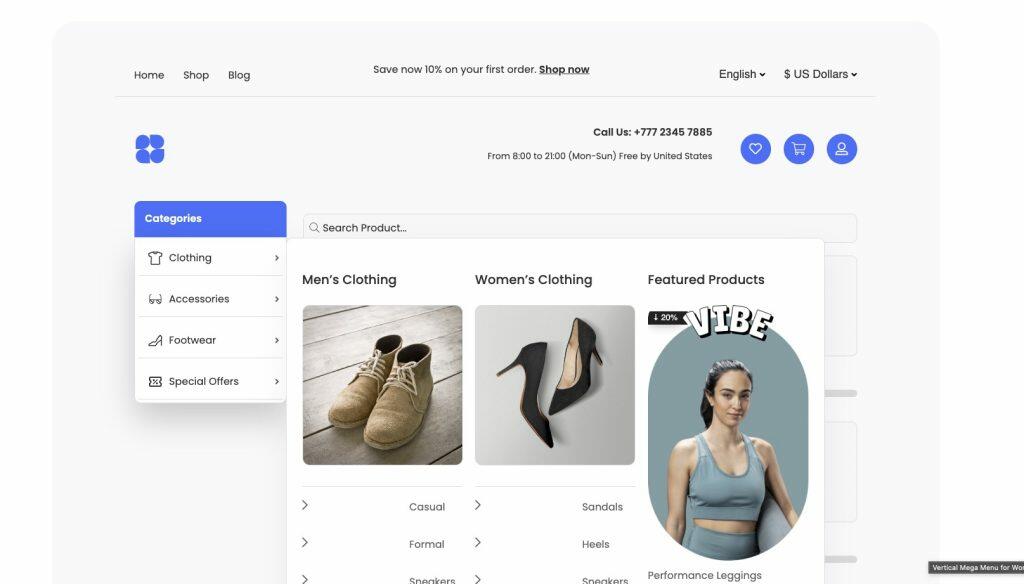
Dropdowns usually live in one of two places: the header, which is the most common spot for organizing pages, or a sidebar, which suits category lists, product sections, or archives on content-heavy sites. Either way, the goal is the same, fewer visible links up front and a clear path to the rest.
Also Read: want big menus with images, icons, and columns instead of a simple list? See how to add a mega menu in WordPress using Gutenberg for the richer layout.
How to Create a Dropdown Menu in WordPress (2 Methods)
There are two reliable ways to do this. Method 1 uses the menu tools built into WordPress, which is best for a simple dropdown on any site. Method 2 uses the Nexter Blocks Navigation Menu block, which is best when you want design control, click or hover behavior, and multi-level dropdowns without touching code.
Method 1: Use the Built-In WordPress Menu Tools (No Plugin)
Where you build a menu in WordPress depends on your theme, and this is the step most older guides get wrong. Classic themes use the familiar Appearance > Menus screen. Block themes, which is what you get with the default themes since Twenty Twenty-Two, do not show that screen by default. They build navigation in the Site Editor instead. Check which one you have first, then follow the matching path.
If You Use a Classic Theme (Appearance > Menus)
- Go to Appearance > Menus in your WordPress dashboard.
- Click Create a new menu, give it a name, and click Create Menu.
- From the left panel, select the pages, posts, or custom links you want, then click Add to Menu.
- To turn a flat list into a dropdown, drag a menu item slightly to the right so it sits under a parent item. The indented item becomes a submenu link. Repeat to nest more items.
- Pick a display location under Menu Settings, then click Save Menu.

If You Use a Block Theme (Site Editor)
Block themes handle navigation through the Navigation block. Go to Appearance > Editor to open the Site Editor, edit your header, and select the Navigation block. Use the list view to add pages, then drag an item onto another to nest it as a submenu. The result is the same dropdown behavior, just built in a different place. If your theme has no Appearance > Menus link, this is why, and this is where you work instead.
Also Read: already have a menu and just need to edit it? Here is how to change a menu in WordPress, and how to fix it when you cannot add a page to a WordPress menu.
Method 2: Use the Nexter Blocks Navigation Menu Block (No Code)
The built-in tools work, but they lean on your theme for styling and behavior, which is where dropdowns often break on mobile. If you build in the Gutenberg editor, the Nexter Blocks Navigation Menu block gives you a dropdown you control directly: horizontal or vertical layouts, multi-level submenus, hover or click triggers, and responsive settings, all without code.
Step 1: Install and Activate Nexter Blocks
Install Nexter Blocks from the WordPress plugin directory and activate it. Once active, it appears in your dashboard so you can turn individual blocks on and off. The Navigation Menu block sits in the Header & Mega Menu builder, which is a PRO feature, so make sure it is enabled.

Step 2: Add the Navigation Menu Block
Open the page or template where the menu should live, click the block inserter (the plus icon), and search for “Navigation Menu.” Add the block to your layout. A settings panel opens on the right where you shape everything about the menu.

Step 3: Add Items and Build the Dropdown
In the Layout tab, set the menu type, alignment, and submenu behavior. Add your items, then attach child items to a parent to create the dropdown. This is where you choose whether submenus open on hover or on click, which matters for touch devices where hover does not exist.
Step 4: Style It in the Block Panel
Switch to the Style tab to set typography, colors, borders, spacing, and backgrounds for the menu, the submenus, and the item descriptions. Because the styling lives in the block and not the theme, your dropdown looks the same no matter which theme you run.

Try the Navigation Menu block for Nexter Blocks to build a fully responsive dropdown right inside the Gutenberg editor.
Which Method Should You Use?
If you need a plain dropdown and your theme already styles menus well, the built-in tools are enough and cost nothing. If you want dropdowns that look and behave the same across themes, reliable mobile behavior, and design control without CSS, the Nexter Blocks Navigation Menu block is the faster path. Many sites use both: the built-in menu for a small blog, the block for a header they actually want to design.
Wrapping Up
A dropdown menu is one of the simplest upgrades you can make to a WordPress site, and it pays off every time a visitor finds a page they would have missed. Start with the built-in tools if your needs are basic. Reach for a block-based builder when you want control.
With 90+ Gutenberg blocks, Nexter Blocks helps you build more than dropdown lists. It covers header menus, footer menus, mega menus, and full custom layouts, right inside WordPress. For your next menu, consider the Nexter Blocks Navigation Menu Builder to create dropdowns easily in the Gutenberg editor.
Suggested Reading
- How to Create a Mega Menu in WordPress Using Gutenberg
- How to Create an Off-Canvas Menu in WordPress
- 5 Best WordPress Mega Menu Plugins
- How to Add a Page to a WordPress Menu (and Fix It When You Cannot)
- Best WordPress Accessibility Plugins for 2026
FAQs on Creating Dropdown Menus in WordPress
Can I customize the dropdown menu design without writing code?
Yes, you can customize dropdown menus using your WordPress theme’s built-in options or a visual builder plugin like Elementor, WPBakery, or Customizer. Many themes offer custom styling settings (colors, fonts, hover effects) for creating beautiful menus in the WordPress Customizer under Appearance u003e Customize u003e Menus or Header Options.
How do I add icons to my dropdown menu?
You can add icons using a theme that supports menu icons (e.g., Astra, OceanWP), a plugin like Menu Icons by ThemeIsle, which integrates with the WordPress menu editor, or a page builder like Elementor Pro, which allows icon placement next to menu locations.
How do I create a multi-level dropdown menu?
Multi-level drop-down menus are perfect for websites with extensive content and dynamic content structure. To create it, navigate to Appearance u003e Menus, drag sub-items slightly to the right under a parent menu item to nest them. Repeat the process for additional levels. WordPress supports multi-level (tiered) menus as long as your theme’s CSS handles them.
Why are my submenu items not showing under the main menu?
If submenu items are not visible under the main menu, this can be because of a few common reasons. A possibility is that your theme, such as a classic theme, doesn’t support multi-level menus properly. Alternatively, custom CSS could be hiding the menu link, or there could be conflicts or errors on the JavaScript level.
Which is better for dropdown menus: built-in WordPress menus or plugins?
Built-in menus are ideal for simple dropdowns and are easier to manage. Plugins (like Max Mega Menu, Menu Image, or WP Mega Menu) are better for extended functionality, complex layouts, icons, images, or enhanced mobile responsiveness. Choose based on your design and functionality needs.
Are dropdown menus mobile responsive?
Most themes automatically make dropdowns mobile-friendly. However, if your theme doesn’t support this, you may need to use an additional plugin or write custom CSS/JS for better responsiveness, or use Nexter Blocks for no-code mobile integration.
How do I fix a dropdown menu that works on desktop but not on mobile?
If your dropdown menu is not working on mobile sites, try these things to fix it. Test with a default theme to isolate the issue. Ensure your theme or additional plugin supports mobile menus. Use a mobile menu plugin if needed (e.g., WP Mobile Menu).
