












A few weeks ago a client messaged me, frustrated, because she had built a new About page and could not get it into her site menu. She kept opening Appearance and there was simply no Menus link to click. Nothing was broken. She had switched to a block theme, and on a block theme that old menu screen does not exist anymore.
That one detail trips up a lot of people in 2026, and it is only one of the reasons a page refuses to drop into a WordPress menu. The good news is that almost every case comes down to a short list of causes, and each one has a quick fix.
This guide walks through how to add a page to your menu on both classic and block themes, then works through the exact reasons a page will not save to the menu so you can get back to launching your content.
Why your WordPress menu matters
The menu is usually the first thing a visitor looks at. It tells them what your site offers and how to get to the part they came for. A clear, well-structured menu does a few things at once:
Also Read: how to create a dropdown menu in WordPress.
- Improves user experience: a logical menu lowers bounce rates because people can explore without guessing.
- Makes content findable: menus group and link your key pages and posts so nothing important stays buried.
- Helps navigation: visitors move between pages smoothly and stay engaged because they find what they need fast.
- Supports SEO: search engines read your menu to understand site structure, which helps crawling and indexing.
How to add a page to a WordPress menu
Before troubleshooting anything, it helps to confirm you are using the right method for your theme. WordPress now ships with two very different menu editors, and which one you see depends entirely on whether your active theme is a classic theme or a block theme.
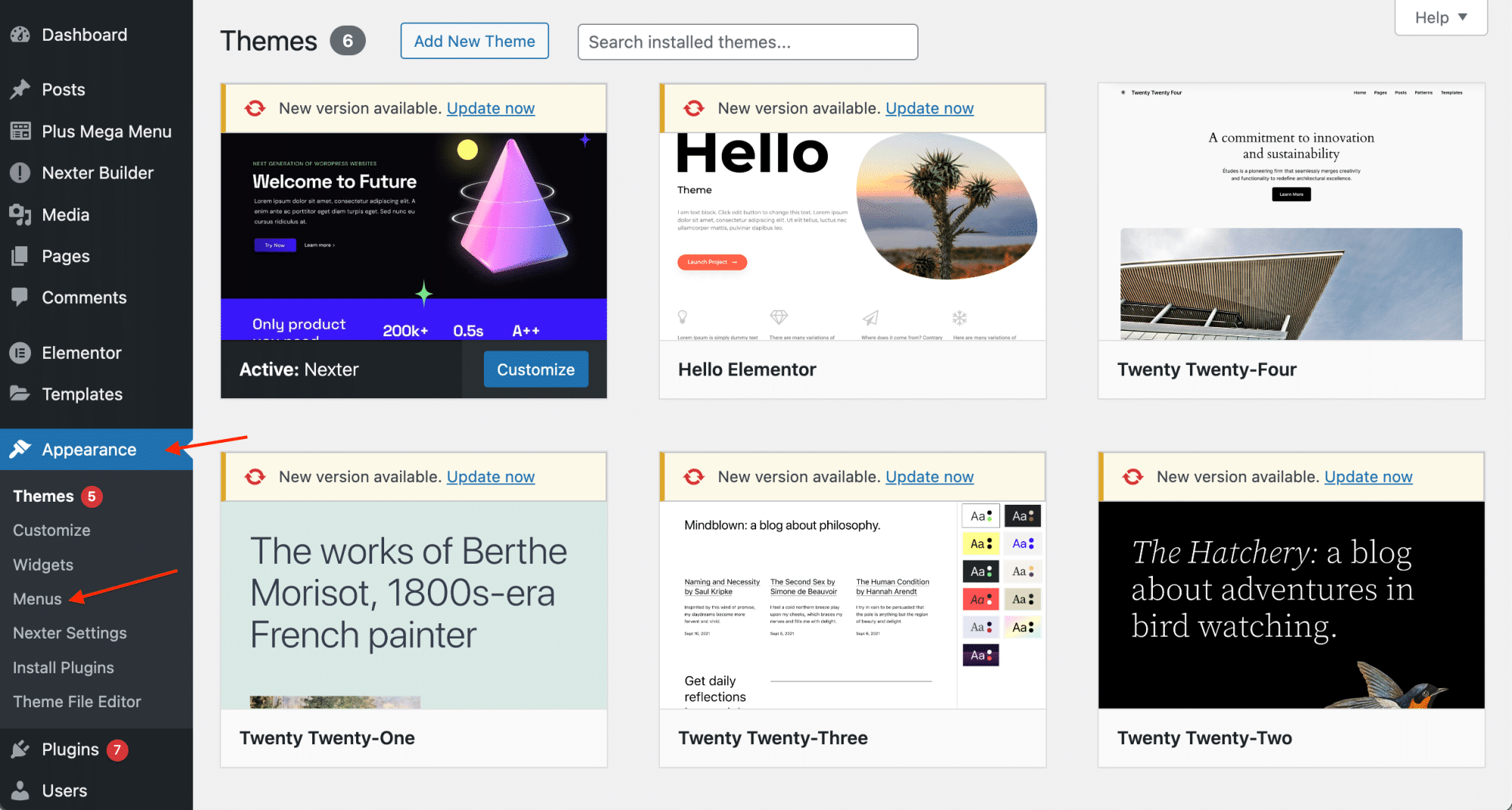
On a classic theme (Appearance > Menus)
If your theme is a classic theme, go to Appearance > Menus in your dashboard. This is the menu editor.
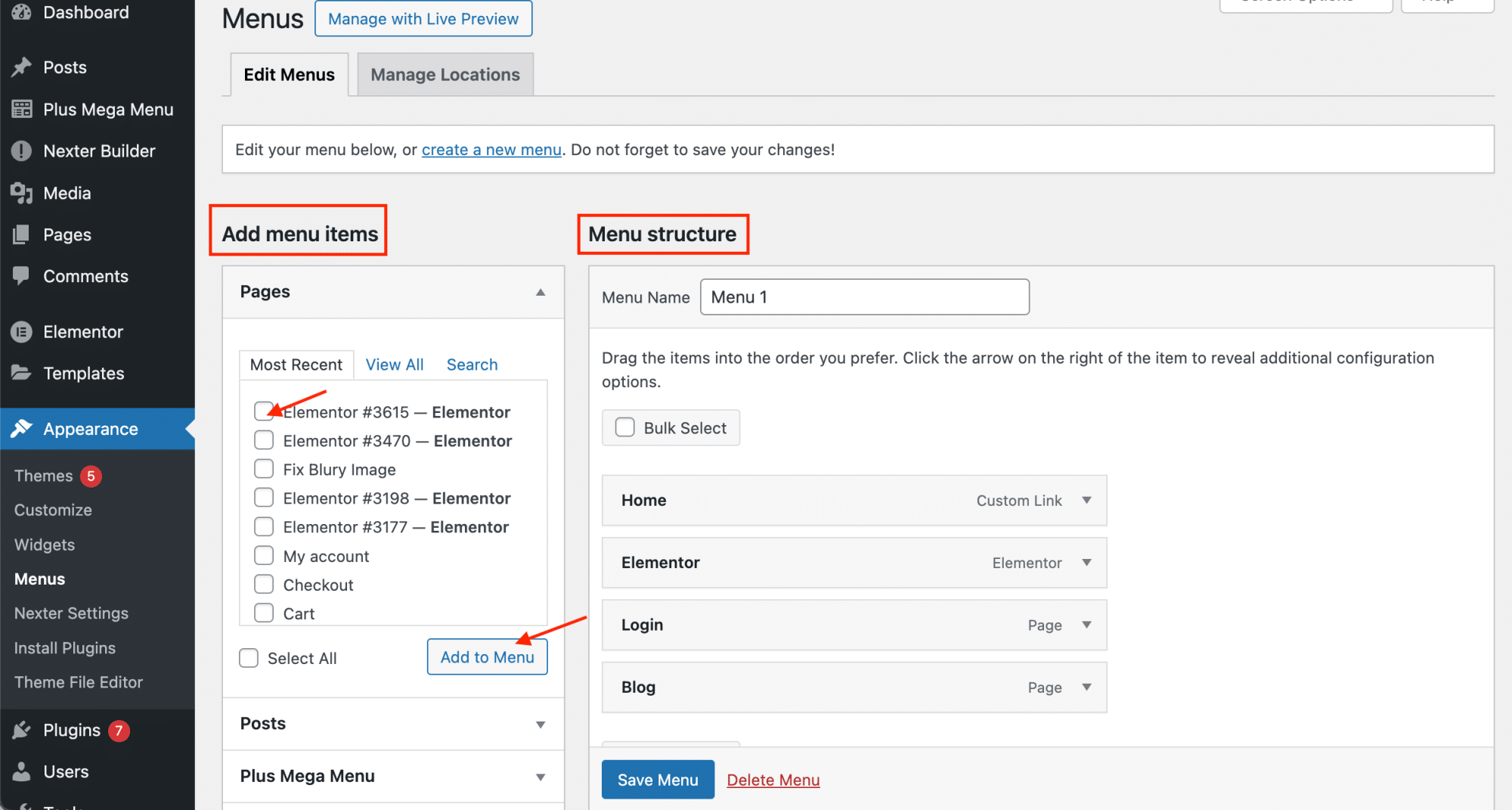
Your current menu items sit under Menu Structure. Everything you can add (pages, posts, custom links, and categories) appears on the left under Add Menu Items.
To add a page, find it in the Add Menu Items panel, tick the checkbox next to it, click Add to Menu, then click Save Menu.
On a block theme (Site Editor > Navigation)
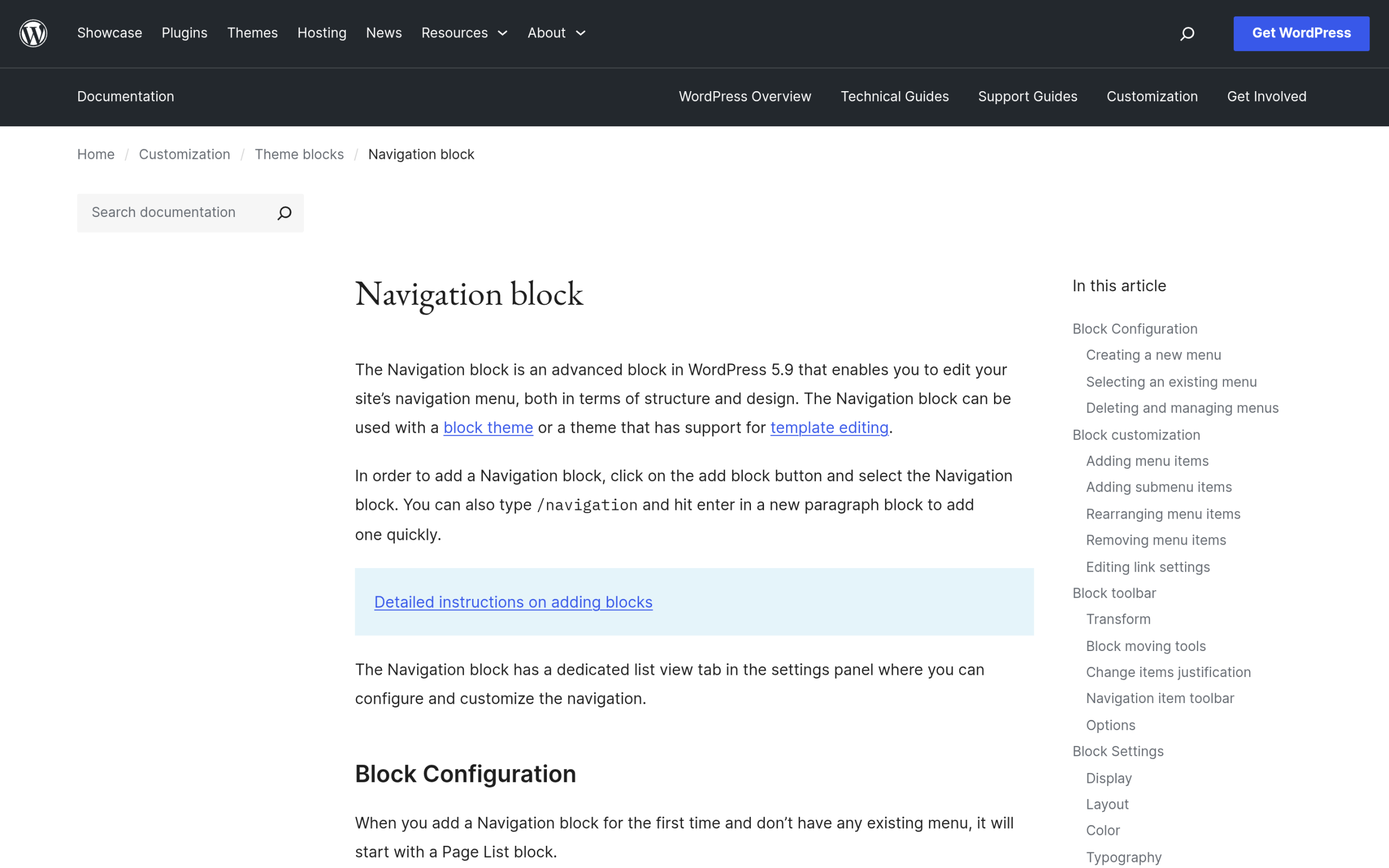
This is the part that catches most people in 2026. If you run a block theme such as Twenty Twenty-Five, there is no Appearance > Menus link at all. WordPress hides it because block themes manage navigation with the Navigation block inside the Site Editor instead.
To add a page on a block theme, go to Appearance > Editor to open the Site Editor. Open the template that contains your header, click the Navigation block, then use the block toolbar or the list view to add a menu item and link it to your page. Save the template and the page appears in your live menu.
Not sure which kind of theme you are on? Read what a WordPress block theme is and how it differs from a classic theme.
What the “WordPress can’t add a page to menu” issue actually is
Sometimes you follow the steps above and the page still will not save to the menu, or it saves but never shows on the front end. This is the issue people describe as WordPress not letting them add a page to the menu.
It usually traces back to one of these causes:
- The page is still a draft: unpublished pages do not appear in the Add Menu Items list.
- Screen Options is hiding pages: the panel that controls which item types show in the menu editor can be switched off.
- User role limits: if you are not an Administrator, you may not have permission to edit menus.
- Theme or plugin conflict: some themes and plugins interfere with menu functions.
- Browser cache or cookies: stale cached data can stop changes from saving or showing.
Landing pages deserve the same care as menus. Learn how to create a high-converting landing page with Gutenberg.
How to fix it: six working methods
Work through these in order. The first three solve the large majority of cases.
1. Check the page is published, not a draft
This is the single most common cause, so check it first. A page in draft mode will not show up in the Add Menu Items list at all.
Go to Pages in your dashboard and find the page. If you see Draft next to the title, open it for editing.
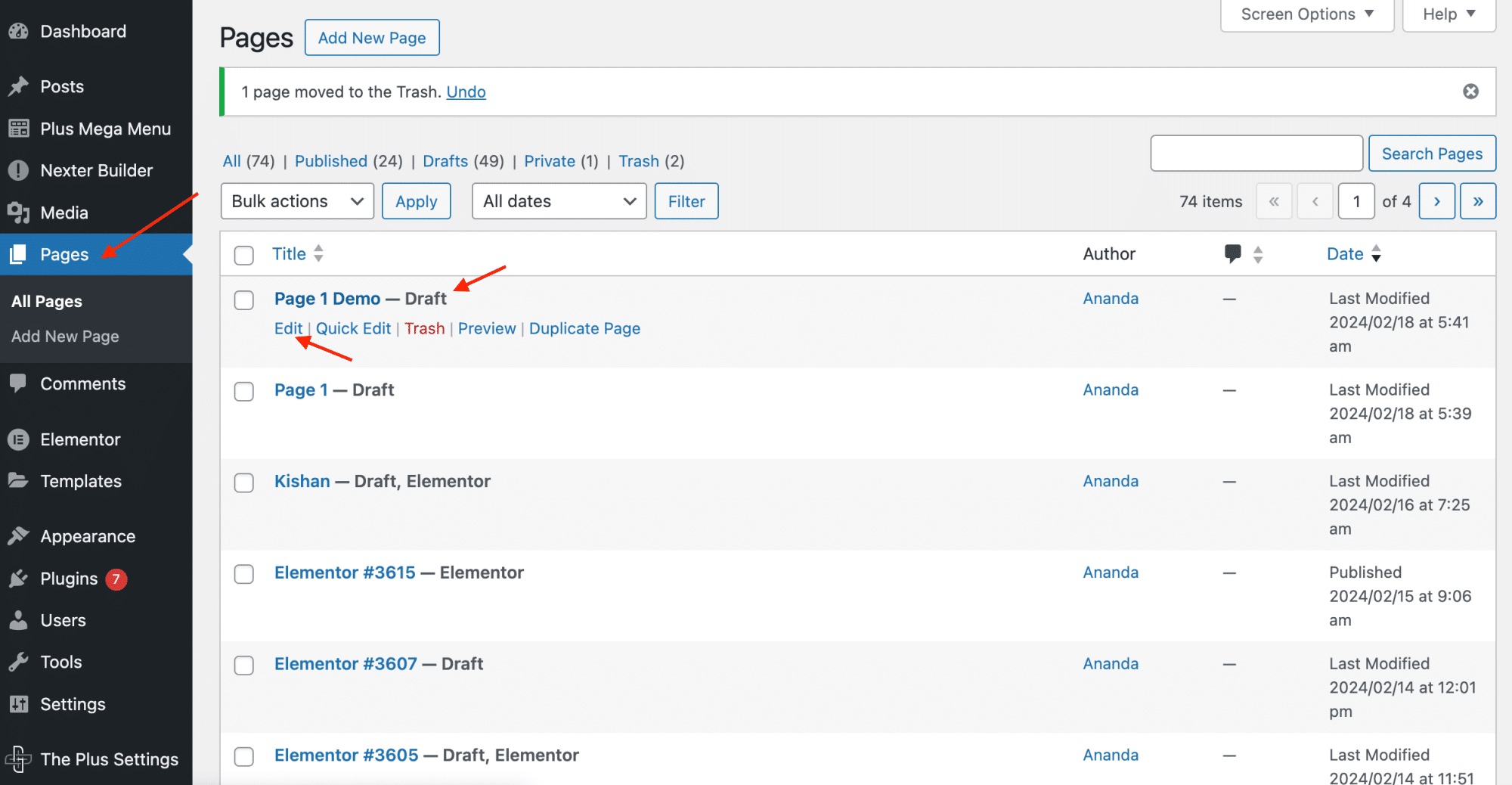
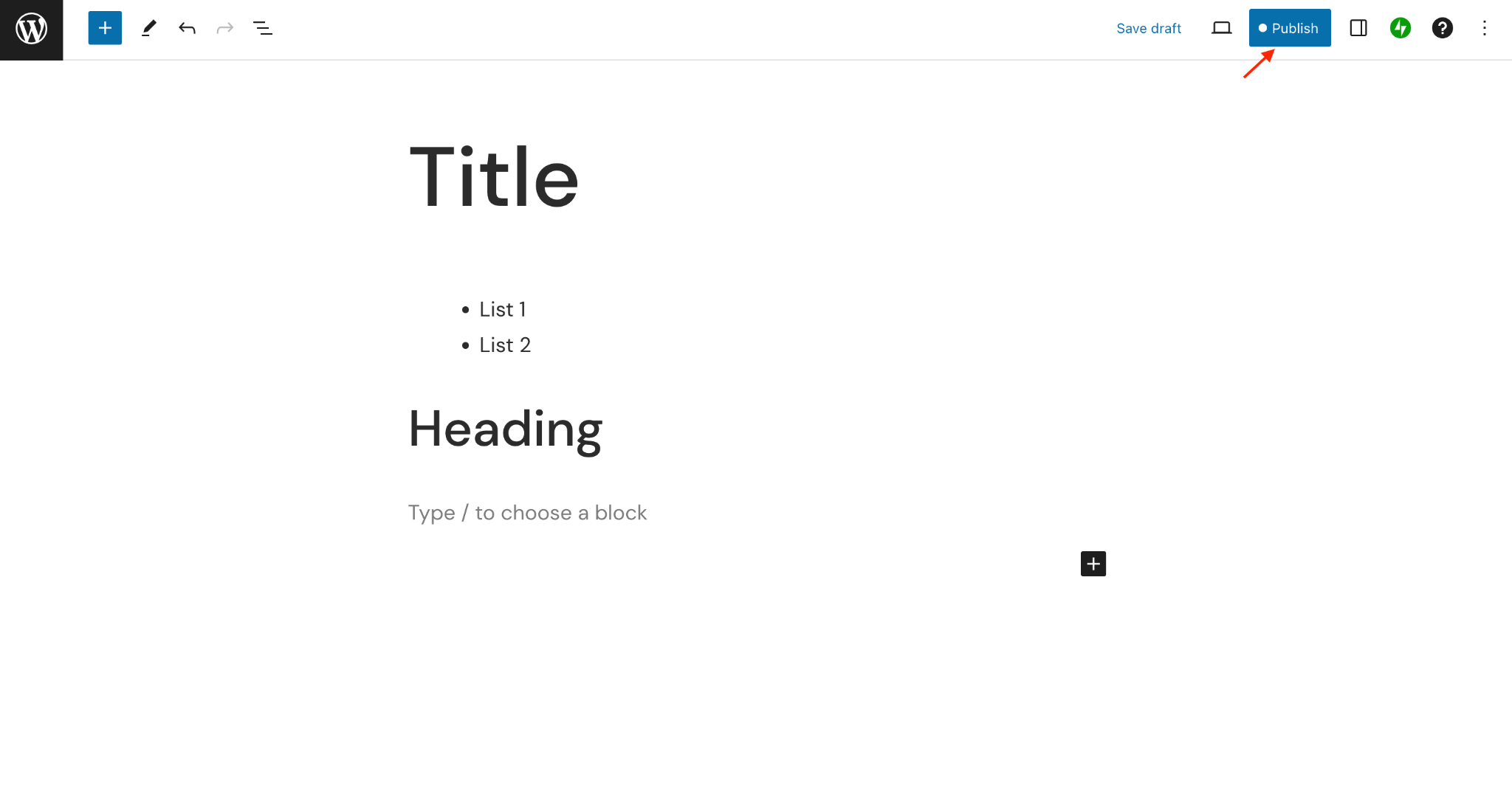
Click the blue Publish button in the top right. Once the page is live, head back to the menu editor and it will be available to add.
2. Turn on the page type in Screen Options
If you are on a classic theme and the Pages panel is missing from the Add Menu Items area entirely, the culprit is often Screen Options. Look for the Screen Options tab in the top right corner of the Menus screen, click it, and make sure the Pages checkbox is ticked. This panel quietly controls which item types you are allowed to add to a menu.
3. Remove the page, then add it back
If a page is already in the menu, WordPress will not let you add it a second time, which can look like the add button is broken.
Open the menu editor, select the page in Menu Structure, click Remove, then click Save Menu. You can now select it again from the list and add it cleanly.

4. Confirm your user role and theme support
Editing menus needs the right permissions. If you are logged in as an Editor or Author rather than an Administrator, you will not see the menu tools. Ask the site owner to give you an Administrator role or to make the change for you.
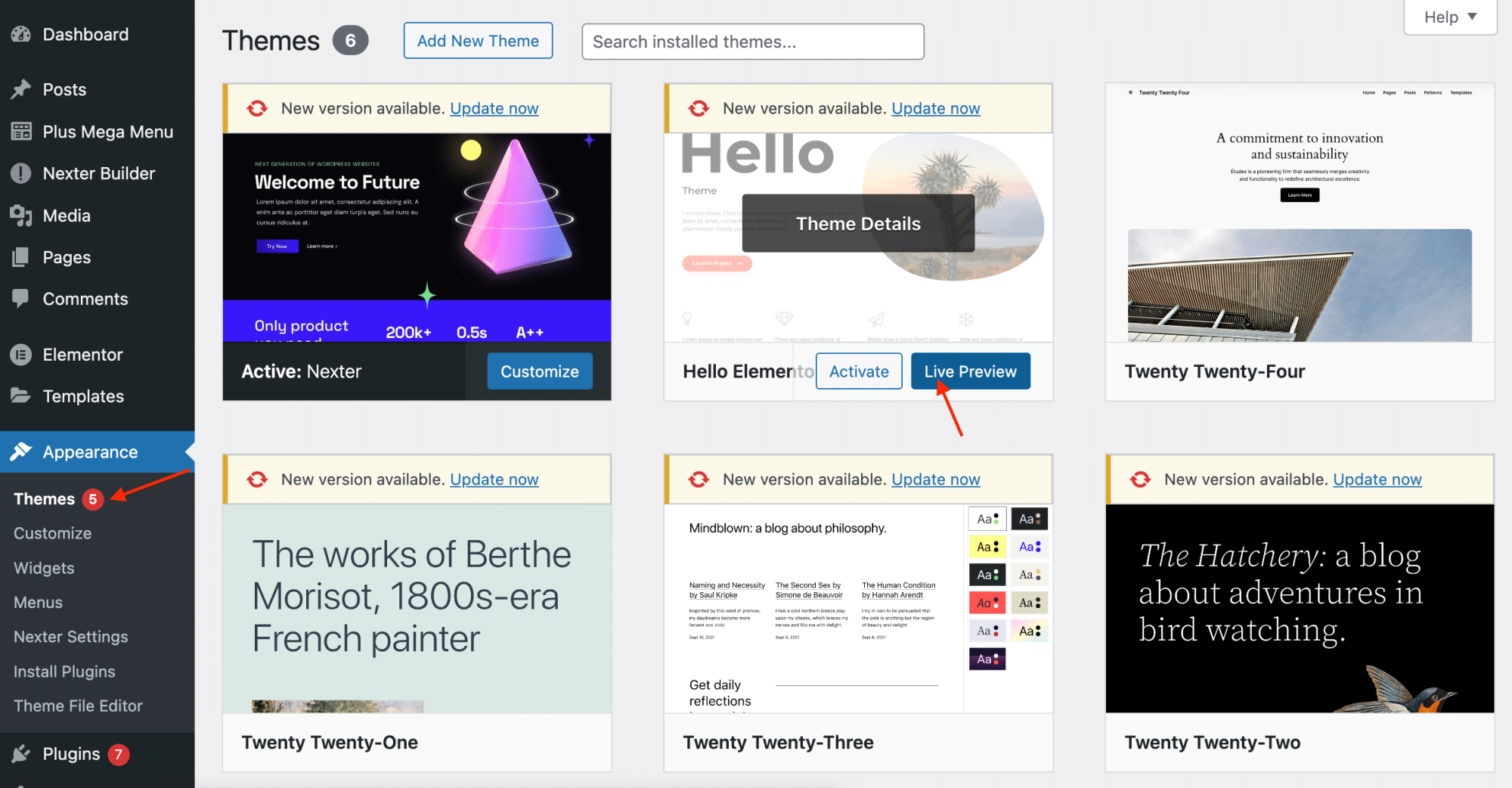
It is also worth checking your theme. A small number of themes do not register a classic menu location. If yours does not support custom menus and you want that flexibility, switch to a theme that does by going to Appearance > Themes and previewing your options.
Also Read: Want a richer dropdown? See how to add a mega menu in WordPress using Gutenberg.
5. Deactivate plugins one by one
If the menu still misbehaves, a plugin may be interfering with menu functions. Temporarily deactivate all your plugins from the Plugins screen, then try adding the page again.
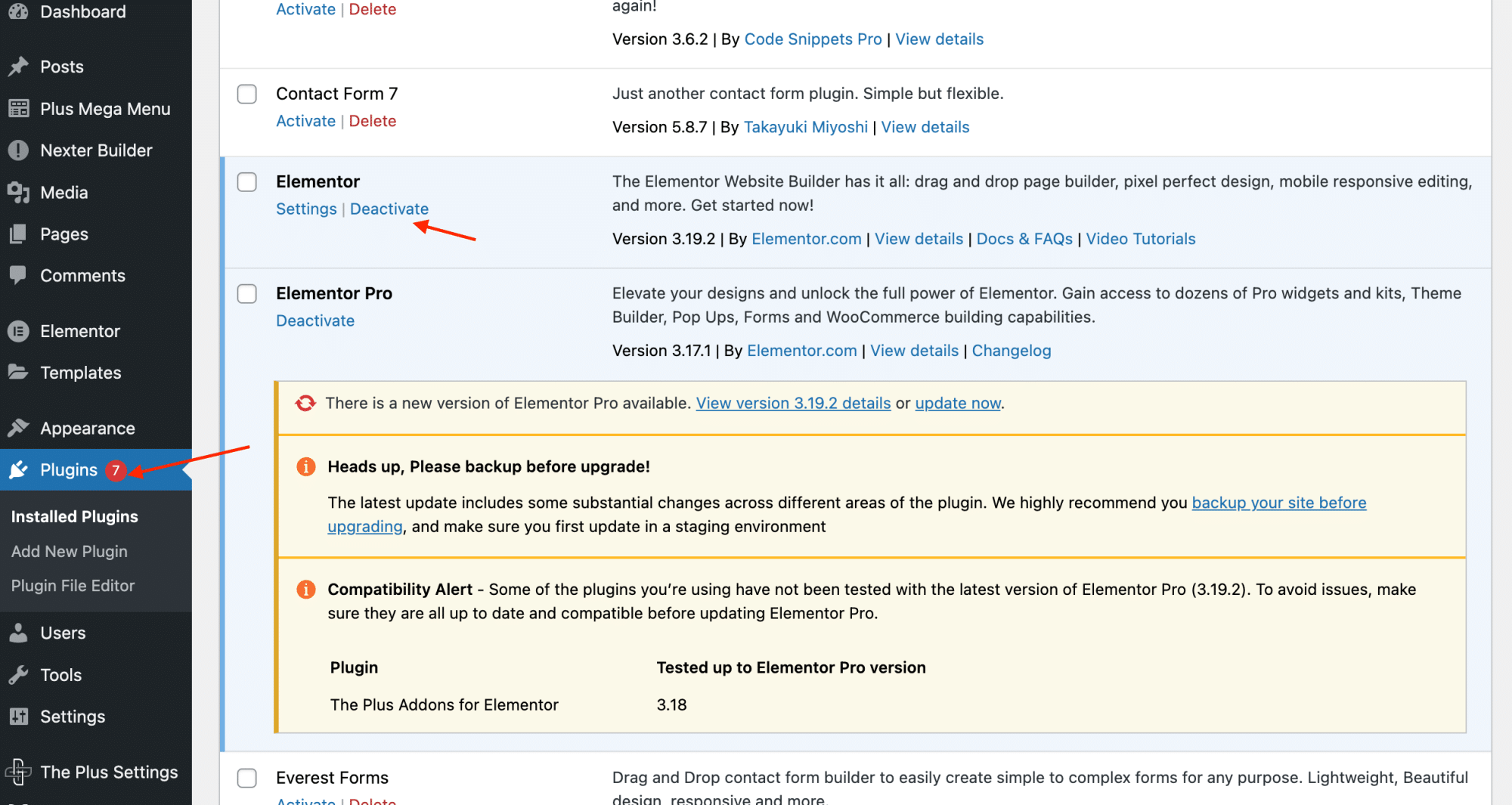
If that fixes it, reactivate your plugins one at a time, checking the menu after each one. The plugin that breaks it again is your culprit.
6. Clear your browser and site cache
Stale cached data can stop changes from saving or showing on the front end. Clear your browser cache, and if you run a caching plugin or a host-level cache, purge that too. Then go back to the menu editor and add the page again.
Also Read: New to the block editor? Here is a beginner-friendly guide to Gutenberg.
Build smarter menus with Nexter Blocks
Once your pages are in the menu, you may want more than a plain list of links. Nexter Blocks is a free plugin on WordPress.org with 90+ Gutenberg blocks, including horizontal and vertical mega menu widgets for building layered, interactive navigation right inside the block editor.
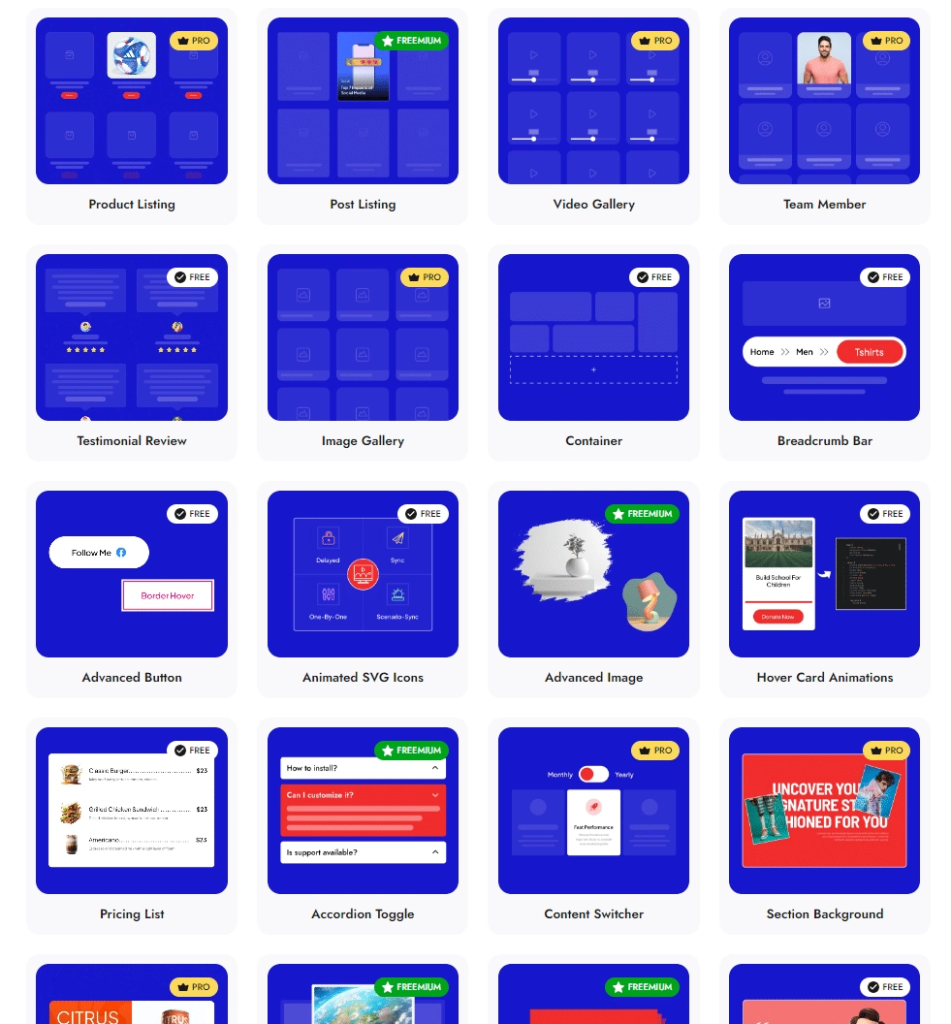
It is lightweight, with responsive controls and flexible design options, so you can shape navigation that fits your site without slowing it down.
Suggested Reading
- What is a WordPress block theme?
- How to add a mega menu in WordPress using Gutenberg
- How to create a landing page with Gutenberg
- Gutenberg vs Elementor: which should you use?
- What is Gutenberg? A beginner’s guide
FAQs on adding a page to a WordPress menu
Why are my pages not showing up in the WordPress menu?
Pages usually do not show up because they are still in Draft, because Screen Options has the Pages panel switched off, or because a theme or plugin is interfering with menu functions. Publish the page, check Screen Options, and clear your cache.
Where is Appearance Menus on my block theme?
Block themes do not have an Appearance Menus screen. On WordPress 6.8 and later, you edit menus in the Site Editor under Appearance Editor, using the Navigation block in your header template.
Can I add a mega menu in WordPress?
Yes. A mega menu usually needs a plugin or a theme that supports it. Nexter Blocks is a free plugin with 90+ blocks, including horizontal and vertical mega menu widgets you can use to build interactive menus.
What happens to my menu if I switch themes?
Your menus stay saved in the WordPress database, but you may need to reassign them to the new theme’s menu locations. On a classic theme, do this under Appearance Menus Manage Locations. On a block theme, reconnect the Navigation block in the Site Editor.
Do I need special permissions to add a page to a menu?
Usually yes. You generally need an Administrator role to edit menus. If you cannot add pages, confirm your user role and that Screen Options is set to display pages.
I added a page but it still does not appear on the site. What now?
Make sure the menu is assigned to the correct display location for your theme, clear your browser and site cache, and confirm no plugin is overriding the menu. On a block theme, save the template after editing the Navigation block.
