












An image and a paragraph cover most timeline events. Some need more — a gallery, a quote with a portrait, a small table of figures.
Selecting a pattern as an event’s content lets that event hold a whole block layout, built with the normal editor rather than squeezed into one field.
For every Timeline setting in one place, see the Timeline feature guide.
Before You Start
- Edition: Pro — the Timeline block needs Nexter Blocks Pro.
- Block to enable: Timeline, switched on under Nexter > Blocks in your WordPress dashboard.
Steps
- Build the layout you want as a pattern and save it, or pick one you already have. See importing and managing templates.
- Add the Timeline block and open the event you want to change.
- Set that event’s media type to Pattern.
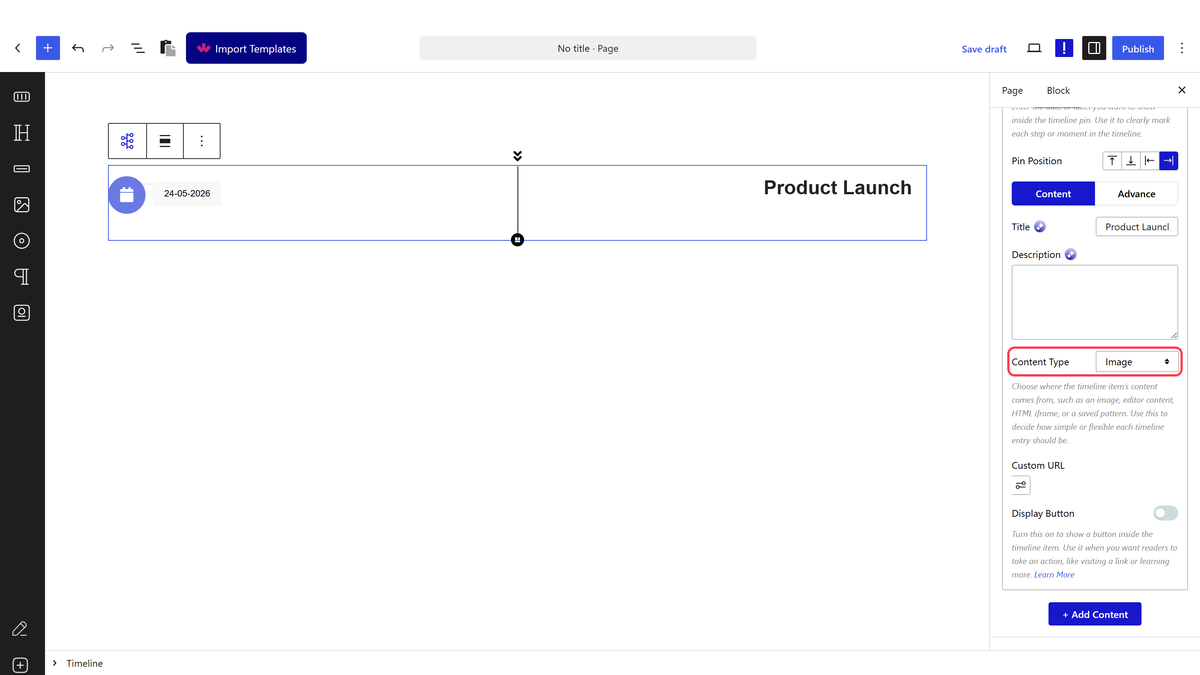
- Choose your pattern from Select Pattern.
- Leave AJAX Base switched off — see the note below.
Do not switch AJAX Base on. Measured on a published page: with AJAX Base enabled the event renders an empty container and the pattern never appears, because the loader script it depends on is never added to the page. Leave it off and the pattern renders normally. This is a known plugin-wide bug and has been reported to the development team.
How It Behaves
- The pattern renders inside the event as part of the page — measured on a published page, the pattern’s own content appeared within the timeline event.
- The pattern is rendered server-side, so its content is in the page for search engines like any other content.
- One pattern can be reused across several events, and editing the pattern updates every event using it.
- AJAX Base renders nothing. Measured: with it on, the event contains an empty container and the pattern never appears.
Limitations
- Do not switch AJAX Base on. Measured on a published page: with AJAX Base enabled the event renders an empty container and the pattern never appears, because the loader script it depends on is never added to the page. Leave it off and the pattern renders normally. This is a known plugin-wide bug and has been reported to the development team.
- Patterns are chosen from those already saved on the site — the event cannot hold ad-hoc blocks of its own.
- A large pattern in every event makes for a very long timeline; patterns suit the one or two events that genuinely need more room.
- Editing a pattern changes it everywhere it is used, which is usually the point but occasionally a surprise.
Troubleshooting
My event is completely empty
Switch AJAX Base off. Measured: with it enabled the event renders an empty container because the loading script it relies on is never added to the page.
The pattern list is empty
Save the layout as a pattern first — the picker only lists patterns that already exist on the site. See importing and managing templates.
Changing one event changed them all
They share a pattern. Duplicate the pattern and point one event at the copy if they need to differ.
Can I use a pattern instead of the Custom HTML field?
Yes, and at the moment that is the better route — see the Custom HTML doc.
