How to Set WordPress Display Conditions Based on Archive Page Content?

Key Takeaways

  • Nexter Blocks includes the Display Rules extension for setting display conditions on archive templates.
  • Users can apply display conditions to common templates like Header, Footer, and Sidebar using Nexter Blocks.
  • Display conditions can be set based on taxonomy archives, allowing for specific content to be shown for categories and tags.
  • Nexter Blocks allows multiple taxonomies to be added together when setting display conditions.
Table of Contents

As with any website, controlling what content is displayed on a web page is a key element to providing users with an enjoyable experience. WordPress makes it easy to have dynamic content appear depending on what page the user is viewing. Knowing how to set display conditions based on archive templates like Category, Tag, Custom Taxonomy etc. can help you ensure that your website is as user-friendly and organised as possible.

With the help of the Display Rules extension from the Nexter Blocks, you can easily set display conditions on different archive templates of a WordPress website.

Note: These display conditions should be applied to the content in common templates like Header, Footer, Sidebar or Specific template.

To check the complete feature overview documentation of the Nexter Blocks Display Rules extension, click here.

Requirement  – This extension is a part of the Nexter Blocks, make sure it’s installed & activated to enjoy all its powers.

Note: Here we are using blocks from the Nexter Blocks.

To add display conditions for archive templates, add any block from the Nexter Blocks on the page. 

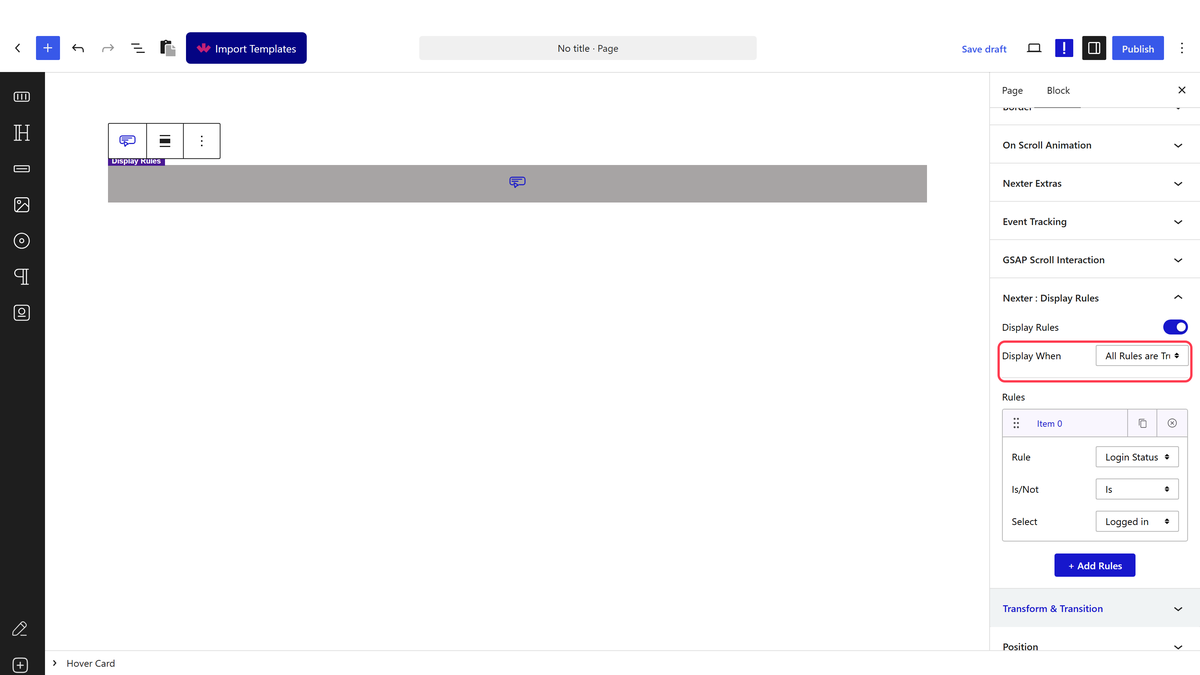
1. Go to Advanced > Nexter : Display Rules

2. Turn on the Display Rules toggle.

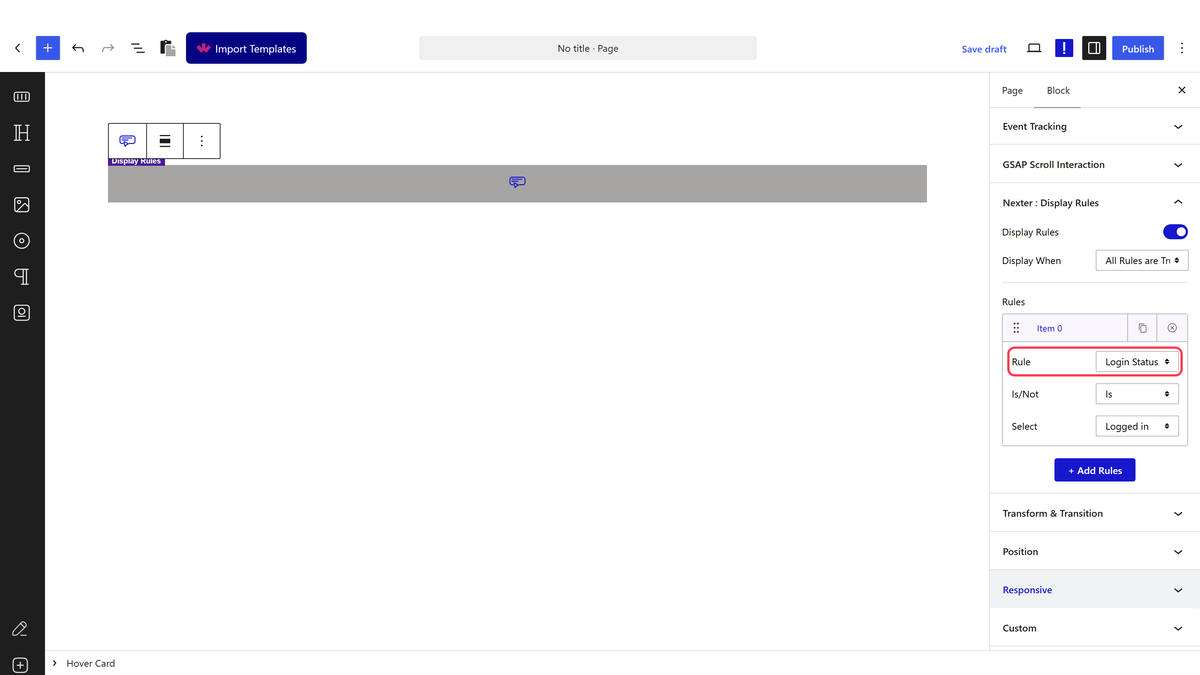
3. After selecting the appropriate option from the Display When dropdown, go to the Rules section. Here you have to set the actual display condition. You can have one or multiple conditions/rules.

4. Then click on the Item 0 tab. In the Rule dropdown, you’ll find different options under the Archive label.

How to Set WordPress Display Conditions Based on Taxonomy Archive? 

You can use this display condition if you want to show some different content specific to a taxonomy like Category, Tag etc. 

To set display conditions for specific taxonomy – 

1. Select Taxonomy from the Rule dropdown under the Item 0 tab.

display rules archive taxonomy new

2. Then, in the Is/Not dropdown, you have two options – 

Is – This will make the statement true.

Not – This will make the statement false.

3. In the last field, select the taxonomy names.

Note: If left blank, it will be applied to all taxonomies.

Note: You can add multiple taxonomies together.

For example you have a custom taxonomy called Author and want to show some description on the sidebar of all the pages of the Author custom taxonomy.

For this you can set the display condition based on taxonomy archive.

How to Set WordPress Display Conditions Based on Post Type Archive?

If you want to set display conditions for different post types archive templates like pages, posts, custom post types etc. you can use this option.

To set the display condition for post type archive – 

1. Select Post Type Archive from the Rule dropdown under the Item 0 tab.

display rules archive post type archive new

2. Then, in the Is/Not dropdown, you have two options – 

Is – This will make the statement true.

Not – This will make the statement false.

3. In the last field, select the post type names.

Note: If left blank, it will be applied to all post types.

Note: You can add multiple post types together.

Let’s say you have a WordPress website for a portfolio, and you have a custom post type called “Projects” to showcase your various projects. You want to display a special introduction message on the archive page for the “Projects” post type.


How to Set WordPress Display Conditions Based on Date Archive? 

You can use this display condition if you want to show or hide certain content based on different date archive templates like day, month or year. 

To set display conditions for date archive – 

1. Select Date Archive from the Rule dropdown under the Item 0 tab.

display rules date archive

2. Then, in the Is/Not dropdown, you have two options – 

Is – This will make the statement true.

Not – This will make the statement false.

3. In the last field, select the appropriate date archive option.

Note: If left blank, it will be applied to all date archives.

Note: You can add multiple date archives together.

For example, let’s say you want to display a special message or offer only on the monthly archive pages of your blog. By setting the display condition to the “Month” template, you can ensure that the content is shown exclusively on those pages.

How to Set WordPress Display Conditions Based on Author Archive? 

You can use this display condition if you want to show different content based on different post authors on your site. 

To set display conditions for different authors – 

1. Select Author Archive from the Rule dropdown under the Item 0 tab.

display rules archive author archive new

2. Then, in the Is/Not dropdown, you have two options – 

Is – This will make the statement true.

Not – This will make the statement false.

3. In the last field, select the author name.

Note: If left blank, it will be applied to all authors.

In a multi-author blog, setting a display condition based on an author archive allows you to provide a personalized welcome message for a specific author. For example, you can greet visitors with a special message on John Doe’s author archive, showcasing his articles and unique perspectives.

How to Set WordPress Display Conditions Based on Term Archive?

With this option, you can set display conditions for the content in the term archive templates. This can be used to show different content based on different categories, tags or custom taxonomies.  

To set the display condition for terms archive – 

1. Select Term (under Archive) from the Rule dropdown under the Item 0 tab.

display rules archive term new

2. Then, in the Is/Not dropdown, you have two options – 

Is – This will make the statement true.

Not – This will make the statement false.

3. Then from the Taxonomy dropdown, choose the appropriate taxonomy.

4. In the last dropdown, add the term names.

Note: If left blank, it will be applied to all relevant taxonomy terms.

Note: You can add multiple terms together.

For instance, you may have a “Fashion” term archive template and if a visitor is viewing the term archive for “Shoes,” you can display specific shoe-related content, such as styling tips, latest trends, or product recommendations.

Also, read How to Set WordPress Display Conditions Based on Single Page Content.

About the Author

Photo of Aditya Sharma CMO of NexterWP
CMO at POSIMYTH Innovations · NexterWP · 7 years experience

He has spent years in the WordPress ecosystem building, breaking, and optimizing sites until they actually perform. He works at the intersection of speed, growth, and usability, helping creators ship websites that load fast and convert. An active WordPress community contributor sharing through tools, tutorials, and direct collaboration. Tested practice, not theory.

WordpressThemesElementorn8nAIClaudeAutomationServer

Share your Thoughts

Get Instant Answers to all your questions about Nexter Blocks,
Extensions & Theme trained on 1000+ Docs and Videos

Still in Doubt? Let’s Assist You

Have Feedback or Questions?

Join our WordPress Community on Facebook!

Related Frequently Asked Questions

What should I do if the Display Rules extension isn't working?

If the Display Rules extension from Nexter Blocks isn't functioning, first ensure that it is installed and activated. This extension is essential for setting display conditions on archive templates. If it's activated and still not working, check for conflicts with other plugins or themes that may interfere with its functionality.

What is the best practice for setting display conditions based on author archives?

When setting display conditions based on author archives, it's best to personalize content for each author. This can enhance user engagement by providing tailored messages or content related to specific authors. Use the 'Is' option in the Is/Not dropdown to ensure the condition applies only to the selected author, making the experience more relevant.

How can I use display conditions for date archives effectively?

To effectively use display conditions for date archives, select the appropriate date option in the Rule dropdown. This allows you to show or hide content based on specific dates, such as monthly or yearly archives. For example, if you want to promote seasonal content, set the condition to display only on the relevant month, ensuring timely visibility.

What happens if I leave the taxonomy field blank when setting conditions?

Leaving the taxonomy field blank when setting display conditions will apply the condition to all taxonomies. This can be beneficial if you want a uniform display across various taxonomy archives, but be cautious as it may lead to unintended content being shown on pages where you intended to show specific content.

Last reviewed: April 14, 2026

Related Docs