












A popup keeps visitors on the page while showing a signup form, discount code or video.
The free Advanced Button block in Nexter Blocks opens any saved pattern in a popup when the button is clicked.
For every Advanced Button setting in one place, see the Advanced Button block guide.
Before You Start
- Edition: Free — works in Nexter Blocks (free) and with Nexter Blocks Pro.
- Block to enable: Advanced Button, switched on under Nexter > Blocks in your WordPress dashboard.
- A pattern with the popup content: create it under Nexter > Patterns (the WordPress patterns list) and add a form, text, image or video.
Steps
- Go to Nexter > Patterns, add a new pattern with your popup content and publish it.
- Add the Advanced Button block to your page, pick a style and type the button text.
- Open Modal Popup and turn on Enable Popup on Click.
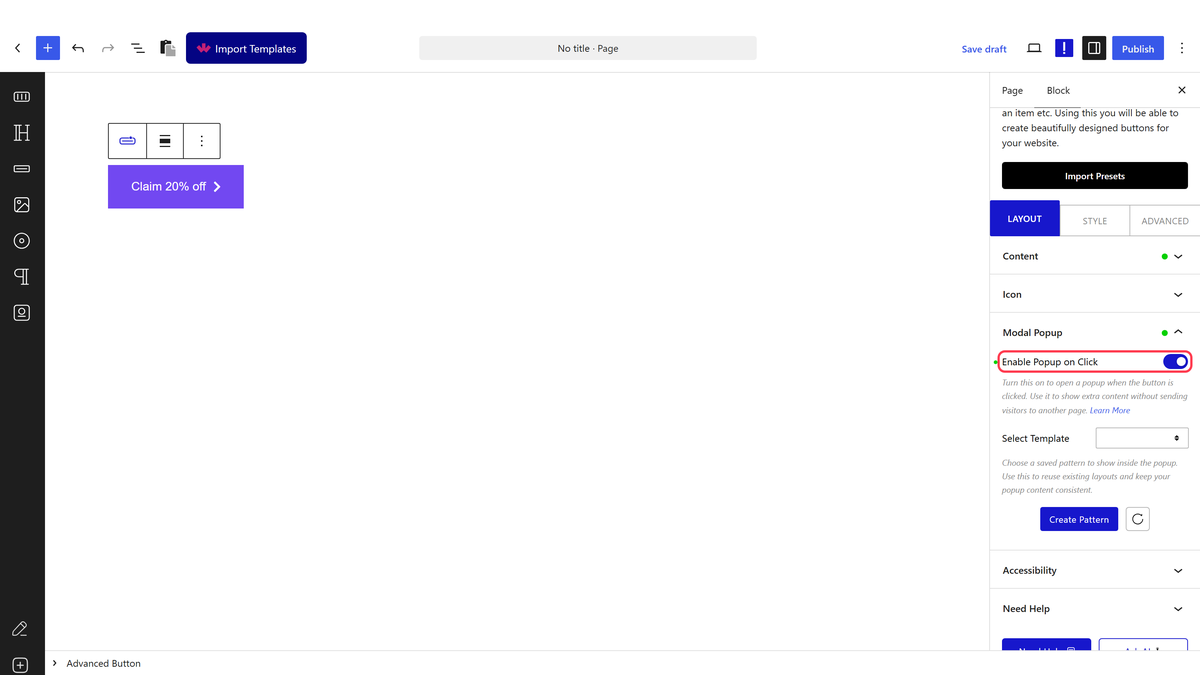
- Choose your pattern in Select Template. You can also click Create Pattern there.
- On the Style tab, open FancyBox Option to set Overlay Color and Width. Save and click the button on the live page.
How It Behaves
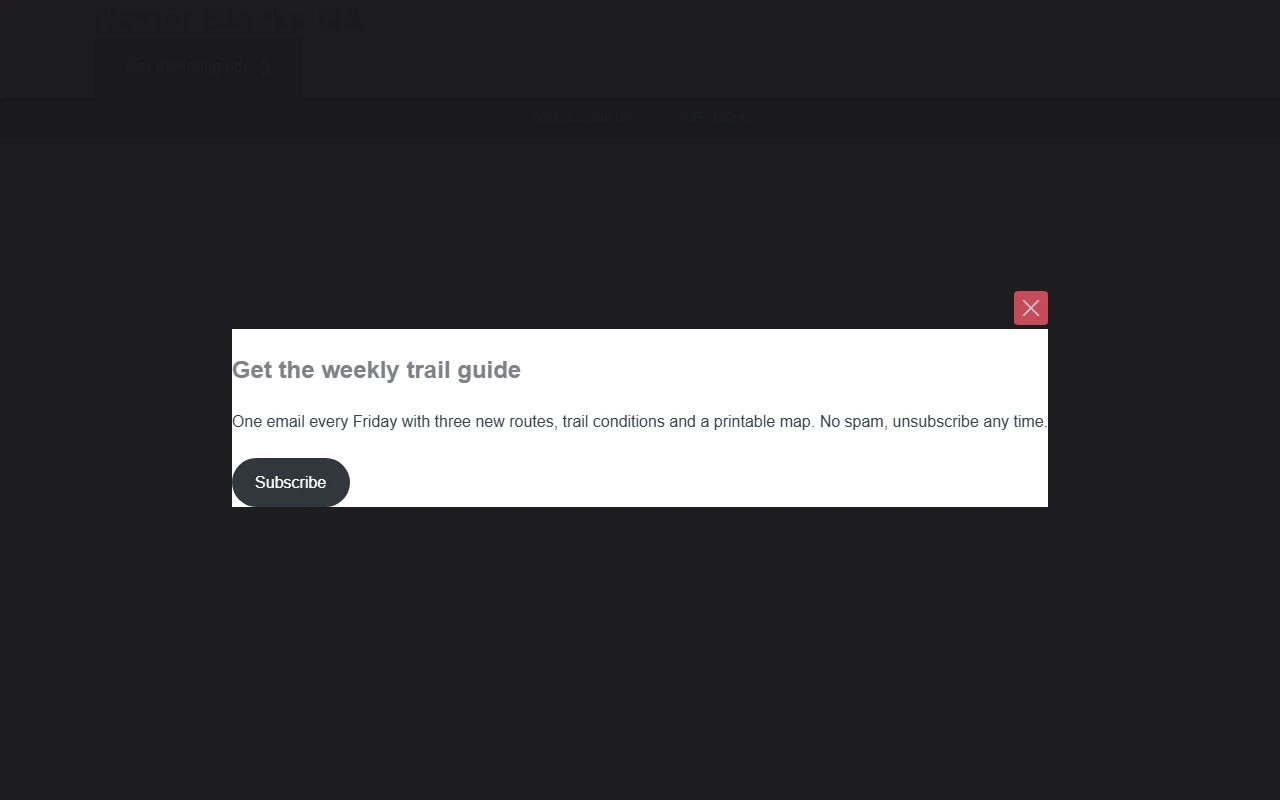
- Clicking the button opens the pattern in an overlay; the page does not change.
- The Link field is ignored while the popup is on.
- The pattern content is loaded with the page, hidden until the click.
- It works the same in the free plugin and with Nexter Blocks Pro.
Limitations
- One button opens one pattern. Use a separate button for each popup.
- There are no display rules or timers. For popups on page load or exit intent, use the Popup Builder block.
Troubleshooting
The popup is empty
No pattern is selected, or the pattern is not published. Choose a published pattern in Select Template.
The button opens a link instead
Turn on Enable Popup on Click in the Modal Popup panel.
