How to Combine Multiple Styles on a Text in WordPress?

Key Takeaways

  • Nexter Blocks includes the Advanced Typography block, allowing users to apply multiple text styles in WordPress.
  • The Advanced Typography block features options like text stroke outline, blend mode, and marquee effects for enhanced text customization.
  • Users can improve accessibility by adding an Aria label in the Content section of the Advanced Typography block.
Table of Contents

Are you looking to add different styles to text in WordPress? Applying various text styles allows you to customize and enhance the appearance of your website’s content, making it more visually appealing and engaging for visitors.

With the Advanced Typography block from Nexter Blocks, you can easily add different styles to text in WordPress.

To check the complete feature overview documentation of the Nexter Blocks Advanced Typography block, click here.

Requirement  – This block is a part of the Nexter Blocks, make sure it’s installed & activated to enjoy all its powers.

To do this, add the Advanced Typography block to the page and follow the steps – 

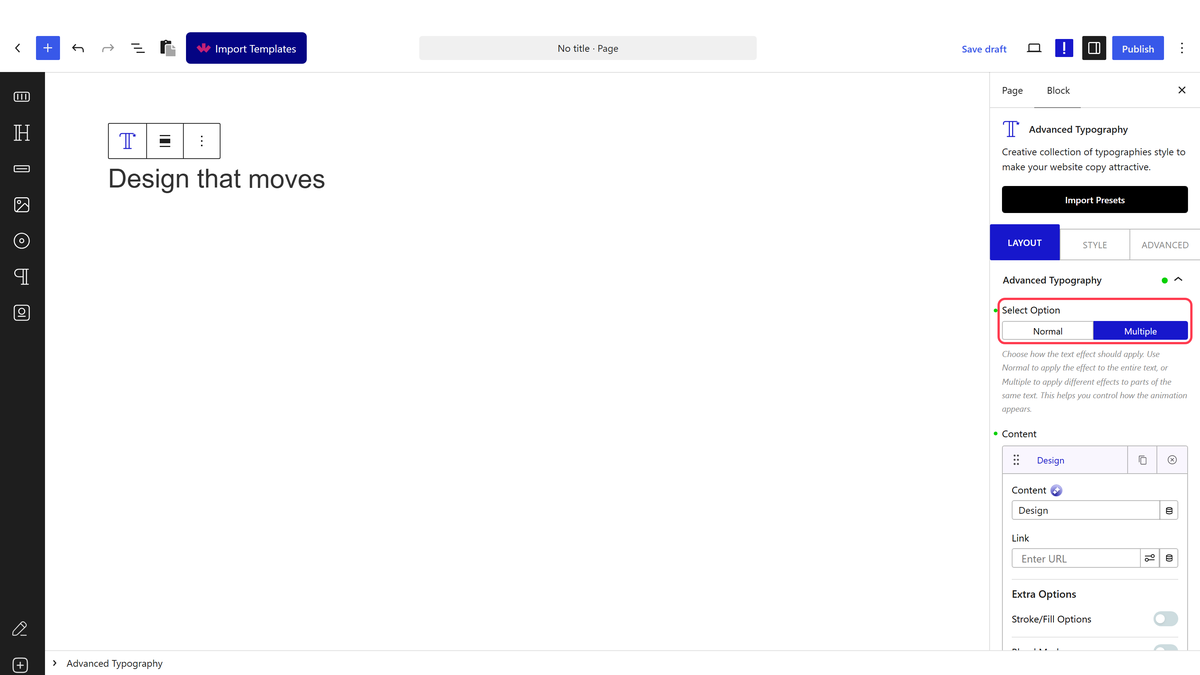
1. In the Advanced Typography tab, select Multiple from the Select Option section.

2. In the Content section, you’ll find one repeater item by default. Here, you can split a text into parts by adding them to different repeater items. Open the item. 

3. In the Content field, you have to add the text.

From the Link field, you can add a link to the text.

You can improve the accessibility by adding an Aria label from the Aria Label field.

Then in the Extra Options section, you’ll find different options to style the text.

From the Typography Style section, you can edit the typography of the text.

  • Typography – From here, you can edit the text typography.
  • Padding – From here, you can add padding to the text.
  • Advanced Style – From this toggle, you can adjust the text width and horizontal and vertical alignment.

From the Normal and Hover tab, you can add color, text shadow, CSS filter and add custom CSS transform to the text for normal and hover states. 

You can click on the + Add Text button to add more text.

Then, from the Alignment section, you can align the text.

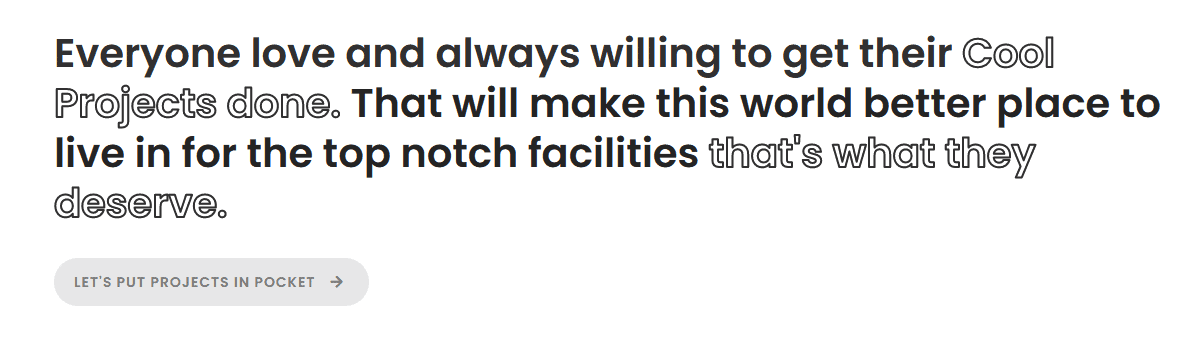
This is how you can add different styles to the text. 

advanced typography multiple demo

About the Author

Photo of Aditya Sharma CMO of NexterWP
CMO at POSIMYTH Innovations · NexterWP · 7 years experience

He has spent years in the WordPress ecosystem building, breaking, and optimizing sites until they actually perform. He works at the intersection of speed, growth, and usability, helping creators ship websites that load fast and convert. An active WordPress community contributor sharing through tools, tutorials, and direct collaboration. Tested practice, not theory.

WordpressThemesElementorn8nAIClaudeAutomationServer

Share your Thoughts

Get Instant Answers to all your questions about Nexter Blocks,
Extensions & Theme trained on 1000+ Docs and Videos

Still in Doubt? Let’s Assist You

Have Feedback or Questions?

Join our WordPress Community on Facebook!

Related Frequently Asked Questions

What should I do if the Advanced Typography block isn't showing up?

If the Advanced Typography block isn't visible, ensure that Nexter Blocks is installed and activated. This block is essential for combining multiple text styles in WordPress. Without it, you won't have access to the various styling options available, such as stroke outlines or blend modes.

How can I add a marquee effect to my text?

To add a marquee effect, enable the Marquee toggle in the Extra Options section of the Advanced Typography block. This effect allows your text to scroll across the screen, drawing attention to important messages or announcements. It's a great way to keep your content engaging and dynamic.

Last reviewed: April 14, 2026

Related Docs