












A row of eight share icons takes up a lot of room for something most visitors will not use.
The toggle layout hides them behind one button, so the page stays clean and the icons are still one click away.
For every External Form Styler setting in one place, see the main Social Sharing guide.
Before You Start
- Edition: Pro — the Social Sharing block needs Nexter Blocks Pro.
- Block to enable: Social Sharing, switched on under Nexter > Blocks in your WordPress dashboard.
- A Social Sharing block already set up — see the main Social Sharing guide.
Steps
- Add the Social Sharing block and set Layout to Toggle.
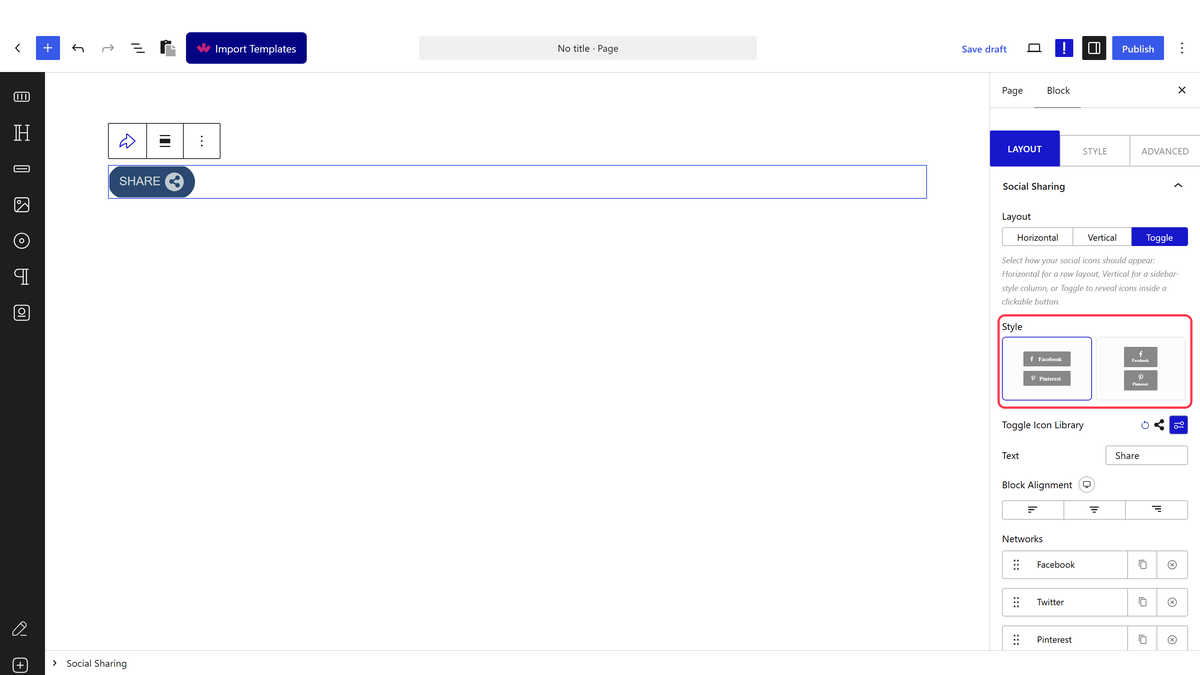
- Choose a toggle Style. Style 1 is a labelled button that opens a list; style 2 is a round button whose icons fan out.
- Set the toggle icon, and for style 1 the button text.
- For style 2, choose the direction the icons open in.
- Publish and click the button on the real page — it does not open in the editor.

How It Behaves
The Social Sharing block puts share buttons on a page. It builds each button’s link from the page it sits on — that page’s address and title — so there is nothing to configure per page.
- Style 1 opens and closes on click, measured. The icon list started hidden, one click opened it, and a second click closed it again.
- Style 2 is a round share button whose icons fan out in the direction you choose — measured, clicking it toggles the open state and clicking again closes it.
- The share links are the same as in any other layout — each one shares the page the block is on.
- The counter is not available here. Measured: the total counter renders only in the Horizontal and Vertical layouts, not in Toggle.
- Some networks cannot be shared to, and fail quietly. Measured: choosing Instagram or YouTube produced a link to
#that goes nowhere, while Facebook on the same page produced a real share URL. Those platforms have no public share-a-link address. The button still looks normal, so check any network you add actually goes somewhere — and use the block’s Custom URL field if you need it to lead elsewhere.
The share counts are numbers you type, not real ones. Measured on a published page: the counter showed
9.9 Kand every network showed109— the block’s own placeholder text. Nothing is fetched from Facebook, X or anyone else, and the figures never change. Treat them as decoration, or leave them off rather than show a visitor a number that is not true.
Limitations
- No total counter in this layout — measured, it is simply not rendered.
- It takes a click to reach the icons, which is the trade for the space it saves.
- The toggle does not open in the block editor — it has to be tested on the published page.
- Style 2 fans its icons out into the space around the button, so leave room in the direction you choose.
- Measured with Nexter Blocks Pro deactivated: the block renders nothing at all.
Troubleshooting
Clicking the button does nothing
Check you are on the published page rather than the editor. Measured: the open and close behaviour runs on the front end only.
The icons open off the edge of the screen
That is the fan-out direction on style 2. Choose a direction with room in it, or move the block.
I cannot find the counter setting
Measured: the total counter is not rendered in the Toggle layout at all. Use Horizontal or Vertical if you need it — but note the figure is text you type, not a real count.
One of the icons goes nowhere
Networks such as Instagram and YouTube have no share address and measure as a link to #. Remove them or give them a Custom URL.
