












“How it works” sections are usually a row of numbered boxes with a line between them — easy to describe and tedious to build by hand, especially once it has to fold sensibly on a phone.
The Process Steps block builds that sequence from one repeater, in a row or a column.
Before You Start
- Edition: Pro — the Process Steps block needs Nexter Blocks Pro.
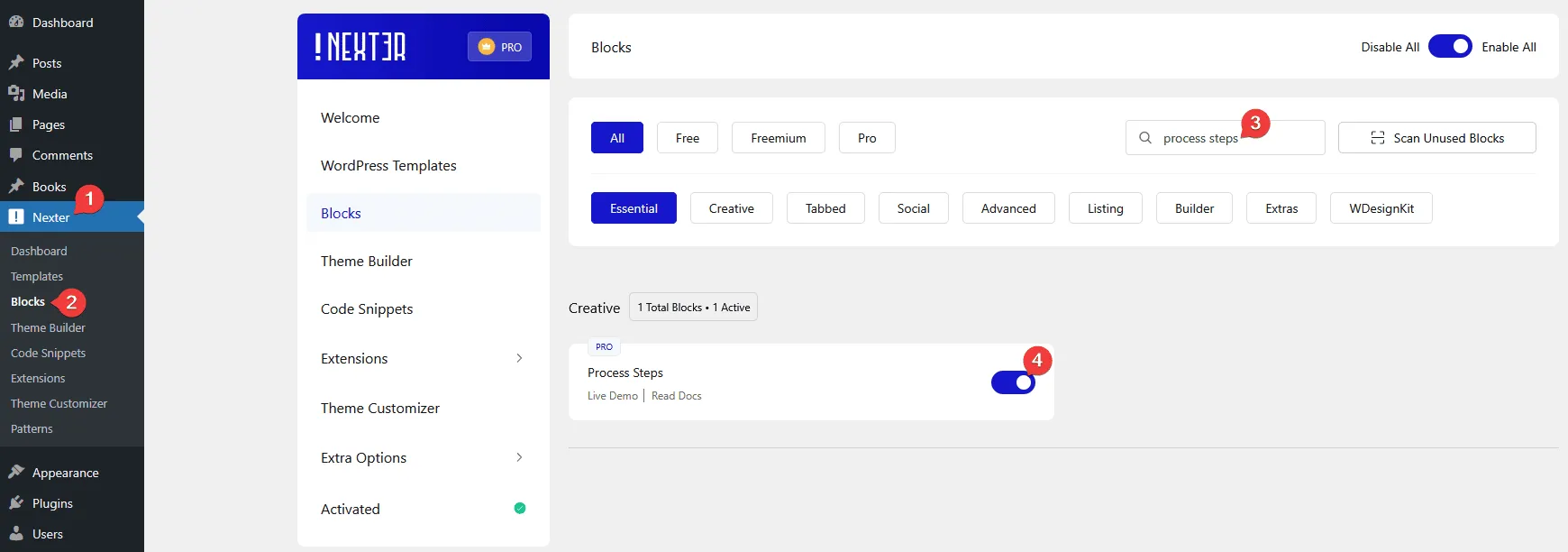
- Block to enable: Process Steps, switched on under Nexter > Blocks in your WordPress dashboard.
Video Tutorial

Steps
- Add the Process Steps block to your page.
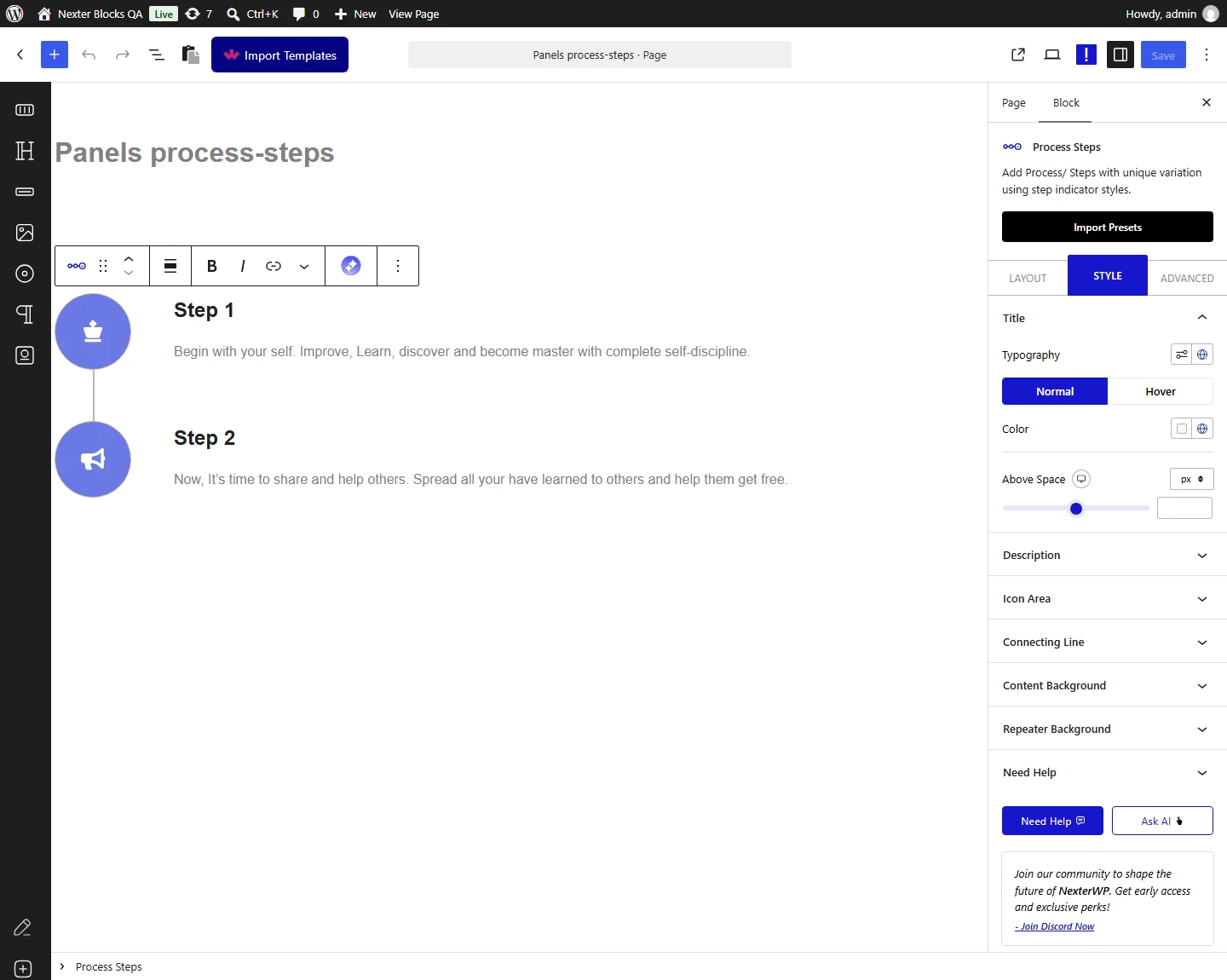
- Add one entry per step, with a title and a description.

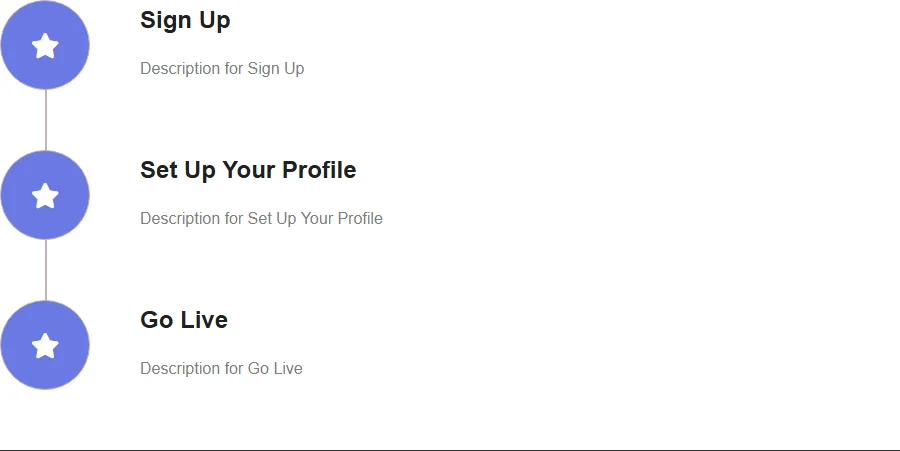
- Give each step an icon, an image or a piece of text — or None if you want content only.
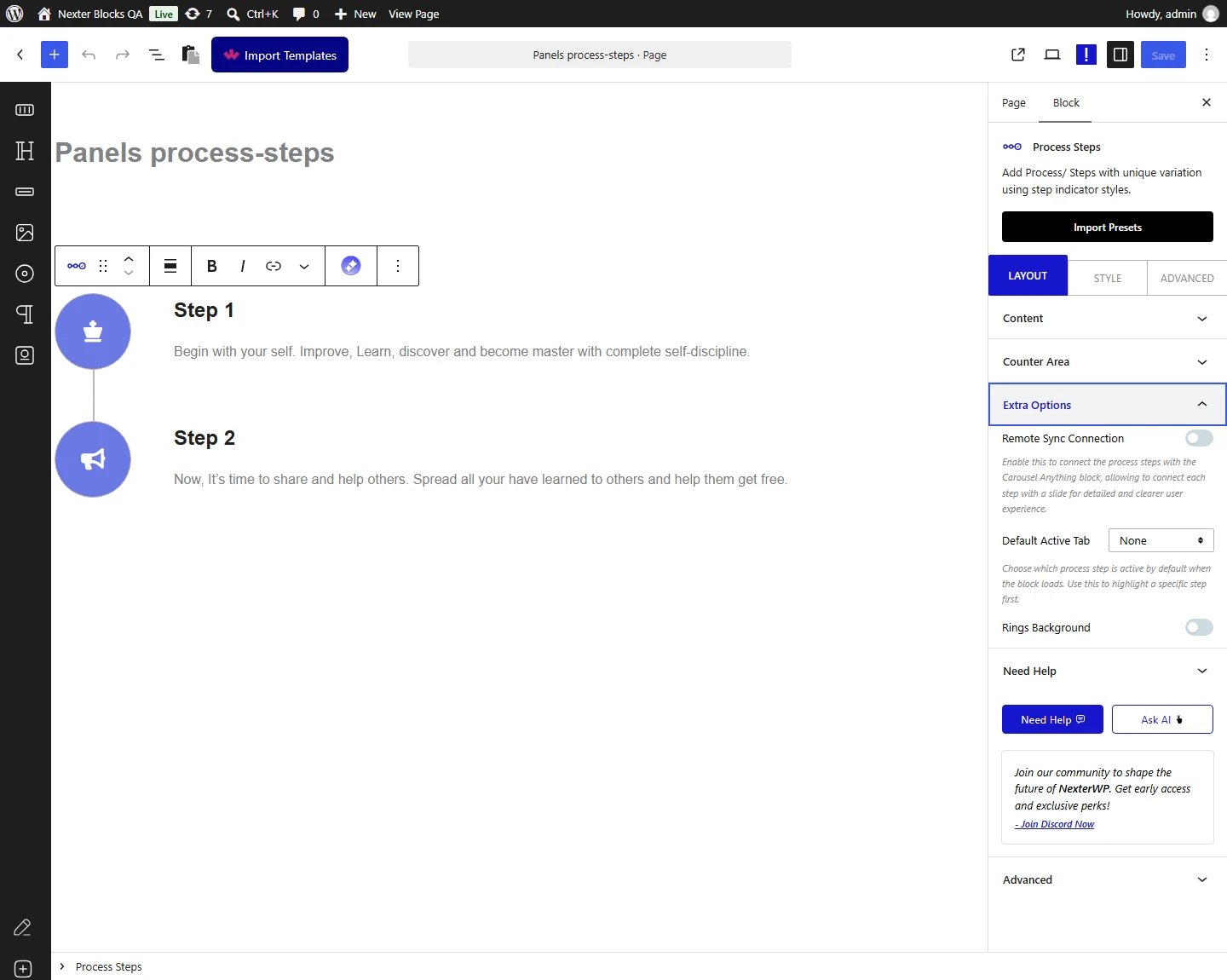
- Choose the style and the connector between steps.
- Set how it behaves on tablet and mobile, then publish.
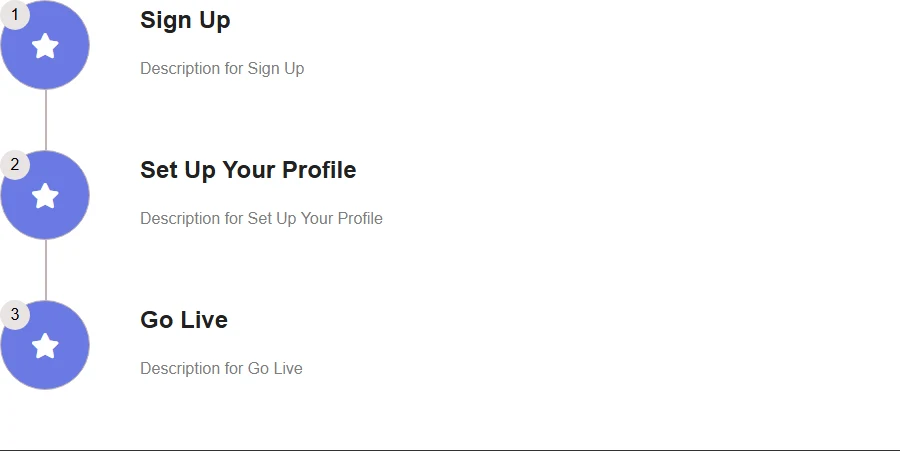
A step with no icon gets no number either. Measured with Display Counter switched on: steps with an icon rendered their counter, and steps whose icon was set to None rendered neither an icon nor a number. If your numbers have vanished, check the icon setting on each step rather than the counter.
How It Behaves
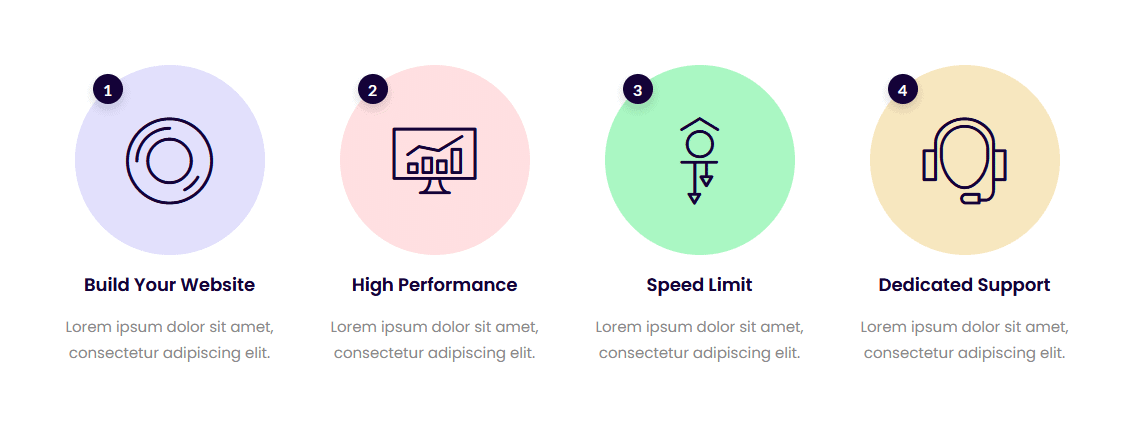
The Process Steps block lays out a sequence — how something works, what happens after an order, the stages of a service — as numbered or illustrated steps joined by a connector.
- Each step renders a title and a description, numbered in order — measured, the steps carry an index counting from 1 in the page itself.
- A step with no icon gets no number either. Measured with Display Counter switched on: steps with an icon rendered their counter, and steps whose icon was set to None rendered neither an icon nor a number. If your numbers have vanished, check the icon setting on each step rather than the counter.
- The number itself comes from the styling, not from text you enter — measured, the counter element renders empty for the normal number styles. Only the Custom Text style puts your own text in it, one value per step.
- Icon, image and text are three separate choices per step — measured, each renders its own markup, and None renders no icon area at all.
- The responsive switches are real layout changes: measured, normal layout on mobile and vertical on tablet each add their own class to the block.
- The carousel connection needs both the toggle and an ID. Measured: with the toggle on and an ID set, the block carries the connection attributes a Carousel Remote looks for; with the toggle on but the ID blank, or the ID set but the toggle off, nothing is written and no remote can find it.
Default Active does not survive to the published page. Measured: with a step set as the default active one, the saved block correctly marks it, but the published page renders no active step at all. It looks right while you are building and is lost when the page is viewed, so do not rely on it to highlight a step. This is reported to the development team.
Limitations
- Default Active does not survive to the published page. Measured: with a step set as the default active one, the saved block correctly marks it, but the published page renders no active step at all. It looks right while you are building and is lost when the page is viewed, so do not rely on it to highlight a step. This is reported to the development team.
- A step with no icon gets no number either. Measured with Display Counter switched on: steps with an icon rendered their counter, and steps whose icon was set to None rendered neither an icon nor a number. If your numbers have vanished, check the icon setting on each step rather than the counter.
- One sequence per block. Two separate processes on a page means two blocks.
- The connector is drawn between steps by the style, so a step removed or reordered redraws it — check the ends after editing.
- Measured with Nexter Blocks Pro deactivated: the block renders nothing at all.
Troubleshooting
My step numbers have disappeared
A step with no icon gets no number either. Measured with Display Counter switched on: steps with an icon rendered their counter, and steps whose icon was set to None rendered neither an icon nor a number. If your numbers have vanished, check the icon setting on each step rather than the counter.
The step I marked as active is not highlighted
Default Active does not survive to the published page. Measured: with a step set as the default active one, the saved block correctly marks it, but the published page renders no active step at all. It looks right while you are building and is lost when the page is viewed, so do not rely on it to highlight a step. This is reported to the development team.
The counter shows nothing at all
The number itself comes from the styling, not from text you enter — measured, the counter element renders empty for the normal number styles. Only the Custom Text style puts your own text in it, one value per step. If you want your own labels, choose the Custom Text counter style and fill in the text for each step.
A Carousel Remote will not drive it
The carousel connection needs both the toggle and an ID. Measured: with the toggle on and an ID set, the block carries the connection attributes a Carousel Remote looks for; with the toggle on but the ID blank, or the ID set but the toggle off, nothing is written and no remote can find it. See the Carousel Remote guide.
Nothing renders at all
Measured with Nexter Blocks Pro deactivated: the block renders nothing at all. Check Nexter Blocks Pro is active.
