












A row of steps works until there are five of them, or the descriptions run to a sentence each. Then the row squeezes and the text becomes a column of single words.
Stacking the steps down the page instead gives each one room, and reads naturally on a phone without any rearranging.
For every External Form Styler setting in one place, see the main Process Steps guide.
Before You Start
- Edition: Pro — the Process Steps block needs Nexter Blocks Pro.
- Block to enable: Process Steps, switched on under Nexter > Blocks in your WordPress dashboard.
- A Process Steps block already on the page — see the main Process Steps guide.
Steps
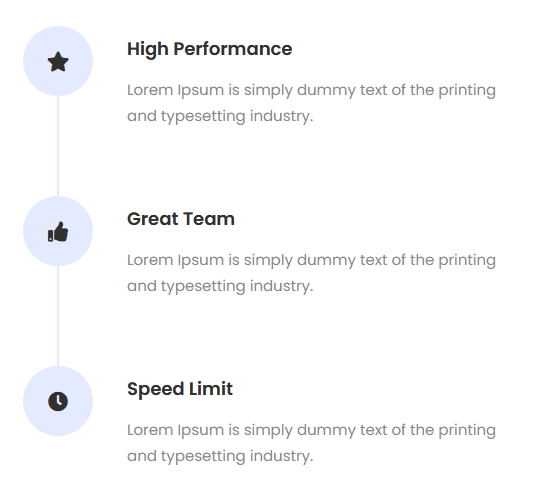
- Select the Process Steps block and choose the vertical style.
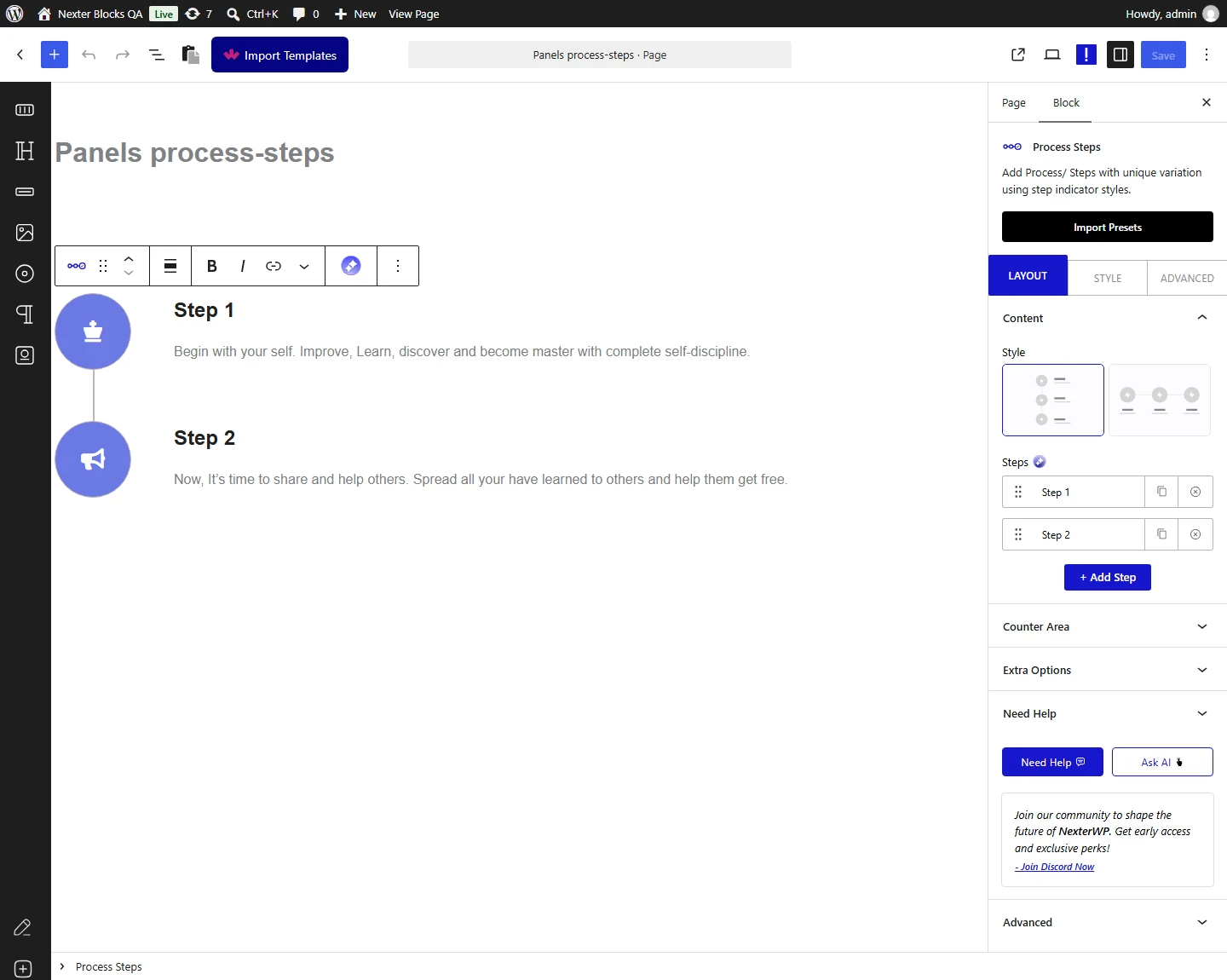
- Add your steps as usual — a title, a description and an icon for each.
- Set the alignment of the icon and the content so the column reads straight down.
- Switch vertical on tablet on if you want the stacked layout to start at tablet width rather than only on mobile.
- Publish and check the column at each screen width.
A step with no icon gets no number either. Measured with Display Counter switched on: steps with an icon rendered their counter, and steps whose icon was set to None rendered neither an icon nor a number. If your numbers have vanished, check the icon setting on each step rather than the counter.
How It Behaves
The Process Steps block lays out a sequence — how something works, what happens after an order, the stages of a service — as numbered or illustrated steps joined by a connector.
- Vertical on tablet is a real switch, measured — it adds its own class to the block, so the stacked layout begins at tablet width instead of waiting for mobile.
- Normal layout on mobile is the opposite switch — also measured as its own class, for when you want the row kept rather than stacked on small screens.
- The icon and content alignment are separate settings, which is what keeps a long description from dragging its icon out of line.
- A step with no icon gets no number either. Measured with Display Counter switched on: steps with an icon rendered their counter, and steps whose icon was set to None rendered neither an icon nor a number. If your numbers have vanished, check the icon setting on each step rather than the counter.
- The number itself comes from the styling, not from text you enter — measured, the counter element renders empty for the normal number styles. Only the Custom Text style puts your own text in it, one value per step.
Default Active does not survive to the published page. Measured: with a step set as the default active one, the saved block correctly marks it, but the published page renders no active step at all. It looks right while you are building and is lost when the page is viewed, so do not rely on it to highlight a step. This is reported to the development team.
Limitations
- Default Active does not survive to the published page. Measured: with a step set as the default active one, the saved block correctly marks it, but the published page renders no active step at all. It looks right while you are building and is lost when the page is viewed, so do not rely on it to highlight a step. This is reported to the development team.
- A vertical sequence is tall. Six steps with descriptions make a long scroll — keep the text short or the reader will lose the thread.
- A step with no icon gets no number either. Measured with Display Counter switched on: steps with an icon rendered their counter, and steps whose icon was set to None rendered neither an icon nor a number. If your numbers have vanished, check the icon setting on each step rather than the counter.
- The connector runs between the steps, so very uneven step heights leave uneven gaps in the line.
- Measured with Nexter Blocks Pro deactivated: the block renders nothing at all.
Troubleshooting
It is still horizontal on tablet
Switch vertical on tablet on. Measured, that is a separate setting from the mobile one — without it the stacked layout only starts at mobile width.
The icons are not lined up with the text
The icon alignment and the content alignment are set separately. Set both to the same edge for a straight column.
My step numbers are missing
A step with no icon gets no number either. Measured with Display Counter switched on: steps with an icon rendered their counter, and steps whose icon was set to None rendered neither an icon nor a number. If your numbers have vanished, check the icon setting on each step rather than the counter.
The highlighted step is not highlighted
Default Active does not survive to the published page. Measured: with a step set as the default active one, the saved block correctly marks it, but the published page renders no active step at all. It looks right while you are building and is lost when the page is viewed, so do not rely on it to highlight a step. This is reported to the development team.
The connecting line has gaps
Steps of very different heights stretch the connector unevenly. Even out the description lengths, or set a minimum height on the steps.
