












A section that reacts to scrolling feels built rather than placed. Images that drift into position as the reader arrives give a section a sense of depth.
The Container block can put images on a layer of their own and animate them against the scroll.
Before You Start
- Edition: Pro — image scroll animation needs Nexter Blocks Pro.
- Block to enable: Container, switched on under Nexter > Blocks in your WordPress dashboard.
- A Container block with content inside — see the Container block guide.
- Images with transparency, if you want them to sit over the background rather than cover it.
Preview
Steps
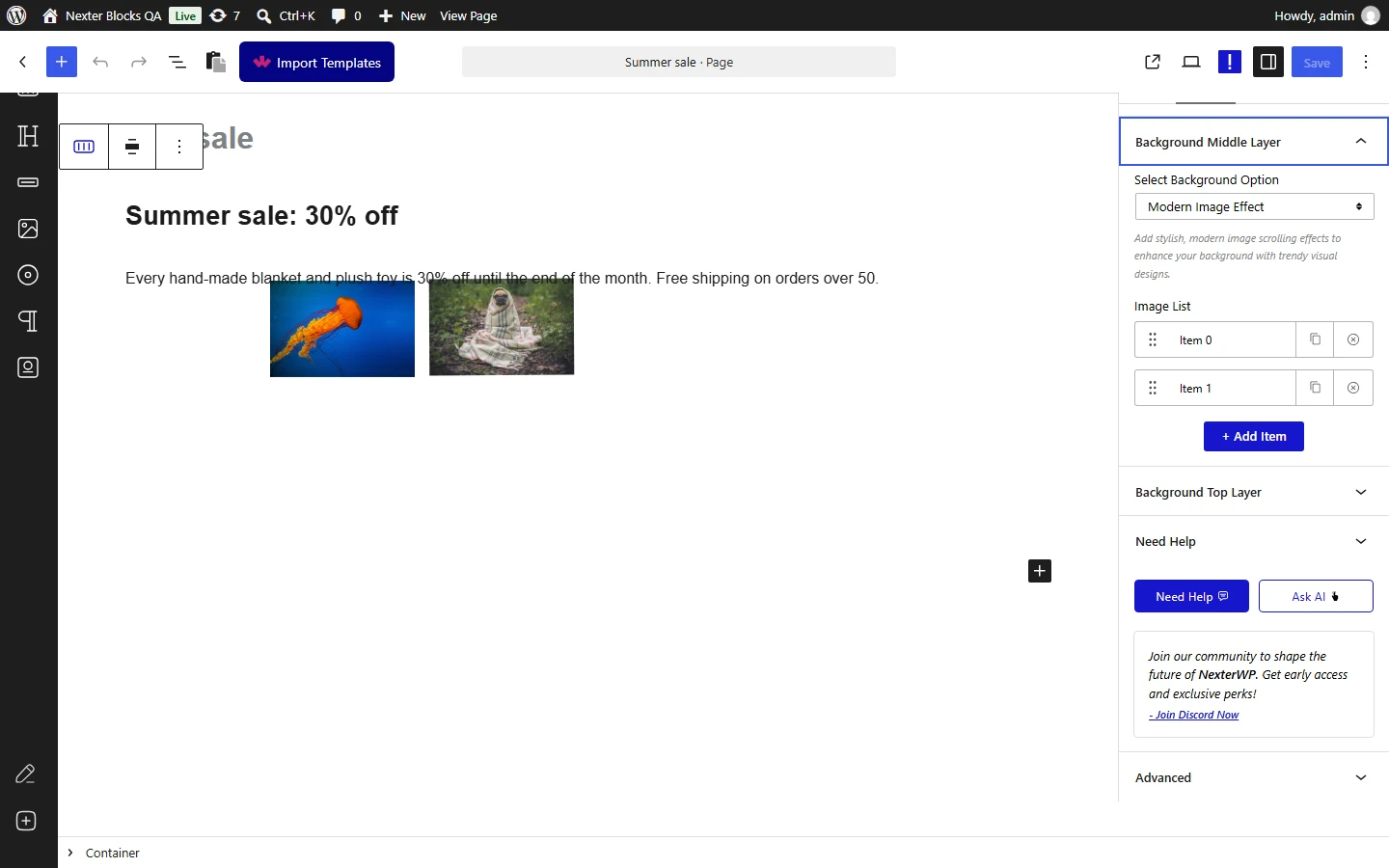
- Select your Container and open its middle layer options.
- Choose the modern image effect.
- Add the images that should move, one entry each.
- Set each image’s position and the effect it should use.
- Give the section enough height for the movement to happen, then publish.
How It Behaves
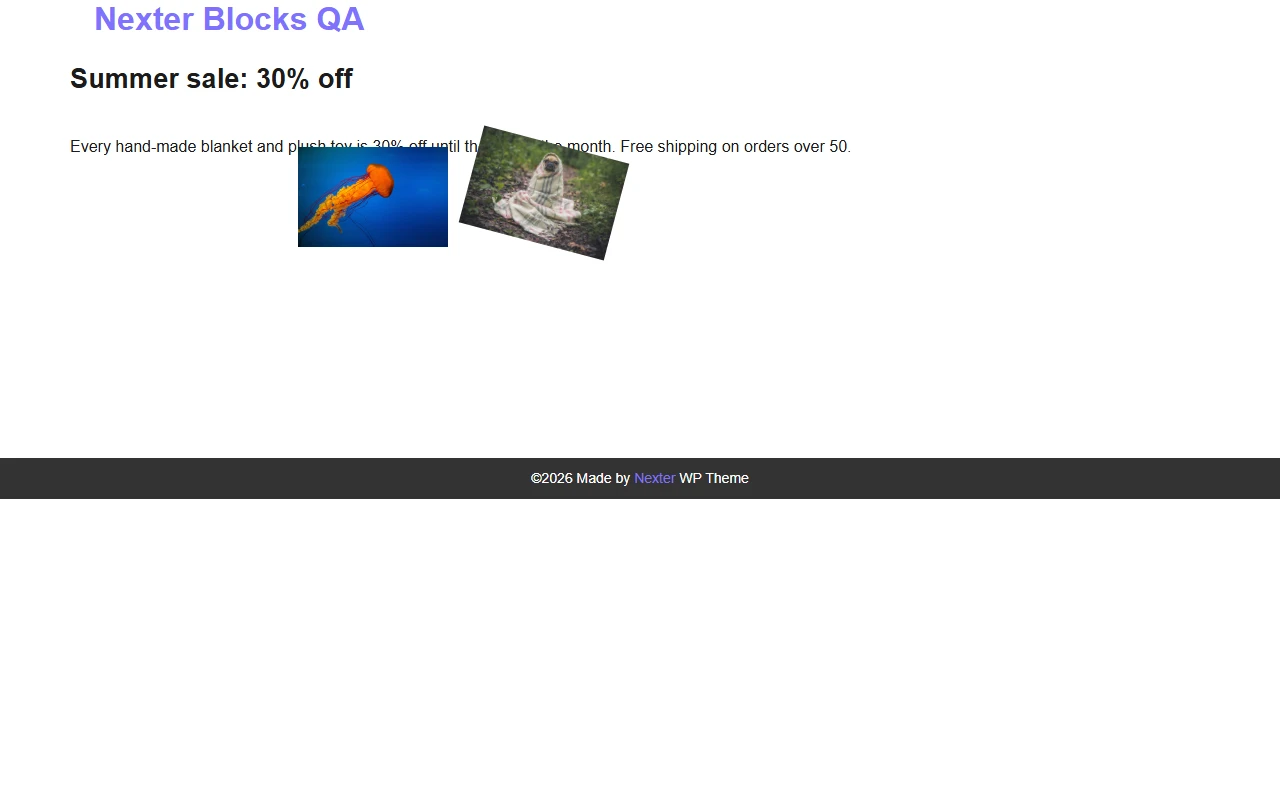
The images sit on a middle layer above the background, and their position is tied to the scroll.
- Measured on a published page: choosing the modern image effect rendered
tpgb-mordernimg-effect tpgb-mordern-parallaxon the middle layer. - Each image carries its own effect setting, so several can move differently within one section.
- The section needs height. The animation runs across the distance the section is scrolled through, so a short section shows almost nothing.
- It is a layer, not a background — the container’s own background is still there underneath and can be set independently.
- Measured with Nexter Blocks Pro deactivated: this effect disappears completely and the container renders as a plain section, with nothing on the page to say why.
Limitations
- Pro only — measured with Nexter Blocks Pro deactivated, no middle layer is rendered.
- Easy to overload. Several images moving at once behind text is busy rather than elegant; two or three is usually the limit.
- Each image is a real download. Decorative layers still cost the visitor data.
- Check it on a phone. Positions set against a wide desktop layout often land badly in a narrow one.
- For the simpler version — one background moving at its own speed — use parallax instead.
Troubleshooting
Nothing moves
Check the middle layer effect is selected and that Nexter Blocks Pro is active. Then check the section is tall enough for scrolling to make a difference.
The images are in the wrong place
Each image has its own position setting. Adjust them per breakpoint, since a desktop position rarely suits a phone.
My images hide the text
The middle layer sits above the background but below the content. If the text is hard to read, the images are probably too large or too opaque.
It is jerky
Too many images, or images that are too large. Reduce both.
