How to Add a Container in WordPress?

Key Takeaways

  • Nexter Blocks includes a Container block that allows users to create sections in their WordPress layout.
  • The Container block offers two layout types: Flexbox and Grid.
  • Users can activate the Container block by visiting Nexter u2192 Blocks and turning on the toggle for Container.
  • The PRO version of Nexter Blocks unlocks additional features such as Sticky containers and Parallax effects.
  • Users can set container dimensions using options like Boxed or Full width, and adjust settings for responsive devices.
Table of Contents

Containers in WordPress provide a way to organize and structure content on a webpage. With containers, you can easily group elements and control their layout, making your website more visually appealing and organized.

With the Container block from the Nexter Blocks, you can easily create sections in your WordPress layout.

Required Setup

  • Make sure the default WordPress Block editor is active. 
  • You need to have the Nexter Blocks plugin installed and activated.
  • Make sure the Container block is activated. To verify this, visit Nexter → Blocks → and search for Container and activate.
  • This is a Freemium block to unlock the extra features; you need the PRO version of the Nexter Blocks.

Learn via Video Tutorial

YouTube video

How to activate the Container Block?

Go to 

  • Nexter Blocks 
  • Search the block name and turn on the toggle.

Nexter Blocks Container Activation

Key Features

How to Create a Container in WordPress?

To create a container in WordPress add the Container block from the Nexter Blocks on the page.

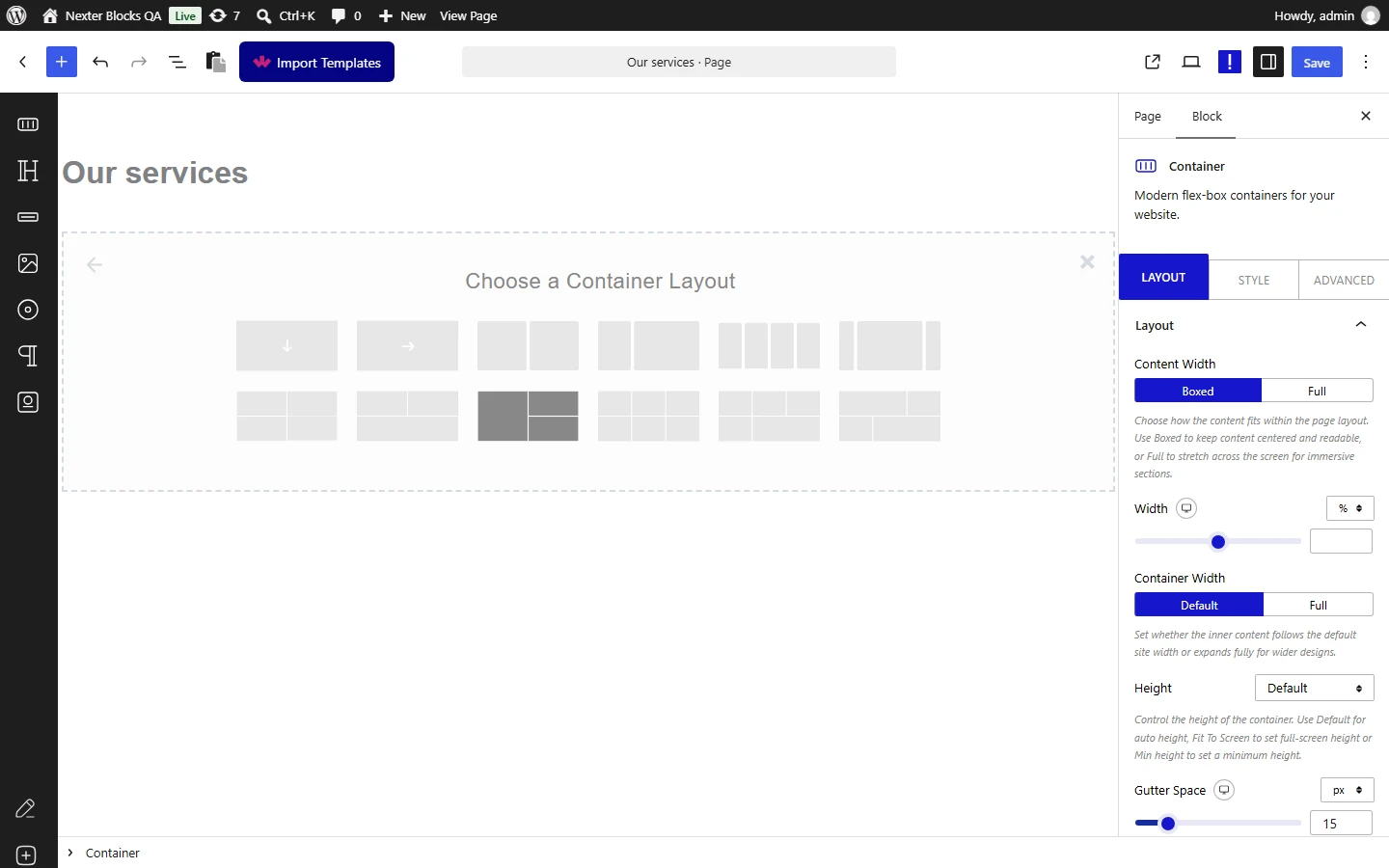
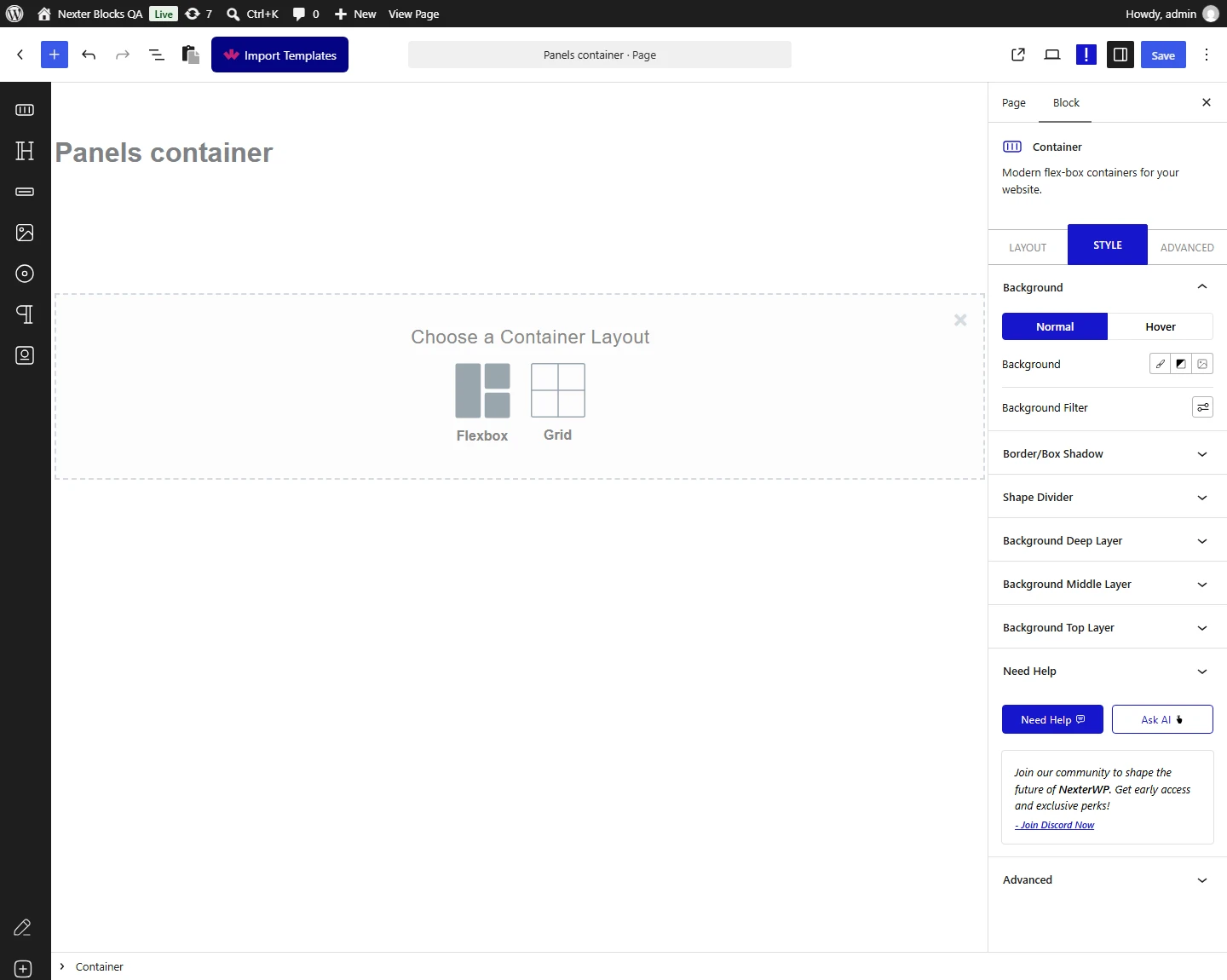
Then, you’ll see two container layout types –

You have to choose the appropriate container layout as per your requirements. Let’s select Flexbox here. 

You can add a single-column horizontal or vertical direction container, multi-column, multi-row, or multi row and column container.

Add Single Column Container

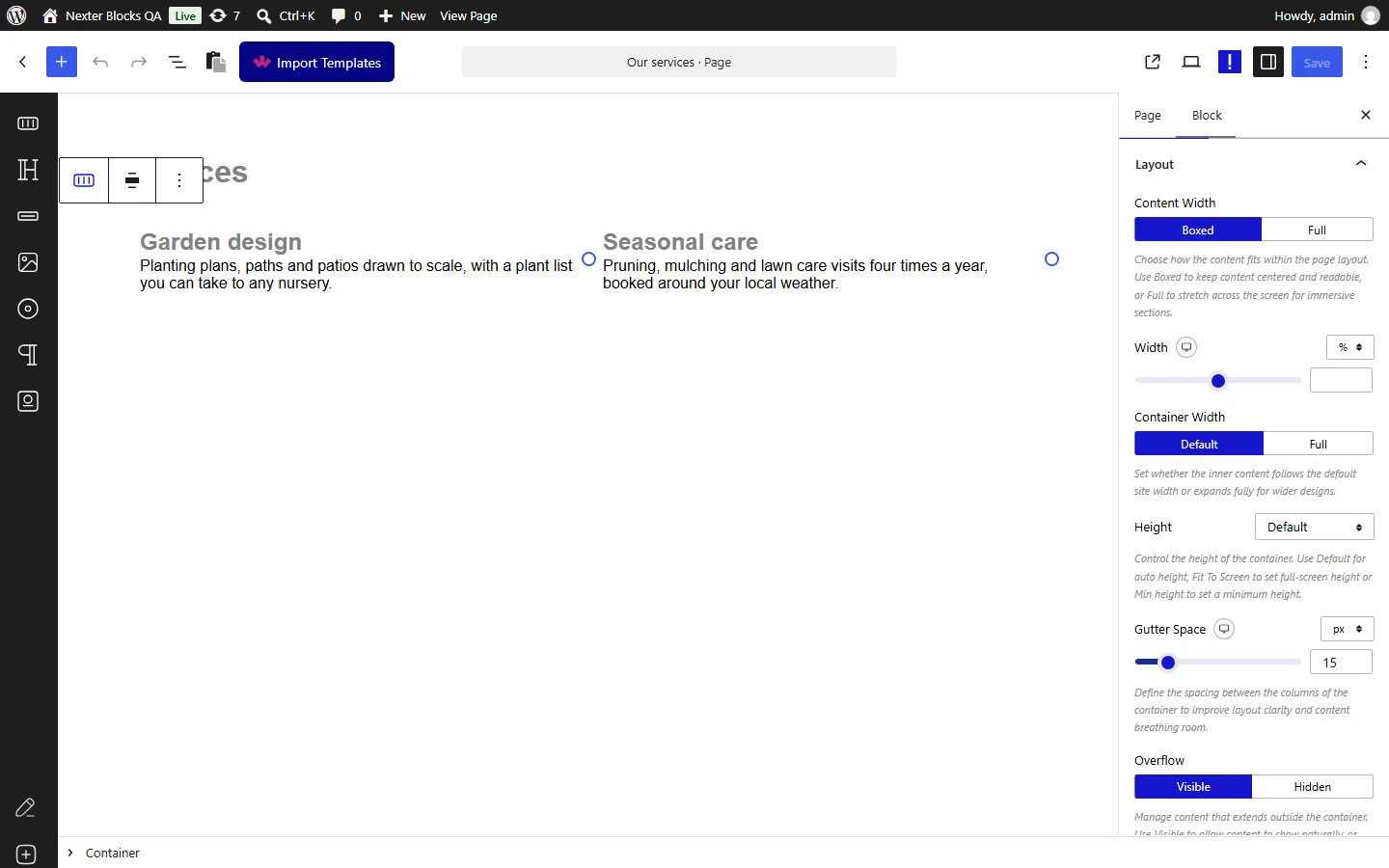
To add a single-column container you can choose either a horizontal or vertical direction container, let’s select horizontal here.

Layout

From the Content Width section, you can set the container width. Here you’ll find two options – 

  • Boxed – For creating a boxed container.
  • Full – For creating a full-width container.

Let’s select Boxed here.

Similarly, you can select Full to create a full-width container.

Note: To create a full-width container make sure the active template supports a full-width container.

From the Width section, you can set the width of the container for responsive devices. You can set the value PX (pixels), % (percentage), and VW (viewport width).

Then from the Height dropdown, you can set the height of the container. Here you’ll find three options – 

  • Default – To keep the container height as per the content in the container.
  • Fit To Screen – To make the container equal to the screen height.
  • Min Height – To set a minimum height for the container. For this, you’ll get an option to set the height.

From the Gutter Space section, you can add space between columns of the container for responsive devices.

From the Overflow section, you can set the container overflow to visible or hidden.

Then from the HTML Tag dropdown, you can change the HTML tag of the container.

Flex Property

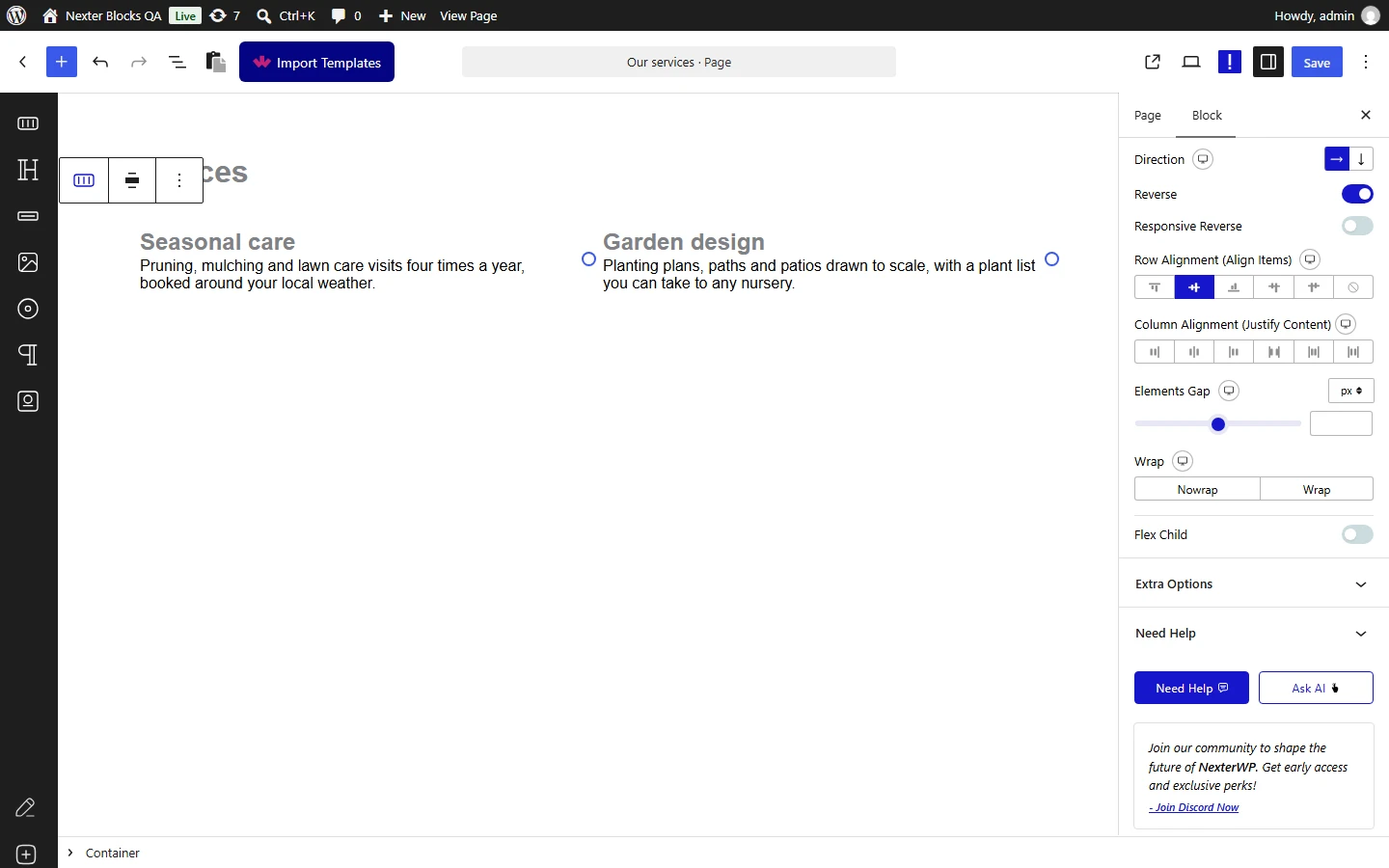
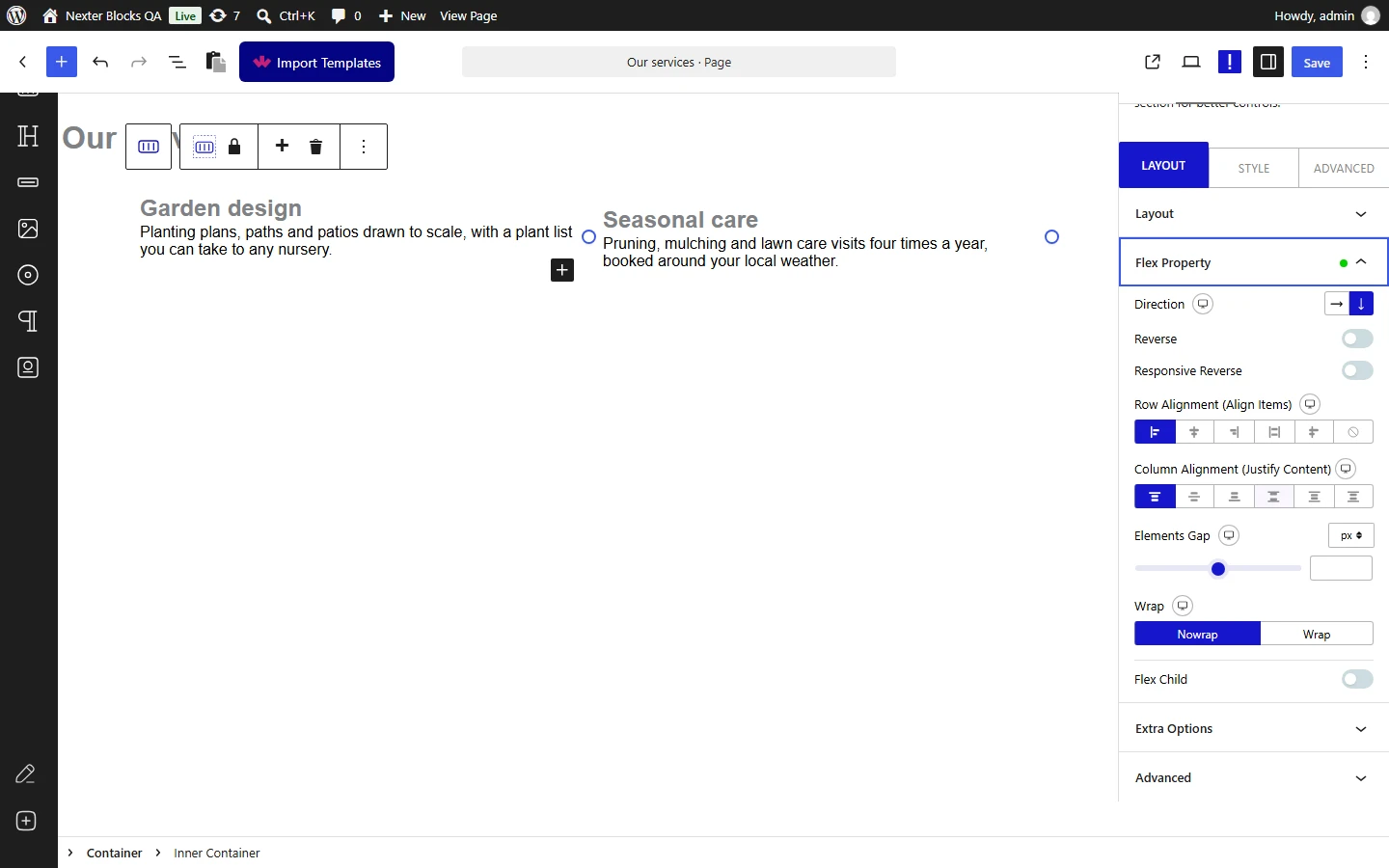
From the Direction section, you can set the container direction for responsive devices. Here you’ll find two options – 

  • Vertical – For creating a vertical direction container, where all its child elements will be vertically aligned.   
  • Horizontal – For creating a horizontal direction container, where all its child elements will be horizontally aligned.

By enabling the Reverse toggle, you can order the container child elements in the reverse order.

Then by enabling the Responsive Reverse toggle, you’ll get an option to order the container child elements in the reverse order for tablet and mobile separately.

From the Row Alignment (Align Items) section, you can align the container child elements based on CSS flex align-item properties for responsive devices.

From the Column Alignment (Justify Content) section, you can align the container child elements based on CSS flex justify-content properties for responsive devices.

Then from the Elements Gap section, you can manage the gap between the child elements of the container for responsive devices.

You can set the flex-wrap property for the container from the Wrap section for responsive devices. You can set the container to wrap or don’t wrap.

By enabling the Flex Child toggle, you can set different flex properties to the individual child items of the container.

Once enabled you’ll see an item, that will target the first element of the container. Open the item here you’ll find some options – 

You can click on the + Add Item button to add more items to target subsequent elements.

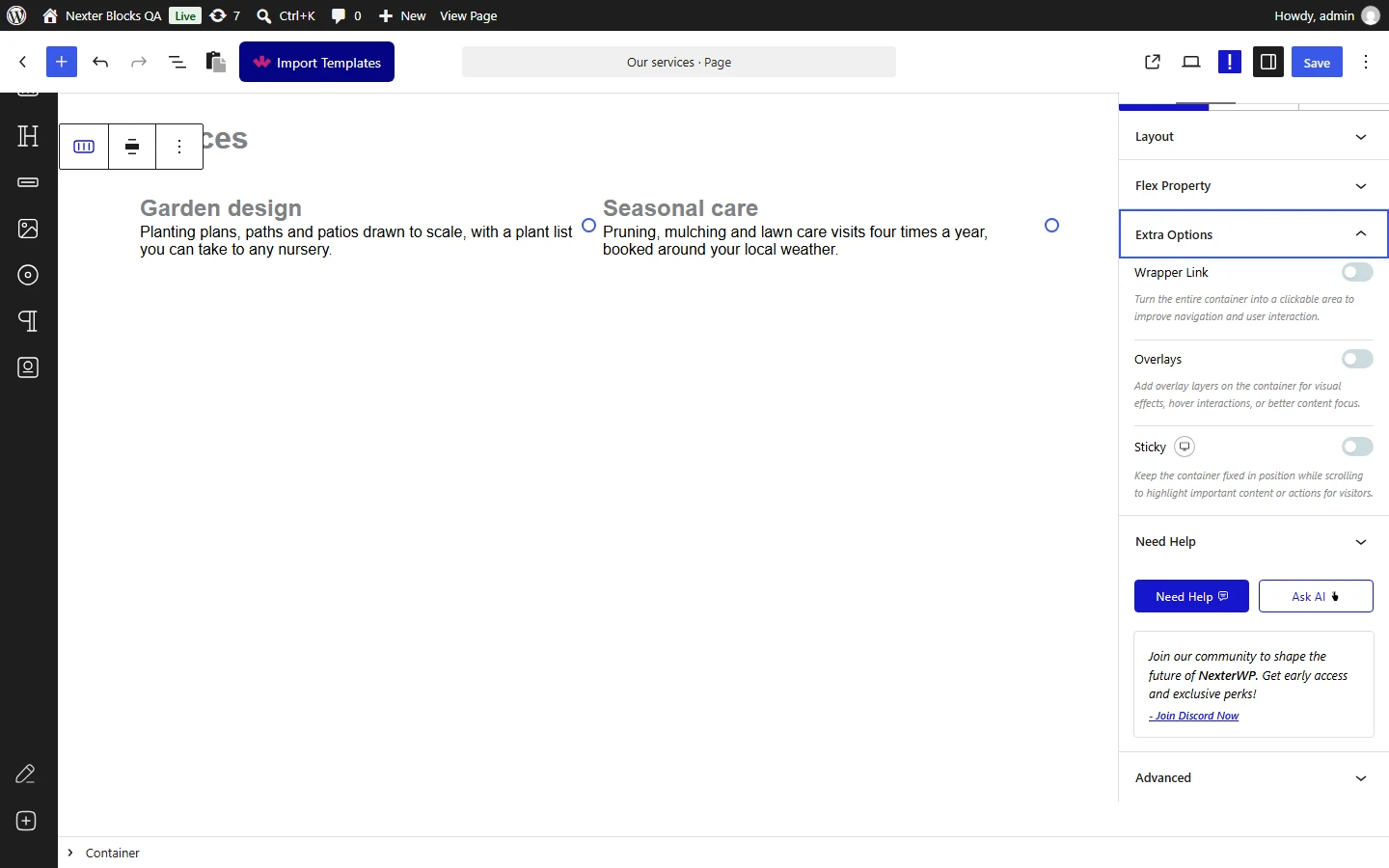
Extra Options

From the Wrapper Link toggle, you can add a link to the container.

Then, from the Overlays toggle, you can make the container overlap the next section. This can be useful to create an overlay header effect.

From the Sticky toggle, you can make the container sticky.

Add Multi Column Container (Inner Container)

To add a multi column container, add the Container block and select a multi column layout.

You’ll see multiple inner containers inside the main container.

For the main container, you’ll see the same options available for the single-column container. 

You’ll see additional settings for the inner containers.

Layout

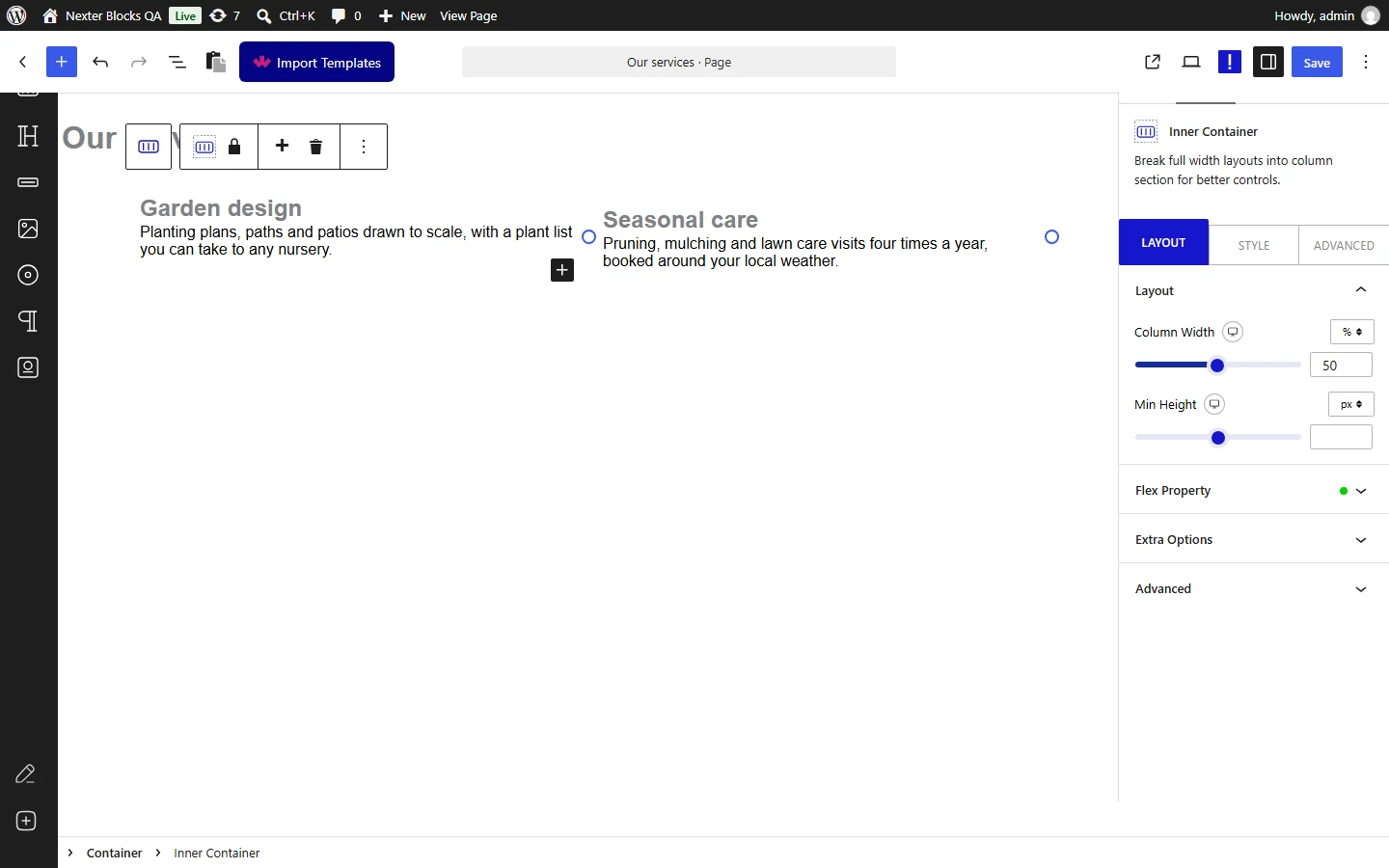
From the Column Width section, you can set the width of the inner container for different devices.

Then from the Min Height section, you can set a minimum height of the inner container for responsive devices.

Flex Property

In this tab, you’ll find the same options available for the main container.

Extra Options

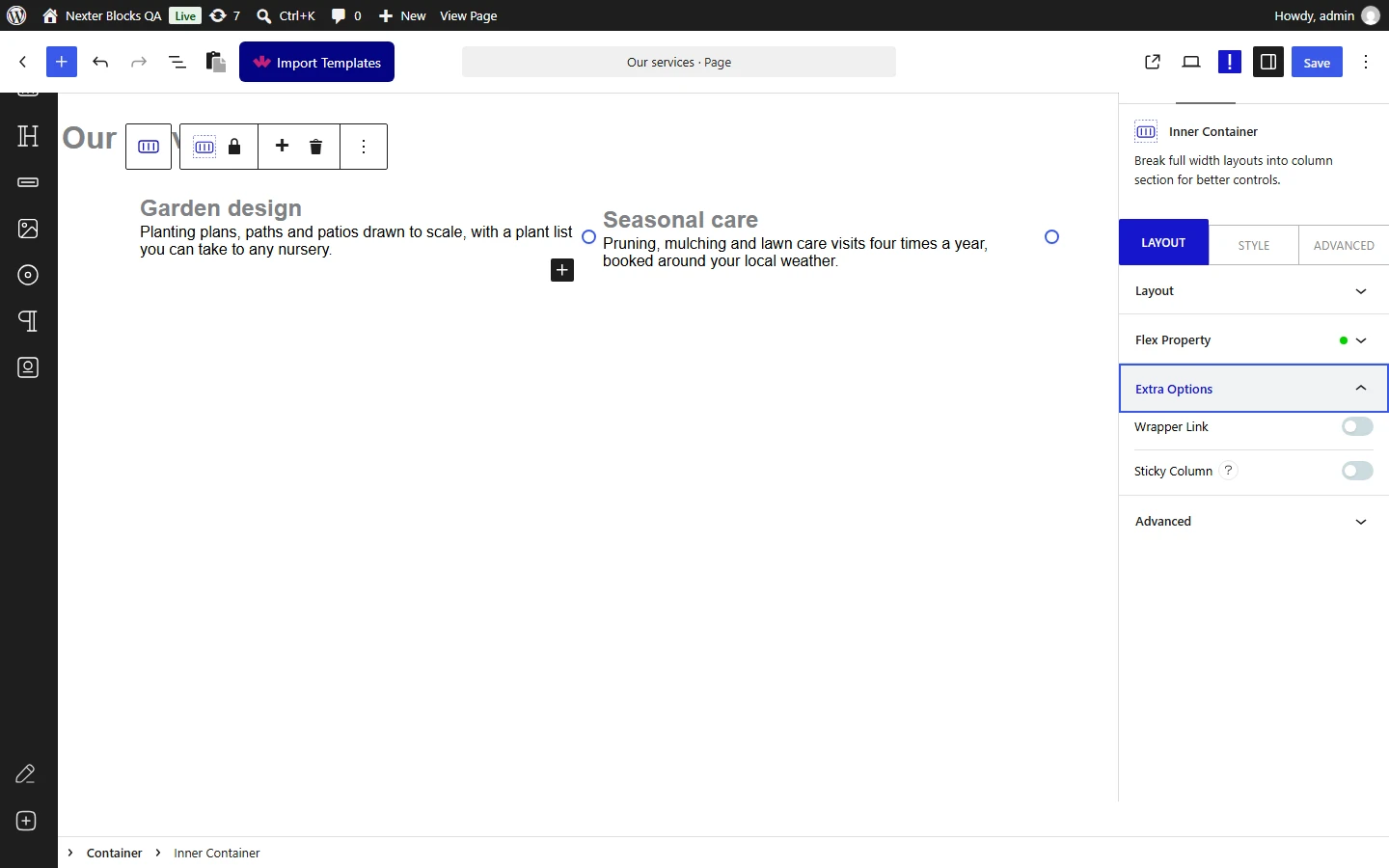
From the Wrapper Link toggle, you can add a link to the inner container just like the main container.

From the Sticky (Pro) toggle, you can make the inner container sticky within the main container. Once enabled you’ll see some options – 

Top Spacing – From here, you can set the top offset i.e. the space from the top where the container will stick. 

Bottom Spacing – From here, you can set the bottom space for the sticky container.

Sticky Desktop – From this toggle, you can make the container sticky on a desktop screen.

Sticky Tablet – From this toggle, you can make the container sticky on a tablet screen.

Sticky Mobile – From this toggle, you can make the container sticky on a mobile screen.

How to Style the Container Block?

To style the Container you’ll get all the options under the Style tab.

Background – From here, you can style the container background.

container style

Border/Box Shadow – From here, you can add border, border-radius, and box shadow to the container.

Shape Divider – From here, you can add a custom shape to the container.

Background Deep Layer (Pro) – From here, you can add different creative backgrounds to the container.

Background Middle Layer (Pro) – From here, you can add different creative backgrounds to the container.

Background Top Layer (Pro) – From here, you can add an overlay background color or image to the container.

Texture Image – From here, you add an overlay image to the container.

Color – From here, you can add overlay background color to the container.

Note: In the HTML the Background Top Layer will be placed first then the Background Middle Layer and Background Deep Layer will be placed at last. These backgrounds will override the default container background style.

You’ll see some additional styling options for inner containers in the Style tab.

Advanced options remain common for all our blocks, you can explore all it options from here.

View Advanced tab tutorial.

About the Author

Photo of Aditya Sharma CMO of NexterWP
CMO at POSIMYTH Innovations · NexterWP · 7 years experience

He has spent years in the WordPress ecosystem building, breaking, and optimizing sites until they actually perform. He works at the intersection of speed, growth, and usability, helping creators ship websites that load fast and convert. An active WordPress community contributor sharing through tools, tutorials, and direct collaboration. Tested practice, not theory.

WordpressThemesElementorn8nAIClaudeAutomationServer

Share your Thoughts

Get Instant Answers to all your questions about Nexter Blocks,
Extensions & Theme trained on 1000+ Docs and Videos

Still in Doubt? Let’s Assist You

Have Feedback or Questions?

Join our WordPress Community on Facebook!

Related Frequently Asked Questions

What should I do if the Container block is not showing up in WordPress?

If the Container block is not appearing, ensure that the Nexter Blocks plugin is installed and activated. You can check this by navigating to Nexter u2192 Blocks and searching for 'Container'. If it's not activated, turn on the toggle. If you are using the free version, some features may be limited, and you might need the PRO version for full functionality.

What are the benefits of using a sticky container in WordPress?

A sticky container remains fixed in position while scrolling, which can enhance user experience by keeping important content visible. This feature is available in the PRO version of Nexter Blocks. You can set top and bottom spacing for the sticky container, which allows for better control over its placement on the page.

How do I style the background of a container in WordPress?

To style the background of a container, navigate to the Style tab where you can customize various background options. You can add colors, images, or even video backgrounds. For advanced effects, the PRO version allows for animated backgrounds and parallax effects, enhancing the visual appeal of your site.

What layout types can I choose when adding a container in WordPress?

When adding a container using Nexter Blocks, you can choose between two layout types: Flexbox and Grid. Flexbox is ideal for aligning items in a single direction, while Grid allows for more complex layouts with multiple rows and columns, giving you flexibility in how you structure your content.

Are there any limitations when using the Container block in Nexter Blocks?

One limitation is that the Container block requires the default WordPress Block editor to be active, and it does not function as a standalone theme without Gutenberg. Additionally, some advanced features, such as sticky containers and video backgrounds, are only available in the PRO version of Nexter Blocks.

Last reviewed: April 14, 2026

Related Docs