












Matching a second card to the first means going through the Style tab option by option, and getting one padding value wrong is enough to make the row look off.
Copy Paste Styles takes the styling from one Nexter block and applies it to another in a couple of clicks.
Before You Start
- Edition: Free — works in Nexter Blocks (free) and with Nexter Blocks Pro.
- Block to enable: any Nexter block, switched on under Nexter > Blocks in your WordPress dashboard.
- Two Nexter blocks of the same type in the editor — one styled, one not.
Steps
- Select the block whose styling you want to reuse.
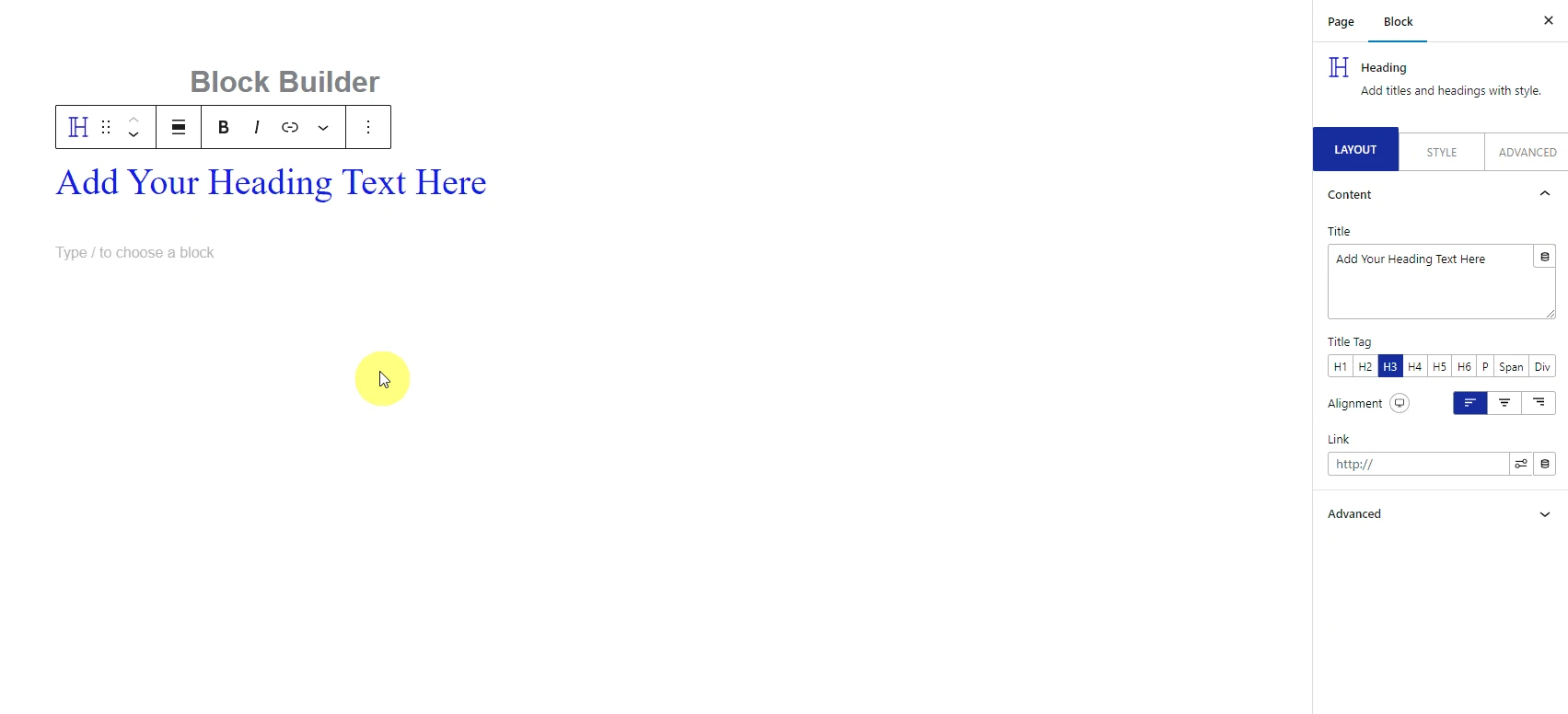
- In the block toolbar, choose TP Copy Style.
- Select the block you want to style.
- Choose TP Paste Style, which appears in the toolbar once a style has been copied.
- Repeat for any other blocks, then publish.
How It Behaves
Both controls live in the block toolbar, and the copied style is held for the duration of your editing session.
- This is an editor feature. It changes how you build the page, not what is sent to the visitor, so there is nothing to see on the published page. The published page simply carries whatever styling the block ended up with.
- Nexter blocks only. The buttons are shown only for blocks belonging to Nexter Blocks, so a core paragraph or a third-party block will not offer them.
- Paste appears only after a copy. Until you have copied a style there is nothing to paste and the second button is not shown — which is why the toolbar looks different before and after.
- The copied style lasts for the session, not beyond it. It is held in the editor’s memory rather than saved anywhere, so reloading the page clears it and it does not carry to another tab, another post or another site.
- It is part of the free plugin.
The behaviour described here is read from the plugin’s editor code rather than measured on a published page, because this feature produces no front-end output to measure. The button labels and when they appear are exactly as shipped in Nexter Blocks 5.0.6.
Limitations
- Same block type. Styling that means something on a heading has no equivalent on a button, so copying between different block types is not the intended use.
- It copies styling, not content. Text, links and images stay as they are — which is usually what you want, but it does mean this is not a duplicate.
- The copy is lost on reload. If you refresh the editor between copying and pasting, you will need to copy again.
- It is a one-time application, not a link. Changing the original later does not update the blocks you pasted onto — for that you want a global block style instead.
- For more than two or three blocks, a global style is the better tool, because it stays connected.
Troubleshooting
I cannot see the copy style button
The selected block is not a Nexter block. The controls are shown only on blocks from Nexter Blocks.
There is no paste button
Nothing has been copied yet in this session. Copy a style first — the paste control appears only once there is something to paste.
I copied a style and now it has gone
The editor was reloaded. The copied style is held in memory for the session only, so copy it again.
Pasting did not change anything
The two blocks are probably different types. Copy between blocks of the same type.
I changed the original and the copies did not update
Expected — this applies the styling once rather than linking the blocks. Use a global block style if you want them to stay in step.
