Skip to content

How to Add Blank Space on WordPress?

Key Takeaways

  • Spacer block añade un hueco medido y permite una altura distinta en escritorio, tablet y teléfono; la altura se fija en píxeles y se guarda por dispositivo.
  • Nexter Blocks incluye Spacer en la edición Free, y el bloque se activa en Nexter > Blocks dentro del panel de WordPress.
  • Spacer renderiza un elemento vacío sin texto ni hijos, solo espacio vertical; no sirve como herramienta de diseño y los márgenes de los bloques vecinos pueden hacer que el hueco sea mayor que la altura establecida.
Table of Contents

Most crowded pages are not short of content but short of breathing room, and padding on every block is a tedious way to get it.

The Spacer block does one thing: it adds a measured gap, and it can be a different size on desktop, tablet and phone.

Before You Start

  • Edition: Free — works in Nexter Blocks (free) and with Nexter Blocks Pro.
  • Block to enable: Spacer, switched on under Nexter > Blocks in your WordPress dashboard.

Video Tutorial

Steps

  1. Add the Spacer block between the two blocks you want to separate.
Adding the Spacer block
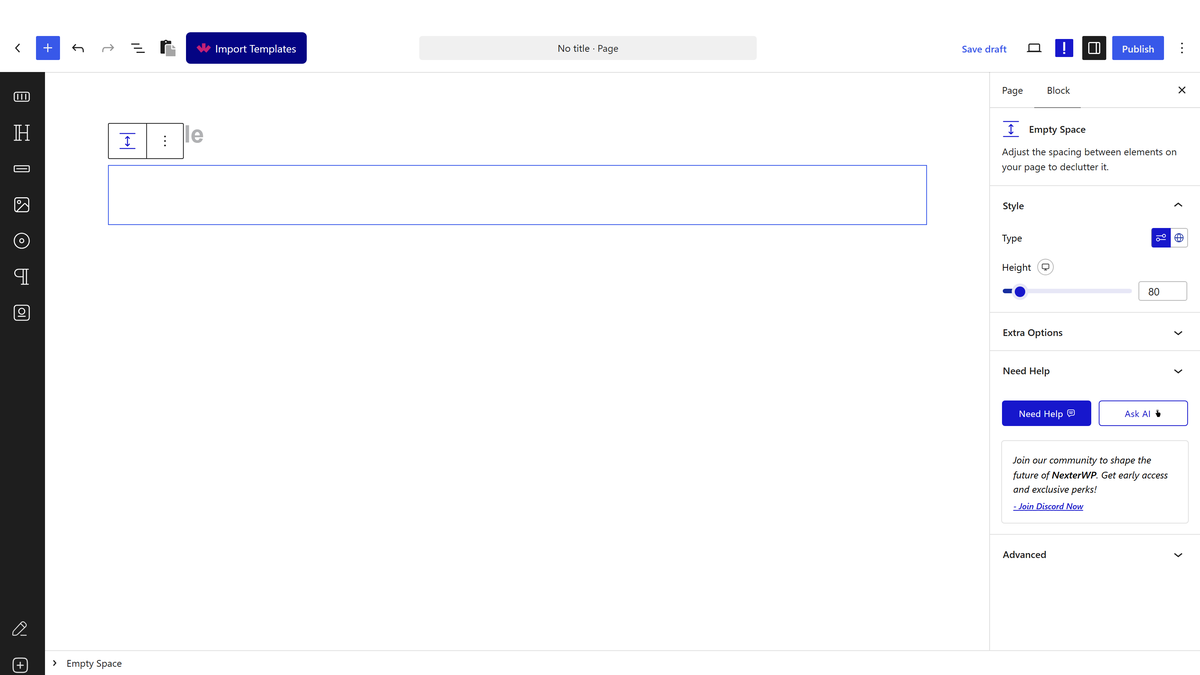
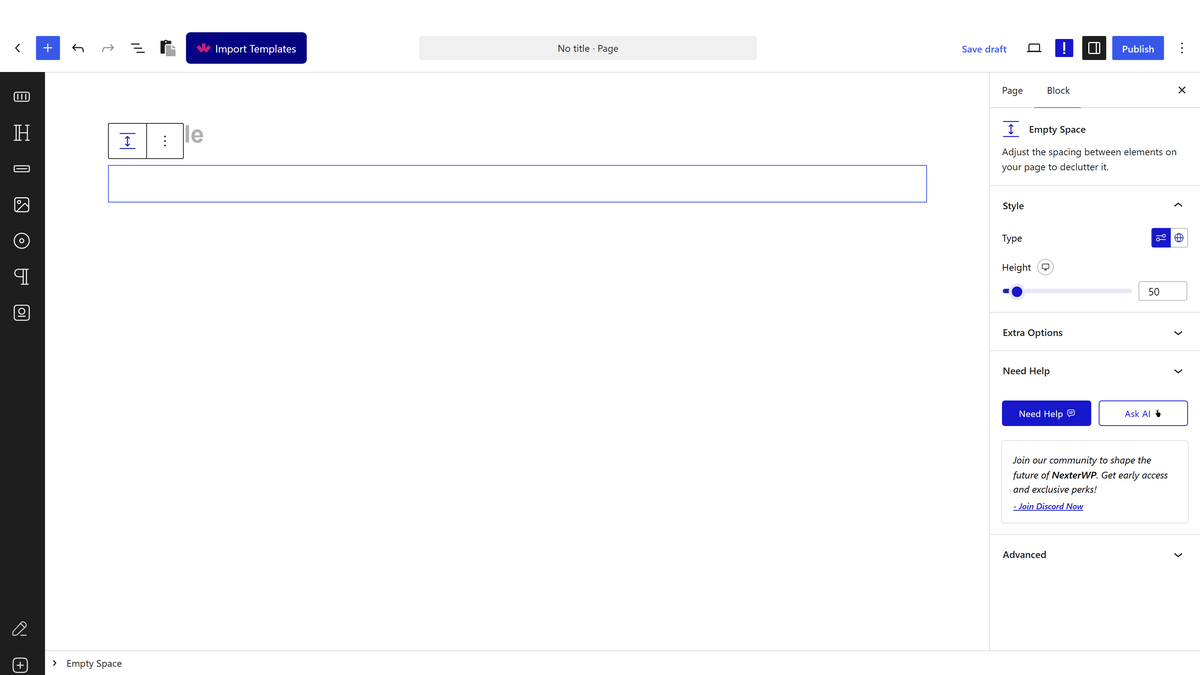
  1. Set the height in pixels.
Setting the spacer height
  1. Switch to the tablet and mobile views and set a smaller height for each if you need one.
  1. Publish and check the spacing at each screen width.

The spacer holding real space between two blocks

How It Behaves

The Spacer renders an empty element whose only property is height. It holds no content and shows nothing.

  • The height is exactly what you set. Measured on published pages: the default rendered 50 pixels tall, 200 rendered 200, and 100 rendered 100.
  • It renders nothing visible — measured, no text and no child elements. It is space and nothing else.
  • Height is per device, so a gap that suits a wide screen can be reduced on a phone instead of pushing content off the first screenful.
  • Measured with Nexter Blocks Pro deactivated: this block renders identically. It is a free block.

Limitations

  • It is not a layout tool. For consistent rhythm across a site, block margins or container padding are easier to maintain than spacers scattered through the content.
  • A spacer is invisible in the published page but still an element — a long run of them is hard to reason about later.
  • It adds vertical space only; to indent content horizontally use padding or a container.
  • Screen readers skip it entirely, which is correct — but it means a spacer can never separate content meaningfully, only visually.

Troubleshooting

The gap is bigger than the height I set

The blocks either side have their own margins, which add to the spacer. Reduce the spacer, or remove the margin on the neighbouring block.

The spacing is fine on desktop but huge on a phone

Set a smaller height for the mobile view — the height is stored per device.

I cannot select the spacer in the editor

It has no content, so click it in the List View, or use the block breadcrumb at the bottom of the editor.

Nothing appears where I added it

That is expected — it renders empty. Measured: a spacer has no text and no children. Increase the height if you cannot see the gap.

Related Docs

Share your Thoughts

Still in Doubt? Let’s Assist You

Have Feedback or Questions?

Join our WordPress Community on Facebook!

Related Frequently Asked Questions

Why is the gap bigger than the height I set in WordPress?

The Spacer block only controls its own height, but the blocks on either side can add their own margins on top of it. That is why the visible gap can end up larger than the pixel value you entered. In Nexter Blocks, the clean fix is to reduce the spacer height or remove the margin on the neighboring block so you are not stacking spacing from two places.

How do I keep blank space from looking huge on mobile?

The Spacer stores height per device, so desktop spacing does not have to match phone spacing. In Nexter Blocks, set a smaller height for the mobile view if the gap pushes content too far down. That matters because a spacer that looks fine on a wide screen can easily eat up the first screenful on a phone.

Why can't I click or select the spacer block in the editor?

The Spacer has no content, so it can be awkward to grab directly in the canvas. In Nexter Blocks, use List View or the block breadcrumb at the bottom of the editor to select it instead. That is usually faster than hunting for an invisible element between two visible blocks.

Why does nothing show up where I added a spacer?

That is expected behavior. The Spacer renders an empty element with only height, so it shows no text, no child elements, and nothing visible by itself. The only thing it contributes is vertical space, which means you judge it by how much it separates content rather than by any on-screen object.

Is Spacer a good way to control layout across a whole WordPress site?

Spacer is better for one-off visual gaps than for site-wide rhythm. For consistent spacing across many pages, block margins or container padding are easier to maintain than scattered spacers. Nexter Blocks treats Spacer as an invisible element that only adds vertical space, so it should stay a visual fix, not your main layout system.

What do I need before using the Spacer block in Nexter Blocks?

The page says Spacer is a free block in Nexter Blocks and works with both Nexter Blocks free and Nexter Blocks Pro. It must also be switched on under Nexter > Blocks in your WordPress dashboard before you use it. That setup matters because once enabled, you can place it between blocks and set different heights for desktop, tablet, and phone.

Last reviewed: September 27, 2026

Related Docs