---
title: "How to Add Animated Service Boxes in WordPress?"
url: https://nexterwp.com/docs/add-animated-service-boxes-in-wordpress/
date: 2024-12-12
modified: 2026-09-15
lang: en
author: "Aditya Sharma"
description: "A row of identical service cards is the most forgettable section on most websites. This block is really eight different layouts in one — an accordion, sliding panels, an article..."
image: https://nexterwp.com/wp-content/uploads/2024/12/How-to-Add-Animated-Service-Boxes-in-WordPress_-1024x519.jpg
word_count: 622
---
# How to Add Animated Service Boxes in WordPress?
## Key Takeaways
- Animated Service Boxes es un bloque de Nexter Blocks Pro y se activa en Nexter > Blocks; cada elemento admite título, subtítulo, descripción, icono o imagen y un enlace.
- Animated Service Boxes reúne ocho diseños en un solo bloque: Image Accordion, Sliding Boxes, Article Box, Info Banner, Hover Section, Fancy Box, Services Element y Portfolio.
- Image Accordion, Sliding Boxes y Article Box usan elementos , mientras que Info Banner, Fancy Box y Portfolio usan imágenes de fondo CSS; Services Element no usa imágenes.
- Display Button está desactivado por defecto en todos los diseños excepto Portfolio, y Article Box no muestra enlaces hasta que se activa.
A row of identical service cards is the most forgettable section on most websites.
This block is really eight different layouts in one — an accordion, sliding panels, an article grid, a banner, a hover reveal, a fancy box, an expandable list and a portfolio.
[LIVE BLOCK LINK](https://nexterwp.com/nexter-blocks/blocks/wordpress-animated-service-boxes/)
## Before You Start
- **Edition:** **Pro** — the Animated Service Boxes block is part of Nexter Blocks Pro.- **Block to enable:** Animated Service Boxes, switched on under **Nexter > Blocks** in your WordPress dashboard.- **Your items decided:** each one takes a title, a subtitle, a description, an icon or image and a link.
https://www.youtube.com/watch?v=koGgx1_YFe4&t
## Steps
- Add the **Animated Service Boxes** block and click **Design from Scratch**.
- Set **Main Style** to **the layout you want**.
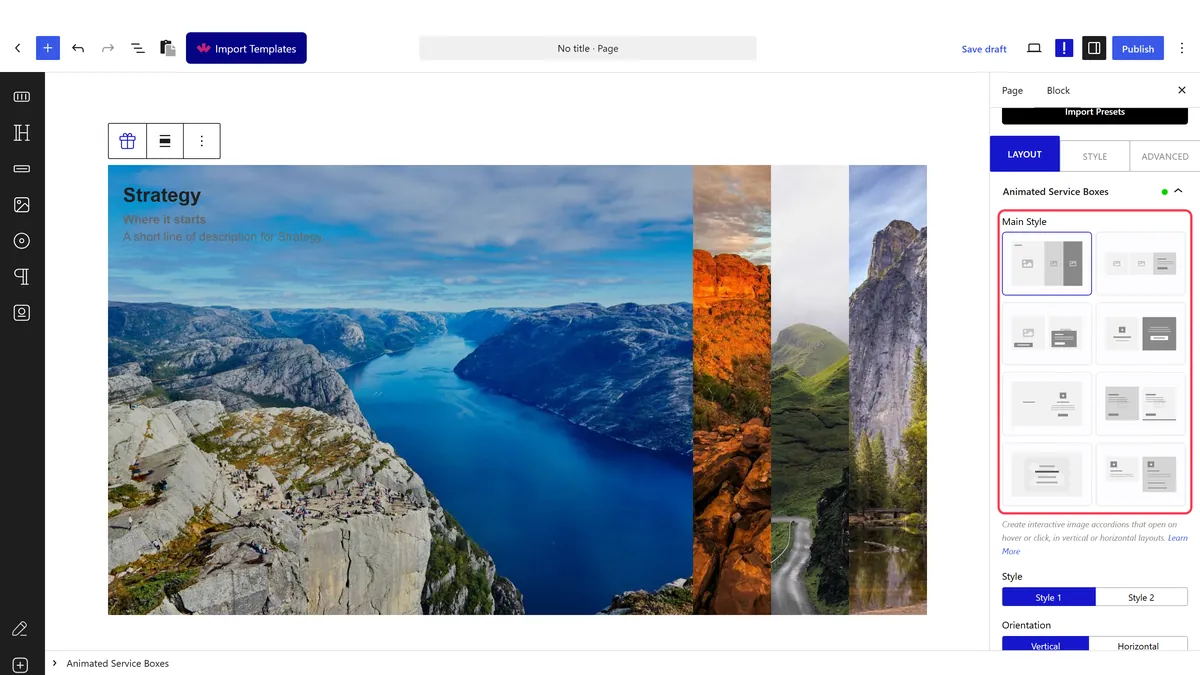
- Fill in your items — title, subtitle, description, and an image or icon for each.
- Pick the **Style** for that layout — each Main Style has its own set.
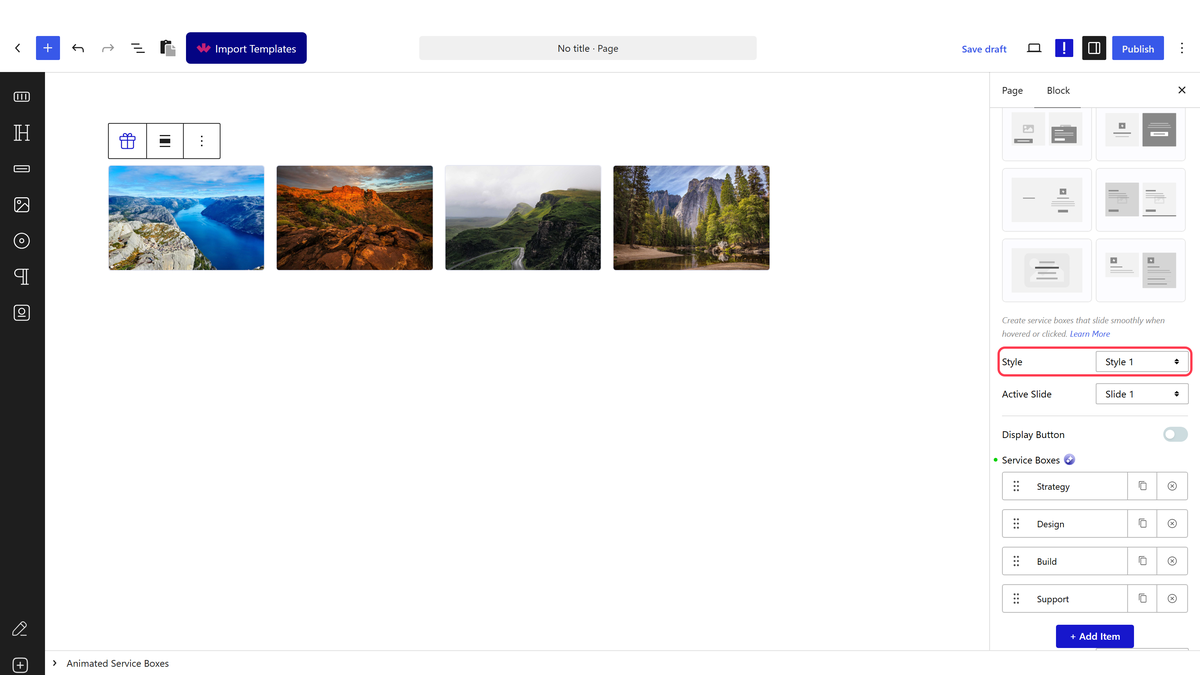
- Switch **Display Button** on if you want a link on each item.
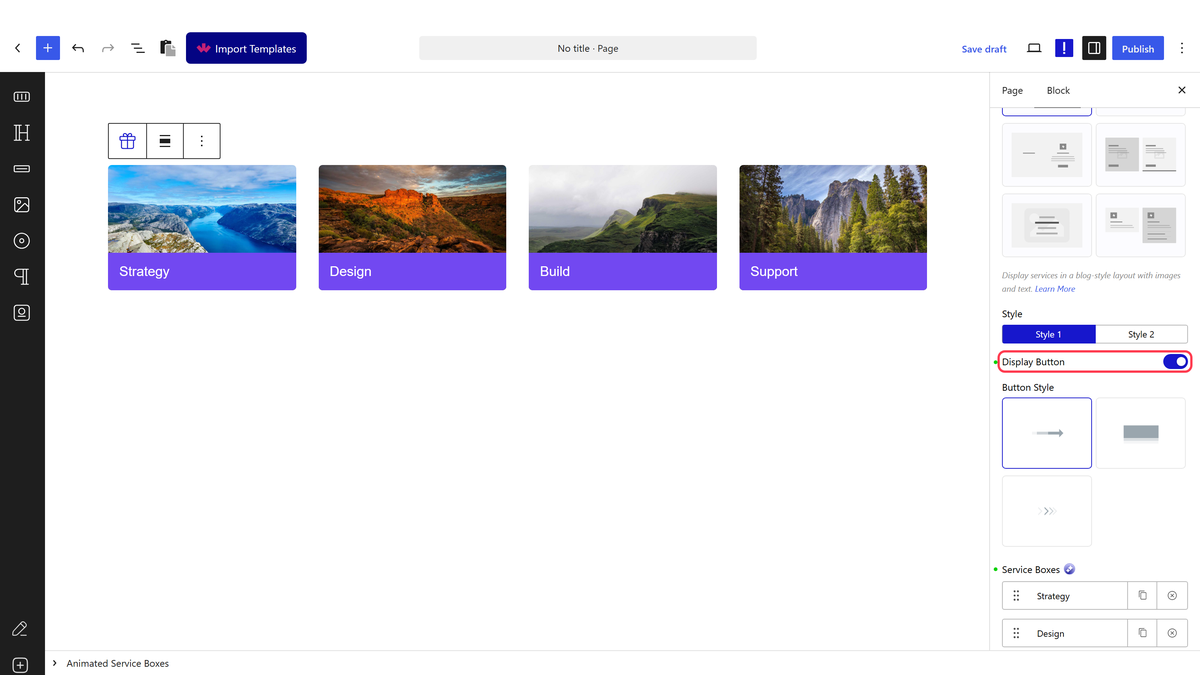
- Publish and hover the boxes.
> ***Main Style changes the rest of the panel.** It is one block with eight quite different layouts, and each has its own Style, orientation and options — so set it first.*
## The Eight Layouts
| Main Style | What it gives you | Guide |
| ---------- | ----------------- | ----- |
| Image Accordion | Panels that expand as you hover along a row or column | [Image accordion](https://nexterwp.com/docs/create-an-image-accordion-in-wordpress-horizontal-amp-vertical/) |
| Sliding Boxes | Boxes that slide open to reveal their text | [Sliding box effect](https://nexterwp.com/docs/create-sliding-box-effect-in-wordpress/) |
| Article Box | A straightforward grid of image, title and text | [Article box](https://nexterwp.com/docs/add-an-article-box-in-wordpress/) |
| Info Banner | Wide banners with the image behind the text | [Info banner](https://nexterwp.com/docs/add-an-info-banner-in-wordpress/) |
| Hover Section | A section whose background image changes as you move across it | [Background image on hover](https://nexterwp.com/docs/how-to-change-background-image-on-hover-in-wordpress/) |
| Fancy Box | Image-backed cards with the text overlaid | — |
| Services Element | A compact list that expands on click | [Expandable service box](https://nexterwp.com/docs/how-to-create-an-expandable-service-box-in-wordpress/) |
| Portfolio | A list beside one large preview that follows it | [Portfolio section](https://nexterwp.com/docs/create-a-unique-portfolio-section-in-wordpress/) |
## How It Behaves
- **Each layout renders differently, not just with different CSS.** Measured: Image Accordion, Sliding Boxes and Article Box use real `![]() ` elements; Info Banner, Fancy Box and Portfolio use CSS background images; Services Element uses no images at all.- **Hover is what animates most of them.** Image Accordion and Sliding Boxes had no active item on load and exactly one after hovering.- **Hover Section and Portfolio start with one item already active**, so the section is never blank before the visitor does anything.- **Hover Section loads its images only when needed** — they sit in a `data-image` attribute rather than being requested up front.- **Display Button** is off by default. Measured: Article Box rendered no links at all until it was switched on, then one per item.
## Limitations
- **Pro only.**- **Three layouts put the image in CSS, not in an `
` elements; Info Banner, Fancy Box and Portfolio use CSS background images; Services Element uses no images at all.- **Hover is what animates most of them.** Image Accordion and Sliding Boxes had no active item on load and exactly one after hovering.- **Hover Section and Portfolio start with one item already active**, so the section is never blank before the visitor does anything.- **Hover Section loads its images only when needed** — they sit in a `data-image` attribute rather than being requested up front.- **Display Button** is off by default. Measured: Article Box rendered no links at all until it was switched on, then one per item.
## Limitations
- **Pro only.**- **Three layouts put the image in CSS, not in an `![]() ` tag** — Info Banner, Fancy Box and Portfolio. Those images carry no alt text and are not indexed as images, so keep them decorative.- **Services Element uses no image at all**, so do not plan a picture into it.- All of these are hover-driven, and there is no hover on a touch screen. Check each layout on a phone before relying on it.- One layout per block. Two different styles on a page means two blocks.
## Troubleshooting
### The options I read about are not in the panel
They belong to a different **Main Style**. Each layout shows its own settings, so set Main Style first and the rest of the panel changes.
### No buttons appear on my boxes
Switch **Display Button** on. It is off by default for every layout except Portfolio.
### My images do not show
Check which layout you are using. Services Element shows no images at all, and Hover Section only loads them as the visitor moves across the section.
### Nothing animates on my phone
These layouts react to hover, which touch screens do not have.
### The block is missing from the inserter
Switch **Animated Service Boxes** on under **Nexter > Blocks**.

## Related Docs
- [Image accordion](https://nexterwp.com/docs/create-an-image-accordion-in-wordpress-horizontal-amp-vertical/)- [Sliding box effect](https://nexterwp.com/docs/create-sliding-box-effect-in-wordpress/)- [Portfolio section](https://nexterwp.com/docs/create-a-unique-portfolio-section-in-wordpress/)- [Background image on hover](https://nexterwp.com/docs/how-to-change-background-image-on-hover-in-wordpress/)
## Frequently Asked Questions
**Q: What do I need before adding animated service boxes in WordPress?**
A: Animated Service Boxes is part of Nexter Blocks Pro, so the block only works on the Pro edition. In the WordPress dashboard, it has to be switched on under Nexter > Blocks before it appears in the inserter. Each item also needs a title, subtitle, description, and either an icon or image plus a link. That setup matters because the block is built around item-by-item content, not a single shared card.
**Q: Why are the layout options different after I change Main Style?**
A: Main Style controls which of the eight layouts you are actually editing, so the rest of the panel changes with it. That is why options can seem to disappear or move around. Nexter Blocks treats Image Accordion, Sliding Boxes, Article Box, Info Banner, Hover Section, Fancy Box, Services Element, and Portfolio as separate layouts inside one block, each with its own style and orientation settings.
**Q: Which animated service box layout should I use for images and which one hides them?**
A: The image behavior depends on the layout. Image Accordion, Sliding Boxes, and Article Box use real elements. Info Banner, Fancy Box, and Portfolio use CSS background images instead, so they are decorative rather than image-content driven. Services Element uses no images at all. That choice matters if you want visible media versus a cleaner text-first layout.
**Q: Why do my animated service boxes not animate on mobile?**
A: These layouts are hover-driven, and touch screens do not have hover in the same way a mouse does. The page also notes that Hover Section and Portfolio start with one item already active, while other hover-based layouts may wait for interaction. On a phone, that means you should test the section before relying on animation as part of the experience.
**Q: Why are no buttons showing on my service boxes?**
A: Display Button is off by default for every layout except Portfolio. If links matter for your design, that toggle has to be enabled or the items will render without buttons. The practical gotcha is that Article Box was measured with no links until Display Button was switched on, then it showed one per item.
**Q: Can I use more than one animated service box style on the same page?**
A: One block only handles one layout at a time. If you want two different styles on the same page, Nexter Blocks requires two separate Animated Service Boxes blocks. That keeps each block’s style and options isolated instead of forcing mixed settings into a single panel.
` tag** — Info Banner, Fancy Box and Portfolio. Those images carry no alt text and are not indexed as images, so keep them decorative.- **Services Element uses no image at all**, so do not plan a picture into it.- All of these are hover-driven, and there is no hover on a touch screen. Check each layout on a phone before relying on it.- One layout per block. Two different styles on a page means two blocks.
## Troubleshooting
### The options I read about are not in the panel
They belong to a different **Main Style**. Each layout shows its own settings, so set Main Style first and the rest of the panel changes.
### No buttons appear on my boxes
Switch **Display Button** on. It is off by default for every layout except Portfolio.
### My images do not show
Check which layout you are using. Services Element shows no images at all, and Hover Section only loads them as the visitor moves across the section.
### Nothing animates on my phone
These layouts react to hover, which touch screens do not have.
### The block is missing from the inserter
Switch **Animated Service Boxes** on under **Nexter > Blocks**.

## Related Docs
- [Image accordion](https://nexterwp.com/docs/create-an-image-accordion-in-wordpress-horizontal-amp-vertical/)- [Sliding box effect](https://nexterwp.com/docs/create-sliding-box-effect-in-wordpress/)- [Portfolio section](https://nexterwp.com/docs/create-a-unique-portfolio-section-in-wordpress/)- [Background image on hover](https://nexterwp.com/docs/how-to-change-background-image-on-hover-in-wordpress/)
## Frequently Asked Questions
**Q: What do I need before adding animated service boxes in WordPress?**
A: Animated Service Boxes is part of Nexter Blocks Pro, so the block only works on the Pro edition. In the WordPress dashboard, it has to be switched on under Nexter > Blocks before it appears in the inserter. Each item also needs a title, subtitle, description, and either an icon or image plus a link. That setup matters because the block is built around item-by-item content, not a single shared card.
**Q: Why are the layout options different after I change Main Style?**
A: Main Style controls which of the eight layouts you are actually editing, so the rest of the panel changes with it. That is why options can seem to disappear or move around. Nexter Blocks treats Image Accordion, Sliding Boxes, Article Box, Info Banner, Hover Section, Fancy Box, Services Element, and Portfolio as separate layouts inside one block, each with its own style and orientation settings.
**Q: Which animated service box layout should I use for images and which one hides them?**
A: The image behavior depends on the layout. Image Accordion, Sliding Boxes, and Article Box use real elements. Info Banner, Fancy Box, and Portfolio use CSS background images instead, so they are decorative rather than image-content driven. Services Element uses no images at all. That choice matters if you want visible media versus a cleaner text-first layout.
**Q: Why do my animated service boxes not animate on mobile?**
A: These layouts are hover-driven, and touch screens do not have hover in the same way a mouse does. The page also notes that Hover Section and Portfolio start with one item already active, while other hover-based layouts may wait for interaction. On a phone, that means you should test the section before relying on animation as part of the experience.
**Q: Why are no buttons showing on my service boxes?**
A: Display Button is off by default for every layout except Portfolio. If links matter for your design, that toggle has to be enabled or the items will render without buttons. The practical gotcha is that Article Box was measured with no links until Display Button was switched on, then it showed one per item.
**Q: Can I use more than one animated service box style on the same page?**
A: One block only handles one layout at a time. If you want two different styles on the same page, Nexter Blocks requires two separate Animated Service Boxes blocks. That keeps each block’s style and options isolated instead of forcing mixed settings into a single panel.