How to Add an Article Box in WordPress?

Key Takeaways

  • Nexter Blocks includes the Animated Service Boxes block for creating article boxes in WordPress.
  • Users can add a button to article boxes by enabling the Display Button toggle in the Style section.
  • The Columns Manage tab allows users to customize the number of article boxes displayed per row on desktop, tablet, and mobile devices.
Table of Contents

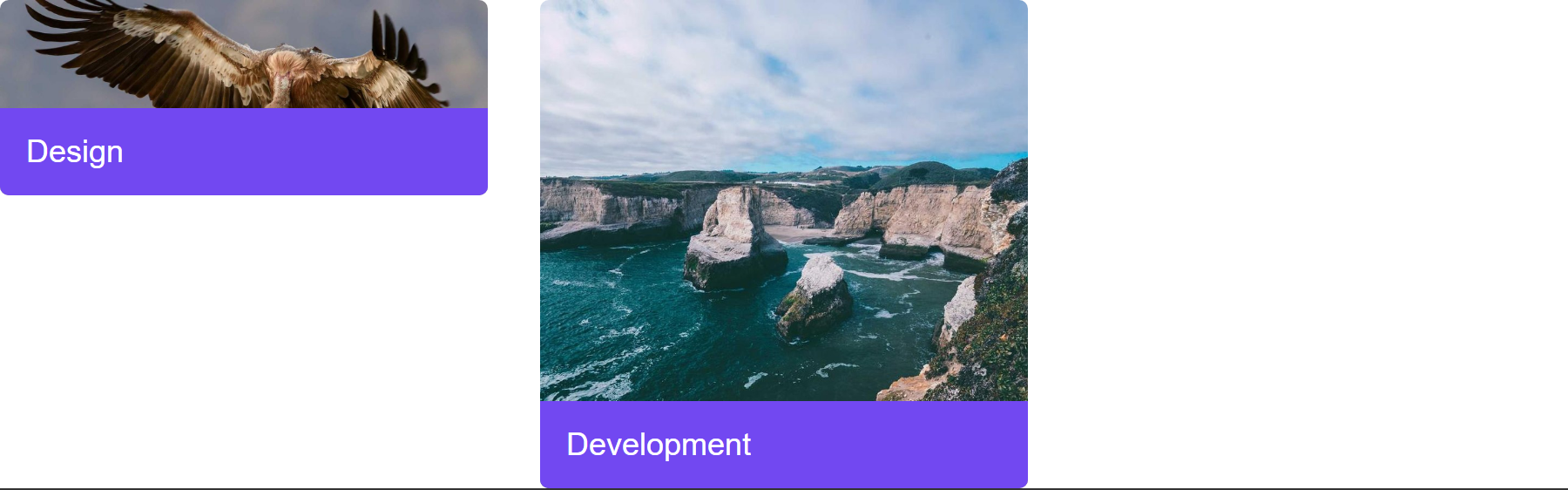
Do you want to add an article box in WordPress? An article box allows you to display a title, description, and image in a stylish, organized layout. It’s perfect for showcasing important information or featured content in an elegant and visually appealing way.

With the Animated Service Boxes block from Nexter Blocks, you can easily create beautiful article boxes in WordPress.

To check the complete feature overview documentation of the Nexter Blocks Animated Service Boxes block, click here.

Requirement  – This block is a part of the Nexter Blocks, make sure it’s installed & activated to enjoy all its powers.

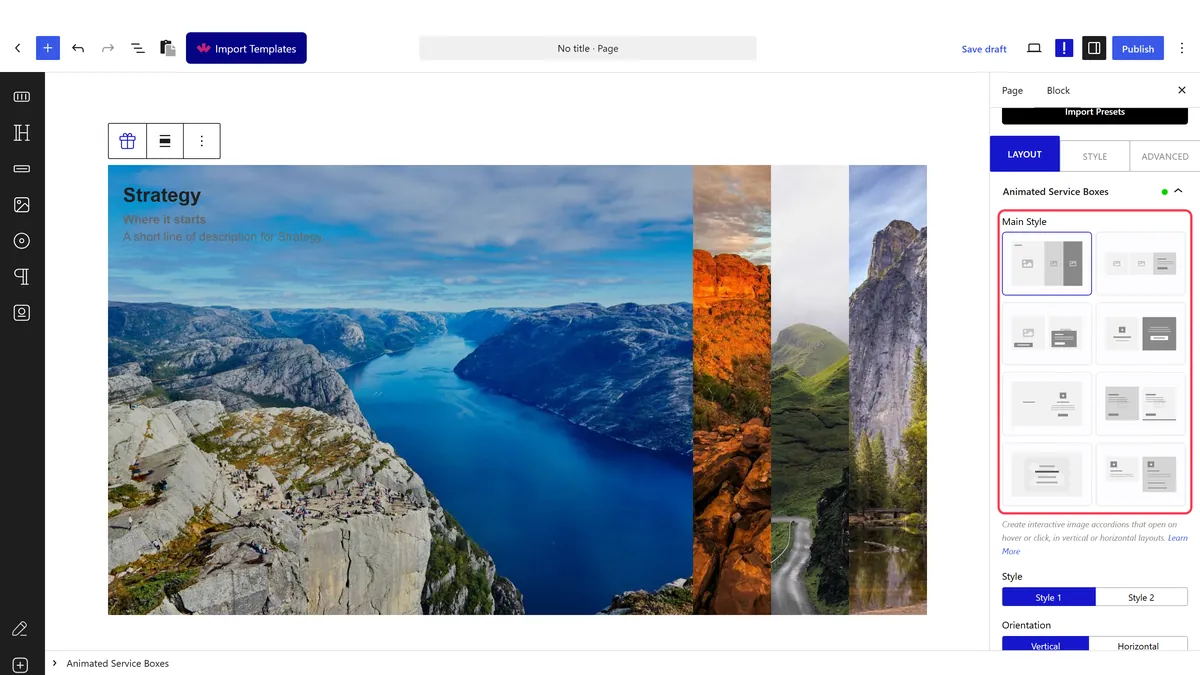
To do this, add the Animated Service Boxes block to the page and follow the steps – 

1. Select Article Box from the Main Style section.

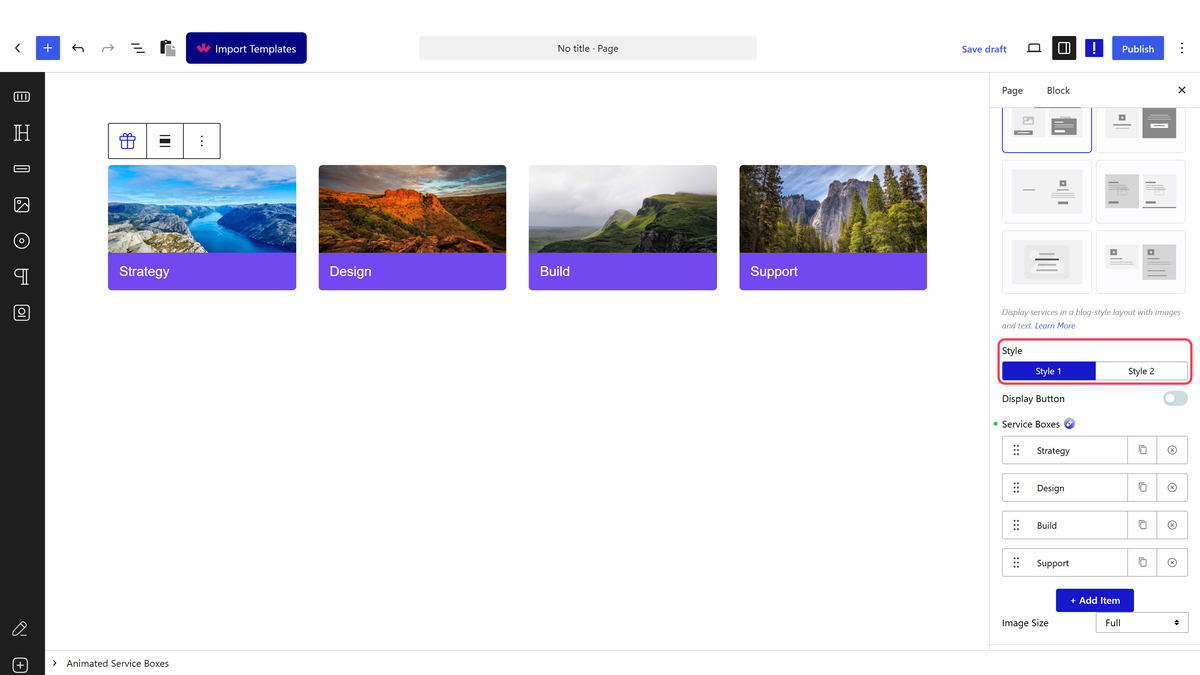
From the Style section, you can select a predefined style.

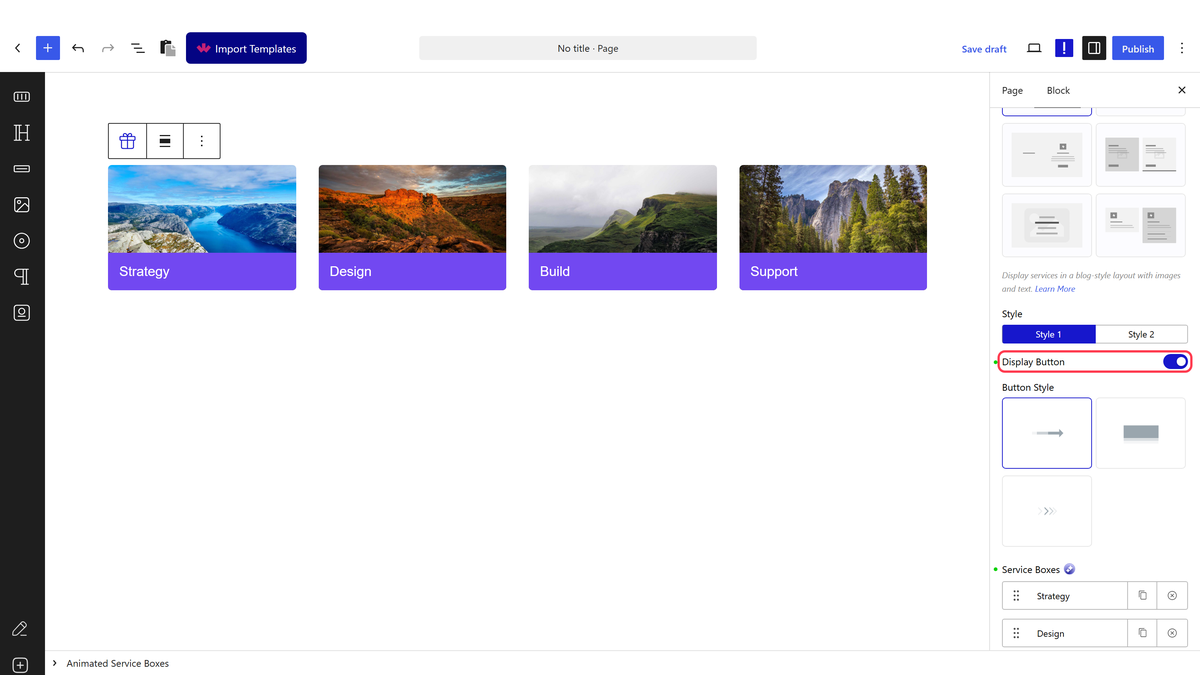
By enabling the Display Button toggle, you can add a button to the article boxes.

When enabled, you can select a button style from the Button Style section.

2. Then in the Service Boxes section, you have to add the content for the article boxes. By default, you’ll find three items, open one item.

3. Add the title, subtitle and description in the Title, Sub Title and Description fields as required.

4. Then in the Featured Image section, you have to add an image for the article boxes.

You can edit the button text and URL from the Button Text and Button Link fields, respectively. 

Note: Make sure the Display Button toggle is enabled to see the Button Text and Button Link fields.

Following this process, you can edit the other items.

You can click on the +Add Item button to add more article boxes.

You can select the image size from the Image Size dropdown.

Then from the Columns Manage tab, you can manage the number of article boxes in a row for desktop, tablet and mobile separately. You can also manage the gap between the items as well.

About the Author

Photo of Aditya Sharma CMO of NexterWP
CMO at POSIMYTH Innovations · NexterWP · 7 years experience

He has spent years in the WordPress ecosystem building, breaking, and optimizing sites until they actually perform. He works at the intersection of speed, growth, and usability, helping creators ship websites that load fast and convert. An active WordPress community contributor sharing through tools, tutorials, and direct collaboration. Tested practice, not theory.

WordpressThemesElementorn8nAIClaudeAutomationServer

Share your Thoughts

Get Instant Answers to all your questions about Nexter Blocks,
Extensions & Theme trained on 1000+ Docs and Videos

Still in Doubt? Let’s Assist You

Have Feedback or Questions?

Join our WordPress Community on Facebook!

Related Frequently Asked Questions

What should I do if the Animated Service Boxes block isn't showing up?

If the Animated Service Boxes block isn't appearing, ensure that Nexter Blocks is installed and activated. This block is part of the Nexter Blocks suite, and without it, you won't have access to its features. Double-check your installation in the WordPress dashboard under 'Plugins' to confirm it's active.

What is the best way to style the buttons in my article boxes?

To style the buttons in your article boxes, enable the Display Button toggle. This will allow you to select a button style from the Button Style section. Proper button styling enhances user engagement, so consider using contrasting colors and clear text to make them stand out.

How do I add more article boxes after the initial setup?

To add more article boxes, simply click on the +Add Item button within the Service Boxes section. This allows you to expand your content easily. Each new item can have its own title, subtitle, description, and image, helping you showcase additional information effectively.

What happens if I forget to enable the Display Button toggle?

If you forget to enable the Display Button toggle, the Button Text and Button Link fields will remain hidden. This means you won't be able to add a call-to-action button to your article boxes, which can limit user interaction and engagement with your content.

Last reviewed: April 14, 2026

Related Docs