












A number typed into a heading is a fact. The same number counting up in front of the reader is the thing people actually stop and look at.
The Number Counter animates from one value to another as it comes into view, with an optional icon, title, symbol and link.
Before You Start
- Edition: Free — the Number Counter block works in Nexter Blocks (free) and with Nexter Blocks Pro.
- Block to enable: Number Counter, switched on under Nexter > Blocks in your WordPress dashboard.
Video Tutorial

Steps
- Add the Number Counter block to your page.

- Choose a Style — Style 1 stacks the parts and centres them, Style 2 lays them out to the left.

- Set the Number the counter should finish on, and the Start Value it counts from.
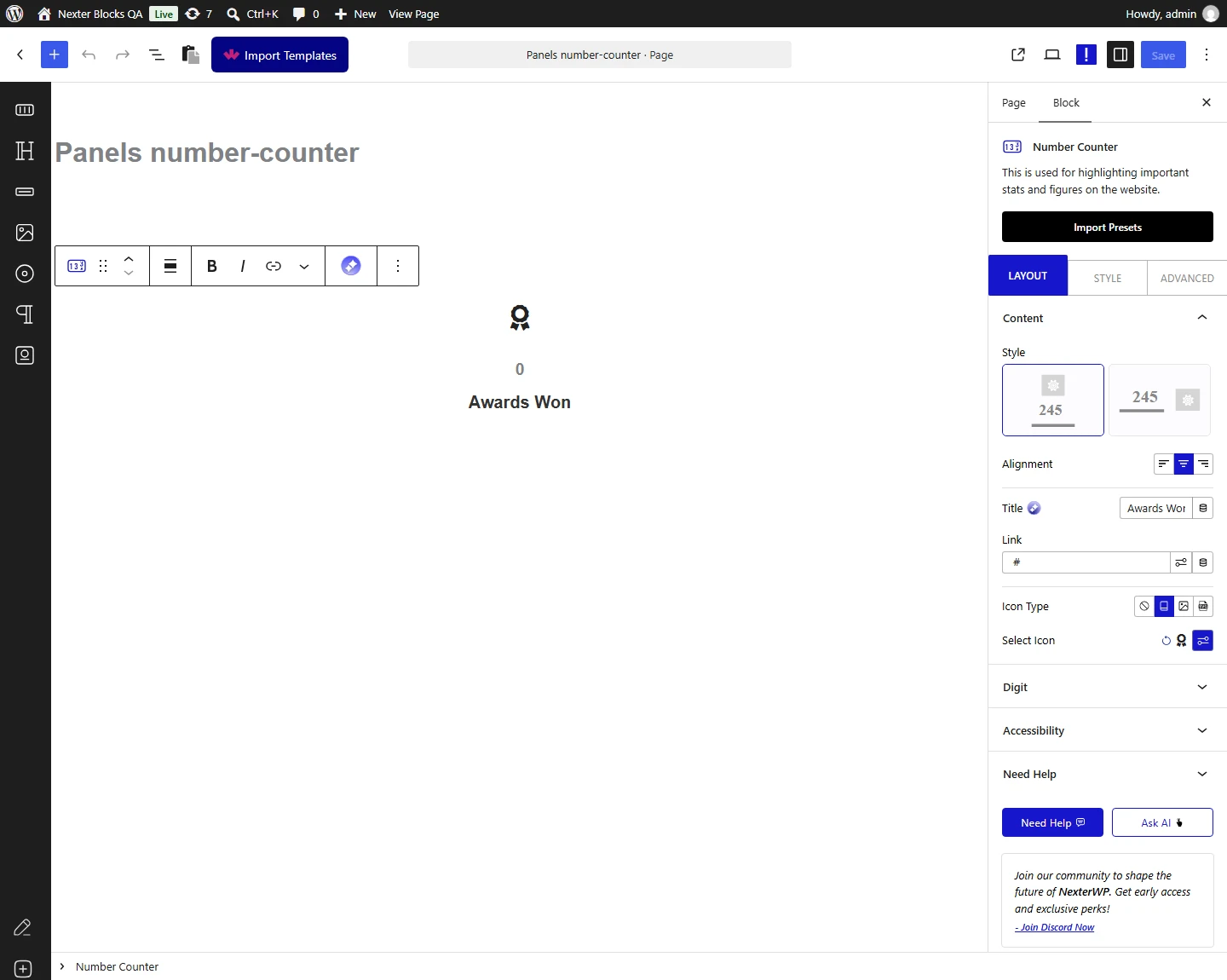
- Set Time Delay and Increment to control how the count runs.
- Add a Title, and a Symbol such as + or % if the number needs one.
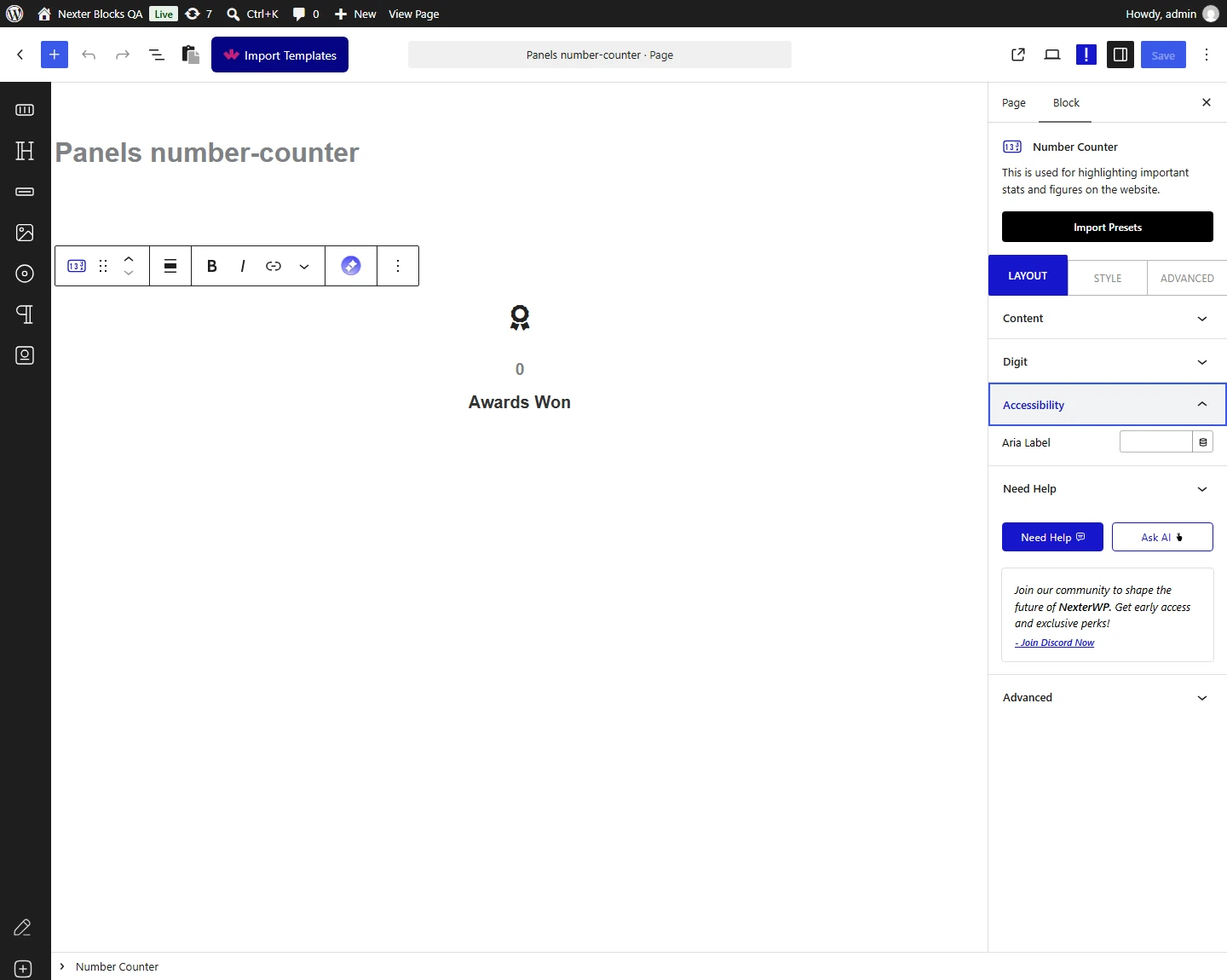
- Optionally add an icon or image above the number, and a link.
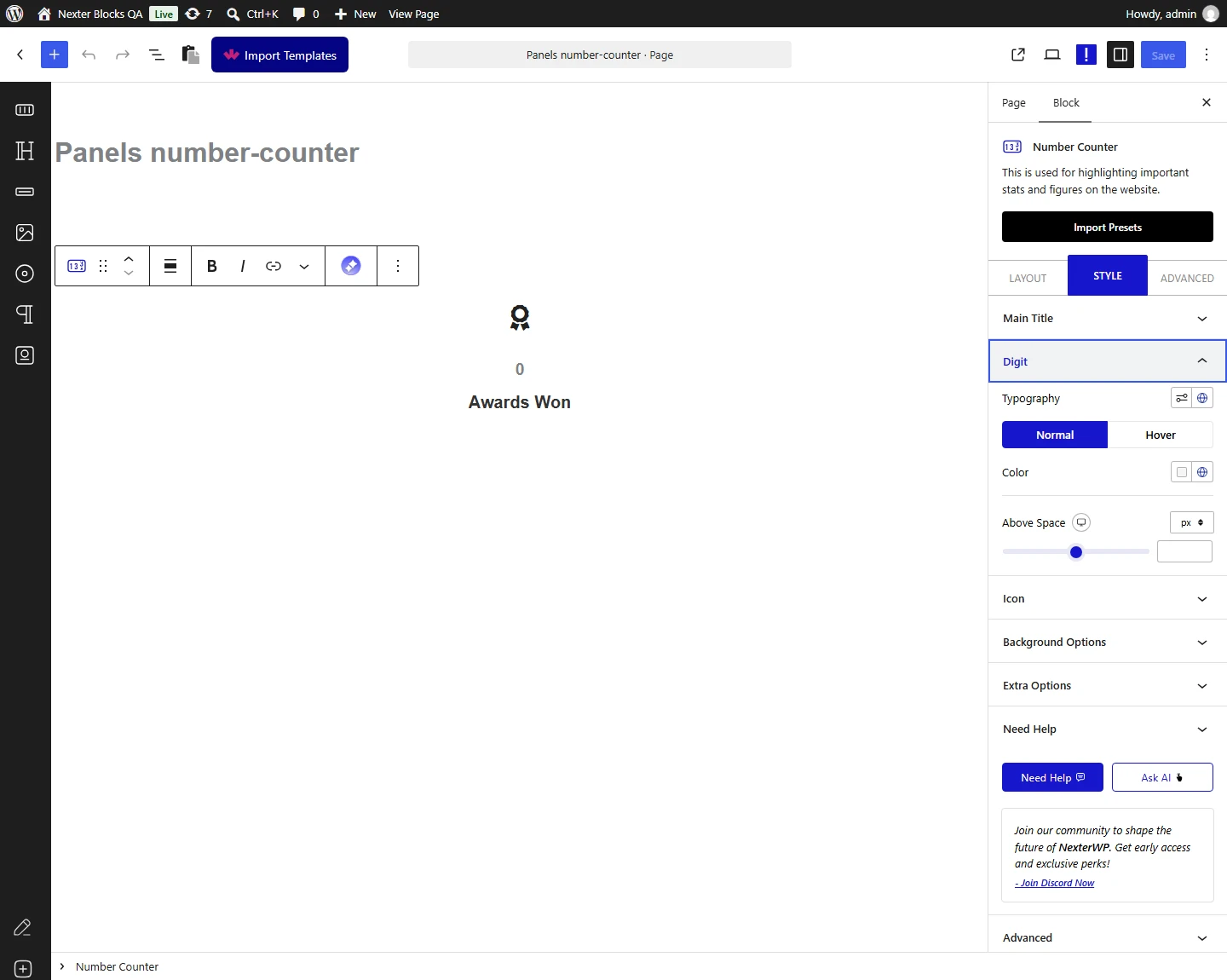
The count starts when the block scrolls into view, not when the page loads. Measured on a published page: a counter below the fold sat at its start value for as long as it was off screen, and only counted up once it was scrolled to. That is deliberate — it means visitors see the animation rather than missing it.
How It Behaves
Increment decides how many steps the count takes, and that is what makes the animation visible. Measured with Time Delay set to 3 in every case: counting 1,000,000 to 2,000,000 in steps of 100,000 is only ten steps and finished instantly, while 0 to 100 in steps of 1, and 0 to 1,000,000 in steps of 1,000, both animated across about three seconds. If your counter snaps straight to its target, the Increment is too large for the range.
| Numeration | How 2,000,000 is written |
|---|---|
| Default | 2000000 — no grouping at all |
| International | 2,000,000 — grouped in threes |
| Indian | 20,00,000 — grouped in twos after the first three digits |
- Symbol Position puts your symbol before or after the number. Both is the only setting that uses the second symbol field — measured, the leading symbol comes from that separate field and the trailing one from Symbol.
- A link wraps the title, the icon and the image together, so the whole counter is clickable — measured on a published page.
- The number is real text in the page, not an image, so it can be selected and read aloud.
Limitations
- Indian numeration shows a hyphen until the counter runs. Measured: with a Start Value of 1,000,000 the page is delivered reading
10-00,000, and only becomes20,00,000once the animation starts. Anyone who does not scroll to the counter sees the hyphenated form. Leave Start Value at 0 to avoid it. This is a known bug and has been reported to the development team. - The count only runs once per page load — scrolling away and back does not replay it.
- A large Increment relative to the range makes the count finish instantly whatever Time Delay says — measured.
- The counter animates whole numbers; it is not built for decimal places or currency formatting beyond the symbol field.
Troubleshooting
My counter jumps straight to the final number
The Increment is too large for the range. Measured: counting a million in steps of 100,000 is only ten steps and finishes instantly, while steps of 1,000 animate across about three seconds. Lower the Increment.
The counter never animates
It starts when it scrolls into view. If it sits above the fold it will have finished before you look, and if it is inside a tab or an accordion that is closed on load it will wait until it is revealed.
My number shows a dash in it
That is the Indian numeration issue described above — set Start Value to 0 and the counter renders correctly from the beginning.
I set a symbol but only see one of them
Set Symbol Position to Both and fill in both symbol fields — the leading symbol comes from its own separate field.
