A carousel slider lets you display multiple content pieces, such as images, videos, posts, or custom layouts, in a single scrollable area. The Carousel Anything block in Nexter Blocks gives you a flexible Gutenberg carousel that works with any WordPress block content.
The block supports vertical and horizontal layouts, multiple columns, autoplay, infinite loop, keyboard navigation, mousewheel control, and remote sync with other Nexter Blocks.
What It Does
Carousel Anything turns any WordPress block content into a slide — images, video, text, product listings, or a full custom layout — and displays it as a scrollable, navigable slider on the page.
Why It Matters
Most carousel tools only slide images. Carousel Anything slides any block content, which means the same block can carry a portfolio case study, a pricing table, or a product card through a slider without needing a separate, purpose-built widget for each content type.
What You Get
A Pattern- or Editor-based content builder for each slide, horizontal and vertical layouts, multi-column slides, autoplay, infinite loop, keyboard and mousewheel navigation, dots and arrows styling, and a Unique Carousel ID to sync the slider with other Nexter Blocks — all inside one Gutenberg block.
Benefits
- One block covers use cases that would otherwise need separate testimonial, product, and image-carousel plugins.
- Slide content is built from ordinary WordPress Patterns, so any layout you can already build in the block editor can become a slide.
- The Unique Carousel ID connection lets one carousel drive Accordion, Process Steps, Tabs & Tours, or another Carousel Remote block in sync, without custom JavaScript.
Capabilities
- Use WordPress Patterns – add any WordPress Pattern as the content of a carousel slide. Use this when you want to reuse a pre-designed layout across multiple slides.
- Unique Carousel ID – connect the Carousel Anything block to other Nexter Blocks using a shared ID to sync slide transitions across blocks on the same page.
- Vertical Carousel – create a vertical carousel slider that scrolls up and down instead of side to side.
- Multiple Columned – add multiple columns to each slide to display several items at once in a single carousel row.
- Custom active slide – set any specific slide as the active slide when the page loads.
- Infinite loop carousel – create an infinite loop carousel that cycles through slides continuously without stopping.
- Mousewheel – allow visitors to advance slides by scrolling with their mouse wheel.
- Keyboard Navigation – let visitors navigate the carousel using keyboard arrow keys.
- Autoplay carousel – set the carousel to advance automatically without user interaction.
How It Works
Each slide is a container for a WordPress Pattern or block-editor content, not a fixed image field, so the carousel simply renders whatever blocks you assign to each slide item. Layout (Horizontal/Vertical), Column count, and the navigation/motion options (autoplay, infinite loop, mousewheel, keyboard) are all independent settings layered on top of that content, and Unique Carousel ID links this rendering cycle to another Nexter Block sharing the same ID so both advance together.
How to Use It
Required Setup
- Make sure the default WordPress Block editor is active.
- You need to have the Nexter Blocks plugin installed and activated.
- This is a premium block; you need the PRO version of Nexter Blocks.
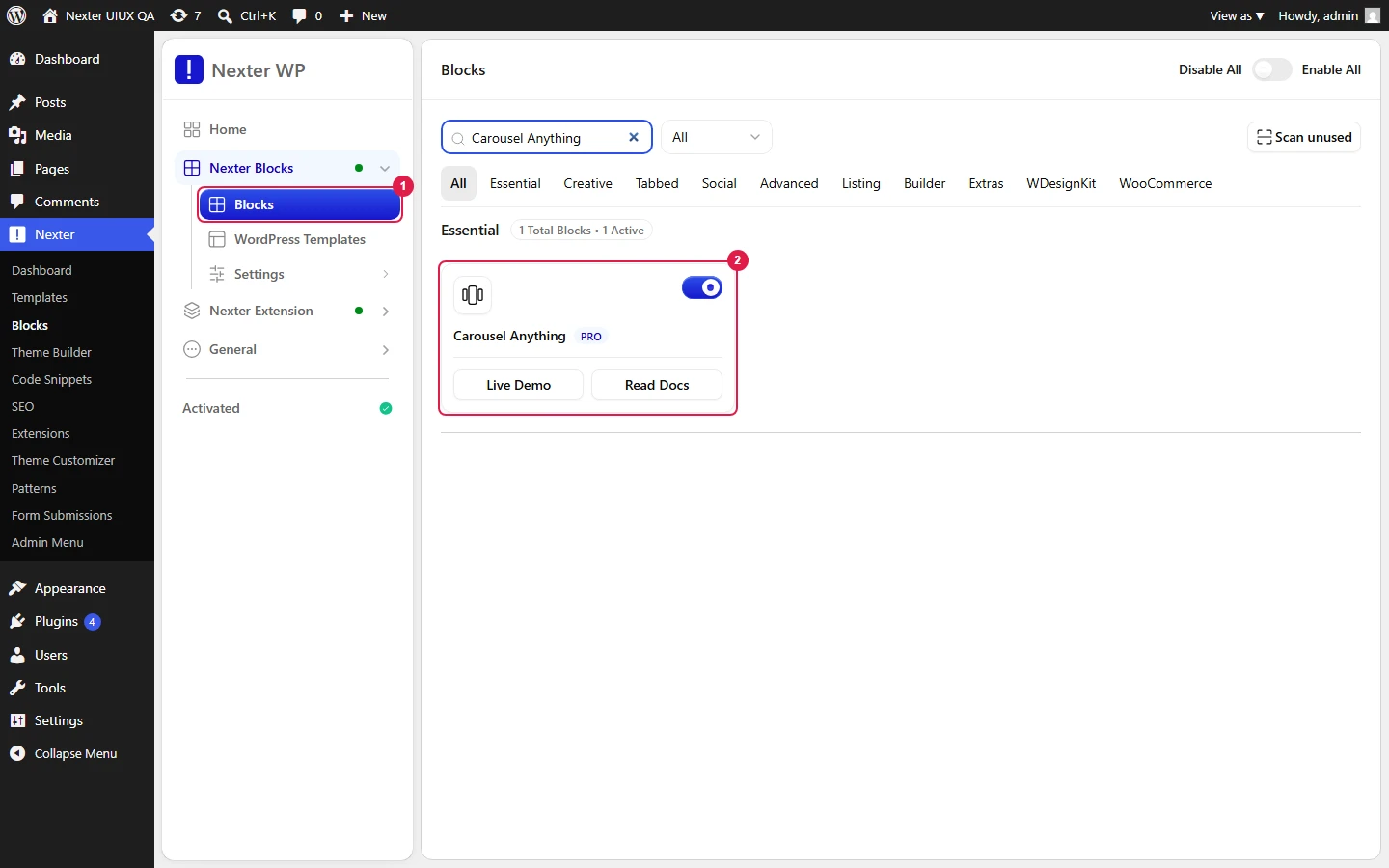
- Make sure the Carousel Anything block is activated. To verify this, go to Nexter → Blocks, search for Carousel Anything, and turn on the toggle.

Learn via Video Tutorial
Content
Add the Carousel Anything block to the page and select the slide item you want to add content to, then click Design from Scratch to build the layout from scratch.

Note: Clicking Import Pre-Designed Template lets you import a preset template and customize it as per your requirements.
In the Title field, add a label for the slide (for your own reference only, it does not appear on the front end). From Content Type, choose Pattern (use a saved WordPress Pattern) or Editor (build the slide directly). Selecting Pattern shows a Select Pattern dropdown and a + Create Pattern button; after choosing a pattern, a Backend Visibility toggle appears (off by default) to preview the slide content in the backend editor.
Click +Add Slide to add more slides. From Carousel Transition, choose Slide or Fade. From Layout, choose Horizontal or Vertical (see Vertical Carousel). From the Column dropdown, set how many items display per slide (see Multiple Columned).
For a dedicated testimonial, WooCommerce product, or blog post carousel, Nexter Blocks has purpose-built blocks instead: Post Listing Block, Product Listing Block, Testimonial Block, and the Media Carousel.
Carousel Layout
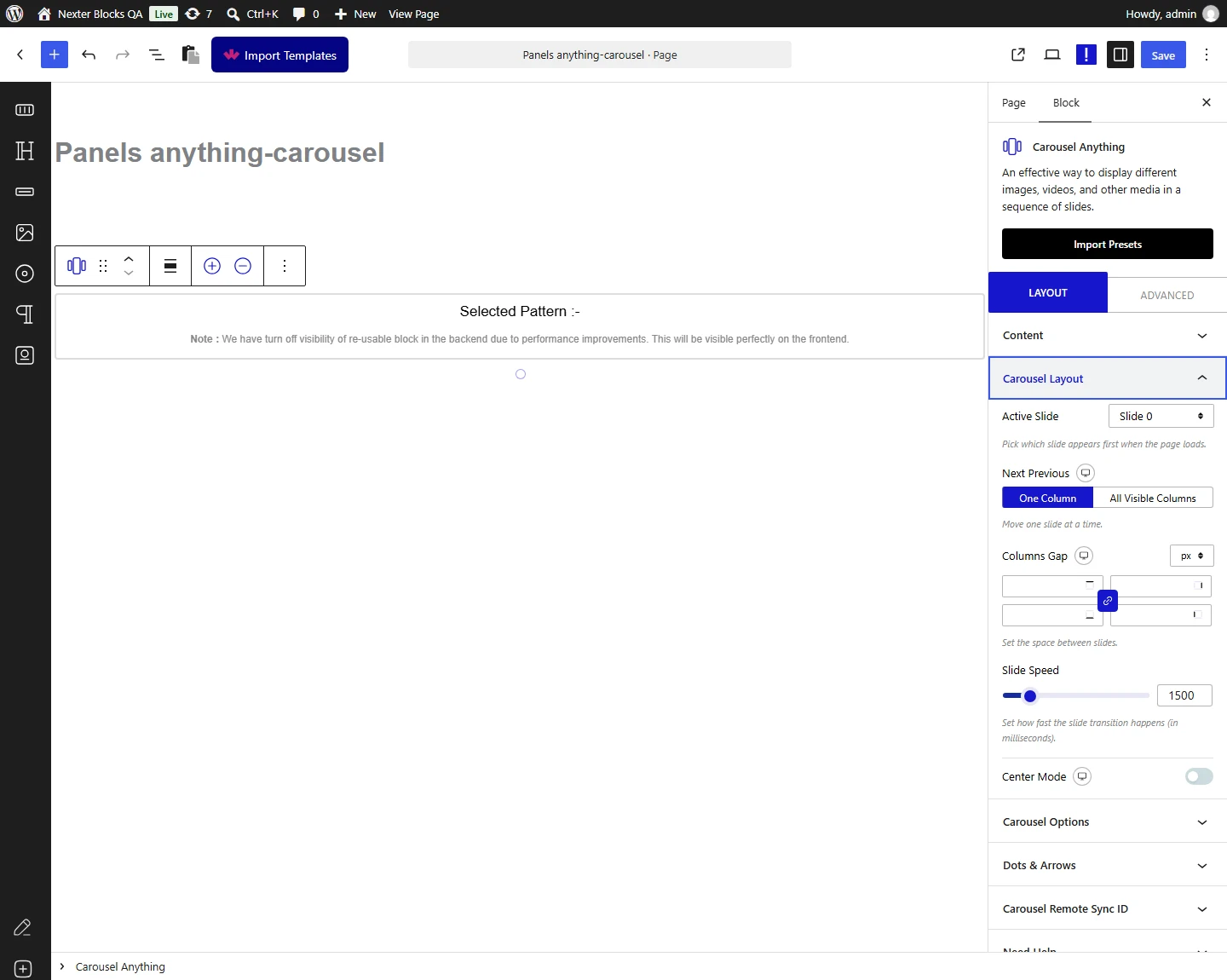
From Active Slide, select which slide is active on page load (useful for a featured product or announcement).

From Next Previous, choose One Column or All Visible Columns to control how many columns advance per click (depends on the Column count set above). Adjust spacing from Columns Gap, and set the Slide Speed for transitions. Enable Center Mode to highlight the center slide with padding, scale, or opacity when multiple columns are visible.
Carousel Options
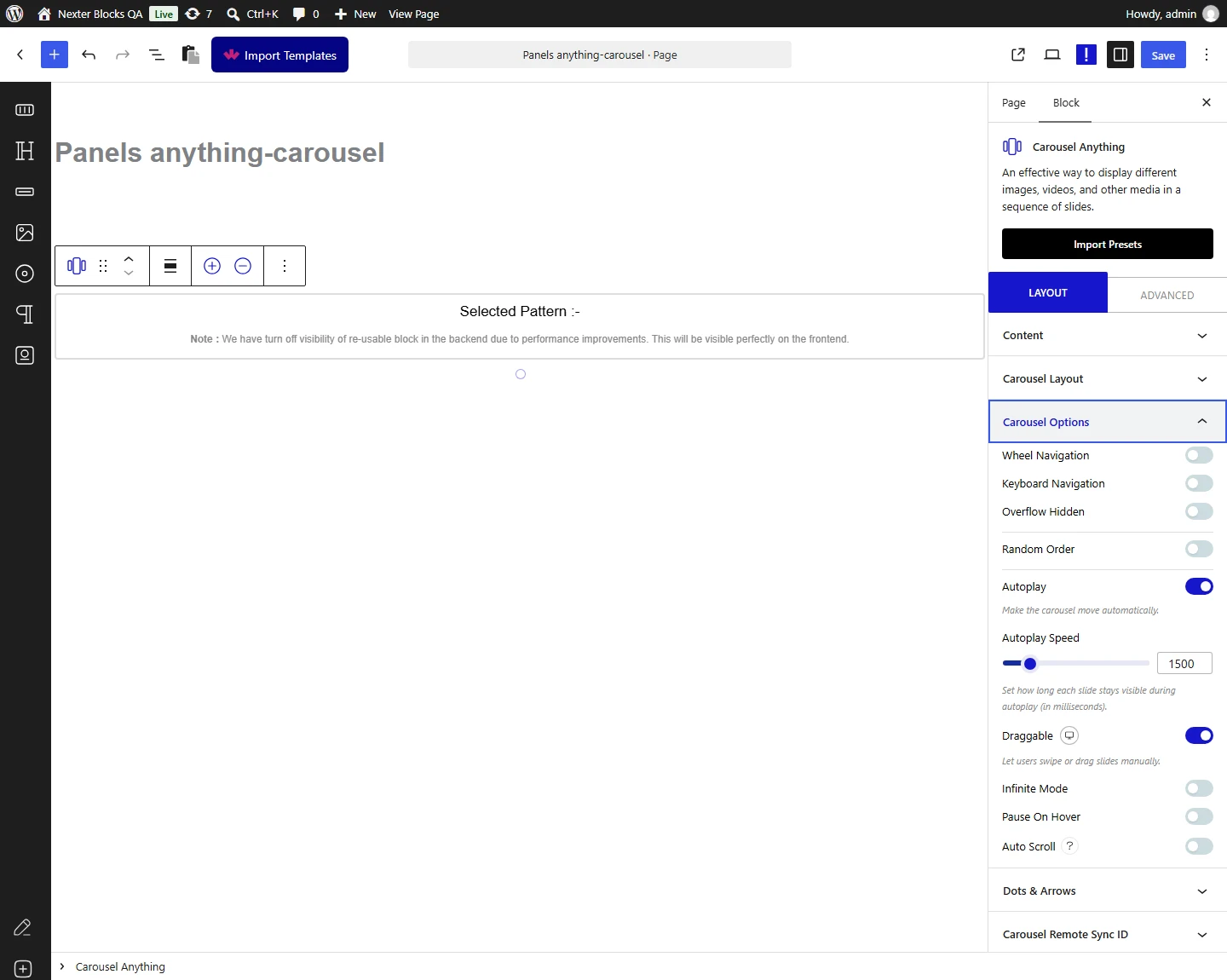
Enable Wheel Navigation to let visitors advance slides with the mouse wheel — useful in a full-screen layout where scroll would otherwise be intercepted by the page.

Enable Keyboard Navigation for arrow-key control. Enable Overflow Hidden to clip slide content that extends beyond the carousel’s boundaries (useful for scaled/rotated slide elements). Enable Random Order to randomize slide sequence on each page load. Enable AutoPlay to advance slides automatically. Enable Draggable to let visitors drag slides with cursor or touch. Enable Infinite Mode to loop continuously past the last slide. Enable Pause On Hover alongside AutoPlay so hovering pauses advancement. Enable Auto Scroll for continuous, uninterrupted movement (logo strips, tickers).
Note: For Auto Scroll to work properly, disable Autoplay. Auto Scroll only works on the front end; there is no backend preview.
Dots & Arrows
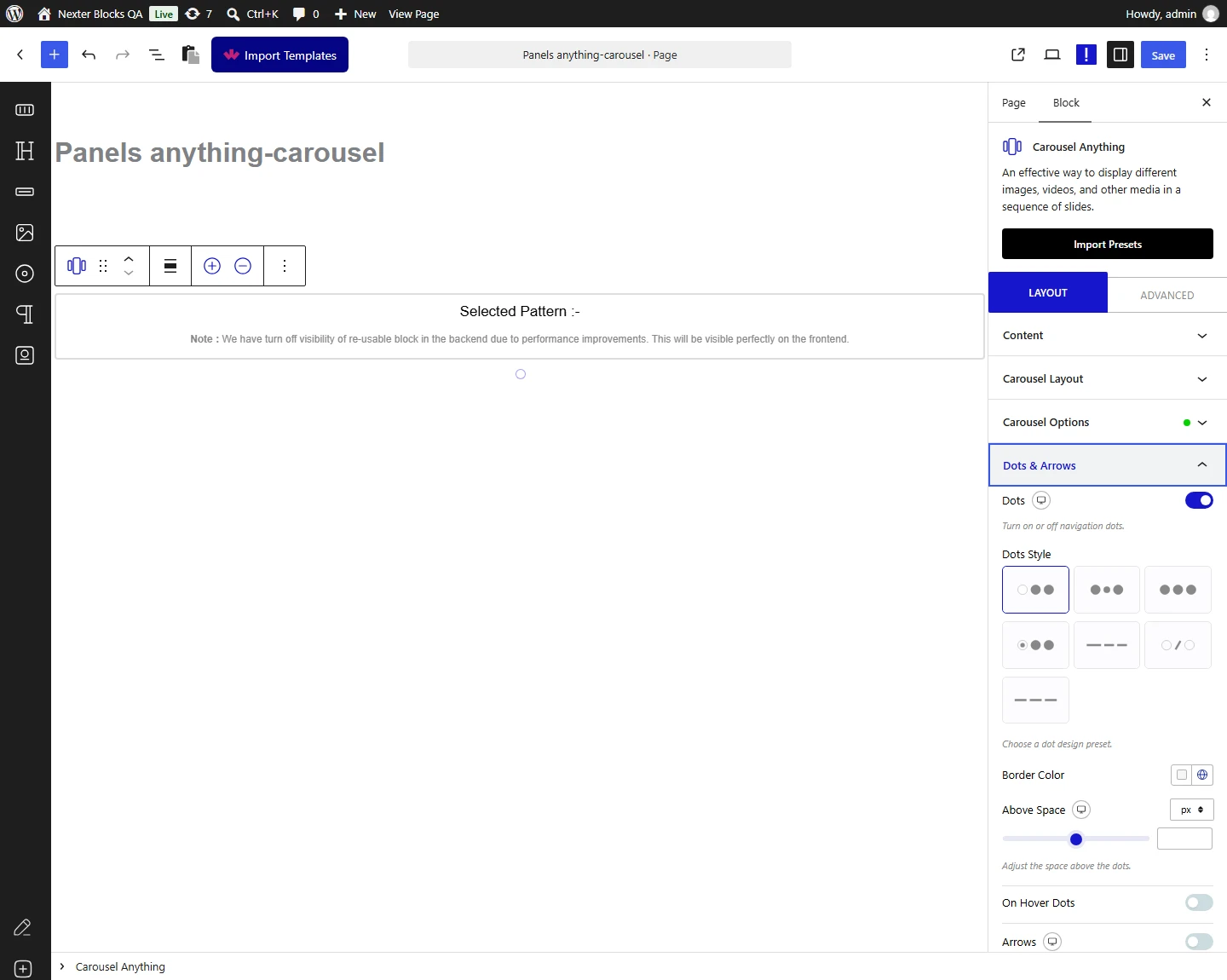
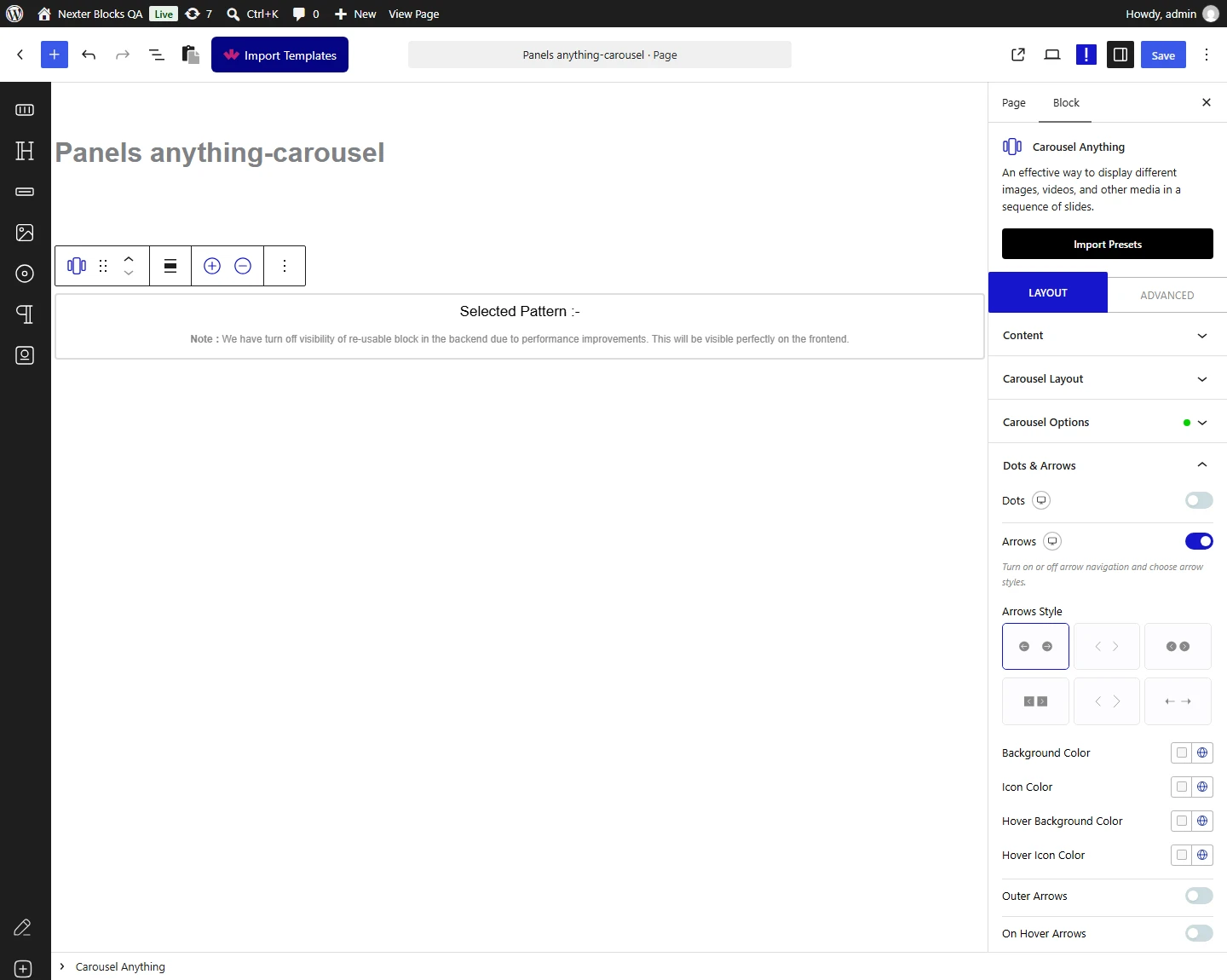
Enable Dots to show dot navigation below the carousel, with a choice of preset style, border color, top spacing, and per-device visibility.

Enable Arrows to show navigation arrows, with a preset arrow style plus icon color, position, and per-device visibility controls.

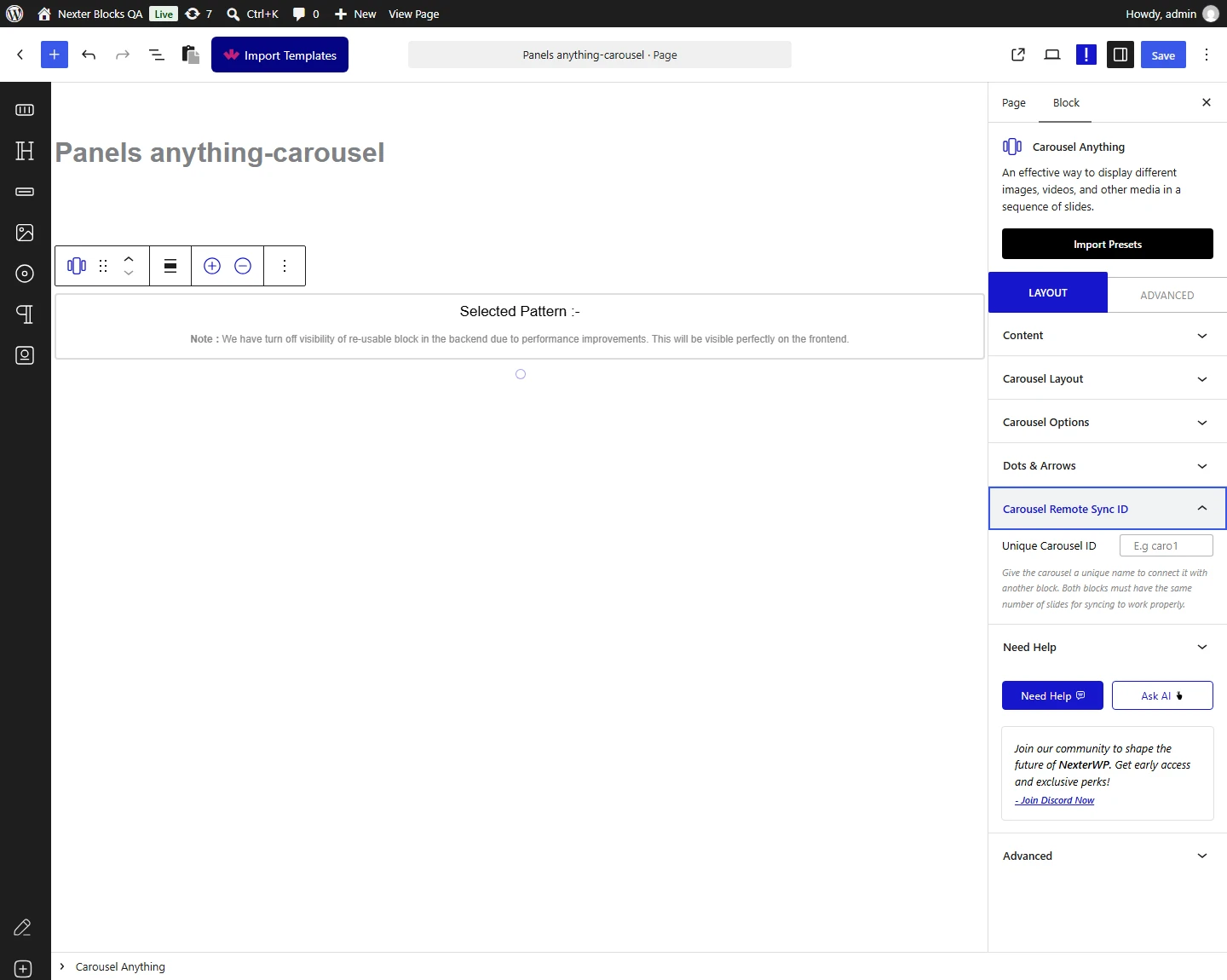
Carousel Remote Sync ID
From Unique Carousel ID, enter a shared ID to connect this block to another Nexter Blocks element on the same page.

How Does This Work?
Enter the same ID on both blocks to establish the connection. Both blocks must have matching item counts for connected properties — for example, connecting Carousel Anything to Process Steps requires the number of slides to match the number of steps. Once connected, advancing the carousel also advances the linked block. Common connections:
- Carousel Anything with Carousel Remote
- Carousel Anything with Tabs & Tours
- Carousel Anything with Accordion block
- Carousel Anything with Process Steps block
Advanced options are available for all Nexter Blocks; review the Advanced tab tutorial.
Use Cases
- Agency portfolios cycling through project case studies in a single section
- SaaS landing pages alternating between feature highlights and testimonials
- WooCommerce stores displaying product collections with custom slide layouts per item
Limitations
- This is a Pro-only block; it is not available on the free version of Nexter Blocks.
- Every slide needs its content explicitly assigned as a Pattern or Editor block — the block does not auto-populate slides from a post type or taxonomy the way the dedicated Post Listing or Product Listing blocks do.
- The Unique Carousel ID connection requires matching item counts on both connected blocks; mismatched slide/step counts will break the sync rather than gracefully looping.
Troubleshooting
- The carousel imports or renders incorrectly on the front end after building it in Elementor 4 / a page builder combination: a reported case (ticket #21955) found a template importing fine in the editor but not rendering correctly on the front end; re-saving the page and clearing any page cache is the first step, since this points to a caching/render mismatch rather than a lost setting.
- The block keeps prompting you to select a pattern and will not let you proceed: matches a reported case (ticket #20106) where the Content Type was left without a Pattern assigned to a slide — open each slide in the Content tab and confirm a Pattern is actually selected (or switch that slide’s Content Type to Editor instead).
- You can’t find where to set "Mousewheel" or an "Advanced Swiper" option: those settings are named Wheel Navigation in the block’s own Carousel Options panel (documented above), not a separate settings screen (ticket #21074).
- A parent Container stretches wider than intended once a Carousel Anything block is added inside it: reported in ticket #19710; check the carousel’s own width settings first, since the carousel — not the Container — was the source in that case.