












A developer on our team spent most of a Tuesday trying to connect Claude Desktop to a staging WordPress site. Everything looked right. The plugin was active, the application password was pasted in, the JSON was valid. Claude still showed nothing. The problem turned out to be one line in the ability registration: the ability was never marked public, so the MCP server was running perfectly and exposing exactly zero tools.
That is the part most guides skip. Standing up a WordPress MCP server is not hard, but the failure modes are quiet. Nothing errors. You just get an empty tool list and no explanation.
This guide walks the whole path with the current official tooling: what an MCP server on WordPress actually is, the two supported ways to run one, the exact configuration for connecting a client, how to verify it is genuinely working, and how to scope what an agent may touch before you point anything at a live site.
What a WordPress MCP Server Actually Is
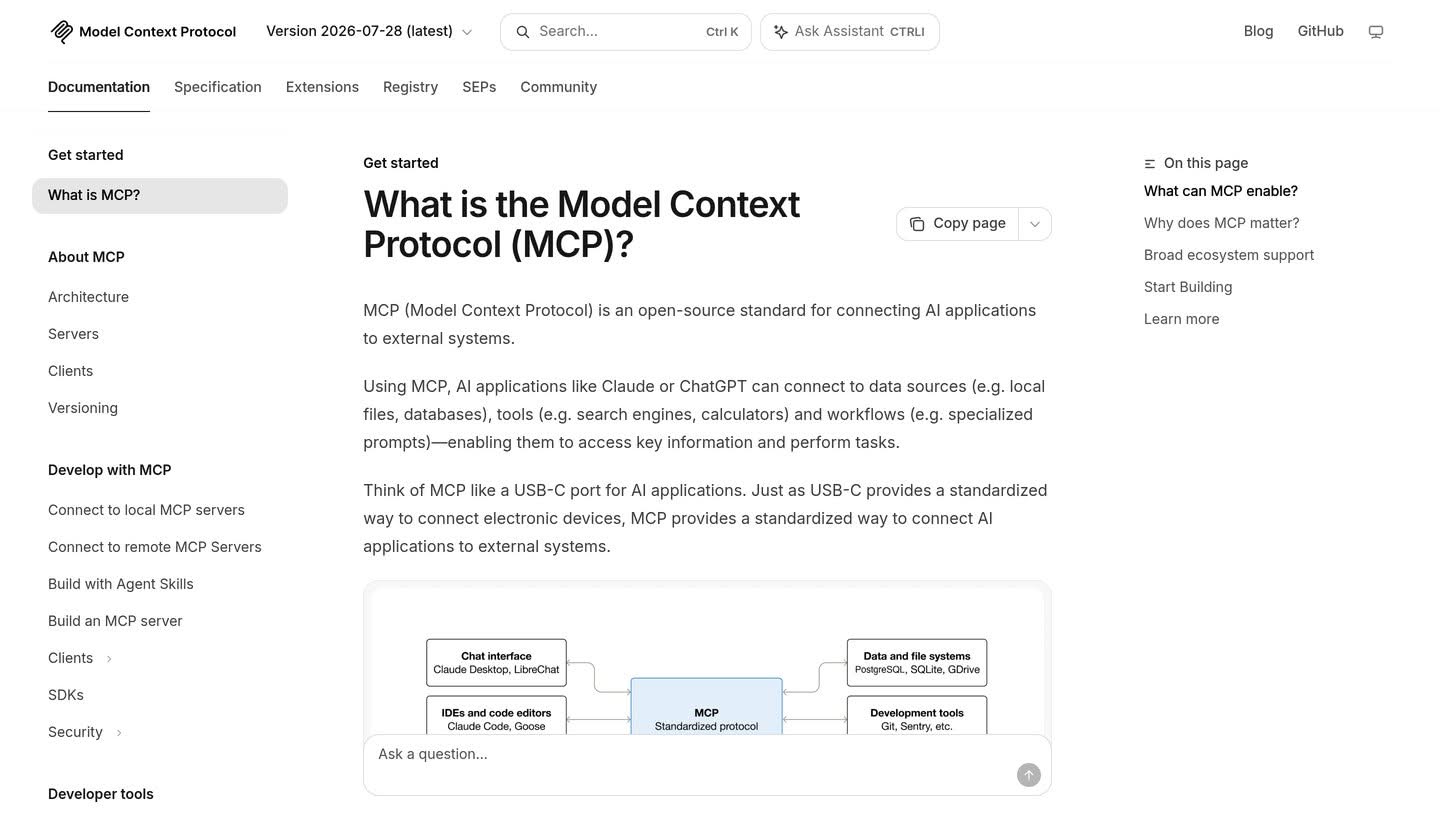
The Model Context Protocol is described by its own specification as “an open-source standard for connecting AI applications to external systems,” and the documentation offers a useful analogy: “Think of MCP like a USB-C port for AI applications. Just as USB-C provides a standardized way to connect electronic devices, MCP provides a standardized way to connect AI applications to external systems.”
Running an MCP server on WordPress means your site becomes one of those external systems. An AI client such as Claude, ChatGPT, VS Code or Cursor can then discover a list of things your site can do, and call them, without anyone writing a bespoke integration for each pairing.
What makes this practical on WordPress is that core already has the missing half. The Abilities API shipped its server-side registration, retrieval and execution in WordPress 6.9, exposing registered abilities through REST endpoints under the wp-abilities/v1 namespace. An ability is a single unit of functionality with declared inputs, outputs and permissions. WordPress 7.0 added the client-side half.
The MCP layer does not replace that. It translates it. As the official WordPress developer blog puts it, the adapter’s job “is to adapt Abilities registered by the Abilities API into the primitives supported by the Model Context Protocol (MCP),” and, more bluntly: “if your code already registers abilities, you are one step away from letting an AI agent use them.”
Also Read: WordPress Abilities API covers what an ability is and how the registry works, which is worth reading first if the term is new to you.
What You Need Before You Start
Five things, and it is worth confirming all of them before you touch any configuration file.
- WordPress 6.9 or later. This is the release where the Abilities API landed server-side. Anything earlier has nothing for the adapter to translate.
- HTTPS on the site. WordPress application passwords are transmitted using Basic Auth (RFC 7617), and the official documentation is explicit that credentials are passed to REST API requests served over
https://. - An application password. WordPress has shipped these since version 5.6. They are generated per user from wp-admin, Users, Edit User.
- Node.js, if you plan to connect a remote site over HTTP, because the bridge package runs through
npx. - A staging site. Do the first run somewhere you can afford to break. The whole point of the exercise is handing write access to software that acts on its own.
Option A: Install the Official MCP Adapter
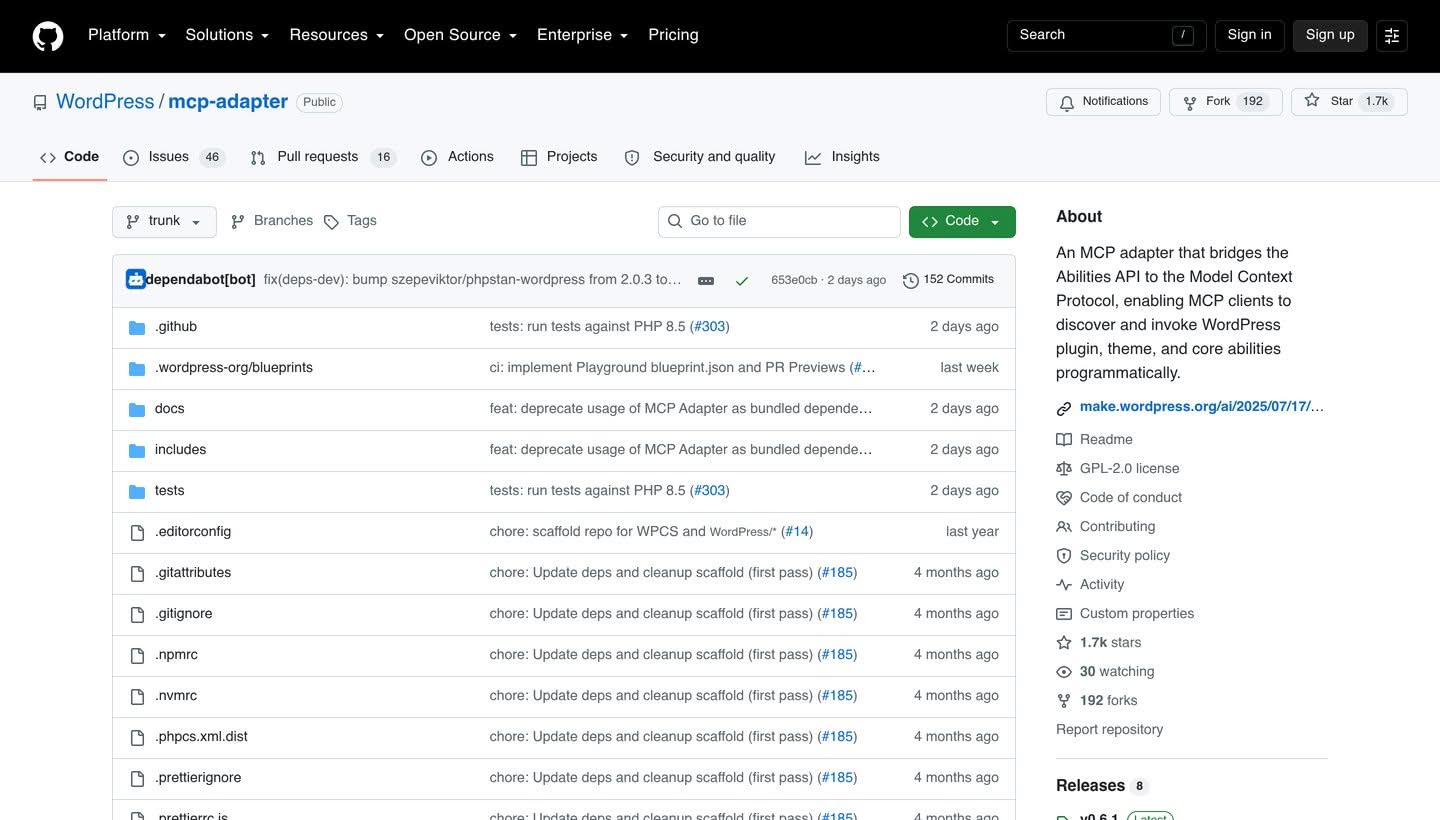
This is the route to take unless you have a specific reason not to. The MCP Adapter is an official package in the AI Building Blocks for WordPress initiative, and per its documentation, “the quickest way to get started with the MCP Adapter is to download and install it as a plugin from the Releases page of the GitHub repository.”
Download the release, upload it as you would any plugin, and activate it. That gives you a default server with an HTTP endpoint at /wp-json/mcp/mcp-adapter-default-server.
The Step Most People Miss: Mark Abilities Public
Here is the Tuesday-afternoon bug from the intro, stated plainly in the official documentation: “Abilities are only available via the MCP Adapter default server if they are explicitly marked as public for MCP access.”
Private is the default, deliberately. To expose an ability through the default server, add this to its registration:
'meta' => array(
    'mcp' => array(
        'public' => true,
    ),
)
If you register a custom server rather than using the default one, this flag is not required, because a custom server names its abilities explicitly.
Treat that default as a feature rather than an obstacle. An empty tool list on first connection usually means the security model is working exactly as designed.
Option B: Register a Custom MCP Server in Code
If you want to control precisely which abilities are exposed, install the package with Composer instead:
composer require wordpress/mcp-adapterLoad the autoloader and initialise the adapter in your plugin, then register a server on the mcp_adapter_init action. The official example looks like this:
add_action( 'mcp_adapter_init', 'myplugin_create_custom_mcp_server' );
function myplugin_create_custom_mcp_server( $adapter ) {
    $adapter = WP\MCP\Core\McpAdapter::instance();
    $adapter->create_server(
        'custom-mcp-server',
        'custom-mcp-server',
        'mcp',
        'Custom MCP Server',
        'Custom MCP Server',
        'v1.0.0',
        array(
            \WP\MCP\Transport\HttpTransport::class,
        ),
        \WP\MCP\Infrastructure\ErrorHandling\ErrorLogMcpErrorHandler::class,
        \WP\MCP\Infrastructure\Observability\NullMcpObservabilityHandler::class,
        array( 'namespace/ability-name' ),
        array(),
        array(),
    );
}
The tenth argument is the allowlist of abilities. That array is the real security boundary on a custom server, so keep it short and deliberate.
Connecting a Client to Your WordPress Site
The adapter supports two transports, STDIO and HTTP. As the WordPress documentation frames the choice, “which one you use is generally decided by where the WordPress site is located.”
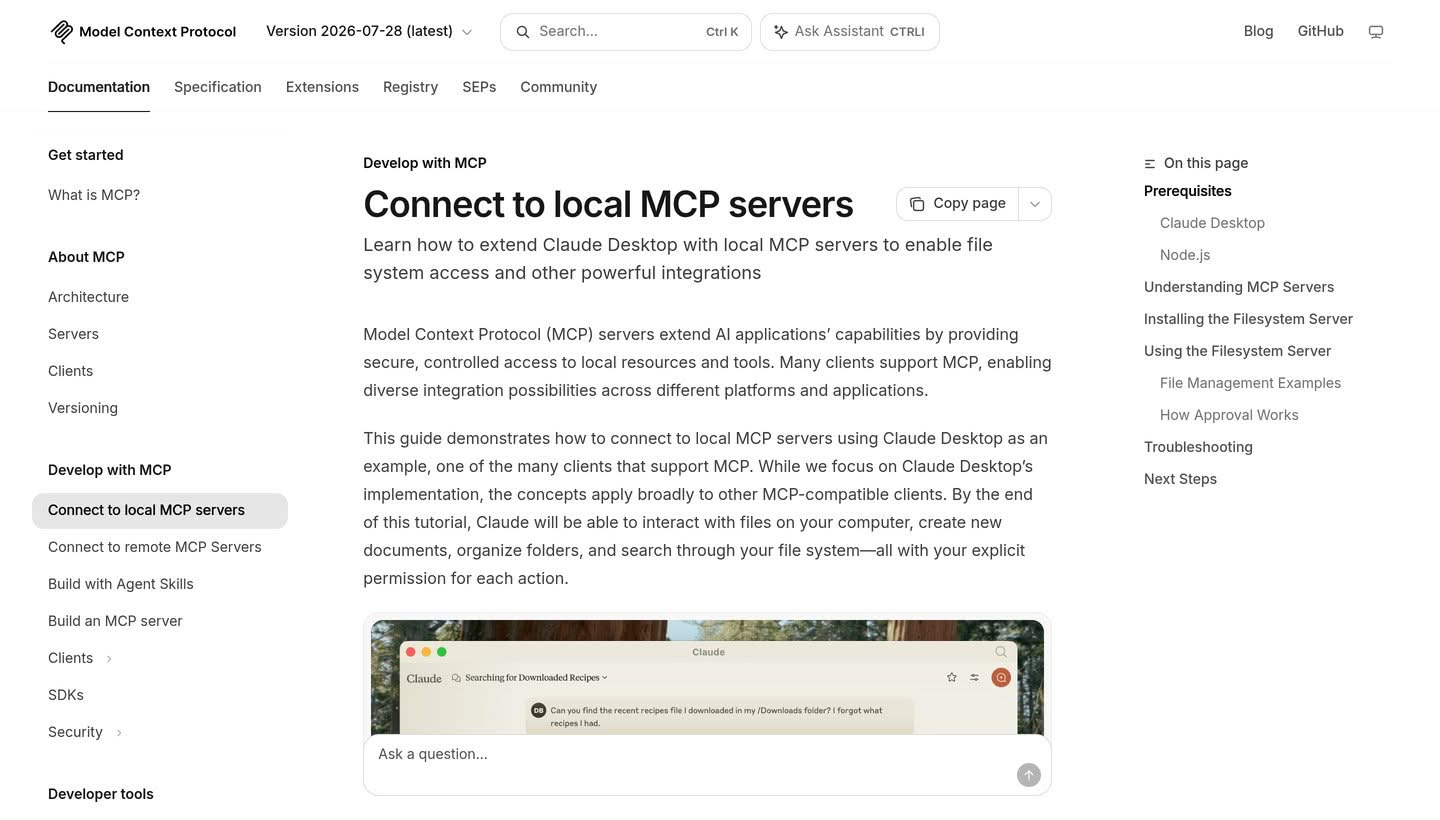
Client configuration lives in a JSON file. For Claude Desktop, that file is claude_desktop_config.json, and the MCP documentation gives its location as ~/Library/Application Support/Claude/claude_desktop_config.json on macOS and %APPDATA%\Claude\claude_desktop_config.json on Windows. You reach it through the Claude menu, then Settings, Developer, Edit Config.
HTTP, for a Remote or Hosted Site
This is the common case. The official configuration uses a bridge package and your application password:
"wordpress-mcp-server": {
  "command": "npx",
  "args": ["-y", "@automattic/mcp-wordpress-remote@latest"],
  "env": {
    "WP_API_URL": "https://yoursite.example/wp-json/mcp/...",
    "WP_API_USERNAME": "admin",
    "WP_API_PASSWORD": "application-password"
  }
}
Substitute your own endpoint, the username of the account you created for this, and the application password generated for that account. Do not reuse your own login.
STDIO, for a Local Site
If WordPress is on the same machine, the adapter runs through WP-CLI and no password crosses a network:
"wordpress-mcp-server": {
  "command": "wp",
  "args": [
    "--path=/path/to/wordpress",
    "mcp-adapter",
    "serve",
    "--server=mcp-adapter-default-server",
    "--user=admin"
  ]
}
Save the file and restart the client completely. A reload is not enough, because the configuration is read at launch.
Also Read: Best WordPress MCP Plugins Compared is the better starting point if you would rather choose a maintained plugin than assemble this yourself.
Verifying It Actually Works
Do not trust a green indicator. Check the tool list.
- In Claude Desktop, open the connectors panel from the input box and select your server. You should see named tools, not an empty panel.
- Ask the agent to list what it can do on the site, and read the answer against your allowlist. Extra tools mean your scoping is looser than you think.
- Run one harmless read, such as fetching a single published post, before you allow any write.
- Confirm the write path separately, on one throwaway draft, then check the result in wp-admin yourself rather than believing the agent’s summary.
That fourth step matters more than it sounds. An agent reporting success is reporting its own view of a tool response, which is not the same thing as the database having changed.
Scoping What the Agent May Touch
The official WordPress guidance on this is short and worth following literally:
- “Use
permission_callbackcarefully. Each ability should check the minimum capability needed.” - “Avoid
__return_truefor destructive operations such as deleting content.” - “Use dedicated users for MCP access. Especially in production, create a specific role/user with limited capabilities.”
- “Prefer read-only abilities for public MCP endpoints.”
- Implement custom authentication where you need it, and monitor and log usage.
The dedicated-user point is the one people skip because it is inconvenient. It is also the one that decides how bad a bad day gets, because revoking a single application password on a limited account is a two-click fix, while an agent operating as your administrator is not.
If you are unsure which capabilities a limited account should carry, the WordPress user roles and capabilities table is the right reference to work from.
When It Does Not Connect
Four checks, in this order, resolve most first-run failures.
- Empty tool list. The abilities are not public. Add the
meta.mcp.publicflag, or name them in a custom server. - Server missing entirely. Validate the JSON, then restart the client fully. The MCP troubleshooting guidance also notes that configured paths must be absolute rather than relative.
- Authentication failures. Regenerate the application password and confirm the site is genuinely serving over HTTPS.
- Silent failures. Read the logs. Claude Desktop writes MCP logs to
~/Library/Logs/Claudeon macOS and%APPDATA%\Claude\logson Windows, withmcp.logholding connection-level detail.
One historical note that saves confusion when you search for help. The Automattic wordpress-mcp plugin was widely written about through 2025, and its repository was archived on 19 January 2026, directing users to the WordPress MCP Adapter for ongoing development. A good deal of the tutorial content still circulating targets the archived plugin, so check the date on anything you follow.
Frequently Asked Questions
Do I need a plugin to run a WordPress MCP server?
You need the MCP Adapter, which you can install either as a plugin from its GitHub releases page or as a Composer package inside your own plugin. WordPress core provides the Abilities API from 6.9 onward, but core does not speak MCP by itself.
Is it safe to connect an AI agent to a live site?
It is safe to the extent that you have scoped it. A dedicated limited user, read-only abilities where possible, careful permission callbacks and real logging are the difference between a useful tool and an unsupervised administrator. Start on staging.
Which clients can connect?
MCP is supported across a wide range of clients. The specification names Claude and ChatGPT among AI assistants, and Visual Studio Code, Cursor and MCPJam among development tools. The configuration shape differs per client, but the server side does not change.
What is the difference between this and the REST API?
The REST API exposes endpoints for developers who already know what they want to call. MCP exposes a self-describing list of capabilities that an agent can discover at runtime, with declared inputs, outputs and permissions attached to each one.
Suggested Reading
- Model Context Protocol and WordPress
- The WordPress Abilities API Explained
- MCP vs API: What Is Actually Different
- What Is MCP in AI?
- The WordPress REST API Explained
