












This article was published through the API it describes. Not as a demonstration, as the normal process: the draft went up with a POST to /wp/v2/blog, the featured image was attached by ID, and the category was set with a follow-up request. No browser was opened.
That is worth saying out loud because the WordPress REST API has a reputation problem. It gets filed under “developer stuff” and skipped, and then people spend an afternoon clicking through the admin to do something a two-line request would have finished. It also gets explained badly, in tutorials that show one GET and stop before the parts that actually bite: the 100-item ceiling, the fields WordPress silently ignores, the custom post type that never shows up.
So this is the version with the real requests in it, and with the real numbers from a production site. At the time of writing, nexterwp.com reports 452 published posts in its blog collection. Every figure below came from asking the live site, not from memory.
What the WordPress REST API Actually Is
The REST API is a set of URLs on your own domain that return your site’s content as JSON instead of as a web page. The official handbook describes it as an interface for applications “to interact with your WordPress site by sending and receiving data as JSON objects,” and calls it “the foundation of the WordPress Block Editor.”
That last point is the one that changes how you think about it. The block editor you use every day is not a special internal feature with private access to the database. It is a JavaScript application talking to the same REST API you can reach with curl. When you hit Publish, the editor sends a request to an endpoint. Nothing is hidden from you.
Three consequences follow, and they are the whole reason to learn this:
- Anything the editor can do, an external script can do, with the same permissions model.
- Your content can be read by other systems without giving them database access.
- Automation stops requiring a plugin. It requires a request.
The handbook is careful about the boundary, and so should you be: content that is public on your site is generally publicly readable through the API, while private content, password-protected content, internal users, custom post types and metadata are available only with authentication.
Where to Find Your Own REST API
Two URL forms matter, and knowing both saves you from the most common dead end.
The pretty form is /wp-json/. The fallback form is /?rest_route=/, which works on sites that do not have pretty permalinks enabled. If /wp-json/ returns a 404 on a site you are certain is running WordPress, the permalink structure is usually the reason, and the query-string form will answer immediately. Both are live on this site right now:
# Pretty form
curl -s "https://nexterwp.com/wp-json/wp/v2/blog?per_page=1&_fields=slug"

# Query-string fallback, identical result
curl -s "https://nexterwp.com/?rest_route=/wp/v2/blog&per_page=1&_fields=slug"

# Both return:
[{"slug":"eu-ai-act-article-50-wordpress"}]
You should not have to guess the base URL, though, and the documented way to find it is discovery. Send a HEAD request to any page and read the Link header, which advertises the API root with a specific rel value:
Link: <http://example.com/wp-json/>; rel="https://api.w.org/"The same pointer appears in the HTML head for anything reading the page rather than the headers:
<link rel='https://api.w.org/' href='http://example.com/wp-json/' />A note from checking this on our own site before writing it down: the rel="https://api.w.org/" pointer is present in the page head, but it is not always in the response headers, because plugins and page caches routinely strip or replace headers. If discovery via headers comes back empty, look in the HTML before concluding the API is disabled.
Once you have the root, the built-in content types live under the wp/v2 namespace: /wp-json/wp/v2/posts, /pages, /media, /categories, /tags, /users, /comments. Custom post types get their own route, which is why this site’s blog posts are at /wp-json/wp/v2/blog rather than /posts.
Your First Five Requests
These are read-only, they need no authentication against public content, and they are the five you will actually reuse. Swap the domain and the post type for your own.
# 1. What routes does this site have?
curl -s "https://example.com/wp-json/" | head -c 400

# 2. The ten most recent posts, titles and slugs only
curl -s "https://example.com/wp-json/wp/v2/posts?per_page=10&_fields=id,slug,title"

# 3. One specific post by ID
curl -s "https://example.com/wp-json/wp/v2/posts/123"

# 4. Search, rather than guessing at IDs
curl -s "https://example.com/wp-json/wp/v2/posts?search=sitemap&_fields=id,slug"

# 5. How many posts exist in total (headers only)
curl -sI "https://example.com/wp-json/wp/v2/posts?per_page=1" | grep -i x-wp-total
Request five is the one people miss. You do not need to download every post to count them. The total arrives in a response header, and a per_page=1 request is enough to read it.
Request four deserves a mention too, because search matches body text as well as titles. That is useful when you are auditing coverage and want to know whether a subject has ever been mentioned, and it is misleading when you want to know whether a dedicated page exists. For the second question, check the slug.
Authentication: Application Passwords, Cookies and Nonces
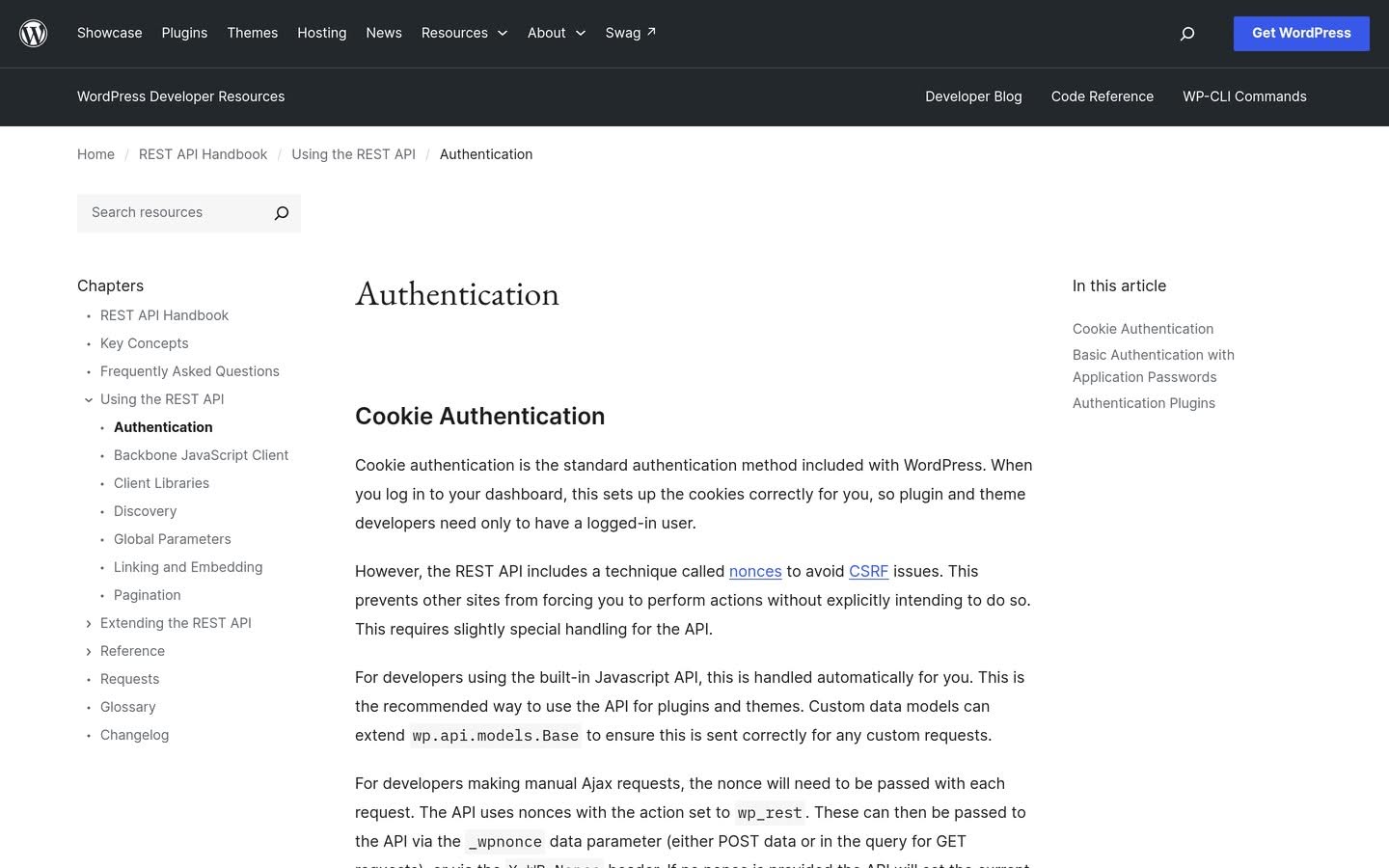
Reading public posts needs nothing. The moment you want to write, or to read anything private, you need to prove who you are. The handbook lists three approaches: cookie authentication, Basic Authentication with Application Passwords, and authentication plugins.
Application Passwords, for Anything Outside WordPress
This is the one you want for scripts, integrations and automation. As the handbook puts it, “As of 5.6, WordPress has shipped with Application Passwords.” You generate one per application from the user editing screen, and the credentials are passed to requests “served over https:// using Basic Auth.”
# Application Password over HTTPS Basic Auth
curl -s -u "your-username:xxxx xxxx xxxx xxxx xxxx xxxx" \
  "https://example.com/wp-json/wp/v2/posts?status=draft&_fields=id,title"
Two rules matter more than the syntax. First, the HTTPS part is not optional advice, it is the whole security model: Basic Auth sends the credential on every request, so without TLS you are broadcasting it. Second, generate one password per application and name it accordingly, because the only way to revoke access cleanly later is to know which credential belongs to what.
Cookies and the Nonce, for Code Inside Your Own Site
If your code runs in a logged-in browser session, for example a script in your own admin or a block in the editor, you are already authenticated by the WordPress login cookie. What you still need is a nonce, which exists to prevent cross-site request forgery. The handbook explains it can be passed “via the _wpnonce data parameter (either POST data or in the query for GET requests), or via the X-WP-Nonce header,” and it says plainly that “supplying the nonce as a header is the most reliable approach.”
Use the header. The parameter form has a history of trouble with DELETE requests, and there is no upside to the older approach.
Also Read: The WordPress Abilities API is the newer layer built for AI tools, and it sits on top of the same permissions model you just learned.
Writing Data: Create, Update and the Fields That Bite
Creating a post is one request. Send JSON, get the created object back with its new ID.
# Create a draft
curl -s -X POST -u "user:app password" \
  -H "Content-Type: application/json" \
  -d '{"title":"My New Post","content":"Hello.","status":"draft"}' \
  "https://example.com/wp-json/wp/v2/posts"

# Update it later
curl -s -X POST -u "user:app password" \
  -H "Content-Type: application/json" \
  -d '{"status":"publish"}' \
  "https://example.com/wp-json/wp/v2/posts/456"
Now the part that costs people hours. A 200 response does not prove your data was saved. WordPress validates the fields it knows about and quietly discards the ones that are not in the endpoint’s schema. You get a cheerful success, the object comes back, and the field you cared about is simply not in it.
We learned this the expensive way on our own site. Requests that tried to set search-engine metadata through the post endpoint returned 200 for months, and none of them persisted, because meta was not in that route’s schema. Nine separate publishing runs recorded the field as blocked before anyone checked whether the write had actually landed. The fix was to use the route that owns the data, but the lesson is broader and it applies to any endpoint:
- Read the value back after writing it. A separate
GETis the only proof. - Treat a silent success as a failure until verified.
- Check the schema before blaming permissions.
OPTIONSon an endpoint returns the accepted fields.
# Ask an endpoint what it will actually accept
curl -s -X OPTIONS "https://example.com/wp-json/wp/v2/posts" | head -c 800
That single command would have saved us those nine runs.
Why Your Custom Post Type Is Missing From the API
This is the most common support question about the REST API, and it almost always has the same answer: the post type was never registered for it.
Custom post types are opt-in. Unless show_in_rest is set to true when the type is registered, it does not appear in the route list, and requests to its endpoint return a 404 that looks exactly like a broken API.
register_post_type( 'portfolio', array(
    'public'       => true,
    'show_in_rest' => true,          // without this, no API
    'rest_base'    => 'portfolio',   // the URL segment
    'supports'     => array( 'title', 'editor', 'custom-fields' ),
) );
Two details save follow-up questions. rest_base controls the URL, so it is worth setting explicitly rather than inheriting the internal name. And custom fields need show_in_rest on the meta registration as well, not just on the post type, which is a separate opt-in that catches people twice.
If you are adding this to a live site, you need somewhere to put the code that survives theme updates. A child theme’s functions.php works. So does a small plugin file. If you would rather not manage either, the free Nexter Extension includes a Code Snippets module for exactly this kind of registration, which keeps the snippet out of your theme and makes it easy to switch off if something breaks.
Making Responses Small: _fields, per_page and the Total Headers
Default REST responses are enormous. A post object carries rendered content, excerpt, every registered meta field, the full set of image sizes and a block of link relations. If you wanted the title, you downloaded all of that to get it.
_fields fixes it, and it is a single parameter:
# Everything (tens of kilobytes per post)
curl -s "https://example.com/wp-json/wp/v2/posts?per_page=10"

# Only what you asked for (a few hundred bytes)
curl -s "https://example.com/wp-json/wp/v2/posts?per_page=10&_fields=id,slug,title,date"
Every automated request in our own publishing pipeline uses _fields, and not for elegance. Unfiltered collection responses are large enough to become a real constraint once you are pulling hundreds of posts, and trimming them to four fields is the difference between a request that works and one that has to be paginated around.
Pagination is the other half. The handbook documents per_page as “the number of records to return in one request, specified as an integer from 1 to 100,” plus page to choose the page and offset for an arbitrary starting point. The ceiling is enforced by WordPress, not by convention. Ask for more and you get a validation error:
curl -s "https://nexterwp.com/wp-json/wp/v2/blog?per_page=101"

{"code":"rest_invalid_param","message":"Invalid parameter(s): per_page",
 "data":{"status":400,"params":{"per_page":
 "per_page must be between 1 (inclusive) and 100 (inclusive)"}}}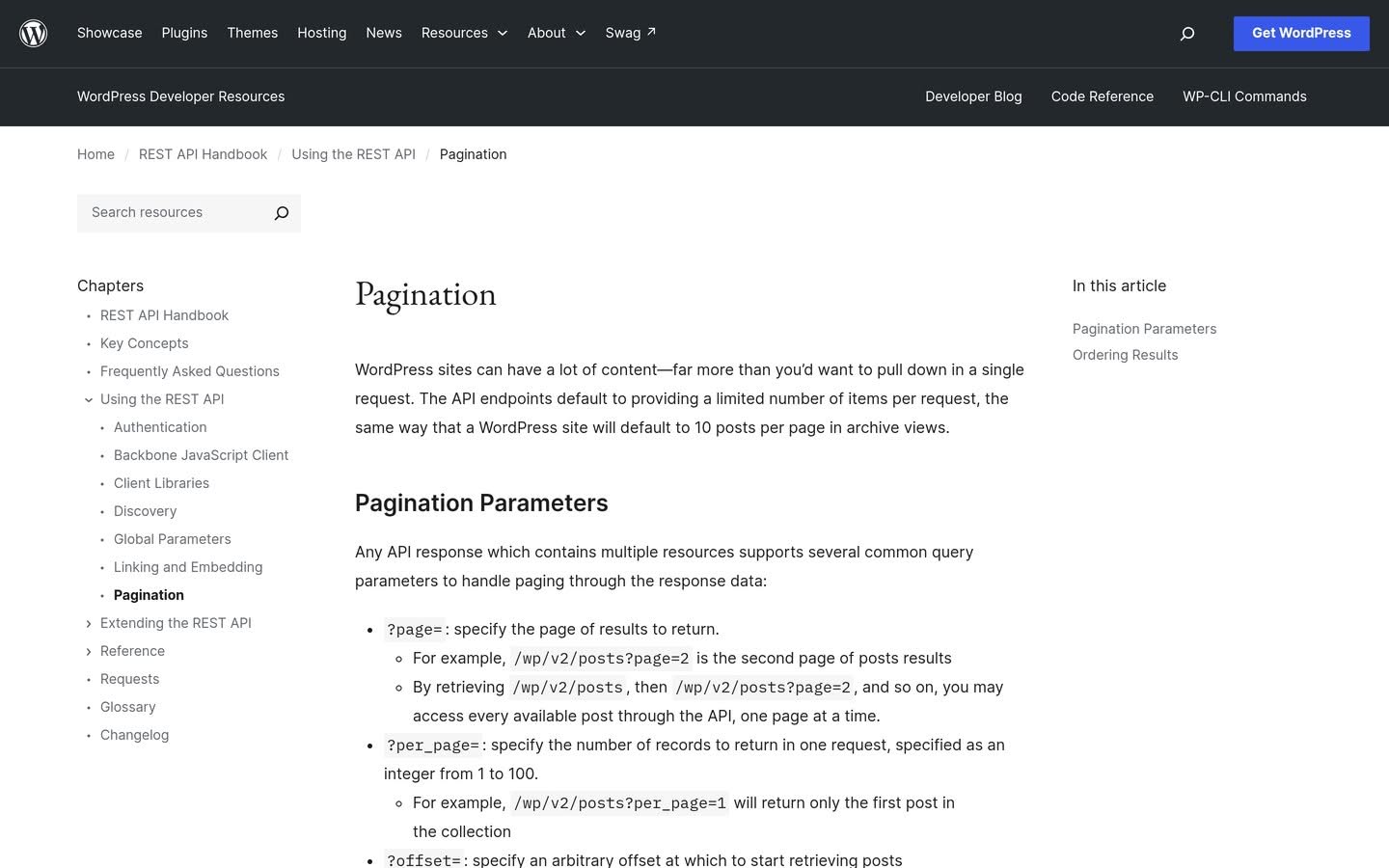
So how do you know when to stop? Two response headers, documented as X-WP-Total for “the total number of records in the collection” and X-WP-TotalPages for “the total number of pages encompassing all available records.” Read them once and you know the shape of the whole collection:
curl -sI "https://nexterwp.com/wp-json/wp/v2/blog?per_page=1" | grep -i x-wp

x-wp-total: 452
x-wp-totalpages: 452
Both numbers read 452 because per_page is 1, so pages and records are the same count. Set per_page=100 and the same collection reports 5 pages. That header pair is also a genuinely useful audit tool: compare X-WP-Total against the number of URLs in your sitemap and any gap tells you how many published posts search engines cannot currently discover.
When the REST API Is the Wrong Tool
An honest guide has to include this part, because the REST API is not the answer to everything.
It is the right tool when you know exactly which resource you want and you are writing the code yourself. It is a poor fit in three situations. When you need many related things at once, you end up making a dozen requests where one query would do. When you need something the schema does not model, you are back to writing a custom endpoint. And when the caller is an AI agent rather than a programmer, a list of routes is not enough, because the agent has no way to know which route it should use or what it is permitted to do.
That last case is why the newer agent-facing layers exist, and they solve a different problem rather than replacing this one.
Also Read: MCP vs API covers the distinction properly, including when your WordPress site needs each one.
If you are building a front end rather than an integration, the REST API is also only one of the options. A headless CMS setup uses it as the content layer, with real consequences for how your pages get discovered and cited. And if the goal is bringing a language model into WordPress rather than exposing WordPress to one, using the OpenAI API inside WordPress is a different job with different constraints.
What to Lock Down Before You Ship
The REST API is enabled by default and is not a vulnerability, but it does expose more than most site owners realise. Four things are worth checking.
The users endpoint. /wp-json/wp/v2/users returns author names and slugs without authentication. That is by design, since authors are public on the front end anyway, but it does hand over a tidy list of valid usernames. If your login page is unprotected, that list is the first half of an attack.
Application Password hygiene. One per integration, named clearly, revoked the moment a service is retired. Never in a public repository.
Meta field exposure. Setting show_in_rest on a meta field makes it readable by anyone who can read the post. Think about what is in your custom fields before opting them in.
Anything that adds routes. Every plugin can register endpoints, and their authentication is the plugin author’s decision, not WordPress’s. A quick look at /wp-json/ tells you what has been added to your site, which is a reasonable thing to check when you vet a WordPress plugin before installing it.
Turning the API off wholesale is not the answer. The block editor needs it, and so do a growing number of core features. Understand what is exposed, and secure the login instead.
Frequently Asked Questions
Do I Need a Plugin to Use the WordPress REST API?
No. It has been in WordPress core since version 4.7, whose release notes state that “WordPress 4.7 comes with REST API endpoints for posts, comments, terms, users, meta, and settings.” It is active by default. You need a plugin only to add your own custom endpoints, and even then a code snippet is usually enough.
Why Does My REST API Request Return 401 or 403?
A 401 means WordPress did not recognise your credentials, so check the Application Password and confirm you are on HTTPS. A 403 usually means it recognised you but the user lacks the capability for that action, or a nonce is missing on a cookie-authenticated request. The two errors point at different fixes, so read which one you actually got.
Can I Disable the WordPress REST API?
You can restrict it, but disabling it entirely will break the block editor and other core features that depend on it. Restricting unauthenticated access to specific endpoints, such as users, is the sensible middle ground.
What Is the Difference Between /wp-json/ and /?rest_route=/?
Nothing, in terms of the response. The first requires pretty permalinks; the second works without them. If /wp-json/ gives you a 404, try the query-string form before assuming the API is unavailable.
How Do I Get More Than 100 Posts From the REST API?
You page through them. Set per_page=100, read X-WP-TotalPages from the response headers, and loop over page=1 to that number. There is no supported way to raise the ceiling on a single request.
Suggested Reading
- What Is MCP in AI? A plain-English guide for WordPress site owners.
- WebMCP for WordPress, on letting AI agents use your site rather than only read it.
- WordPress 7.1, what shipped and what got deferred.
- WordPress revisions, how they work and how to keep them from bloating your database.
- Permalinks in WordPress, which decide whether
/wp-json/resolves at all.
