












Adding a text shadow in WordPress has always meant writing custom CSS or reaching for a block plugin. WordPress 7.2 brings it into core. Beta 1 shipped on 20 October 2026 with text shadow controls in the block editor and text shadow presets you can define in theme.json.
I went through the Beta 1 announcement and the two Gutenberg pull requests behind the feature, and checked the text shadow settings in the current Nexter Blocks release on WordPress.org. This guide covers plain CSS, the new core controls and presets, and Nexter Blocks, plus the readability rules I follow before I add a shadow to anything.
WordPress 7.2 is still a beta. The final release is scheduled for 8 December 2026 and features can change before then, so treat the core sections as a preview and test them on a staging site.
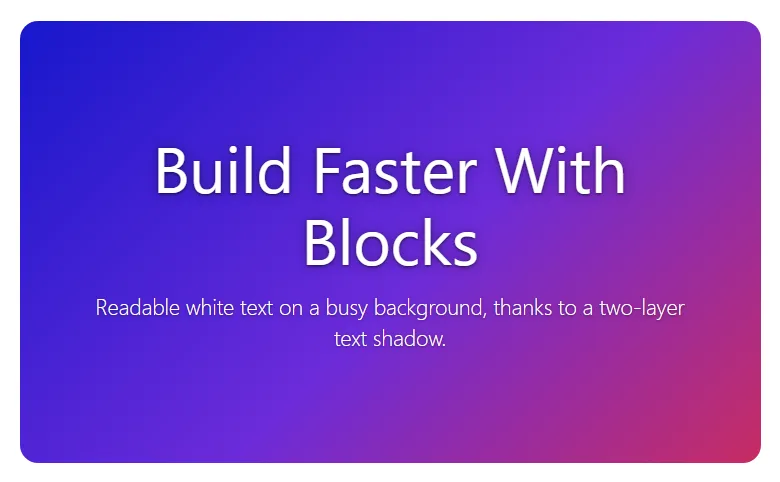
The CSS text-shadow Property In One Minute
All of these methods produce the same CSS property:
.my-heading {
  text-shadow: 2px 3px 2px rgba(0, 0, 0, 0.5);
}
The values are, in order:
- Horizontal offset (
2px): positive moves the shadow right, negative moves it left. - Vertical offset (
3px): positive moves it down, negative moves it up. - Blur radius (
2px): optional. Zero gives a hard edge, larger values soften it. - Color (
rgba(0, 0, 0, 0.5)): a semi-transparent color usually looks more natural than solid black. MDN notes the color can also go first.
Separate several shadows with commas to build glow and outline effects:
.glow-heading {
  text-shadow: 0 0 4px #fff, 0 0 12px #6c5cff;
}
Set the property to none to remove a shadow that a theme or plugin adds.
Method 1: Add A Text Shadow With Custom CSS
This works on current WordPress versions with any theme, and it is still the quickest option for a single block.
- Select the block, open the Advanced panel in the sidebar and type a class name, such as
soft-shadow, into Additional CSS class(es). - Open the Additional CSS area for your theme. On a block theme it lives in the Site Editor under Styles. On a classic theme it is Appearance > Customize > Additional CSS.
- Add a rule such as
.soft-shadow { text-shadow: 0 2px 4px rgba(0, 0, 0, 0.15); }and save. - Check the front end on desktop and on a phone.
The downside is that every shadow lives in a stylesheet editors cannot see from the block, which is the gap the 7.2 work closes.
Also Read: Why You Should Avoid Using !important In CSS
What WordPress 7.2 Adds For Text Shadow
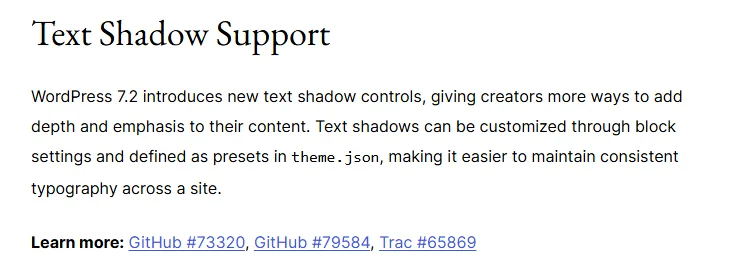
The Beta 1 announcement describes new text shadow controls you set through block settings, and presets you define in theme.json to keep typography consistent across a site. The feature landed in Gutenberg in two pull requests, and they describe the behavior in more detail than the announcement.
Gutenberg pull request #73320, merged 24 June 2026. This added a textShadow style under styles.typography in theme.json. Theme authors could set a shadow globally, per block type or per element, with no editor interface yet.
Gutenberg pull request #79584, merged 10 September 2026. This added the full feature:
- New
settings.typographykeys:textShadow,defaultTextShadowPresetsandtextShadowPresets. - Each preset outputs a CSS variable named
var(--wp--preset--text-shadow--{slug}). - A new
supports.typography.textShadowblock support, switched on for the Paragraph and Heading blocks. - The control is hidden by default in the block sidebar.
- Presets are saved as CSS classes instead of inline styles. The pull request shows a paragraph saved as
<!-- wp:paragraph {"textShadow":"strong"} -->with the classhas-strong-text-shadow. - Global Styles gets a text shadow entry below the font size presets, with a preset list and an editor for each preset.
Saving presets as classes keeps post content clean, and changing a preset in Global Styles updates every block that uses it.
Testing The 7.2 Beta Safely
The Beta 1 announcement says the beta is for testing and development only and asks you to keep it off production and mission-critical sites. It lists four ways to try it, and I pick based on how much of a real site I want in the test:
- WordPress Playground. The announcement links a Playground instance running the beta. Nothing to install, and it disappears when you close the tab. Good for a first look at the controls.
- WordPress Beta Tester plugin. Install it on a staging copy of your site and choose the “Bleeding edge” channel with the “Beta/RC Only” stream. Good for seeing how your own theme and blocks react.
- Direct download. The announcement links a zip of Beta 1 you can install on a test site.
- WP-CLI. On a staging server,
wp core update --version=7.2-beta1moves that install to the beta.
Keep a note of every theme.json change you make during testing so you can reapply it cleanly after 8 December.
Method 2: Use The Core Text Shadow Control (7.2 Beta)
- Open a post or page in the 7.2 beta editor on one of the test setups above.
- Add a core Heading or Paragraph block and type some text.
- Open the Typography panel in the block sidebar.
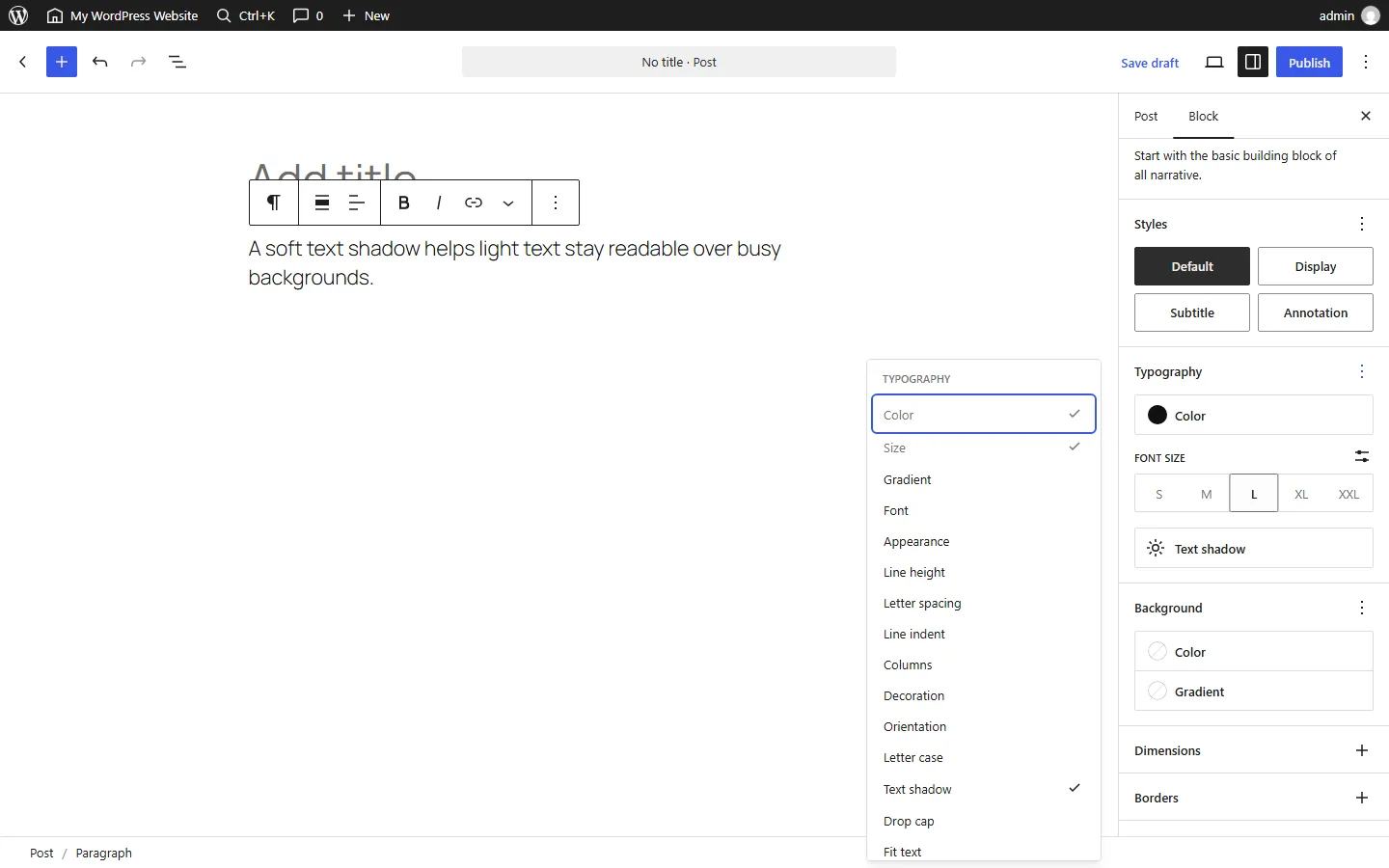
- The control is hidden by default. Click the three-dot options menu on the Typography panel and tick Text shadow. A Text shadow button appears in the panel.
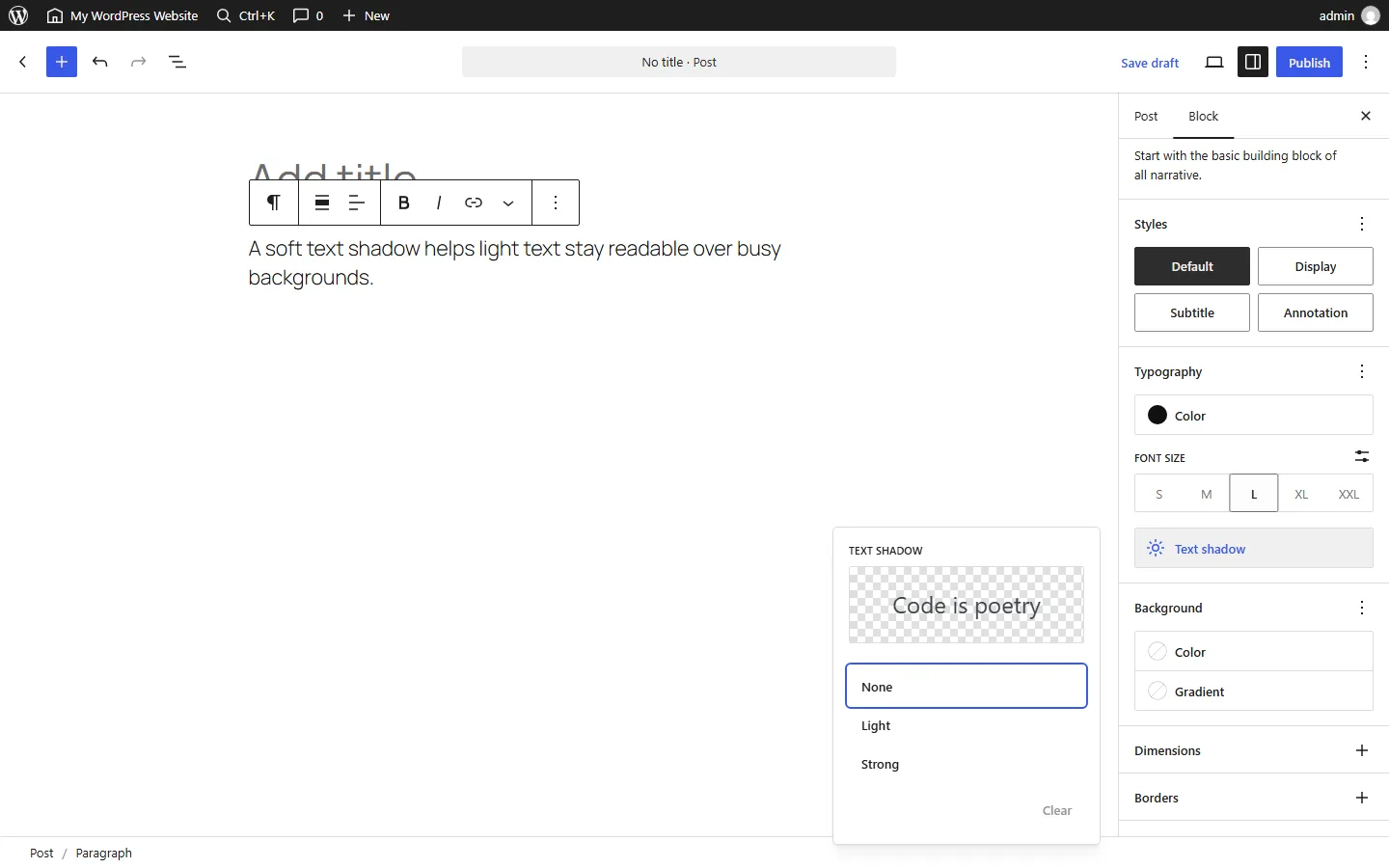
- Click it and pick a preset. In Beta 1 the list shows None, Light and Strong, plus any presets your theme adds.
- Save and check the front end. The block should carry a
has-{slug}-text-shadowclass.
According to the pull request, only Paragraph and Heading declare support so far. A shadow on a core Button or Quote block still needs CSS until more blocks opt in.
Text Shadow Presets In theme.json
If you build or maintain a block theme, presets are the part to care about. They give clients a short, on-brand list instead of an open-ended shadow editor.
This theme.json snippet follows the example in pull request #79584:
{
  "version": 3,
  "settings": {
    "appearanceTools": true,
    "typography": {
      "textShadowPresets": [
        { "name": "Soft", "slug": "soft", "textShadow": "1px 1px 2px rgba(0, 0, 0, 0.3)" },
        { "name": "Glow", "slug": "glow", "textShadow": "0 0 8px rgba(255, 215, 0, 0.8)" },
        { "name": "Retro", "slug": "retro", "textShadow": "3px 3px 0 rgba(255, 0, 128, 0.7)" }
      ]
    }
  }
}
Each preset becomes a CSS variable such as --wp--preset--text-shadow--soft.
To give every Paragraph block a default shadow, set it under styles:
{
  "version": 3,
  "styles": {
    "blocks": {
      "core/paragraph": {
        "typography": {
          "textShadow": "var(--wp--preset--text-shadow--soft)"
        }
      }
    }
  }
}
The pull request notes that a style set this way can still be overridden in Global Styles and on each block.
Text shadow also works on elements, according to pull request #73320. Its test example removes a shadow from links on hover, which is handy when your body text carries a shadow and you want hovered links to look crisp:
{
  "version": 3,
  "styles": {
    "elements": {
      "link": {
        ":hover": {
          "typography": { "textShadow": "none" }
        }
      }
    }
  }
}
The same structure should carry over to other elements that theme.json supports, such as headings and buttons, which would let you set a shadow for every h1 on the site from one place. Test it on the beta before you rely on it.
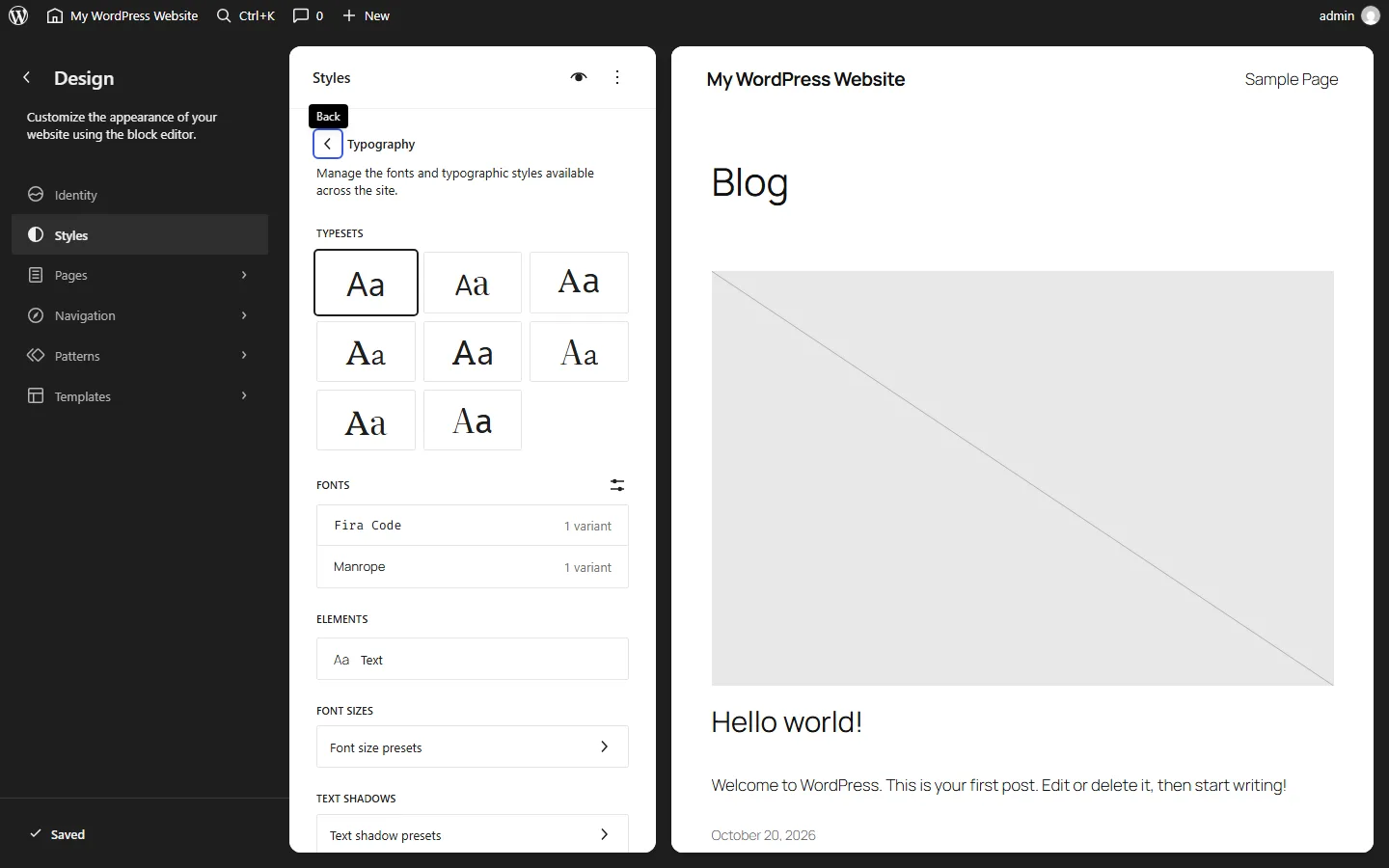
To switch the feature off on a client site where editors should not add shadows, set these under settings.typography:
"textShadow": falseto hide the control."defaultTextShadowPresets": falseto drop the core presets."textShadowPresets": []to remove theme presets.
I keep these keys in a branch of the theme until the final release ships, then merge them.
Also Read: WordPress 7.2: Release Date, Ipsum Theme, And Every Feature On The Roadmap
Reusing Preset Variables In Your Own CSS
Because WordPress 7.2 outputs each preset as a CSS variable, your custom CSS and your block settings can share one source of truth:
.site-hero .wp-block-heading {
  text-shadow: var(--wp--preset--text-shadow--soft);
}
Change the “Soft” preset in Global Styles later and this rule picks up the new value. WordPress already works this way for color and font size presets, so a theme that leans on those variables can adopt text shadow with almost no new code.
Method 3: Text Shadow With Nexter Blocks
If you need shadows beyond headings and paragraphs, or you are not moving to 7.2 yet, the free Nexter Blocks plugin already has text shadow settings on several blocks. I checked the block definitions in the current release on WordPress.org, Nexter Blocks 5.0.8, which match 5.0.7 for these settings:
| Nexter Blocks block | Where the text shadow applies |
|---|---|
| Heading | The heading text |
| Paragraph | The paragraph text, with a separate hover shadow |
| Button | The button label |
| Image | The caption, when a caption is shown |
| Hover Card | Text layers inside the card, with a separate hover shadow |
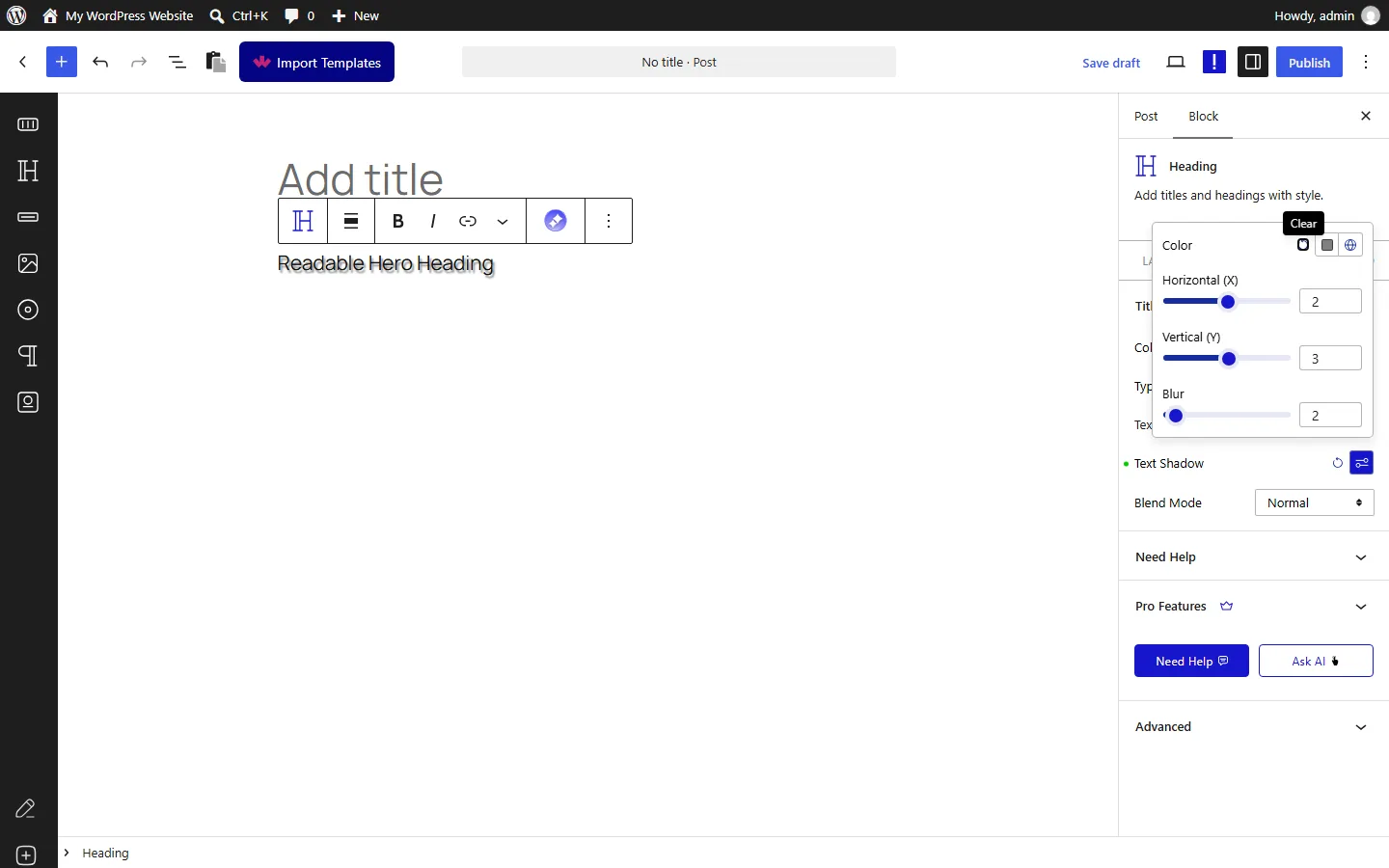
Each of these shadows is off by default. Switching one on starts you at a 2px horizontal offset, 3px vertical offset, 2px blur and 50% black, a subtle default you can adjust from there.
To add one to a heading:
- Install and activate Nexter Blocks from Plugins > Add Plugin.
- Insert the Nexter Blocks Heading block.
- Open the Style tab in the block sidebar. The Title panel is open by default.
- Click the settings icon next to Text Shadow. The shadow switches on with the default values and a small dot marks it as changed.
- Adjust the horizontal offset, vertical offset, blur and color until the text reads well.
- Preview on mobile, then update the page.
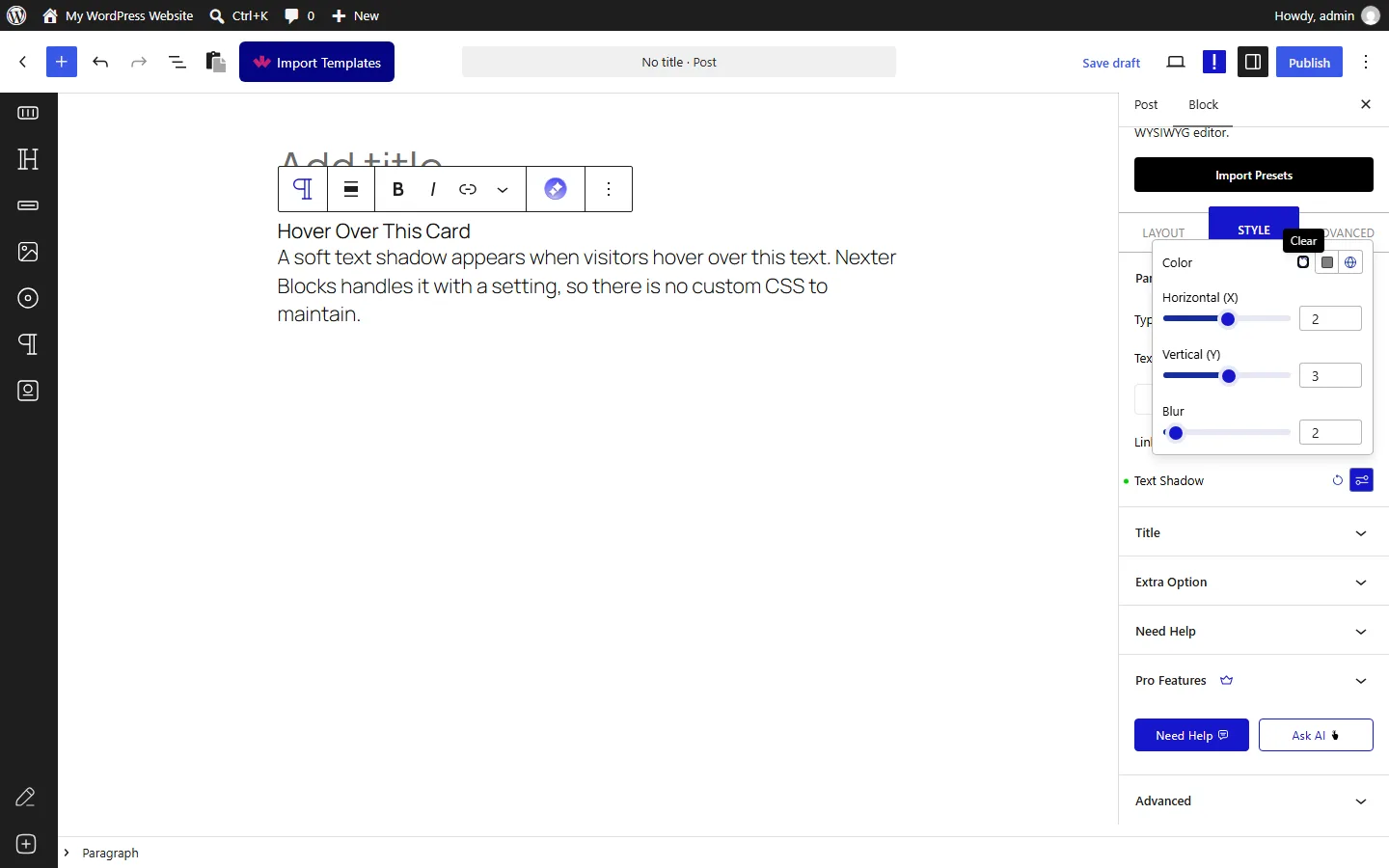
The hover shadow on the Paragraph block is the setting I use most. A soft shadow that appears on hover suits cards and call-to-action text, and it needs no custom CSS. Pair it with a visible focus style so keyboard users get the same signal.
Core presets and Nexter Blocks work side by side on the same site. I use core presets for site-wide consistency on Paragraph and Heading blocks, and Nexter Blocks for buttons, captions, card text and hover states, where core has no control yet.
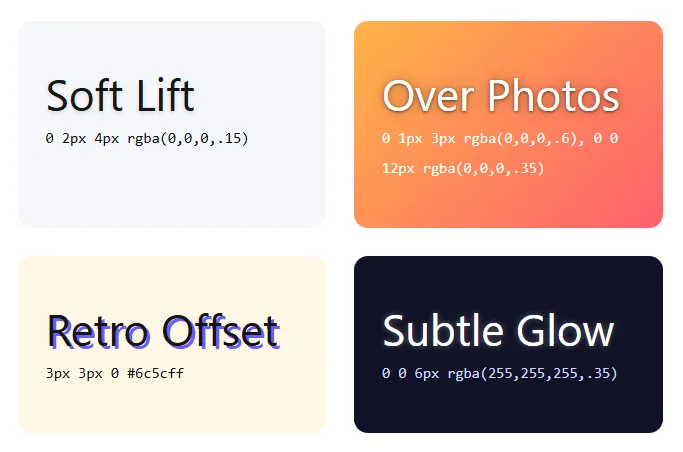
Four Text Shadow Recipes You Can Copy
Each recipe works as plain CSS today and can become a textShadowPresets entry on 7.2.
1. Soft Lift For Display Headings
text-shadow: 0 2px 4px rgba(0, 0, 0, 0.15);A small downward offset with a light blur adds depth that most visitors will never consciously notice, which is what you want on a heading.
2. Readable Text Over Photos
text-shadow: 0 1px 3px rgba(0, 0, 0, 0.6), 0 0 12px rgba(0, 0, 0, 0.35);A tight layer sharpens the letter edges and a wide, faint layer darkens the area around the text. I use it for white hero text on busy images. On very bright photos, add a dark overlay as well.
3. Hard Retro Offset
text-shadow: 3px 3px 0 #6c5cff;Zero blur and a solid color give a flat, poster-style offset. It suits bold display fonts at large sizes and looks wrong on small text.
4. Subtle Glow On Dark Backgrounds
text-shadow: 0 0 6px rgba(255, 255, 255, 0.35);A light blur with zero offset makes headings on dark sections look lit from behind. Keep the opacity low or it starts to look like a rendering glitch.
Readability Rules Before You Add A Shadow
I add text shadows mainly for legibility, on light text over photos, and sparingly on large display headings and hover states. I leave body text alone, because long paragraphs with a shadow tire the eye and blurred edges make small type look fuzzy on low-resolution screens.
The rules I follow:
- Check color contrast with the shadow turned off. If the text only passes because of the shadow, change the colors or add an overlay.
- Keep blur small on small text. A large blur on 16px text turns into a smudge.
- Prefer semi-transparent colors. Solid black shadows look heavy on most designs.
- Test on a real phone, since a shadow that looks crisp on a desktop monitor can turn muddy on a small screen.
- Stop at two stacked shadows unless you are building a deliberate glow or outline.
Picking The Right Method For Your Site
- A one-off shadow today: a CSS class plus a rule in Additional CSS.
- A block theme you control, planning for 7.2:
theme.jsonpresets, so editors choose from a fixed list. - A client site that needs shadows on buttons, captions or hover states now: Nexter Blocks, then add core presets for headings and paragraphs once 7.2 ships.
- A site where nobody should add shadows: switch the feature off in
theme.jsonafter you move to 7.2.
The same pattern shows up across recent releases, from responsive styles in 7.1 to the button styling options in Gutenberg 24.2: core adds a solid base, and block plugins cover the places it has not reached yet.
What This Doesn’t Cover
- The final 7.2 interface. The core steps come from the Beta 1 notes and the merged pull requests. Labels and menu positions can change before the 8 December release.
- The exact default preset values. Beta 1 ships two default presets, Light and Strong. I have not listed their CSS values because they may change before the final release.
- Box shadow. Shadows on containers, cards and whole buttons use
box-shadowand a different core control. This post covers text only. - Classic themes and Global Styles. Global Styles presets need a block theme or a theme that uses
theme.json. Classic themes can keep using plain CSS.
Suggested Reading
- WordPress 7.2: Release Date, Ipsum Theme, And Every Feature On The Roadmap
- Why You Should Avoid Using !important In CSS
- Gutenberg 24.2 Button Backgrounds And Shadows: What Core Adds And What Nexter Blocks Already Does
- How To Use Responsive Block Styles In WordPress 7.1
- Gutenberg 24.3: Cross-Block Rich Text Formatting And New Block Supports
- All Nexter Blocks
