












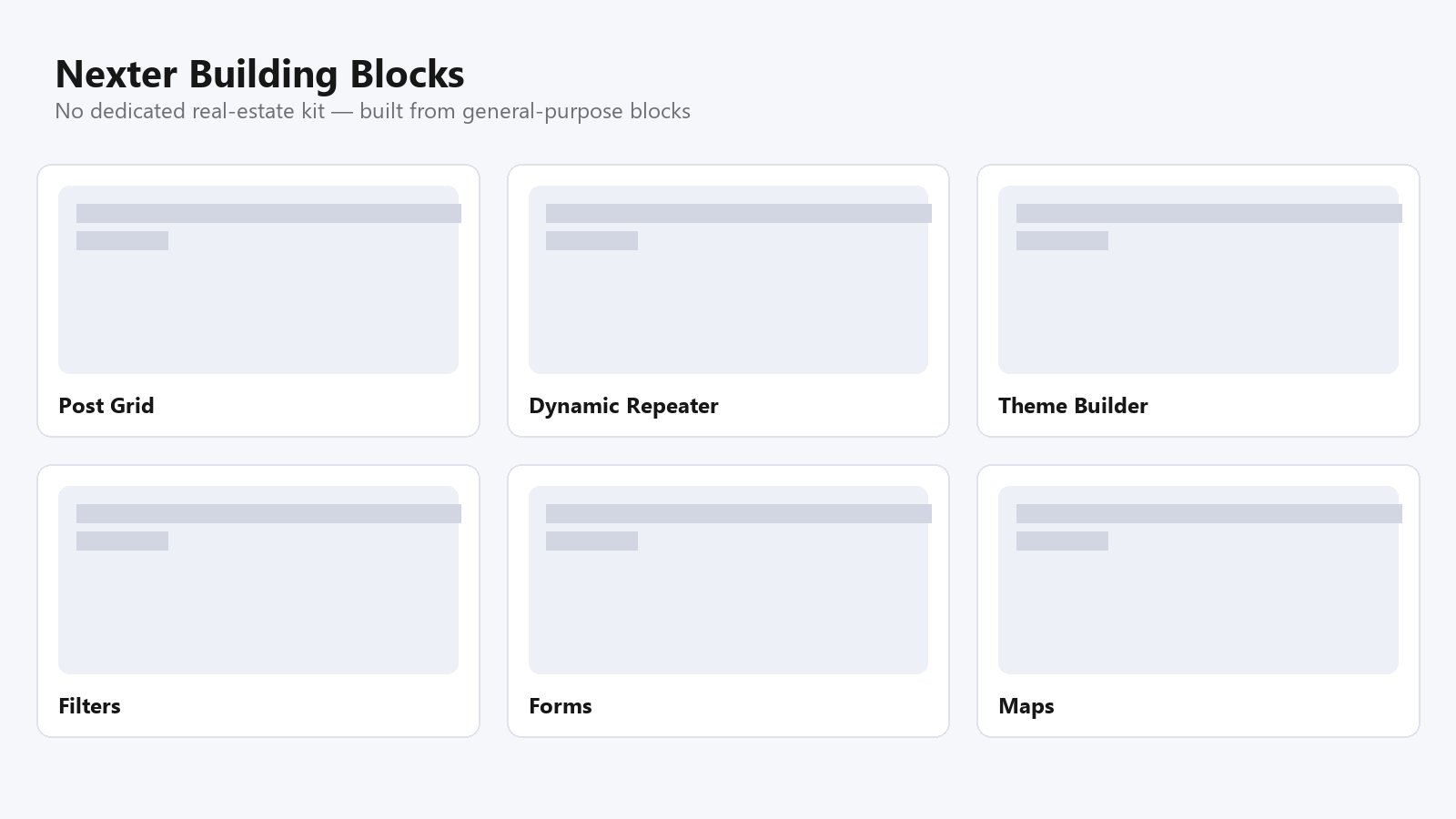
Search “real estate WordPress theme” and most results point at a single bundled theme that expects every listing to fit its one template. That’s fine until an agency needs to filter by price range, or a solo agent wants listings to look like the rest of their brand instead of a generic property-portal clone. Nexter doesn’t ship a dedicated real-estate template, and it’s worth saying that plainly rather than pretending otherwise. What it does ship is the block-level toolkit, a filterable post grid, a dynamic repeater field for structured data, and a full theme builder, that a real estate listing page is actually built from underneath any pre-made template.
This walkthrough covers building a property listing grid, a single-property template with the specs a buyer actually needs, a working filter bar, and the SEO and performance basics a listings site can’t skip.
What You Need Before Starting
A real estate listing page is really three pieces working together: a custom post type for “Property” (rather than jamming listings into regular Posts), a grid that displays those properties with filtering, and a single-property template that shows one listing’s full detail. Nexter Blocks and Nexter Theme cover the last two directly. The custom post type itself, along with structured fields like price, bedrooms, and square footage, comes from a data source the Dynamic Repeater block can read, JetEngine or ACF Pro are the two Nexter documents as compatible.
None of this requires touching PHP. The building blocks are visual: Nexter Blocks’ Post Grid for the listing overview, the Dynamic Repeater for pulling structured property fields into a layout, and Nexter Theme’s builder for the header, footer, and single-property template.
Custom Post Type or Regular Posts?
It’s tempting to just use regular Posts for listings, especially on a first build, tag each one “for-sale” or “sold” and move on. That works for a handful of properties, but it breaks down fast once a site needs listing-specific fields that a blog post was never built to hold, or once “Blog” and “Listings” need to be two separate, independently organized sections of the same site. A dedicated Property post type keeps listings out of the blog’s own post list, gives each property its own URL structure, and is what JetEngine or ACF actually expect when you attach custom fields to a specific content type rather than to Posts generally.
Setting one up takes a few minutes in JetEngine’s post-type manager or through ACF’s own post-type UI (both now ship a no-code interface for this, no custom PHP required), and it’s the one decision worth making before building the grid, changing post types after a site already has fifty listings entered means re-migrating every one of them.
Building the Listing Grid
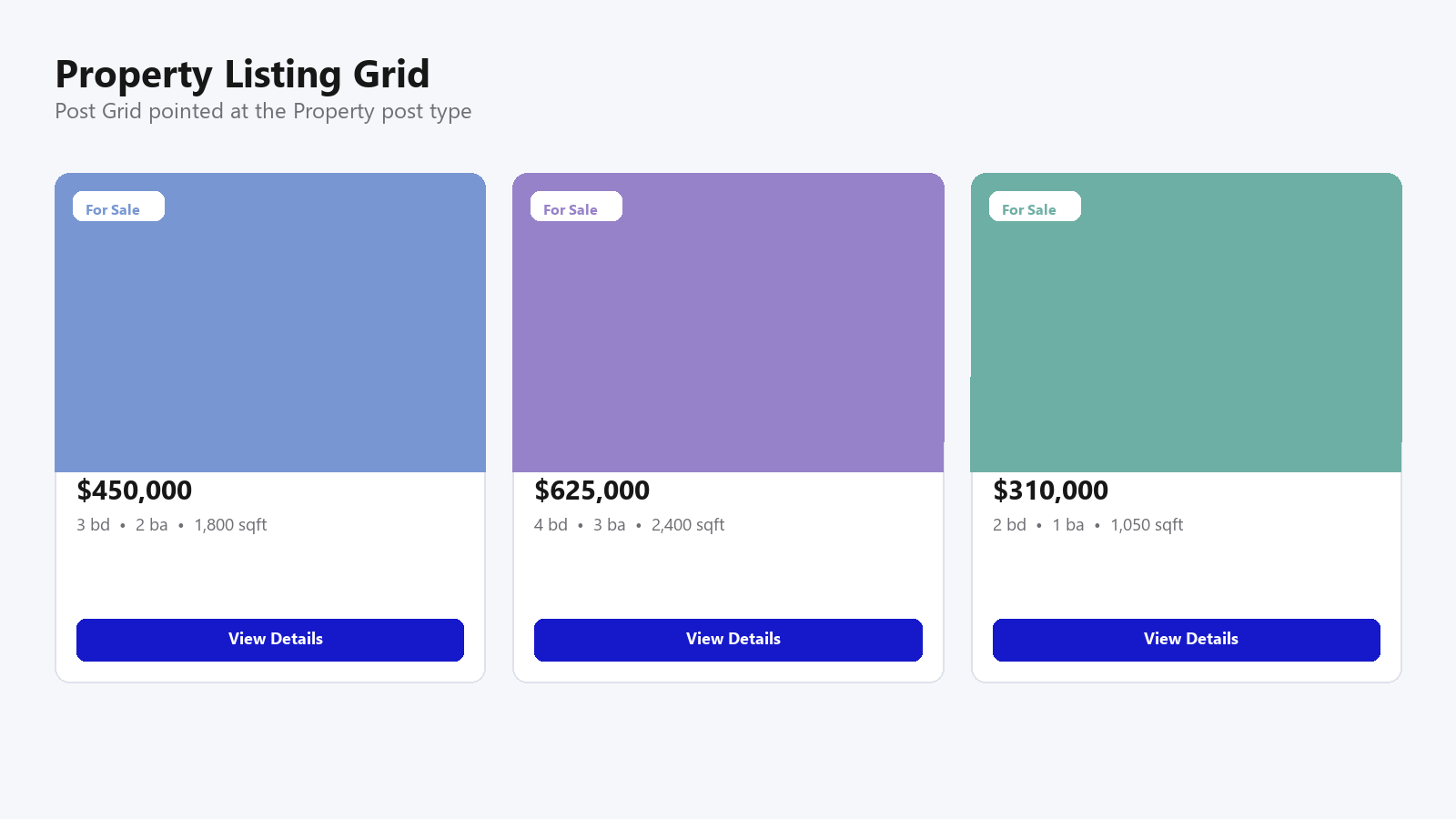
Add the Post Grid block to the page that will act as the main listings view, and point its query at the Property post type instead of the default Posts. The block’s own settings handle the layout mechanics that a listings page actually needs: sorting (newest first, price low to high), pagination or a “load more” button instead of forcing every property onto one long page, and column counts that adjust per device so a three-column desktop grid collapses to one column on mobile without extra configuration.
Each grid item pulls from the property’s featured image, title, and excerpt by default. For a real listing, replace the excerpt with the fields that actually drive a buyer’s first filter, price and location most of all, which is where the Dynamic Repeater comes in for the card layout itself, not just the single-property page.
Also Read: The Nexter Grid View Theme Builder: What It Is and How to Use It for the underlying archive-template mechanics this grid relies on.
The Individual Property Page
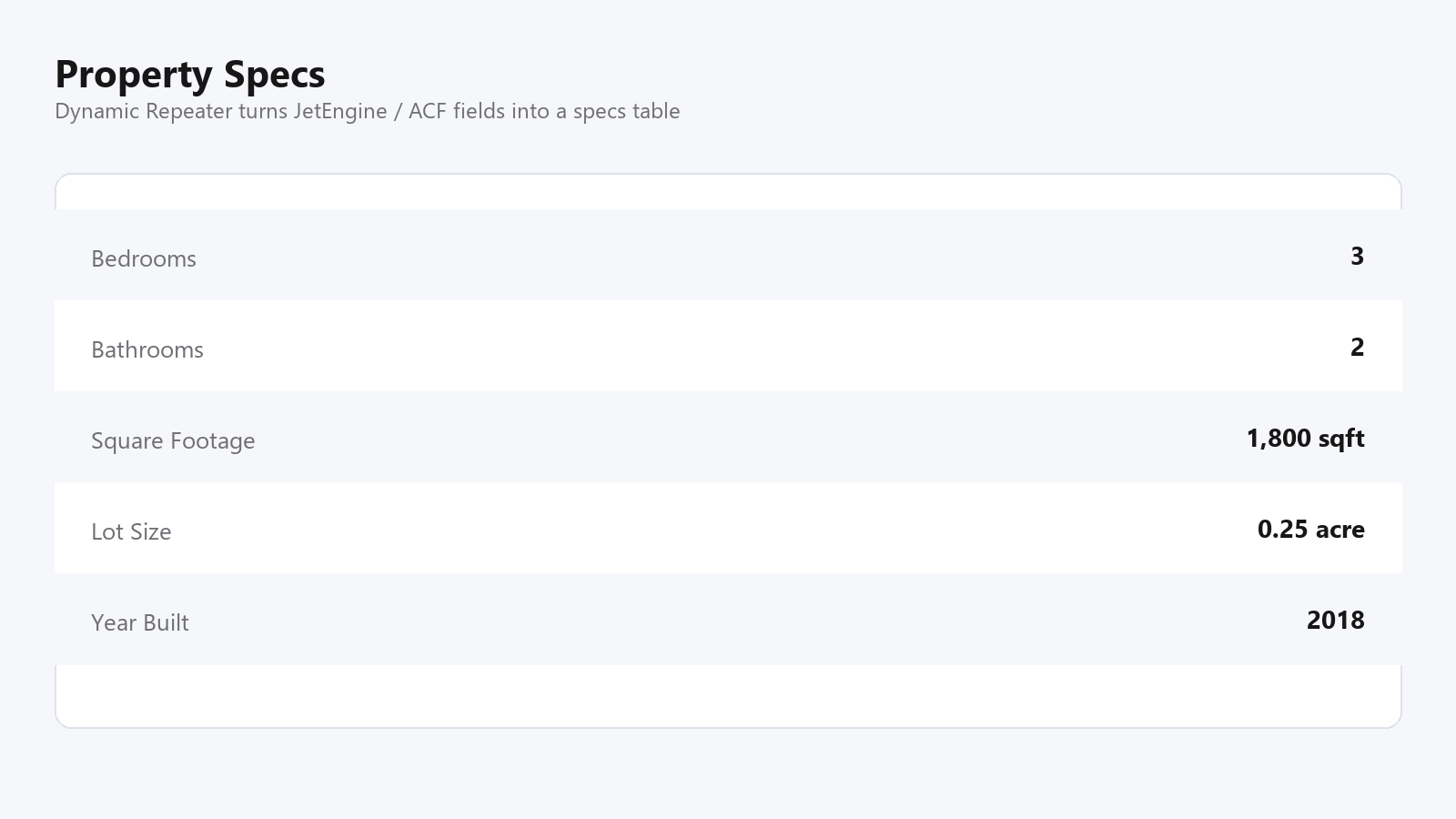
A single-property page needs more structure than a blog post: an image gallery, a price and specs block, an agent contact card, and a map. Nexter Theme’s builder lets you design one template for the Property post type once, rather than manually laying out every listing by hand. Inside that template, the Dynamic Repeater block reads the structured fields, bedrooms, bathrooms, square footage, lot size, year built, from JetEngine or ACF Repeater and renders them as a clean spec list or table, instead of a paragraph of prose a buyer has to read through to find the one number they actually care about.
For the image side of a property page, a plain gallery block covers most needs, but an agency working in Elementor on other parts of the same portfolio should know The Plus Addons for Elementor’s Custom Loop Skin solves the identical listing-grid problem for teams standardized on that builder instead.
Adding a Search and Filter Bar
A listings page without a filter is a wall of properties nobody wants to scroll through. Nexter Blocks’ grid and listing tools include filter controls that pair with the Post Grid, letting visitors narrow results by taxonomy terms, property type, location, or a custom price-range field, without a page reload. Set this up by creating taxonomies for the fields buyers actually filter on (most sites need at minimum a location and a property-type taxonomy), then connecting the filter block to the same query the grid is already running.
If your visitor traffic skews mobile, and real estate browsing usually does, test the filter bar specifically on a phone-width screen before launch. A filter panel that takes over the whole screen or requires horizontal scrolling to reach the “Apply” button will lose more visitors than a missing filter feature ever would.
Also Read: How to Add an Image Lightbox in WordPress for popup property photo viewing without leaving the listing page.
A property search bar is one place where a dedicated Elementor solution is worth naming directly: The Plus Addons for Elementor’s search filter widgets cover the same ground for agencies whose real estate builds run on Elementor rather than Gutenberg.
Contact Form and Map
Every property page needs a way to convert a browsing visitor into an inquiry. A simple form block asking for name, email, phone, and a message pre-filled with the property address covers the basics, place it above the fold on the single-property template rather than buried at the bottom after the full spec list. A map embed showing the property’s location, using the address field from the same repeater data already powering the specs section, answers the second question every buyer has right after price: where exactly is this.
Performance and SEO Basics for a Listings Site
A listings site lives or dies on image weight, dozens of high-resolution property photos across dozens of listings adds up fast if nothing compresses them. Serve images through a modern format and lazy-load anything below the fold on the grid view, while keeping the single-property page’s primary photo eager-loaded so it doesn’t visibly pop in.
On the SEO side, structured data matters more here than on a typical blog page. A Real Estate Listing or Product schema type, applied per property, is what lets price and availability show up directly in search results instead of requiring a click-through just to see the number. Keep the single-property template’s title tag built from the property’s actual address or headline rather than a generic “Property #142”, and make sure the property’s featured image is set correctly since that’s what gets pulled into social shares and search snippets alike.
Common Mistakes on a First Listings Build
A few problems show up repeatedly on real estate builds that skip straight from grid to launch. Uncompressed property photos are the biggest one, a single listing with fifteen full-resolution camera images can weigh more than an entire well-optimized site, and multiplied across dozens of properties that becomes the single largest performance problem on the site, well before anything else gets optimized. Inconsistent field data is the second: if half the listings have square footage entered and half don’t, a filter or sort by that field produces confusing, half-empty results. Decide on required fields before entering the first ten properties, not after the fiftieth.
A third, subtler mistake is treating “sold” or “off-market” listings the same as active ones in the grid. A visitor filtering by price who lands on three sold properties before finding an available one loses trust in the whole listing fast. A status field, filtered out of the default grid view by default and only shown on a separate archive if the agency wants a “recently sold” showcase, keeps the active listings grid actually useful.
Conclusion
There’s no shortcut template that turns a property spreadsheet into a finished listings site in one click, and it’s worth being upfront that Nexter doesn’t have a dedicated real-estate starter template today. What it has is the actual building blocks a real-estate site is made of underneath any template: a filterable grid, structured spec fields through the Dynamic Repeater, and a theme builder that handles the single-property layout once instead of per listing. Put those three together and the template gap stops mattering much, because you’re building the exact page a real estate site needs instead of adapting one that was designed for something else.
Frequently Asked Questions
Does Nexter have a dedicated real estate template?
Not as a pre-built starter template today. Real estate listing pages are built from Nexter’s general-purpose blocks instead, the Post Grid for the listing overview, the Dynamic Repeater for structured property data, and Nexter Theme’s builder for the single-property template.
Do I need JetEngine or ACF for a property listing site?
For structured fields like price, bedrooms, and square footage, yes. The Dynamic Repeater block reads dynamic content from JetEngine or ACF Repeater, so one of those two needs to be the data source behind a property’s custom fields.
Can visitors filter listings by price or location?
Yes, by connecting a filter block to the same query the Post Grid is running and setting up taxonomies for the fields you want filterable, typically property type and location at minimum.
Is the Dynamic Repeater block free?
No, the Dynamic Repeater is a Pro feature in Nexter Blocks. The Post Grid block used for the listing overview is available in the free tier.
What schema type should a property page use?
A Real Estate Listing or Product-type structured data markup, applied per property with the correct price and availability fields, is what allows those details to appear directly in search results.
Suggested Reading
- The Nexter Grid View Theme Builder: What It Is and How to Use It
- How to Add an Image Lightbox in WordPress
- Nexter Theme Header Builder: Building a Sticky, Transparent, or Mega-Menu Header
- How to Build a WooCommerce Store with the Nexter Theme
