












Most WordPress SEO advice starts with a plugin. Install Rank Math or RankReady, fill in a focus keyword, and let the plugin’s checklist tell you what’s wrong. That’s fine as far as it goes, but a few of the settings that matter most for how fast a page loads and how a search engine reads it live inside the theme, not the SEO plugin. Nexter Theme powers all of that from its own Global Styles Manager and Theme Builder, and getting a handful of these settings right before you publish saves you from going back and fixing the same thing on twenty pages later.
This is a walkthrough of the theme-level settings worth checking before your first post or page goes live on a Nexter site, in roughly the order you would actually touch them on a fresh install: font and style setup first, since everything else inherits from it, then image handling, header weight, URL structure, and finally the SEO plugin layer that sits on top of all of it.
Why Theme Settings Come Before Plugin Settings
An SEO plugin can tell you your meta description is missing or your heading structure skips a level. It cannot fix a bloated font-loading setup, an unoptimized header image, or a Largest Contentful Paint element that takes two seconds to render because of how the theme handles fonts and images. Those are theme-level decisions, and on Nexter they live in Global Styles and the Theme Builder, both reachable from the Unified Dashboard.
Global Styles: Keep Font Loading Lean
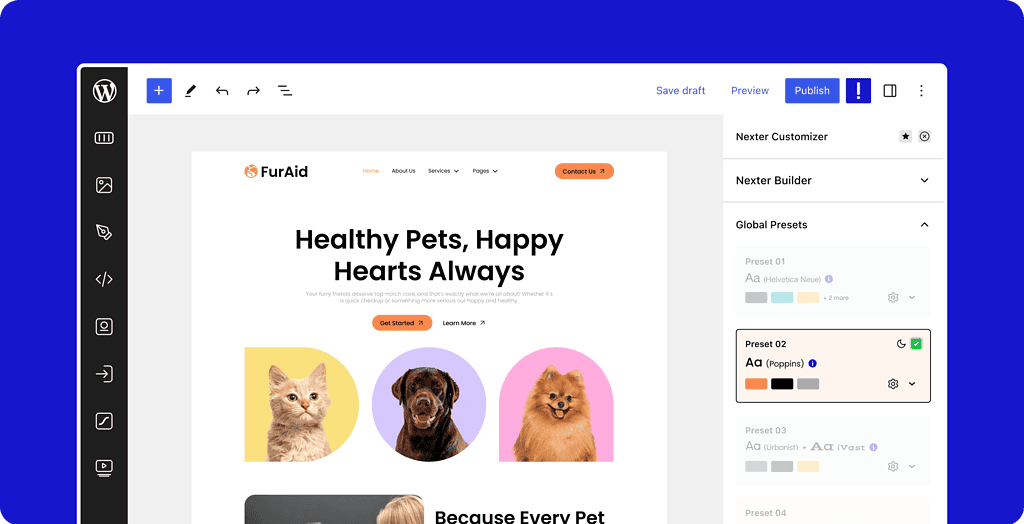
Global Styles Manager is where you set your heading font, body font, brand color and spacing defaults sitewide. Every additional font weight and style you enable is a separate file the browser has to fetch before text renders, which matters directly for Core Web Vitals. Before you publish anything, go in and remove font weights and styles you are not actually using in your design. Two fonts, each with two or three weights, is enough for almost any site. Loading six weights of a display font because it “might be useful later” is a common way to quietly slow down every page.
Turn On Nexter’s Built-In Image Optimization
Nexter ships with its own bulk image optimizer, separate from whatever compression a caching plugin might already be doing. Run it once against your existing media library before you publish new content, and check that new uploads are optimized automatically going forward rather than something you have to remember to do per image. Large, unoptimized hero and header images are one of the most common reasons a page fails the Largest Contentful Paint threshold in Core Web Vitals, and this is the fix on this list with the biggest payoff for the least effort, because it applies to every image on every page at once rather than one page at a time.
Also Read: Image SEO for WordPress: How to Optimize Images for Search and AI for the full picture on alt text, file formats and lazy loading once the bulk optimizer pass is done.
Header Builder: Watch What Sits Above the Fold
The header you build in Nexter’s Theme Builder renders on every page, which means anything heavy you put in it, an oversized logo file, an embedded slider, a large background image, gets loaded before your actual page content. Keep the header itself light: an optimized logo, simple navigation, and if you need a call-to-action button, a plain button block rather than an animated graphic. A sticky header is fine for SEO and usability; a header stuffed with unnecessary assets is not.
Also Read: Nexter Theme Header Builder: Building a Sticky, Transparent, or Mega-Menu Header for the full set of header options and when to reach for each one.
Permalinks and Clean URLs
This one is WordPress core, not Nexter-specific, but it belongs on a pre-publish checklist because it is easy to skip on a fresh install. Under Settings > Permalinks, use the “Post name” structure so your URLs read as clean slugs instead of query strings. If you inherited a site with the default numeric structure, changing it later without setting up redirects breaks every existing link.
Also Read: What Are Permalinks in WordPress? The Best Structure for SEO for the full breakdown of structure options and when each one makes sense.
Pairing Nexter With an SEO Plugin for Meta and Schema
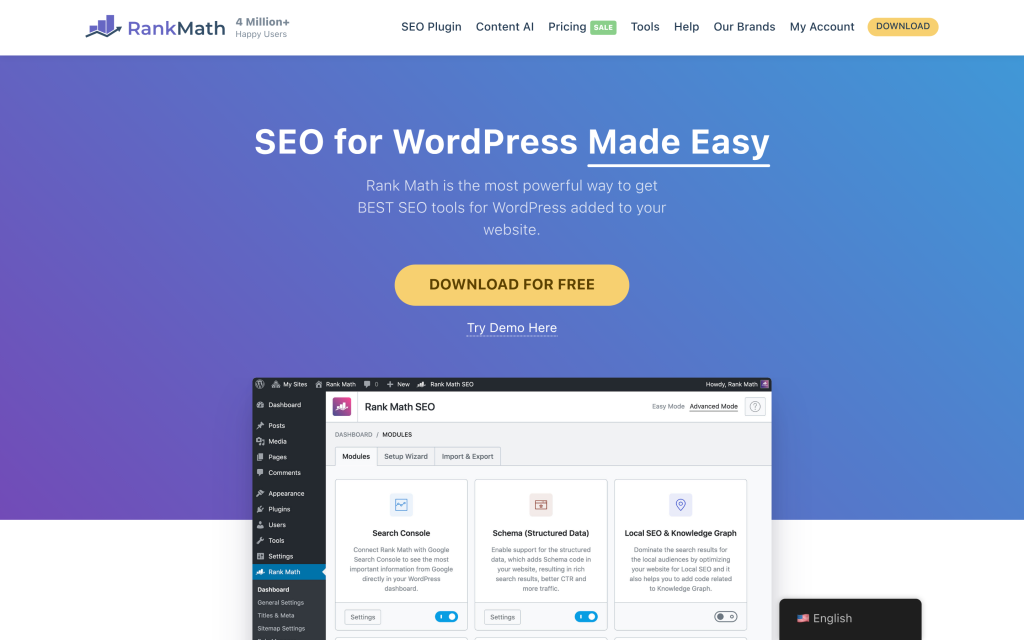
Theme settings handle speed and structure; an SEO plugin still handles meta titles, meta descriptions, XML sitemaps and schema markup. Nexter works cleanly with Rank Math, and POSIMYTH’s own RankReady plugin is built specifically to also structure a page for AI search engines and answer boxes, not just traditional Google results, generating an on-page key-takeaways summary and FAQ schema automatically from your content. Whichever plugin you choose, install it before you publish your first real page rather than after, so nothing goes live with an empty meta description.
The division of labor is worth being explicit about, because it is the part people get confused about most. Your theme decides how fast the page loads and how the markup is structured under the hood. Your SEO plugin decides what search engines and AI answer engines are told about that page: the title tag, the meta description, the canonical URL, the sitemap entry, and any schema markup describing what type of content it is. Get the theme half wrong and the fastest, best-optimized meta description in the world will not save a page that takes six seconds to become interactive. Get the plugin half wrong and a fast, well-built page still shows up in search results with a generic auto-generated snippet instead of a description you actually wrote to earn the click.
What RankReady Automates vs What You Still Set Yourself
Once RankReady is active, it handles a set of things automatically that used to require manual work: it generates an on-page Key Takeaways summary block from your published content, builds an FAQ section with matching FAQPage schema, and adds author and E-E-A-T signal markup pulled from the WordPress user profile assigned to the post. None of that requires you to hand-write JSON-LD or remember to add a summary box to every post. What it does not do for you is the actual writing: your H1, your body copy, your image alt text, and your internal links are still on you. Treat RankReady as the layer that packages your content correctly for search and AI answer engines, not as a substitute for writing something worth packaging.
Check What Structured Data Actually Goes Out
Structured data is the part of this checklist that is easiest to assume is handled and never verify. Once RankReady or Rank Math is active, it is generating schema markup automatically, typically Article or BlogPosting schema for a post, Organization schema describing the site itself, and, where relevant, FAQPage schema for any on-page Q&A section, but “automatically generated” is not the same as “correct for your site.” Before you publish at any real volume, pull up one live post in Google’s Rich Results Test and confirm the schema that actually renders matches what you expect: the right author, the right published date, the right organization name and logo.
Confirm the XML Sitemap Is Actually Updating
Your SEO plugin generates an XML sitemap automatically, but “generates a sitemap” and “keeps that sitemap current every time you publish” are not guaranteed to be the same thing, especially on a site running caching or a CDN in front of WordPress. Before you rely on it, publish a test post and check that its URL actually appears in the sitemap within a few minutes, not just that the sitemap file itself loads.
Get Your Category Structure Right Before You Scale
This one is not a toggle in a settings panel, but it belongs on a pre-publish checklist because it is far more painful to fix after fifty posts than before your first one. Decide on your top-level blog categories, WordPress, SEO, Comparison, Reviews, whatever fits your site, before you publish, and keep the list short. A site with three broad, consistent categories gives search engines and visitors a clear map of what the site covers.
Mobile Responsiveness Settings That Affect Mobile-First Indexing
Google indexes the mobile version of your site by default, which means a setting that looks fine on desktop but breaks on mobile is not a minor cosmetic issue, it is an SEO issue. In Nexter’s Theme Builder and Global Styles, check three things specifically before you publish: that your header collapses into a usable mobile menu, that font sizes have sensible mobile breakpoints, and that any multi-column layout actually stacks cleanly on mobile. Preview every template at mobile width before publishing, not just desktop, since that mobile render is the one that actually gets indexed and ranked.
Common Mistakes That Undo All of This
- Running the image optimizer once and never again. Every image uploaded afterward goes out unoptimized if auto-optimization on new uploads was never actually confirmed on.
- Forgetting the header renders on every page. A heavy header built once is a sitewide performance tax, not a homepage-only decision.
- Treating an SEO plugin install as the finished task. Meta descriptions left on auto-generate indefinitely are not the same as descriptions written to earn the click.
The Pre-Publish Checklist
- Global Styles: only the font weights you actually use, brand color and spacing set once, sitewide.
- Image optimization: run Nexter’s bulk optimizer on existing media, confirm auto-optimization is on for new uploads.
- Header: lightweight logo, simple nav, no unnecessary embedded assets above the fold.
- Permalinks: “Post name” structure set before you publish, not after.
- SEO plugin installed: Rank Math or RankReady active with meta titles and descriptions actually filled in, not left blank.
- Category structure: a short, consistent set of top-level categories decided before your post count grows past a handful.
- Mobile check: header, font sizes and any multi-column layout previewed at mobile width, not just desktop.
Wrapping Up
None of these settings take more than a few minutes to check individually. The reason they get skipped is that they live in different places, Global Styles, the Theme Builder, the media library, Settings > Permalinks, and a plugin screen, so it is easy to publish content before touching any of them. Run through the checklist once on a fresh Nexter install, and every page you publish afterward inherits the fix automatically.
Frequently Asked Questions
Does changing Global Styles fonts affect pages I’ve already published?
Yes. Fonts, brand color and spacing in Global Styles are pulled from one sitewide stylesheet, so a change there updates every existing page automatically. You do not need to re-save or re-publish individual posts for the update to take effect.
Do I need to run both Rank Math and RankReady at the same time?
No. Running two full SEO plugins together risks duplicate meta tags and conflicting schema output. Pick one as your primary SEO plugin based on whether traditional search (Rank Math) or AI search and answer engines (RankReady) matters more for your site.
How often should I re-run Nexter’s image optimizer?
Once your existing library is compressed and auto-optimization is confirmed on for new uploads, you don’t need to re-run it on a schedule. The exception is a bulk import, such as migrating media from an old backup, which is worth running through the optimizer manually afterward.
Will changing my permalink structure hurt rankings I already have?
It can, temporarily, if you change structure on a site with existing traffic without setting up 301 redirects from the old URLs to the new ones. Changing structure before you have any real rankings to protect, on a brand-new site, is the safe time to do it.
Suggested Reading
- What Are Permalinks in WordPress? The Best Structure for SEO
- What Makes a WordPress Theme SEO-Friendly? (+ 6 Best Picks for 2026)
- Image SEO for WordPress: How to Optimize Images for Search and AI
- The Technical SEO Checklist for WordPress
