












A customer once emailed me to say they had filled out our contact form three times and never heard back. They assumed we were ignoring them. We were not. The form said “message sent” every single time, but not one of those emails ever reached our inbox. The site had been quietly swallowing every submission for weeks.
If your WordPress site is not sending email, this is the worst part of the problem: nothing looks broken. Contact forms show a success message, WooCommerce marks the order complete, and the password reset page tells the user to check their inbox. Behind the scenes, the messages never leave the server.
The good news is that WordPress not sending email is almost always fixable, and usually with one specific change: sending your mail through an authenticated SMTP connection instead of the default PHP method. This guide walks through why the problem happens, how to confirm what is failing, the fixes worth trying, and a full step by step SMTP setup so your emails actually get delivered.
Why Your WordPress Emails Are Not Sending
Most WordPress email problems come down to one of a handful of causes. Knowing which one you are dealing with saves a lot of guessing:
- No authentication. WordPress sends mail with no proof it is a real sender, so spam filters block it or drop it silently.
- Your host disabled mail. Many shared hosts turn off or heavily limit the PHP mail function to stop spam.
- A plugin or theme is interfering. A form plugin, security plugin, or caching layer can break the send.
- Wrong from address. Sending as an address that does not match your domain gets messages rejected.
- Emails are queued or cached. Some setups hold messages in a queue that never clears.

How WordPress Sends Email by Default
By default, WordPress sends email using the PHP mail() function. It is built into the server, needs no setup, and handles things like password resets, form notifications, and new user registrations out of the box.
The problem is that mail() sends messages with no authentication. There is nothing to prove the email genuinely came from your domain. Modern mail providers such as Gmail, Outlook, and Yahoo treat unauthenticated mail as suspicious, so they push it to spam or reject it outright. That is why so many sites appear to send email but never actually get it delivered.
SMTP solves this. Instead of firing mail straight off the web server, SMTP logs in to a real mail service with a username and password, exactly like an email client does. The message is authenticated, trusted, and far more likely to land in the inbox. We will set that up in a moment, but first confirm what is actually failing.
First, Run a Quick Test
Before changing anything, find out how widespread the problem is. Ask yourself two questions:
- Is every email failing, or just one type? If password resets work but contact form emails do not, the issue is likely the form plugin, not WordPress itself.
- Do you have a test email tool? Most SMTP plugins include a test email button. Send one to an inbox you control and check whether it arrives, and whether it lands in spam.
A quick test tells you whether you are chasing a site wide delivery problem or a single plugin. If it is only your form, the fix may be as simple as reviewing the form settings. If nothing sends, the cause is almost always authentication, which SMTP handles.
How to Fix WordPress Not Sending Emails
Work through these fixes in order. The first four rule out simple causes, and SMTP setup in the next section is the one that resolves most cases for good.
Method 1: Check Your WordPress Email Settings
Start with the basics. Go to Settings > General and confirm the administration email address is correct and one you can actually check. A typo here means admin notifications go nowhere.

Also check the from address used by your forms and WooCommerce. If it sends as something that does not match your domain, providers are more likely to reject it. Using an address at your own domain, such as hello@yourdomain.com, is far safer.

Method 2: Rule Out Plugin and Theme Conflicts
A conflicting plugin is a common cause, especially security or caching plugins that interfere with how mail is sent. To test, temporarily deactivate your plugins, then send a test email. If it works, reactivate them one by one until the problem returns. That last plugin is your culprit.

Also Read: How to Set Up WordPress Email Notifications to control exactly which alerts your site sends and who receives them.
Method 3: Check for Hosting Restrictions
Many shared hosts disable or throttle the PHP mail function to prevent spam. If your settings look fine but nothing sends, contact your hosting provider and ask two things: is the mail function enabled, and are there sending limits on your plan. Some hosts also require you to send through their own mail servers. Either way, SMTP usually sidesteps these limits because it authenticates with an outside mail service.
Method 4: Confirm User Email Addresses
If specific users report missing password resets or registration emails, check that their addresses are entered correctly and are not bouncing. A single mistyped address looks like a site wide failure when it is really one bad entry. Ask the user to check their spam folder too, since unauthenticated mail often lands there.
Method 5: Clear Email Queues and Caching Issues
Some plugins queue outgoing mail and send it on a schedule. If that queue stalls, messages pile up and never go out. Check any mail or SMTP plugin for a queue or log, and clear it if needed. Aggressive page caching can also serve stale form pages, so clear your cache after any change. If you are unsure which caching setup you run, our guide to the best WordPress cache plugins explains the options.
The Real Fix: Set Up SMTP in WordPress (Step by Step)
SMTP is the fix that solves WordPress not sending email in most cases. It routes your mail through an authenticated service instead of the raw server, so messages are trusted and delivered. Here is how to set it up.
Step 1: Choose an SMTP Service
First, pick where your mail will actually send from. For low volume, the free tier of a transactional email service such as Brevo, SendGrid, Mailgun, or Amazon SES works well. You can also use Gmail or Google Workspace SMTP for a small site. For higher volume or better deliverability, a dedicated transactional provider is the stronger choice.
Step 2: Get Your SMTP Credentials
Once you sign up with a provider, they give you the details WordPress needs to connect. You will collect four things:
- SMTP host, for example smtp.yourprovider.com
- Port, usually 587 for TLS or 465 for SSL
- Encryption, TLS or SSL
- Username and password, or an API key the provider issues
Step 3: Enter the Settings in WordPress
You need a tool that adds SMTP support to WordPress, since core does not include a settings screen for it. You have two honest options.
If you already run the Nexter Extension, it includes a built in SMTP Email Setup utility, so you can configure your host, port, encryption, and login without adding another plugin. It sits alongside other utilities like Google reCAPTCHA spam protection, which is handy since form spam and form delivery are related problems. You can read more in the Nexter Extension SMTP and security update.
Or you can install a dedicated SMTP plugin. Whichever you choose, you enter the same four details from your provider, set the from name and from address, and save. To compare the leading options, see our roundup of the best WordPress SMTP plugins.
Also Read: 5 Best WordPress SMTP Plugins compared on setup, deliverability, and free limits.
Step 4: Send a Test Email
Every SMTP tool includes a test email feature. Send one to an inbox you control and confirm it arrives in the inbox, not spam. If it lands, your WordPress email is fixed. If it still fails, double check the port and encryption pairing, since 587 goes with TLS and 465 goes with SSL, and make sure the username and password are exact.
For the best long term deliverability, add SPF and DKIM records for your sending domain. Your SMTP provider gives you these DNS records, and adding them tells inbox providers your mail is genuinely authorized. This is what moves you from “usually delivered” to “reliably delivered.”
Bonus: Turn On Login Email Notifications
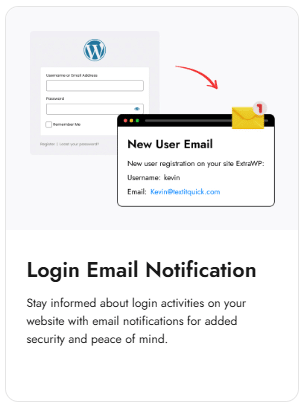
Once your email is sending reliably, put it to work on security. A login email notification alerts you whenever someone signs in to your admin account, so an unexpected login is an early warning of a compromised password. The Nexter Extension can send these alerts, and they are only useful once your email delivery actually works, which is one more reason to fix sending first.
Also Read: How to Create a Contact Form in WordPress and make sure its notifications reach you once SMTP is set up.
Wrapping Up
When WordPress is not sending email, the trap is that everything looks fine while messages quietly disappear. Start by testing how much is failing, rule out email settings, plugin conflicts, host limits, and bad addresses, then set up SMTP so your mail is authenticated and trusted. For most sites, SMTP is the single change that fixes it for good.
Do the SMTP setup once, send a test, add your SPF and DKIM records, and your contact forms, password resets, and order emails will finally land where they belong.
FAQs on Fixing WordPress Not Sending Emails
Why are my WooCommerce notification emails not being sent?
WooCommerce sends order emails through the same WordPress mail system, so if it is unauthenticated, providers filter those emails out. Setting up SMTP fixes WooCommerce order and status emails along with everything else. Also confirm the relevant emails are enabled under WooCommerce settings.
How do I fix WordPress not sending password reset emails?
Password reset failures are usually a delivery problem, not a WordPress bug. Set up SMTP so the reset email is authenticated, and ask the user to check spam. If a single account is affected, verify the email address on file is correct.
Why do my WordPress emails go to Gmail spam?
Gmail is strict about authentication. Mail sent with the default PHP method has none, so it often lands in spam. Sending through SMTP, using a from address on your own domain, and adding SPF and DKIM records tells Gmail your mail is legitimate.
How do I enable WordPress to send emails through my web host?
Ask your host whether the PHP mail function is enabled and whether there are sending limits. Many hosts, including large shared providers, restrict it. If they do, use their SMTP details, or an outside SMTP service, to send authenticated mail instead.
Why might Contact Form 7 not be sending emails?
Contact Form 7 relies on WordPress to send, so if the site cannot send authenticated mail, form submissions vanish even though the form shows a success message. Setting up SMTP almost always resolves it. Double check the form’s mail tab for a valid to address as well.
Suggested Reading
- 5 Best WordPress SMTP Plugins
- How to Set Up WordPress Email Notifications
- How to Create a Contact Form in WordPress
- Best WordPress Contact Form Plugins
- The Ultimate WordPress Security Guide
