












Key Takeaways
- WordPress has no one-click button to duplicate a whole page in core. It can duplicate single blocks and copy all content, but not a full page with its title, featured image, template, and SEO settings.
- The easiest route for most people is a free plugin like Duplicate Page or Yoast Duplicate Post, which adds a Clone or Duplicate link to your Pages list.
- You can duplicate a page without any plugin using the block editor Copy all content option, then paste it into a new page. It copies the blocks only.
- Developers can add a permanent Duplicate link with a small code snippet in functions.php or a code snippets plugin.
- If you only want to reuse a section across pages, a synced pattern or reusable block is usually a better fit than duplicating the whole page.
Say you have just finished a landing page you are happy with, and now you need a second one that is almost identical, with the same layout, spacing, and section order but different copy. Rebuilding it block by block is slow and easy to get slightly wrong. Duplicating the page you already have is faster and safer.
The catch is that WordPress does not make this obvious. There is no big Duplicate button staring back at you in the Pages screen. So in this guide I will walk through what WordPress can and cannot do on its own, then three reliable ways to duplicate a page: with a plugin, without a plugin, and with a small piece of code. Pick the one that matches how comfortable you are with your site.
Does WordPress Have a Built-In Duplicate Page Button?
Short answer: not for a whole page. WordPress core does not give you a single button that clones an entire page along with its title, featured image, page template, page attributes, and SEO settings. That is exactly why plugins built only to duplicate content have millions of active installs.
What the block editor does handle natively is duplication at the block level. You can select any block and duplicate it with Ctrl + Shift + D on Windows or Shift + Command + D on Mac, per the official WordPress keyboard shortcuts documentation. You can also select every block on a page with Ctrl + A (press it again to jump from text to all blocks), then copy and paste them elsewhere. And the editor Options menu has a Tools section that lets you copy all content on the post or page in one action.
So the honest framing is this: core can copy the content of a page, but it cannot clone the whole page as a single object. Whether that matters depends on your goal, which is what the three methods below sort out.
Also Read: What is Gutenberg? for a quick primer on how the WordPress block editor works before you start copying blocks around.
Method 1: Duplicate a Page With a Plugin (Easiest)
For most people, a dedicated plugin is the fastest and safest option. It adds a real Duplicate or Clone link right under each page in your Pages list, and it copies the full page, not just the blocks. Two well-established options stand out.
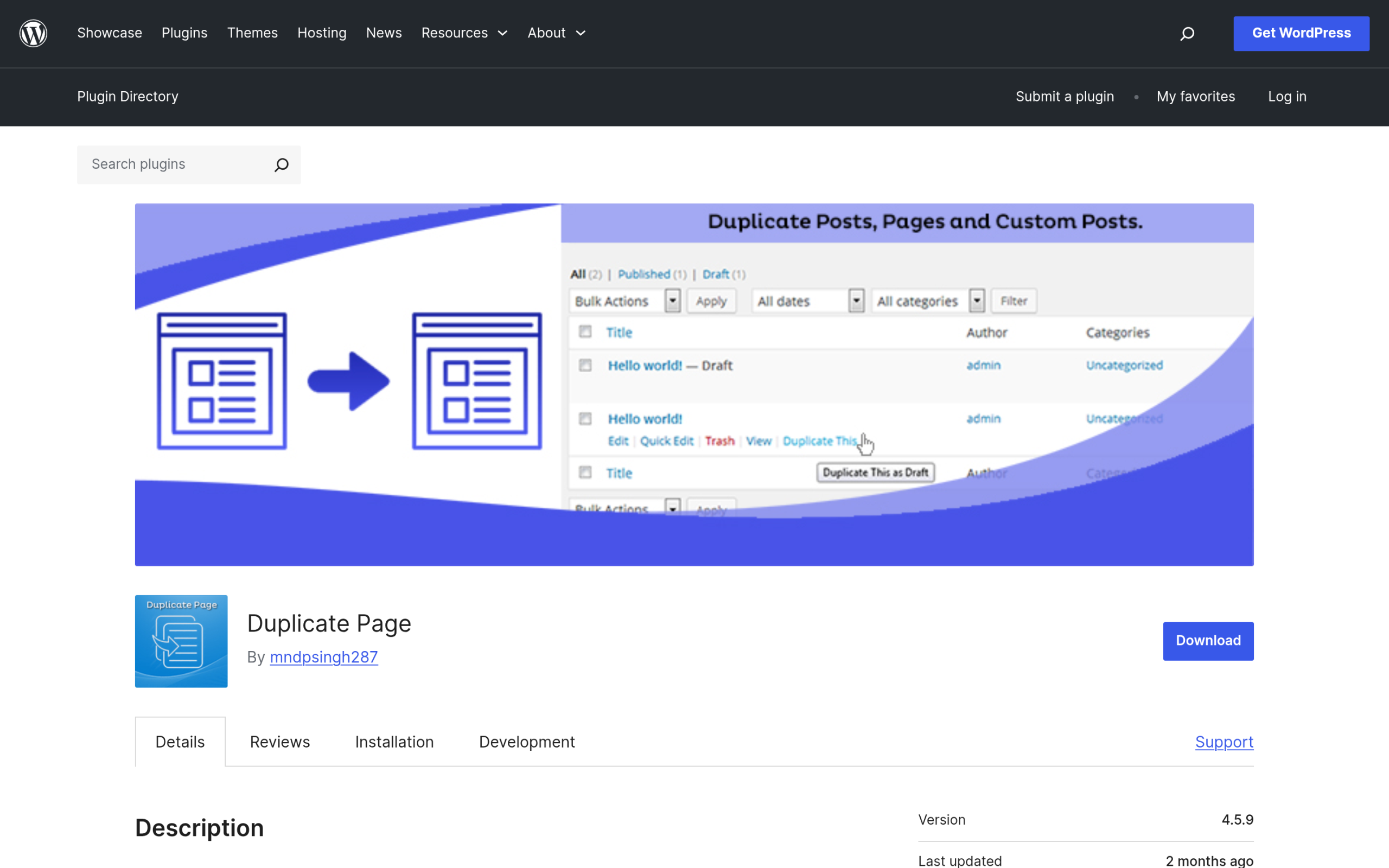
Option A: Duplicate Page
Duplicate Page by mndpsingh287 has more than 3 million active installs, a 4.8 star rating from 467 reviews, and was last updated in May 2026 (version 4.5.9). Here is how to use it:
- In your dashboard, go to Plugins > Add New, search for Duplicate Page, then install and activate it.
- Go to Pages > All Pages.
- Hover over the page you want to copy and click the Duplicate This link that now appears with Edit, Quick Edit, and Trash.
- WordPress creates a copy as a draft. Open it, rename it, change the content, and publish when ready.
By default the copy is saved as a draft, which is what you want, because it keeps the clone out of public view until you have finished editing it.
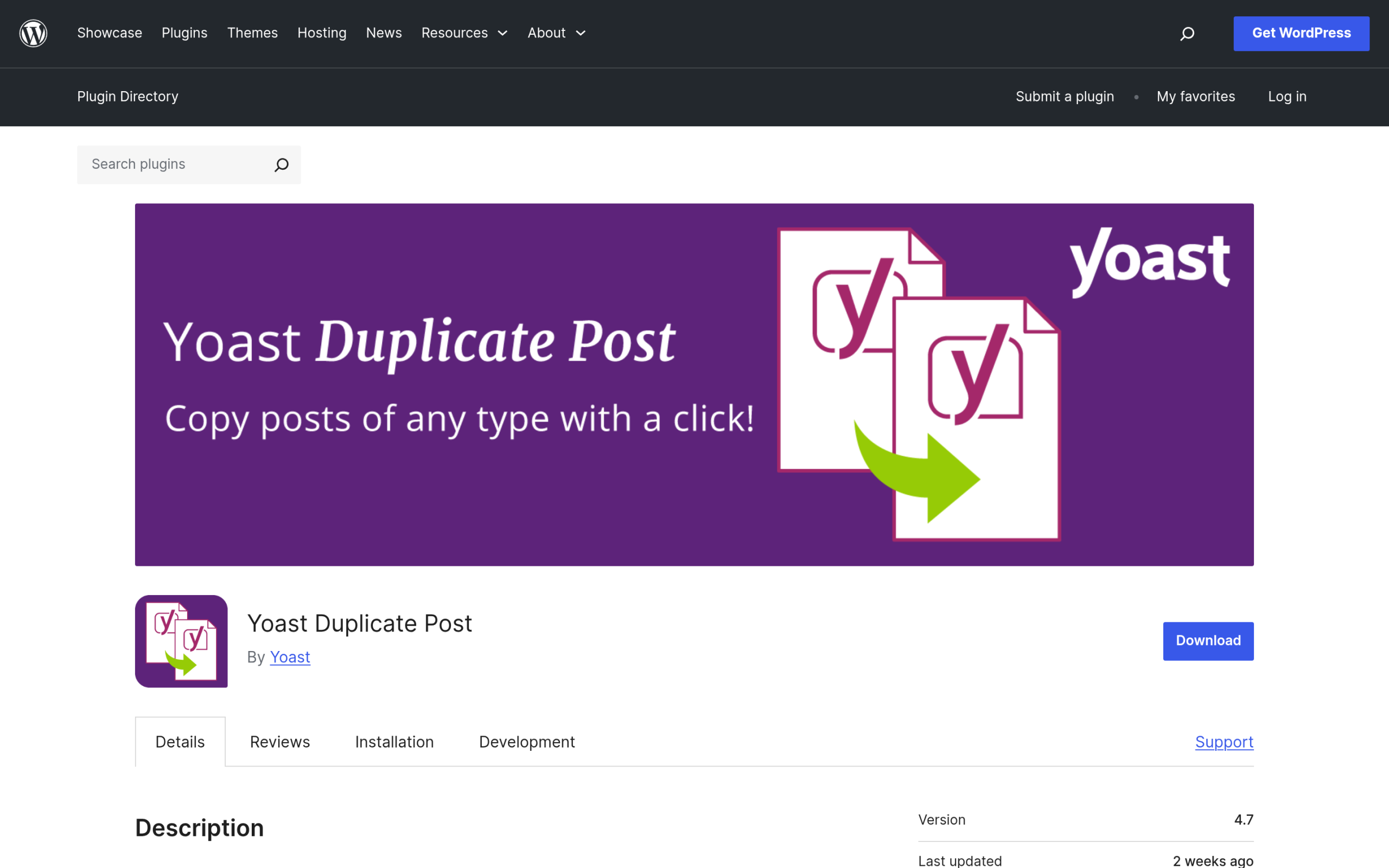
Option B: Yoast Duplicate Post
Yoast Duplicate Post is the other heavyweight, with more than 4 million active installs, a 4.7 star rating from 538 reviews, and support tested up to WordPress 7.0. It gives you two useful actions under each page:
- Clone makes an immediate copy in your Pages list, the same as Duplicate Page.
- Rewrite & Republish creates a duplicate you can edit privately, then pushes your changes back onto the original live page when you are done. This is the safer way to overhaul a page that is already published and getting traffic.
If you often update important, live pages, that Rewrite & Republish workflow alone makes Yoast Duplicate Post worth it. For a plain one-off copy, either plugin does the job in one click.
Also Read: 5 Best WordPress Backup Plugins so you always have a restore point before installing new plugins or bulk-editing pages.
Method 2: Duplicate a Page Without a Plugin (Copy All Content)
If you would rather not install anything for a quick, one-time copy, the block editor can move the content for you. This uses the native Copy all content option.
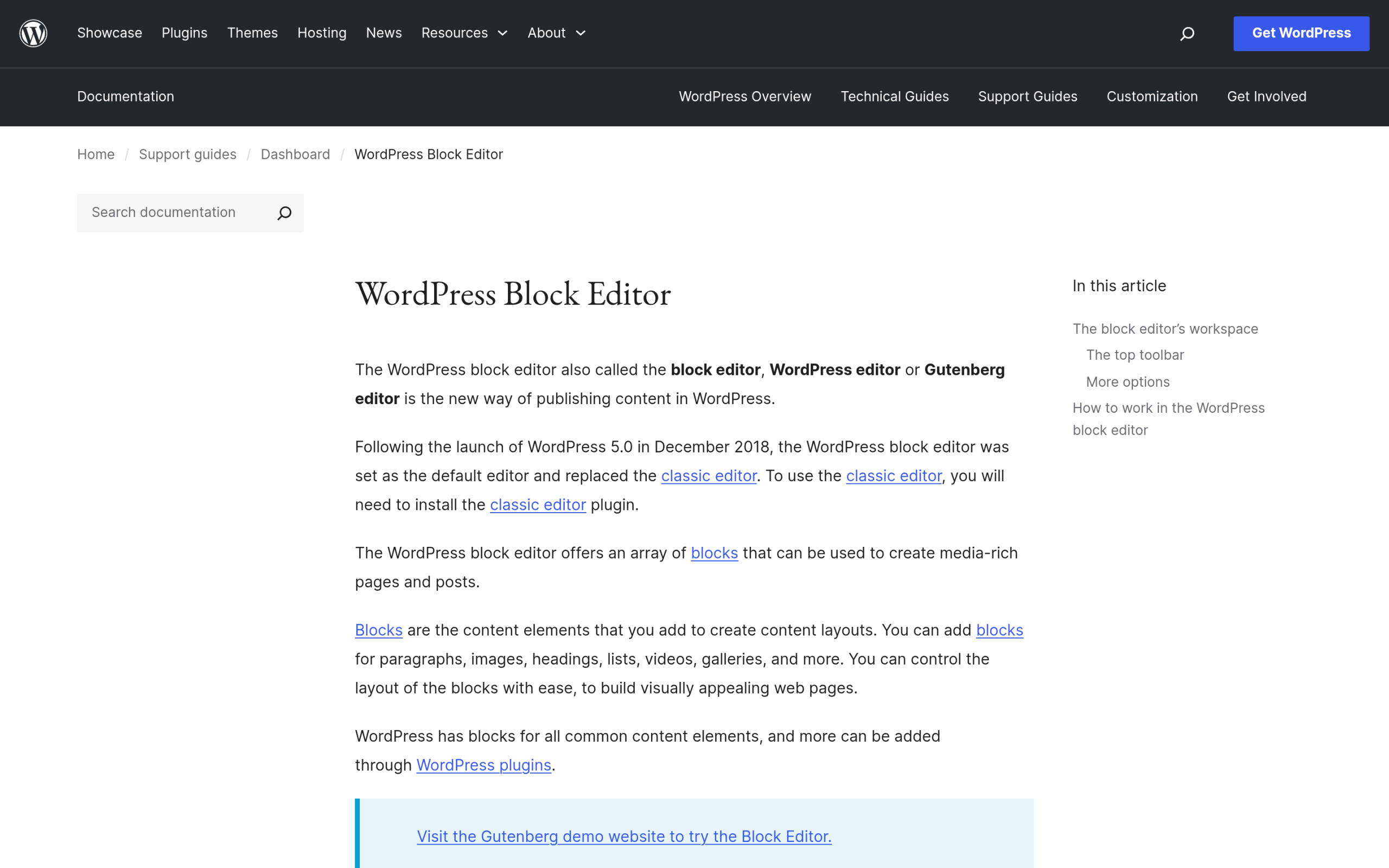
- Open the page you want to copy in the block editor.
- Click the Options menu (the three dots in the top-right corner), open Tools, and choose the option to copy all content. As an alternative, click inside the content, press Ctrl + A (or Command + A) until every block is selected, then copy with Ctrl + C.
- Go to Pages > Add New to create a fresh page.
- Click into the empty editor and paste with Ctrl + V (or Command + V). All your blocks appear in the new page.
- Add the title, set the featured image, and publish.
One important thing to know: this method copies the blocks only. It does not carry over the page title, the featured image, the page template, page attributes like parent or order, or your SEO title and meta description. You set those on the new page by hand. For a simple content page that is no trouble, but for a complex template-driven page a plugin saves you the cleanup.
Also Read: 50+ Best WordPress Keyboard Shortcuts including the block Duplicate and select-all shortcuts used in this method.
Method 3: Duplicate a Page With Code (For Developers)
If you want a permanent Duplicate link without adding another plugin, you can add one with a small function. This is an advanced route, so back up your site first and, ideally, add the code through a code snippets plugin rather than editing your theme files directly. If you edit functions.php in a parent theme, an update can wipe your change, so use a child theme or a snippets plugin.
function nexter_duplicate_page_action() {
    if ( ! isset( $_GET['post'] ) || ! current_user_can( 'edit_posts' ) ) {
        wp_die( 'No page to duplicate.' );
    }

    $post_id = absint( $_GET['post'] );
    $post    = get_post( $post_id );

    $new_id = wp_insert_post( array(
        'post_title'   => $post->post_title . ' (Copy)',
        'post_content' => $post->post_content,
        'post_status'  => 'draft',
        'post_type'    => $post->post_type,
    ) );

    wp_safe_redirect( admin_url( 'edit.php?post_type=' . $post->post_type ) );
    exit;
}
add_action( 'admin_action_nexter_duplicate_page', 'nexter_duplicate_page_action' );

function nexter_add_duplicate_link( $actions, $post ) {
    if ( current_user_can( 'edit_posts' ) ) {
        $url = admin_url( 'admin.php?action=nexter_duplicate_page&post=' . $post->ID );
        $actions['duplicate'] = '<a href="' . esc_url( $url ) . '">Duplicate</a>';
    }
    return $actions;
}
add_filter( 'page_row_actions', 'nexter_add_duplicate_link', 10, 2 );
Once the snippet is active, a Duplicate link appears under each page in Pages > All Pages. Click it and WordPress creates a draft copy. Note that this basic version copies the title and content; it does not copy custom fields, the featured image, or SEO meta unless you extend it. If you need those, a maintained plugin is the more reliable choice.
Which Method Should You Use?
| Method | Best for | Copies the whole page? | Difficulty |
|---|---|---|---|
| Plugin (Duplicate Page / Yoast Duplicate Post) | Most users, any theme or builder | Yes, including template and page attributes | Easiest |
| Copy all content (no plugin) | A quick one-off with nothing to install | Blocks only, not title, featured image, template, or SEO | Easy |
| Code snippet | Developers who want a built-in button | Title and content by default | Advanced |
If you are not sure, start with a plugin. It is the least error-prone, works the same whether you use the block editor or a page builder, and you can remove it later if you only needed it once.
A Better Option When You Only Need to Reuse a Section
Sometimes people duplicate a whole page when what they actually want is to reuse one part of it, like a call-to-action band, a pricing table, or a testimonials row, across several pages. Duplicating the entire page for that means every copy drifts out of sync the moment you edit one.
For that job, a synced pattern (formerly called a reusable block) is the better tool. You build the section once, save it as a synced pattern, and drop it into as many pages as you like. Edit it in one place and every instance updates automatically. If you build with the block editor, the free Nexter Blocks plugin from POSIMYTH adds 120+ Gutenberg blocks so you can design richer sections to save and reuse this way.
Also Read: How to Create a Reusable Block in WordPress for the full step-by-step on synced patterns.
Wrapping Up
WordPress will not duplicate a full page for you out of the box, but you have three solid ways to do it. A plugin like Duplicate Page or Yoast Duplicate Post is the simplest and copies everything. The Copy all content option handles a quick job with no install, as long as you reset the title, featured image, and SEO afterward. And a code snippet gives developers a permanent button. If your real goal is reusing a section rather than a whole page, reach for a synced pattern instead.
Suggested Reading
- How to Create a Reusable Block in WordPress (Step-by-Step Guide)
- What is Gutenberg? Beginners Guide to the WordPress Block Editor
- How to Add a Table of Contents in WordPress
- How to Add a Page to a WordPress Menu
- 50+ Best WordPress Keyboard Shortcuts
Frequently Asked Questions
Does WordPress have a built-in duplicate page button?
No. WordPress core has no one-click button to duplicate a full page. It can duplicate individual blocks (Ctrl + Shift + D) and copy all content on a page, but cloning an entire page with its title, featured image, template, and SEO settings requires a plugin or a code snippet.
How do I duplicate a page in WordPress without a plugin?
Open the page in the block editor, use the Options menu Tools section to copy all content (or select everything with Ctrl + A and copy), create a new page under Pages > Add New, and paste. Remember to add the title and featured image and set the SEO details yourself, since those are not copied.
Does duplicating a page copy the featured image and SEO settings?
It depends on the method. A plugin like Duplicate Page or Yoast Duplicate Post copies the full page, including the featured image and most settings. The manual Copy all content method copies only the blocks, so you re-add the featured image and SEO title and description on the new page.
Can I duplicate a post the same way as a page?
Yes. All three methods work for posts as well as pages. Duplicate Page and Yoast Duplicate Post both add their Clone or Duplicate links to your Posts list too, and the Copy all content and code approaches apply to any post type.
