












Say you want to test a new plugin, redesign a client’s homepage, or try a risky theme update. Doing any of that on the live site is how you end up with a white screen and an angry email. A local WordPress development environment gives you a private copy of WordPress running on your own computer, where you can break things safely and nobody notices.
The good news: the best tools for this are free, and most of them install in a few clicks. The confusing part is that they are not all the same kind of thing. Some are one-click desktop apps, some are classic web-server stacks, and one popular option on most lists is not even local at all.
This guide sorts that out. Below are five local WordPress development environments worth your time in 2026, split by how they actually work, plus an honest note on a couple of names you will still see recommended.
Short answer: Local (by WP Engine) is the best local WordPress development environment for most people: it is free on Mac, Windows and Linux, and it builds a working site in about a minute with no server setup. Pick WordPress Studio if you want a free, open-source app with an AI agent and syncing to production. Pick DevKinsta if you host with Kinsta or do heavy database and email testing. Pick XAMPP (any OS) or WampServer (Windows only) if you would rather run a classic local server stack and learn the moving parts. InstaWP is the quick shareable option, but it is a cloud sandbox rather than local software, and it is no longer free.
What a Local WordPress Environment Is (and the 3 Types You’ll See)
A local WordPress environment (often called localhost development, or simply running WordPress on a local server) is a full WordPress install that runs on your own machine instead of a public web server. WordPress needs three things to run: a web server, a PHP interpreter, and a database. A local tool bundles all three so the site loads at an address like localhost or mysite.local, visible only to you.
Working locally means you can develop, test, and debug without touching the live site. There is no hosting bill for a sandbox, no visitors seeing a half-finished layout, and no risk that a bad plugin takes down a site people actually use. When the work is ready, you push it live.
The three types of local WordPress tool
Almost every option falls into one of these buckets, and knowing which is which saves a lot of frustration:
- One-click desktop apps (Local, Studio, DevKinsta): install one program, click New Site, and WordPress is ready. Best for most people, especially non-technical users.
- Classic AMP stacks (XAMPP, WampServer): install a web-server package, then set up WordPress inside it yourself. More manual, but you learn how the pieces fit and you can run more than just WordPress.
- Cloud sandboxes (InstaWP): not local at all. The site runs on someone else’s servers and you reach it through a browser. Fast and shareable, but it needs an internet connection and is technically remote.
Also Read: Building blocks matter once your local site goes live. If you design in the block editor, Nexter Blocks adds 120+ free Gutenberg blocks you can test locally first.
How We Picked These Local WordPress Environments
Every fact in the table and the write-ups below was checked against each tool’s own website on 10 August 2026, not copied from other roundups. We looked at what the tool actually is (desktop app, server stack or cloud sandbox), which operating systems it supports, which PHP versions it can run, and what it really costs once you look past the download button. Four things changed since this guide was last updated, and all four are the sort of detail other lists still get wrong:
- InstaWP is no longer free. Its pricing page is now titled “Managed WordPress Hosting Pricing” and the cheapest option is a $2/month sandbox, with production plans from $5/month. New accounts get $25 in credits, but there is no free plan any more. It stays on this list as a bonus, with the price corrected.
- WampServer’s official website is down. wampserver.com returns a 404 on every page we tried. The project itself is very much alive, so we point you at the maintainer’s own download site instead.
- XAMPP’s newest build still ships PHP 8.2. That matters if you need to test against the PHP version your host actually runs, and it is the clearest difference between XAMPP and WampServer.
- Studio has been renamed and repositioned to WordPress Studio, and now describes itself as an agentic development tool rather than just a local site app.
We did not drop any tool for being unpopular. The only tool we would not recommend at all is covered further down, under Bitnami.
| Tool | Type | Runs on | PHP versions | Best for | Price |
|---|---|---|---|---|---|
| Local (by WP Engine) | One-click app | Mac (Intel + Apple Silicon), Windows, Linux (Debian + RPM) | Swappable inside the app | Fast, no-config local sites | Free |
| WordPress Studio | One-click app + CLI + AI agent | Mac, Windows, Linux (Intel + ARM) | Not published | Open source, AI scaffolding, syncing to production | Free |
| DevKinsta | One-click app (Docker) | macOS, Windows, Ubuntu | 7.2, 7.4, 8.0, 8.1, 8.2, 8.3 | Kinsta users, database and email work | Free forever |
| XAMPP | AMP server stack | Windows, Linux, macOS | 8.0.30, 8.1.25, 8.2.12 (no 8.3 or 8.4) | Learning the stack, non-WordPress projects | Free |
| WampServer | WAMP server stack | Windows only | Up to 8.4.24 via add-ons | Windows users who want full control | Free |
| InstaWP (bonus) | Cloud sandbox, not local | Any browser | Managed by InstaWP | Instant, shareable test sites | $2/mo sandbox, $5+/mo production |
1. Local (by WP Engine)
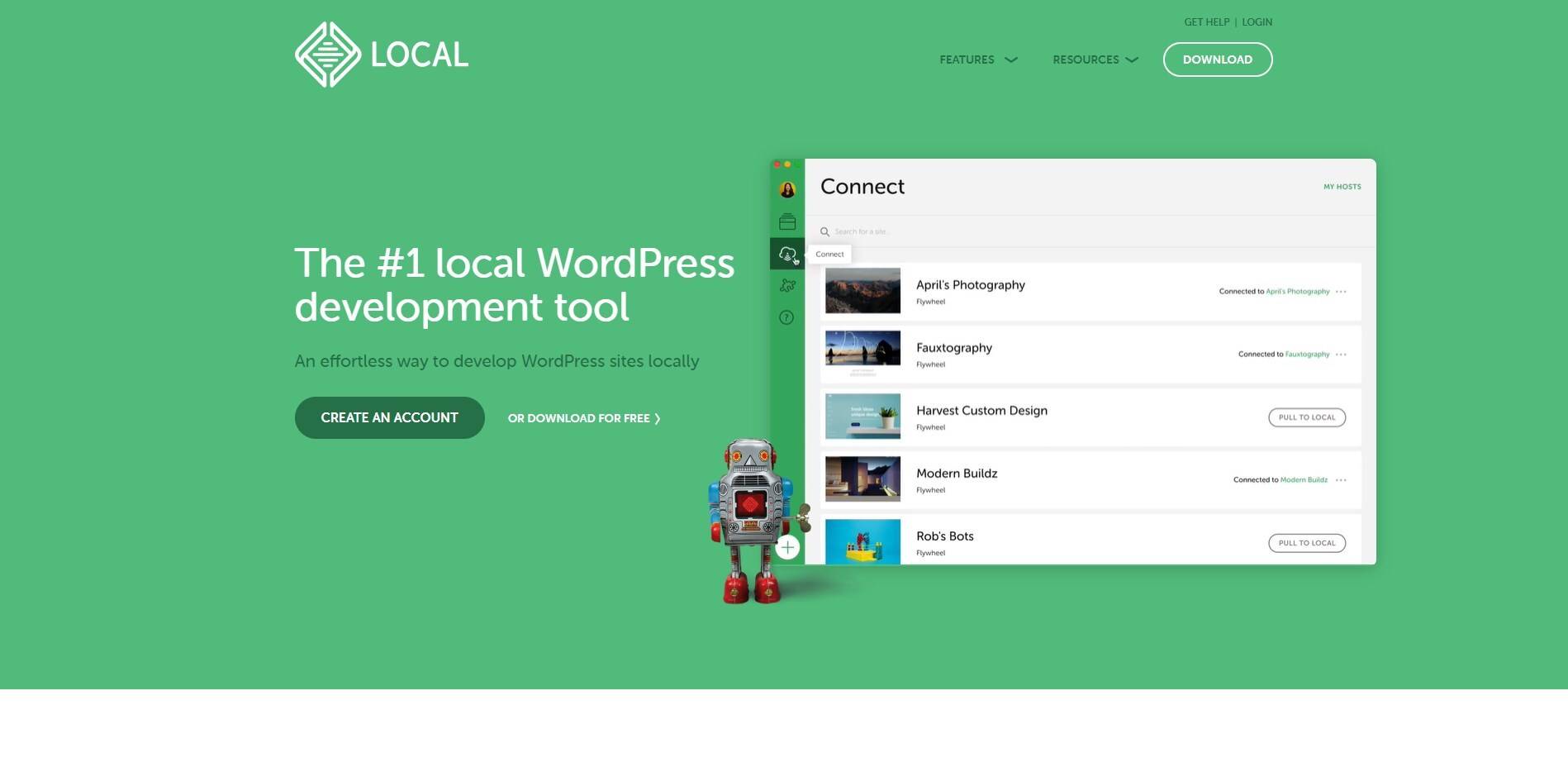
You will still see this tool called “Local by Flywheel” on older guides, but that name is out of date. It is now Local by WP Engine, and its own site calls it “the #1 local WordPress development tool.” It is a free desktop app: click New Site, pick a name, and you have a working WordPress install in under a minute, no server configuration.
A local install is also the safest place to vet a WordPress plugin before you install it on a client site. Local is the easiest starting point for most people. It handles PHP versions, SSL, and one-click WordPress admin login for you, and its Live Links feature lets you share a temporary public URL of your local site with a client or teammate without deploying anything.
Best for fast, no-configuration local sites: Anyone who wants a working local site fast without learning server administration, and freelancers who need to show work-in-progress to clients.
Worth knowing: the most convenient extras, such as cloud backups and one-click pushes to hosting, are tied to WP Engine and Flywheel hosting. The core local development experience is free and works regardless of where you host.
2. WordPress Studio (by Automattic)
Studio is the newest name on this list and the one most older articles miss entirely. It is made by Automattic, the company behind WordPress.com, and it now goes by WordPress Studio, with its own home at wordpress.studio. Its site currently describes it as “the agentic local development tool for WordPress,” which is a real shift from how it launched: it is still a free local site app, but the AI side is now the headline.
Studio runs on macOS, Windows, and Linux, including Apple Silicon and ARM machines, and comes in three forms: Studio Desktop for point-and-click local sites, Studio CLI for scripting and automation, and Studio Code, an AI agent that builds blocks, themes, plugins or a whole site from a plain-English description. Studio Code is in beta and free during the beta. You spin up local sites instantly, and Studio can sync content between your local copy and production, so moving work up and down is built in rather than a separate migration step.
Best for open-source local development with AI help: Developers who want a fast, free, open-source app, and anyone already hosting on WordPress.com who wants painless local-to-live syncing.
Worth knowing: the tightest sync features are aimed at WordPress.com-hosted sites, and Studio Code is still in beta. As a plain local environment it works for any WordPress project, and because it is open source you can inspect exactly what it does.
3. DevKinsta
DevKinsta is made by the managed host Kinsta and is, in its own words, “Your Free Local WordPress Development Suite.” It is free forever with no paid tier. Under the hood it uses Docker containers, which keep the footprint lighter than the old virtual-machine approach, and it pairs Nginx with a MariaDB database.
It supports macOS, Windows, and Ubuntu/Linux, is used by more than 60,000 developers according to Kinsta, and covers PHP versions from 7.2 through 8.3. It can spin up a WordPress Multisite install in one click too. Handy built-ins include a database manager (Adminer), SMTP email testing so you can check outgoing mail locally, and site cloning. If you host with Kinsta, it also connects to MyKinsta for pushing to staging.
Best for database and email testing: Kinsta customers, and anyone who wants a free tool with strong database and email-testing features without paying anything.
Worth knowing: DevKinsta relies on Docker, so it uses more system resources than the lightest apps and works best on a reasonably modern machine.
4. XAMPP
XAMPP is the classic option. Maintained by the non-profit Apache Friends, it is, per its site, “a completely free, easy to install Apache distribution containing MariaDB, PHP, and Perl.” It runs on Windows, Linux, and macOS. The name is the giveaway: X for cross-platform, then Apache, MariaDB, PHP, and Perl.
XAMPP does not create a WordPress site for you the way the one-click apps do. It gives you the web-server stack, and you download WordPress, create a database, and run the install yourself. That is a few extra steps, but it teaches you how WordPress actually runs, and the same stack can host other PHP projects, not just WordPress.
One caveat worth knowing before you commit: the newest XAMPP downloads are 8.0.30, 8.1.25 and 8.2.12 for Windows and Linux, and 8.2.4 for macOS. The Windows build bundles Apache 2.4.58, MariaDB 10.4.32 and phpMyAdmin 5.2.1. There is no PHP 8.3 or 8.4 option, so if you need to test against the PHP version a modern host runs, XAMPP cannot do it and WampServer or DevKinsta can. Testing WordPress updates against the right PHP version is exactly the job a local environment should handle.
Also Read: New to taking a local build public afterward? Read how to migrate a WordPress site from local to a live server before you deploy.
Best for learning how the stack works: People who want to understand the moving parts, and developers who run more than just WordPress on their local stack.
Worth knowing: setup is more manual than Local or Studio, and the newest build still tops out at PHP 8.2.12. If you only ever want WordPress and you want it in one click, a desktop app is the gentler path.
5. WampServer
WampServer is XAMPP’s Windows-focused cousin: “a Windows-based Web development platform” for building dynamic web applications with Apache 2.4, PHP and a MySQL or MariaDB database. WAMP stands for Windows, Apache, MySQL, PHP, and unlike XAMPP it is Windows only. It bundles both phpMyAdmin and Adminer for database work.
It is free, and it is more current than its reputation suggests: the latest full installer is 3.4.0 with updates up to 3.4.2, and the add-on library carries PHP builds all the way to 8.4.24, with files updated as recently as August 2026. A tray menu lets you switch PHP and MySQL versions in a couple of clicks, which is the main reason Windows developers still prefer it to XAMPP.
One important practical note: the official wampserver.com website is currently returning 404 errors on its homepage and download pages, so the usual “download WampServer” link you will find on other lists leads nowhere. The project is not dead, the website is simply not serving. The maintainer distributes the installers, updates and add-ons from wampserver.aviatechno.net, which is where the version numbers above come from.
Best for Windows users who want full control: Windows users who want a traditional local stack and easy version-switching, and who do not need Mac or Linux support.
Worth knowing: it is Windows only, the official wampserver.com site is currently returning 404 errors, and like XAMPP you set up WordPress manually rather than through a one-click wizard.
Bonus: InstaWP (a Cloud Sandbox, Not Truly Local)
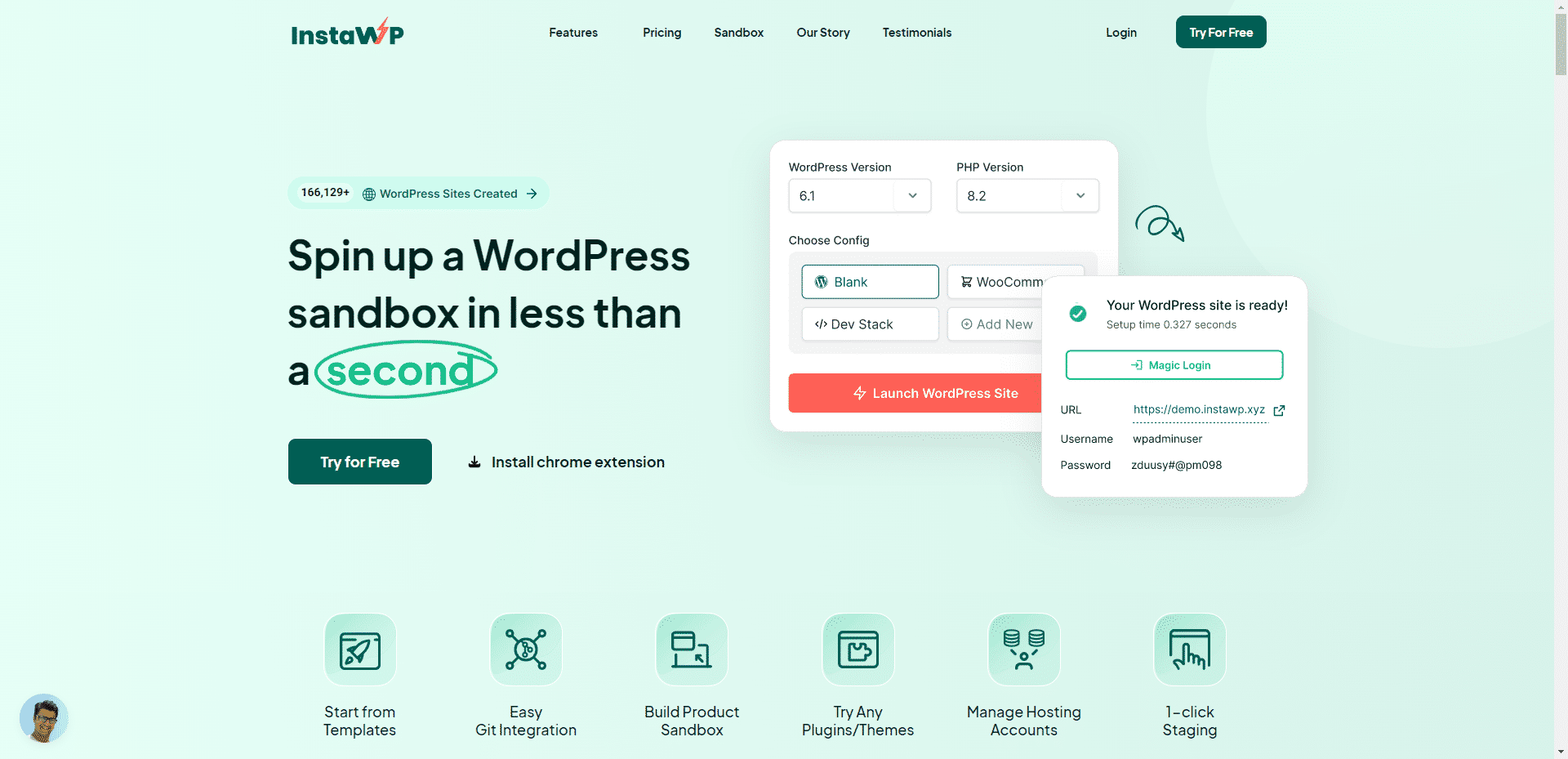
InstaWP earns a spot because people love it, but it is worth being clear about what it is. It is not local software. Backed by Automattic, it spins up real WordPress sites on its own cloud infrastructure, with a tagline of “Build, host & ship WordPress in seconds.” You reach your site through a browser at an address like mysite.instawp.site, not on your own computer.
That trade-off is fine, and sometimes ideal: sandboxes launch in seconds and you can share a live link instantly. Two things to know before you plan around it. First, the free tier is gone. InstaWP now sells pay-per-site managed hosting: a sandbox is $2/month per site, production plans run $5 to $45/month, billing is daily, and new accounts get $25 in credits rather than a free plan. Second, it needs an internet connection and your test site lives on someone else’s server, which matters if you work offline or with sensitive client data.
Best for instant, shareable test sites: Quick throwaway tests, sharing a demo with a client link, and trying a plugin without installing anything.
What About Bitnami?
Older lists (including the earlier version of this one) recommended the Bitnami WordPress Stack as a downloadable local installer. That advice has aged. Bitnami is now owned by Broadcom, and its WordPress offering has shifted to a cloud-native model: its site today centers on container images, Helm charts, and virtual machines rather than the simple native desktop installer beginners used to grab.
If you are comfortable with Docker or Kubernetes, Bitnami’s container images are still a solid, well-maintained way to run WordPress. But for a straightforward local sandbox, one of the one-click apps above is a friendlier starting point today, which is why Bitnami no longer sits in the main list.
Which Local WordPress Environment Should You Pick?
There is no single best tool, only the best fit for how you work. A quick way to decide:
- You want the easiest path, on any OS: start with Local (by WP Engine). One click, no configuration.
- You want free and open source, or an AI agent to scaffold work for you: use WordPress Studio for its open code, CLI and Studio Code beta.
- You host with Kinsta or do a lot of database work: DevKinsta is the natural pick, and it covers PHP 7.2 through 8.3.
- You want to learn how the stack works, or run non-WordPress projects too: XAMPP (any OS, but PHP 8.2 at newest) or WampServer (Windows, PHP up to 8.4).
- You need to test a plugin or theme on a specific PHP version: WampServer on Windows or DevKinsta anywhere. This is the one job XAMPP cannot do today.
- You just need a quick, shareable test site and do not mind paying a little for cloud: spin up an InstaWP sandbox.
If you are unsure, install Local or Studio first. Both are free, both take a minute to set up, and both are easy to remove if they are not for you.
Taking Your Local Site Live
A local environment is only half the workflow. Once the design is finished, you move it to a live server, and the theme you build on affects how smoothly that goes. A lightweight, block-friendly theme keeps the site fast in production, not just on your machine.
This is where the Nexter Theme fits. It is built as a lean starter theme (under 20Kb, coded in pure Vanilla JS with no jQuery) for both the Elementor and Gutenberg editors, ships 1600+ pre-designed templates and sections to start from, and includes built-in performance tune-ups and security hardening. You can build against it locally in any of the tools above, then take the finished site live.
Also Read: Before you deploy, lock down the site: here are the best WordPress security plugins to protect your site.
Wrapping Up
A local WordPress development environment is the safest place to build, test, and break things before they reach real visitors. For most people the answer is a one-click app: Local, Studio, or DevKinsta. If you would rather understand the underlying stack, XAMPP and WampServer give you that control, and InstaWP is there when you need an instant cloud sandbox instead.
Pick one, spin up a test site, and start experimenting. That is the whole point of working locally: you can try anything, and undo it just as easily.
Suggested Reading
- How to Migrate a WordPress Site From Local to a Live Server
- Best WordPress Security Plugins to Protect Your Site
- How to Host Google Fonts Locally in WordPress
- Nexter Blocks: 120+ Free Gutenberg Blocks
- Nexter Theme: The Lightweight Starter Theme
FAQs on WordPress Local Development Environments
What is WordPress localhost development?
WordPress localhost development is the process of building and testing a WordPress website on your own computer before publishing it to the web.
Can I develop WordPress locally?
Yes, you can develop WordPress locally by installing a local server software like XAMPP or WAMP on your computer.
Is WordPress localhost free?
Yes, WordPress localhost is free. You can download and install WordPress on your local server without any cost.
How do I set up WordPress on localhost?
You can set up WordPress on localhost by downloading and installing a local server software like XAMPP or WAMP, creating a database, and installing WordPress on your local server.
What are the benefits of WordPress localhost development?
The benefits of WordPress localhost development include faster development, easier testing, and increased security since your website is not publicly accessible.
How do I access my WordPress localhost site from another computer?
You can access your WordPress localhost site from another computer by configuring your local server to allow remote access and accessing your site using your local IP address.
What are the common issues with WordPress localhost development?
Common issues with WordPress localhost development include compatibility issues with local server software, database connection errors, and file permission issues.
How do I secure my WordPress localhost site?
You can secure your WordPress localhost site by using strong passwords, keeping your local server software and WordPress installation up-to-date, and restricting access to your local server.
