












A card is mostly words. This is where they go.
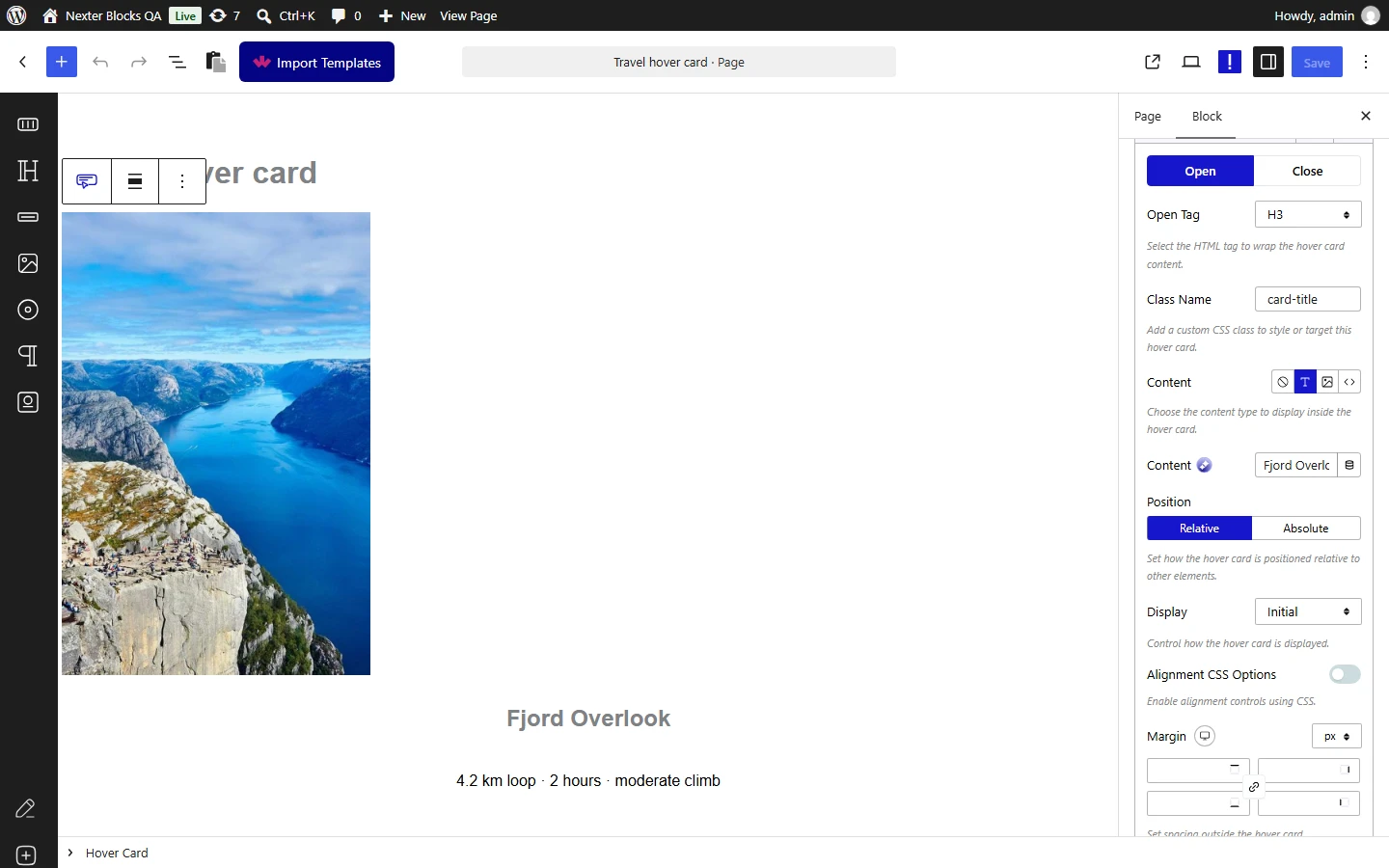
Setting a row’s Content to Text drops plain text inside whatever tag that row opens — a heading, a paragraph, a span, whatever the structure needs.
For every Dynamic Device setting in one place, see the Hover Card block guide.
Before You Start
- Edition: Free — the Hover Card block works in Nexter Blocks (free) and in Nexter Blocks Pro.
- Block to enable: Hover Card, switched on under Nexter > Blocks in your WordPress dashboard.
- A little HTML. This block builds markup out of the rows you add, so it helps to know what a tag is and which tag wraps which.
Steps
- Add the Hover Card block to your page.
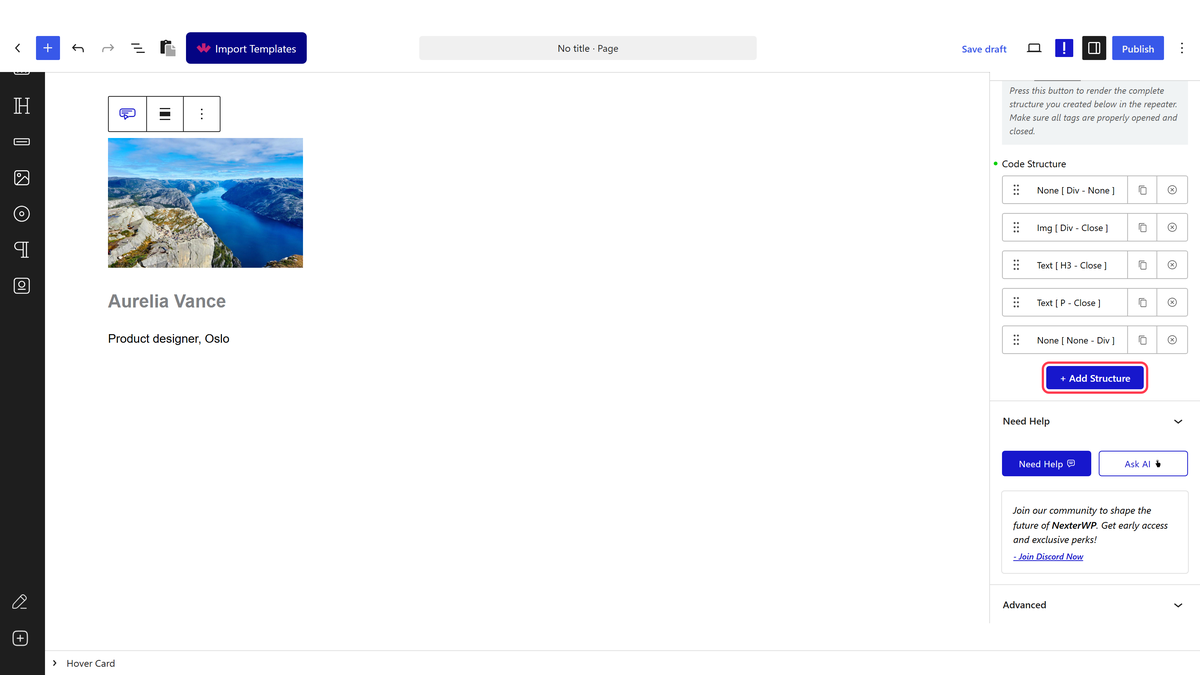
- Open the row already waiting under Code Structure, or press + Add Structure for another one.
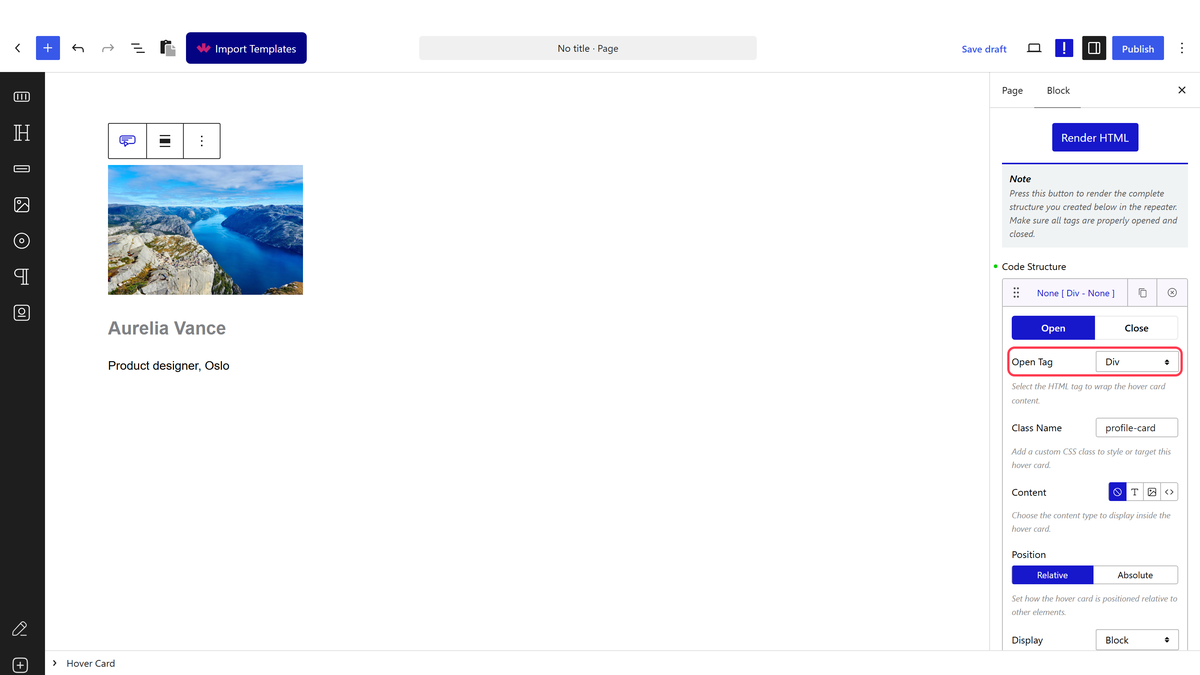
- Choose the wrapper in Open Tag, and close it in Close Tag.
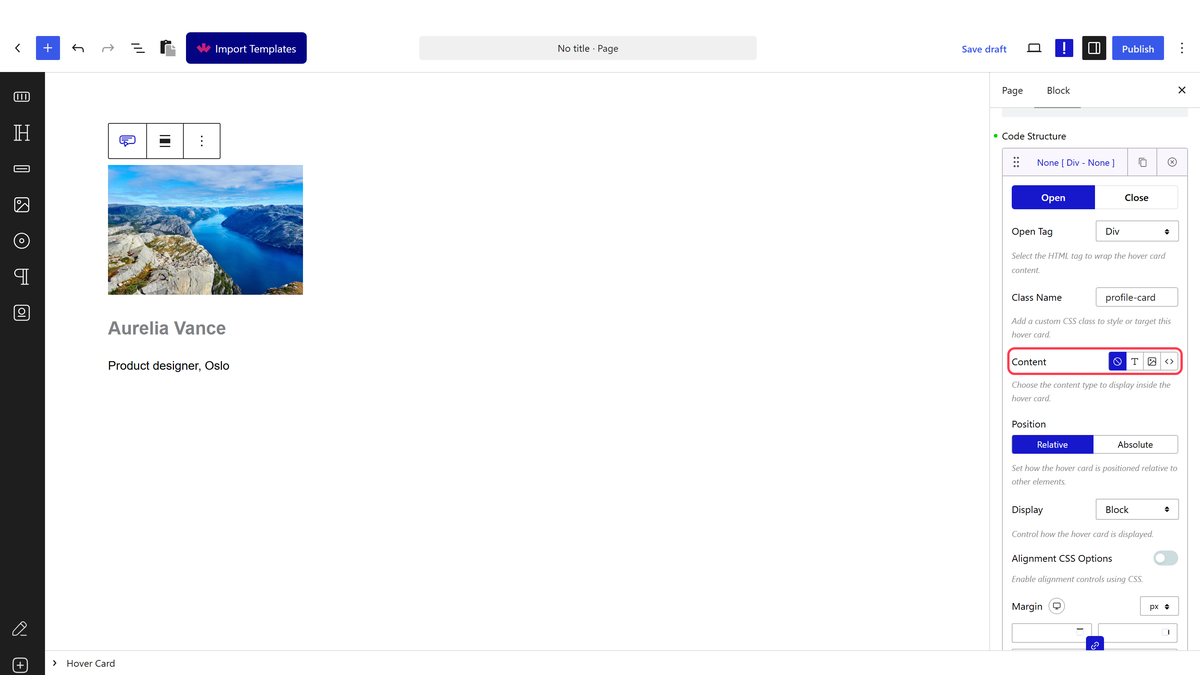
- Set Content to the text option.
- Type your words in the Content box that appears under it.
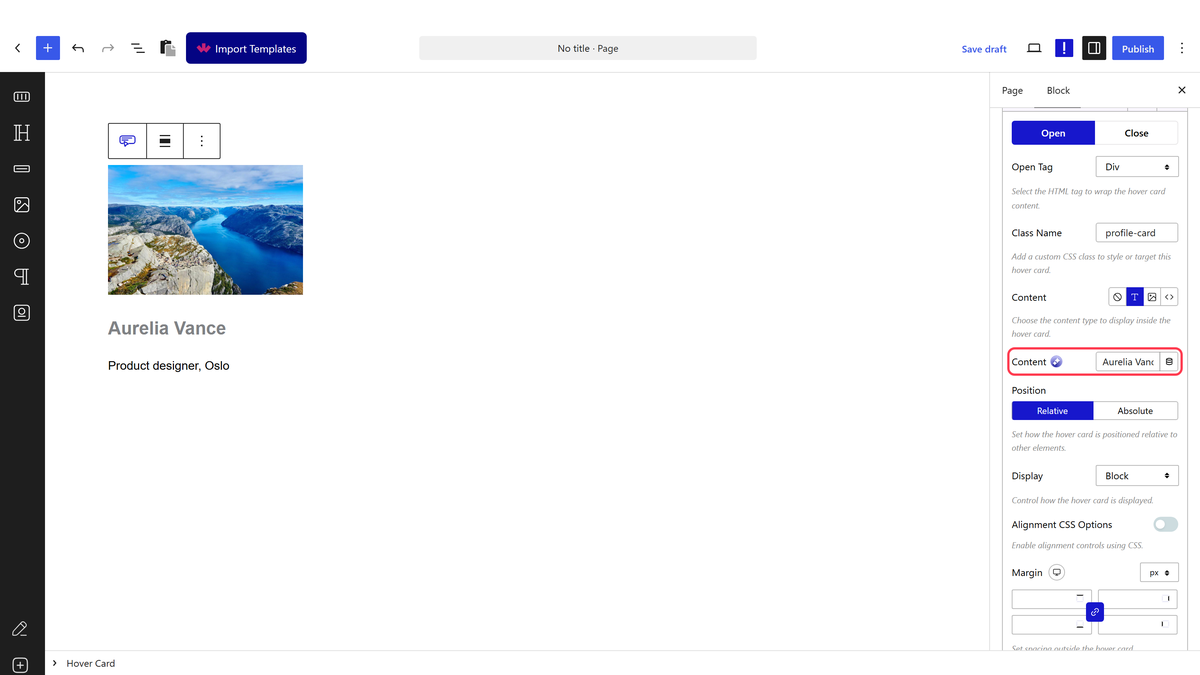
- Press Render HTML to draw the structure, then publish.
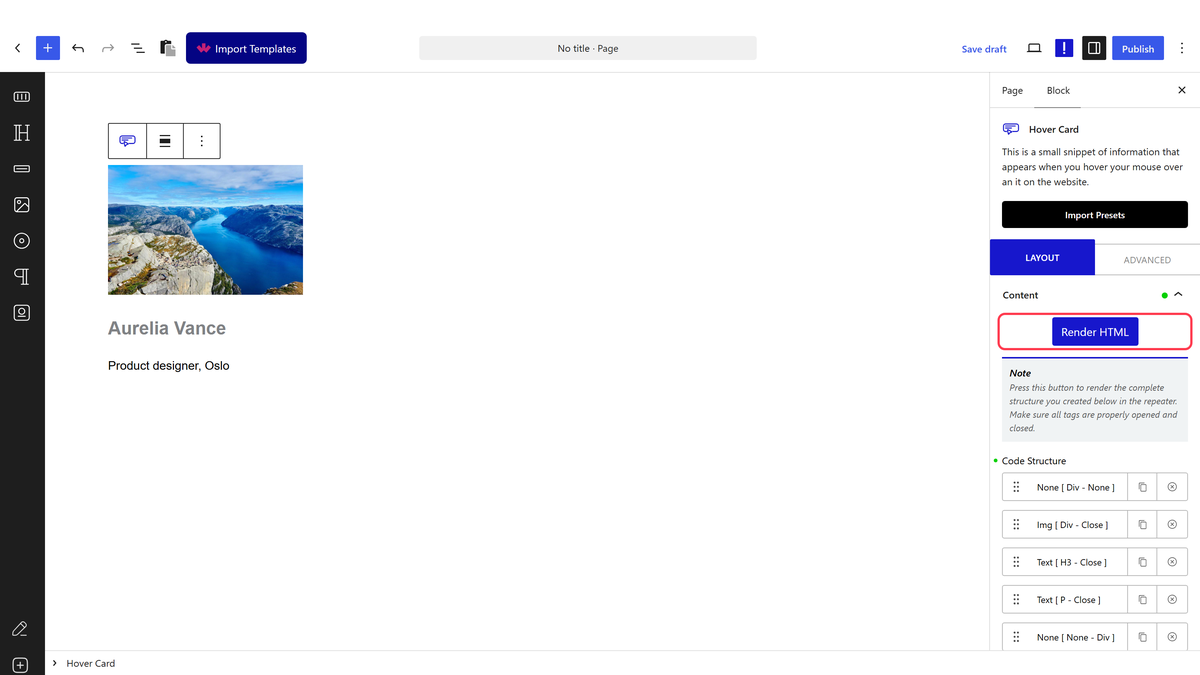
Nothing appears until you press Render HTML. The block does not redraw as you type — the button above the repeater rebuilds the structure, and the block’s own note says to check every tag is opened and closed first.
How It Behaves
- The text sits inside the row’s tag. A row opening
h3renders<h3>Aurelia Vance</h3>— so a heading really is a heading, and search engines read it as one. - Choosing Text adds its own styling controls — Typography, Color and Text Shadow appear on the row once it is set.
- It is plain text, not rich text. For bold, links or several paragraphs in one row, use the HTML content type instead.
- Text can also change colour on hover, through its own Custom Hover option — measured going from grey to blue when the parent was hovered. See the custom hover guide.
Limitations
- One row, one piece of text. Two paragraphs mean two rows.
- No inline formatting: what you type is what renders.
- Nothing appears until Render HTML is pressed.
Troubleshooting
My text is not showing
Check Content is set to the text option on that row, that the box under it is not empty, and that you pressed Render HTML.
The text is not styled the way I expected
Typography, Color and Text Shadow live on the same row, below the content settings. They only appear once the row’s Content is set to text.
I need bold or a link in the middle of a sentence
That is what the HTML content type is for — it keeps your markup.
