








How to Optimize Nexter Theme Features?

Key Takeaways

  • Nexter Theme allows users to enable or disable features to keep the theme light.
  • Disabling the Theme Header Footer option completely removes the default header and footer from the website.
  • Accessing Nexter Theme Optimization Controls requires navigating to Nexter > Theme Customizer in the Dashboard.
Table of Contents

Do you want to fine-tune the Nexter theme to better match your website’s needs? The Nexter theme comes with many powerful features and customization options, but you may not need all of them for your specific design or functionality. By disabling the options you don’t use, you can improve your site’s loading speed, reduce unwanted scripts and styles, and keep your backend clean and easy to manage.

Nexter Theme allows you to enable or disable some of its features as per your requirement to keep the theme light.

Nexter Theme Optimization Controls

From the Nexter Theme Optimization Controls section, you can enable or disable some of Nexter theme’s features. 

To access the Nexter Theme Optimization Controls from the Dashboard, go to Nexter > Theme Customizer.

Then go to the Nexter Theme Optimization Controls section, enable the toggle, and click on the gear icon (⚙).
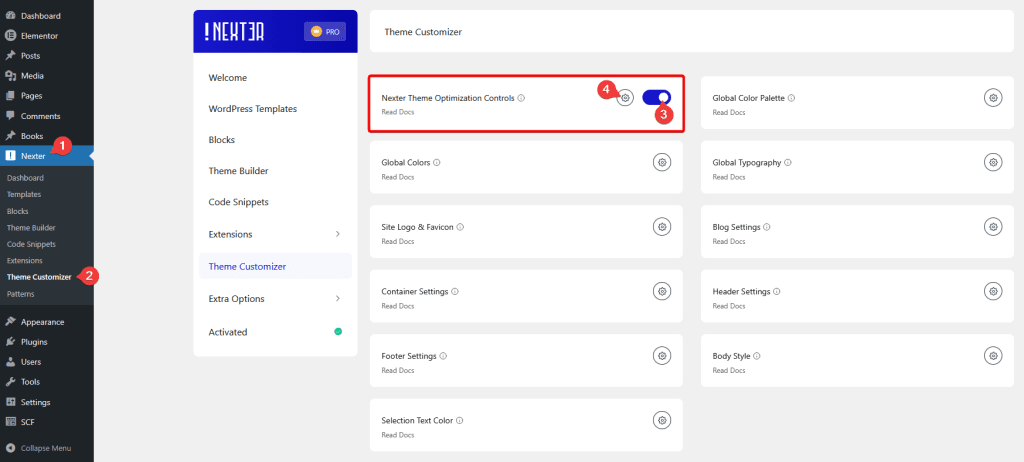
nexter theme optimization controls settings

It will open the Nexter Theme Optimization Controls pop-up, where you’ll find different options.
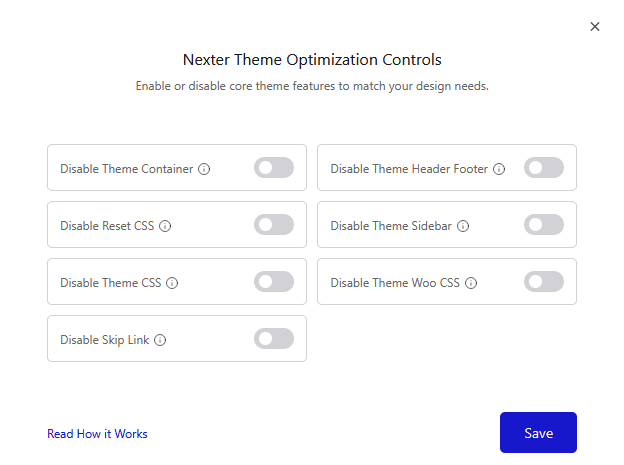
nexter theme optimization controls popup

Disable Theme Container – This option removes the Container settings from the General tab in the Theme Customizer. It also removes the <div> with the container class from your website’s HTML structure.

Disable Theme Header Footer – This option completely disables the theme’s default header and footer by turning them off in the Theme Customizer.

Disable Reset CSS – This prevents the theme’s reset.css file from loading on your website.

Disable Theme Sidebar – This stops the theme’s sidebar CSS from loading.

Disable Theme CSS – This disables the main theme CSS file from loading on your website.

Disable Theme Woo CSS – This prevents the WooCommerce-related CSS from the Nexter theme from loading.

Disable Skip Link – This removes the “Skip to Content” link from the Theme Customizer and from the frontend of your website.

Once done, click on the Save button to save the changes.

About the Author

Photo of Aditya Sharma CMO of NexterWP
CMO at POSIMYTH Innovations · NexterWP · 7 years experience

He has spent years in the WordPress ecosystem building, breaking, and optimizing sites until they actually perform. He works at the intersection of speed, growth, and usability, helping creators ship websites that load fast and convert. An active WordPress community contributor sharing through tools, tutorials, and direct collaboration. Tested practice, not theory.

WordpressThemesElementorn8nAIClaudeAutomationServer

Share your Thoughts

Get Instant Answers to all your questions about Nexter Blocks,
Extensions & Theme trained on 1000+ Docs and Videos

Still in Doubt? Let’s Assist You

Have Feedback or Questions?

Join our WordPress Community on Facebook!

Related Frequently Asked Questions

What are the best settings for optimizing Nexter Theme for speed?

To optimize Nexter Theme for speed, consider disabling features you don't use, such as the Theme Sidebar and Reset CSS. This reduces unnecessary scripts and styles, leading to faster load times. Always save your changes and check your site's performance afterward to see the impact.

Why might my changes in Nexter Theme Optimization Controls not save?

If your changes in the Nexter Theme Optimization Controls are not saving, ensure that you have clicked the 'Save' button after making adjustments. Also, check for any caching plugins that might be preventing the updates from reflecting on the frontend. Clearing your cache can help resolve this issue.

Does disabling the Theme Container affect my site's layout?

Disabling the Theme Container removes the container settings from the General tab in the Theme Customizer and the corresponding

from your site's HTML. This can lead to layout changes, especially if your design relies on the container for alignment and spacing. Test your site after making this change to ensure it meets your design expectations.

What is the impact of disabling WooCommerce-related CSS in Nexter Theme?

Disabling the WooCommerce-related CSS in Nexter Theme prevents styles specific to WooCommerce from loading. This can enhance performance if you're not using WooCommerce features. However, if you plan to use WooCommerce, it's advisable to keep this option enabled to maintain proper styling for your product pages.

Last reviewed: April 14, 2026

Related Docs