












A hundred-frame sequence is a lot of individual uploads. It does not have to be.
Remote Server mode points the block at a folder of consistently-numbered images and builds the sequence from the filename pattern — no Media Library uploads needed.
For every Dynamic Device setting in one place, see the Scroll Sequence block guide.
Before You Start
- Edition: Pro — the Scroll Sequence block needs Nexter Blocks Pro.
- Block to enable: Scroll Sequence, switched on under Nexter > Blocks in your WordPress dashboard.
- Upload the frames in the order you want them played — a still-camera sequence of a product turning, a scene changing, or a chart building up. More frames make the motion smoother; fewer frames make it choppier but load faster.
- A folder of consistently numbered images already on your server, such as
frame-001.jpgthroughframe-060.jpg.
Steps
- Add the Scroll Sequence block and set Upload Type to Remote Server.
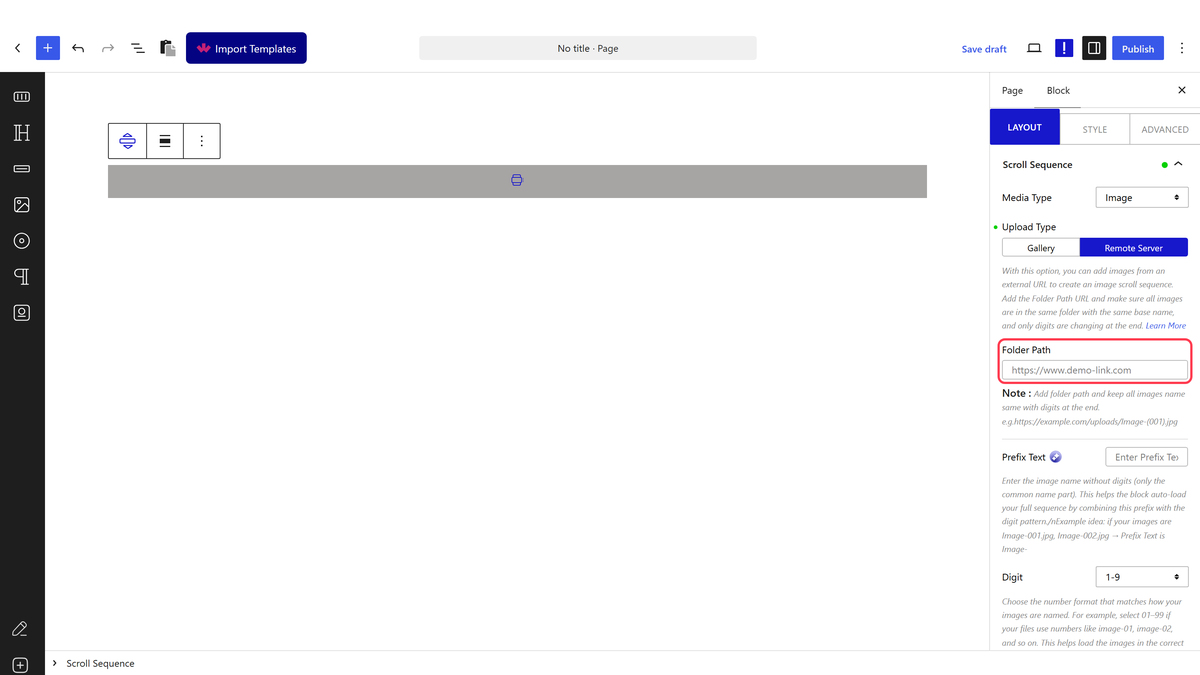
- Fill in Folder Path, Prefix Text, Digit and Image Type to match your files exactly.
- Set Total Image to how many frames your sequence has.
- Set Apply To for what drives the animation as the visitor scrolls.
Missing frames are skipped without any warning. Measured: asked for 10 numbered frames with one deleted from the middle and two never created, the rendered sequence had exactly 7 — the gap closed up silently, no renumbering message, no broken-image icon, no error of any kind. Double-check your files exist before publishing.
How It Behaves
- Every numbered filename is checked on the server before the page renders, using your Folder Path, Prefix Text, the zero-padding from Digit, and Image Type to build each filename in turn.
- A missing file is simply left out — the sequence still plays, just with fewer frames and a hidden jump where the missing one would have been. Measured directly: requesting
frame-001.jpgthroughframe-010.jpgwithframe-006.jpgdeleted and 009/010 never created returned a 7-frame sequence (001–005, 007, 008), with no indication anything was missing. - Digit controls zero-padding, not a literal digit count in your filenames — choose 01–99 for files like
frame-01.jpg, 001–999 forframe-001.jpg, and so on. - This check runs on every page load that is not cached, so a very large sequence adds real server work — a page cache is worth having if you use a long remote sequence.
Limitations
- A gap in your numbering is invisible until you count the frames yourself — there is no admin warning for a missing file.
- Folder Path, Prefix Text and Digit all have to match your actual filenames exactly, including case.
- Checking every frame’s existence on each uncached page load adds server work proportional to Total Image — keep an eye on this for very long sequences.
Troubleshooting
My sequence has fewer frames than I expected
One or more numbered files are missing or misnamed. Measured: a missing frame is dropped silently, with no warning — check your folder against the exact pattern in Folder Path, Prefix Text, Digit and Image Type.
The sequence does not load at all
Confirm Folder Path is the full path to the folder your images sit in, not just your domain, and that your server can reach that URL itself.
The frames are in the wrong order
Reverse Order does not work on this block — measured. Renumber or rename your files if you need a different order.
