












The simplest setup: the whole page is the stage.
With Apply To set to Body, the sequence tracks scroll across the entire page, from the very top to the very bottom.
For every Dynamic Device setting in one place, see the Scroll Sequence block guide.
Before You Start
- Edition: Pro — the Scroll Sequence block needs Nexter Blocks Pro.
- Block to enable: Scroll Sequence, switched on under Nexter > Blocks in your WordPress dashboard.
- Upload the frames in the order you want them played — a still-camera sequence of a product turning, a scene changing, or a chart building up. More frames make the motion smoother; fewer frames make it choppier but load faster.
Steps
- Add the Scroll Sequence block and upload your frames under Images Upload, in playback order.
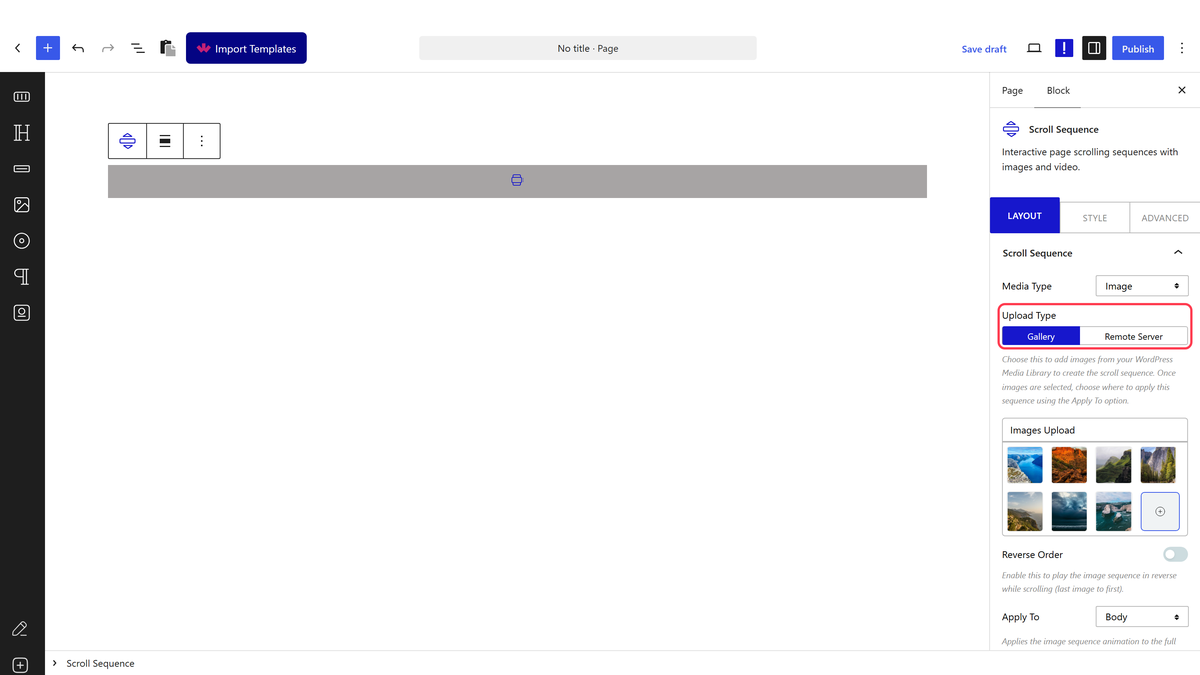
- Set Apply To for what drives the animation as the visitor scrolls.
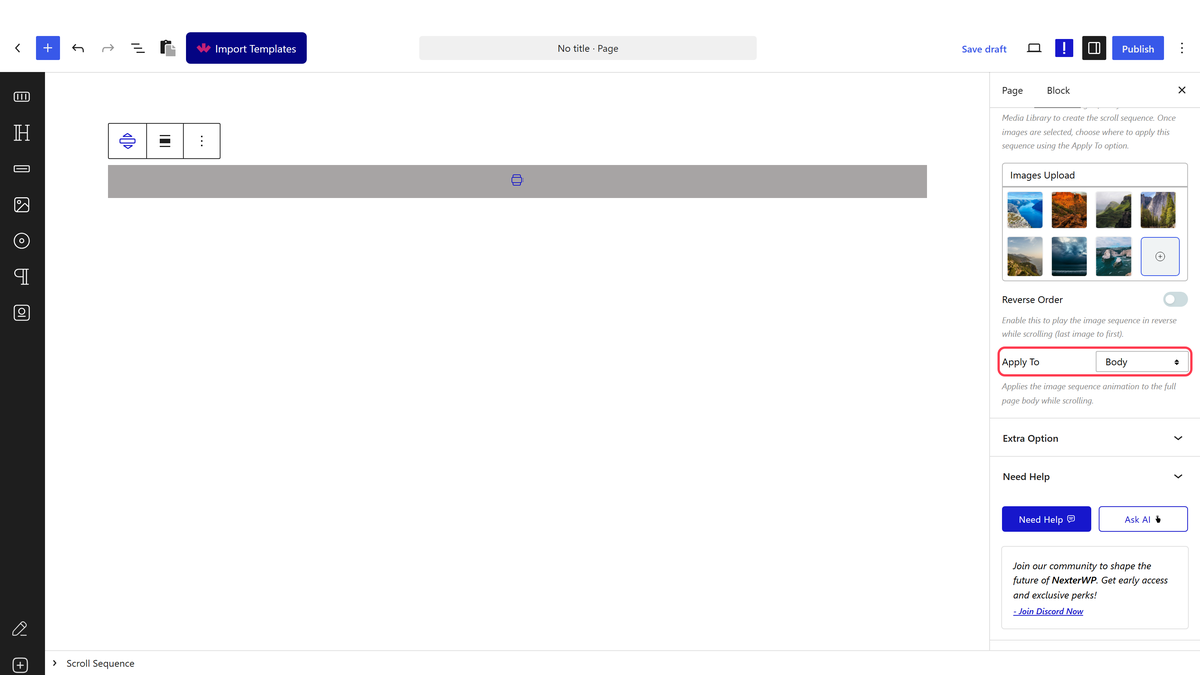
- Confirm Apply To is set to Body.
- Add plenty of other content to the page — the sequence needs somewhere to scroll through.
Whatever you point Apply To at needs to be taller than the screen. Measured: a tracked element shorter than the viewport never draws a single frame — the canvas stays completely blank for the whole page, from the first scroll to the last. Give the tracked element real height, either with its own content or a minimum height setting.
How It Behaves
- Measured proportional to scroll: the canvas showed a genuinely different frame at different scroll depths, reaching the final frame right at the bottom of the page.
- The page itself must be taller than the screen. A very short page (a landing page with little content) behaves exactly like a too-short container — measured, the canvas stays blank.
- The block can sit anywhere on the page; Body mode does not care where the block itself is placed, only how tall the whole page is.
Limitations
- A body-wide sequence competes for attention with everything else on the page — consider Container mode if you want it scoped to one section instead.
- Whatever you point Apply To at needs to be taller than the screen. Measured: a tracked element shorter than the viewport never draws a single frame — the canvas stays completely blank for the whole page, from the first scroll to the last. Give the tracked element real height, either with its own content or a minimum height setting.
Troubleshooting
Nothing shows up
Check the page has enough other content to actually scroll through — measured, a page shorter than the screen never draws a frame.
The animation finishes too early or too late
Adjust Start Offset and End Offset under Style.
