---
title: "How to Add Tabs on WordPress?"
url: https://nexterwp.com/docs/add-tabs-on-wordpress/
date: 2023-02-10
modified: 2026-08-06
author: "Aditya Sharma"
description: "When you have a large amount of content to divide into sections, the Tabs Tours block in Nexter Blocks lets you split it into labeled tabs so visitors can navigate..."
image: https://nexterwp.com/wp-content/uploads/2023/02/add-tabs-on-wordpress-1024x519.jpg
word_count: 1160
---

# How to Add Tabs on WordPress?

## Key Takeaways

- Nexter Blocks Tabs Tours block splits large content into labeled tabs so visitors navigate to the section they need without scrolling through the entire page.
- Tabs Tours block supports three content sources: Content (Free), Editor (Free), and Pattern (Pro).
- Tabs Tours block offers Horizontal or Vertical layouts, plus Navigation Position options for top, bottom, left, or right placement.
- Tabs Tours block includes Pro options such as Unique ID, swipe effect, Default Active Tab, Tab Type on click or hover, and Carousel Connection ID.

When you have a large amount of content to divide into sections, the Tabs Tours block in Nexter Blocks lets you split it into labeled tabs so visitors can navigate to the section they need without scrolling through the entire page.

Use it for product comparisons, step-by-step guides, service breakdowns, or any page where tabbed navigation keeps content organized and easy to scan.

[LIVE BLOCK LINK](https://nexterwp.com/nexter-blocks/blocks/wordpress-tab-content/)

## Required Setup

- Make sure the default WordPress Block editor is active. 

- You need to have the [Nexter Blocks](https://wordpress.org/plugins/the-plus-addons-for-block-editor/) plugin installed and activated.

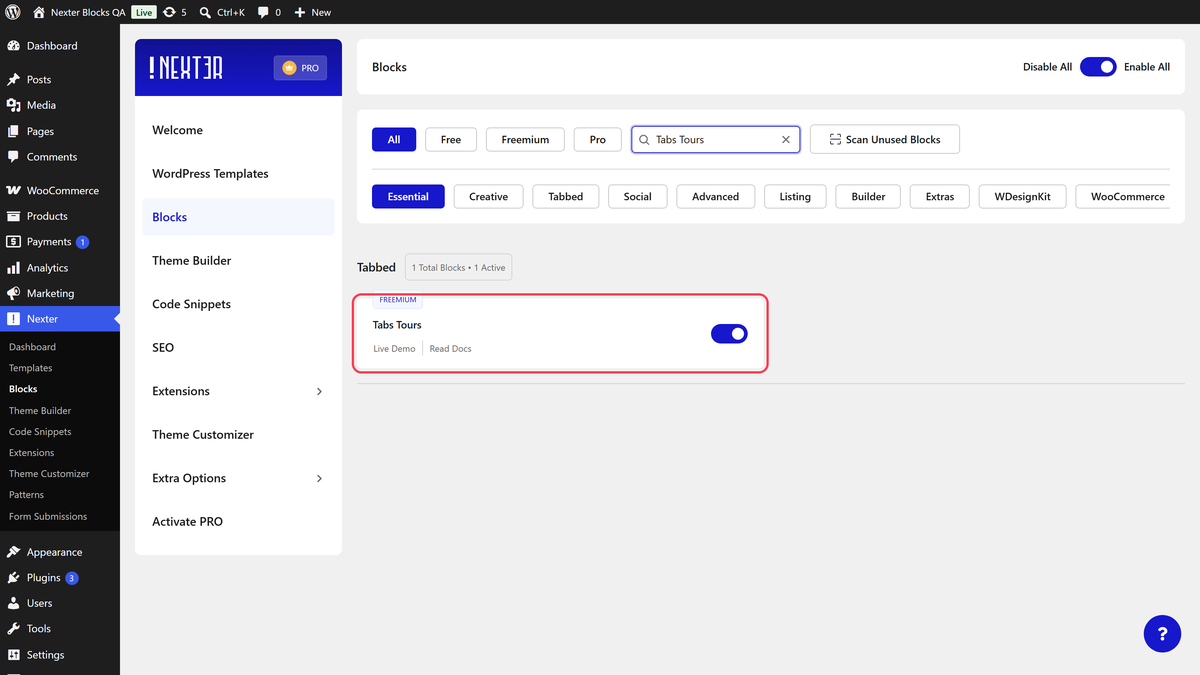
- Make sure the Tabs Tours block is activated, to verify this visit Nexter → Blocks → and Search for Tabs Tours and activate.

- This is a Freemium block to unlock the extra features, you need the [PRO version of the Nexter Blocks](https://nexterwp.com/pricing/?utm_source=tpag&utm_medium=docs&utm_campaign=text).

## Learn via Video Tutorial

https://www.youtube.com/watch?v=69oN_0jSXRs&t

## How to activate the Tabs/Tours Blocks?

Go to

- **Nexter **→ **Blocks**

- **Search** for the block name and **turn on the toggle**.

![](https://nexterwp.com/wp-content/uploads/2023/02/tab-tours-activation-new-1-1024x358.png)

## Key Features

- **Multiple content sources** - You can use three different ways to add content in your tabs, **Content** (Free), **Editor** (Free), and **Pattern** (Pro).

- **Add dynamic content in tabs** (Pro) - You can show dynamic content like post titles, post excerpts, etc. in your tabs.

- **Show icons in tabs** (Free) - You can [add different icons for your tab titles](https://nexterwp.com/docs/change-wordpress-tab-icon/).

- **Additional outer icon** (Pro) - You can show an [additional outer icon](https://nexterwp.com/docs/change-wordpress-tab-icon/) for tab titles.

- **Unique ID** (Pro) - You can link directly to a tab item using the Unique ID.

- **Multiple layouts for tabs** (Free) - You can choose from a **Horizontal** or [**Vertical**](https://nexterwp.com/docs/vertical-tabs-in-wordpress/) layout for the tabs.

- **Adjust tab title position** (Free) - You can adjust the tab title position.

- **Add swipe effect** (Pro) - [Add a swipe effect to the horizontal tab titles](https://nexterwp.com/docs/wordpress-tabs-with-swiper-effect/) for smooth navigation.

- **Default Active Tab** (Pro) - Assign any [specific tab to be an active tab by default](https://nexterwp.com/docs/open-specific-tab-by-default-in-wordpress/).

- **Tab Type** (Pro) - You can either make your tabs open on click or [on hover](https://nexterwp.com/docs/change-wordpress-tabs-on-hover/).

- **Carousel Connection ID** (Pro) - Create a [connection between Tabs and Carousel Anything](https://nexterwp.com/docs/connect-carousel-with-wordpress-tabs/) to create interactive layouts.

## How to Use the Tabs Tour Block?

Add the Tabs Tours block to the page.

Then click on the **Design from Scratch** button to design the layout from scratch.

![](https://nexterwp.com/wp-content/uploads/2023/02/tab-tours-design-type-1024x191.png)

> *Note: By clicking on the Import Pre-Designed Template button, you can [import a preset template](https://nexterwp.com/docs/import-templates-in-nexter/#Import-Preset-Designs-for-Specific-Blocks-in-Nexter) and customize it as per your requirements.*

## Content

Go to the tab item where you want to add content.

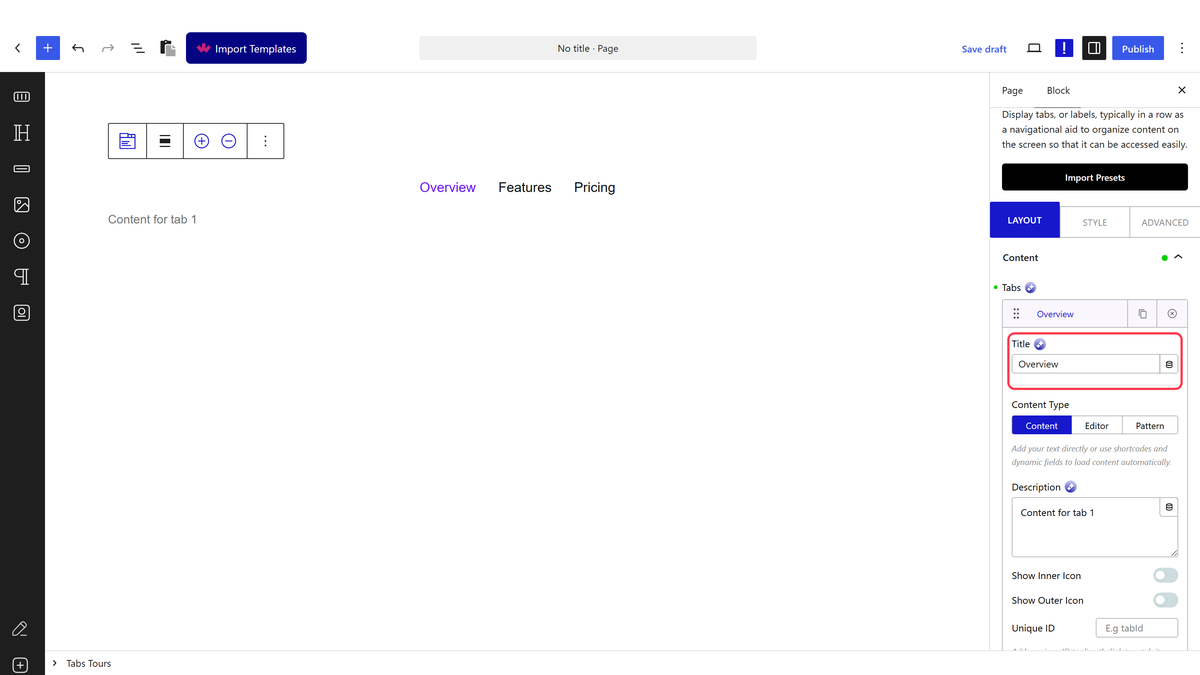
In the **Title** field, write the tab label that appears on the tab navigation bar. You can also write it directly in the editor.

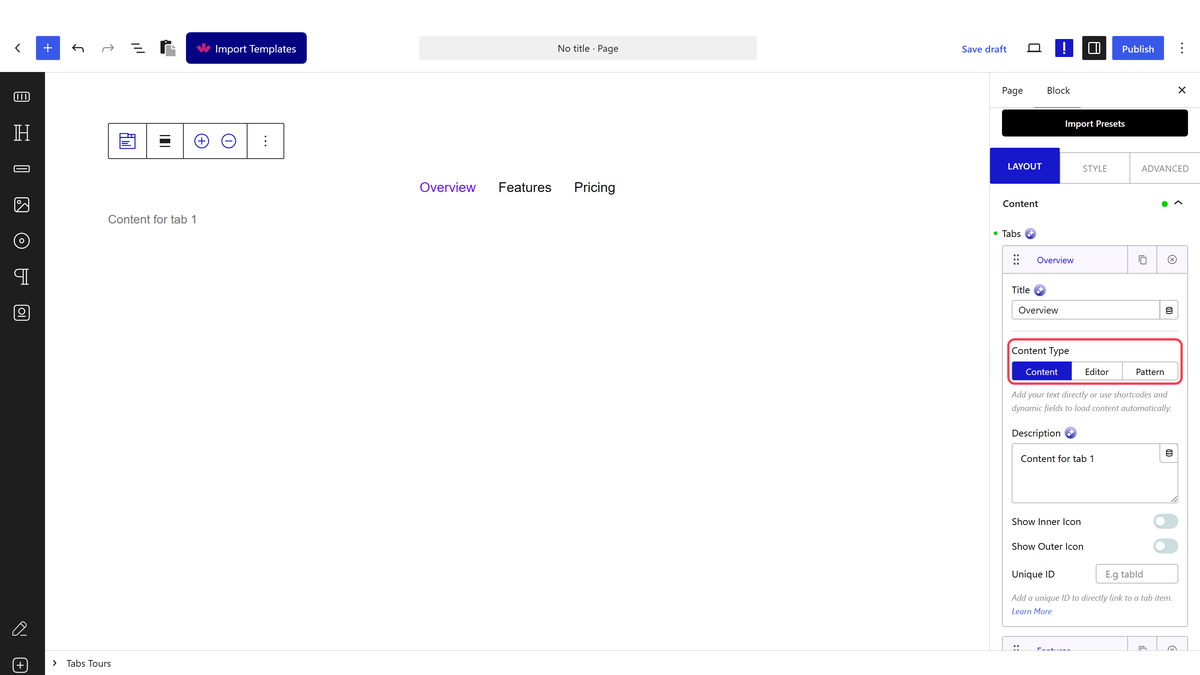
For the tab content, you will see three options under the **Content Type** section: **Content** (Free), **Editor** (Free), and **Pattern** (Pro).

With **Content** selected, write the tab content directly, use shortcodes, or use dynamic fields to pull in content automatically.

With **Editor** selected, you can use all WordPress block editor features inside the tab content area.

This lets you build unique layouts using any block — images, galleries, forms, post grids, and more. This is one of the most flexible options for tab content.

With **Pattern** selected, choose a saved WordPress block pattern from the dropdown. Create the pattern in the WordPress editor first, then select it from the list here.

The Pattern option is useful when you reuse the same layout across multiple tabs or pages.

To learn how to add images inside tabs, see [How to add image inside WordPress Tabs](https://nexterwp.com/docs/image-inside-wordpress-tabs/).

From the **AJAX Load** dropdown, select the content load type. You will find two options:

- **Default** – Keeps the content loaded on initial page load.

- **Standard AJAX** – Loads the content when the tab enters the viewport.

> *Note: To make the Standard AJAX work, make sure to enable the ****Enable Ajax Templates**** toggle from ****Nexter Blocks**** > ****Extra Options**** > ****Settings****.*

After choosing Pattern, you will see a **Backend Visibility** toggle. This is off by default for a better editing experience in the block editor. Turn it on to preview the layout in the backend editor, then turn it off when done.

To add icons to the tab title, see [how to change the WordPress tab icon](https://nexterwp.com/docs/change-wordpress-tab-icon/).

In the **Unique ID** field, enter an ID to link directly to a specific tab. This is useful with vertical tabs when you want to send visitors from another page to a specific tab item. See [how to link to a specific tab item in WordPress](https://nexterwp.com/docs/link-specific-tab-item-in-wordpress/).

Click the **+ Add Tab** button to add more tabs.

## Layout

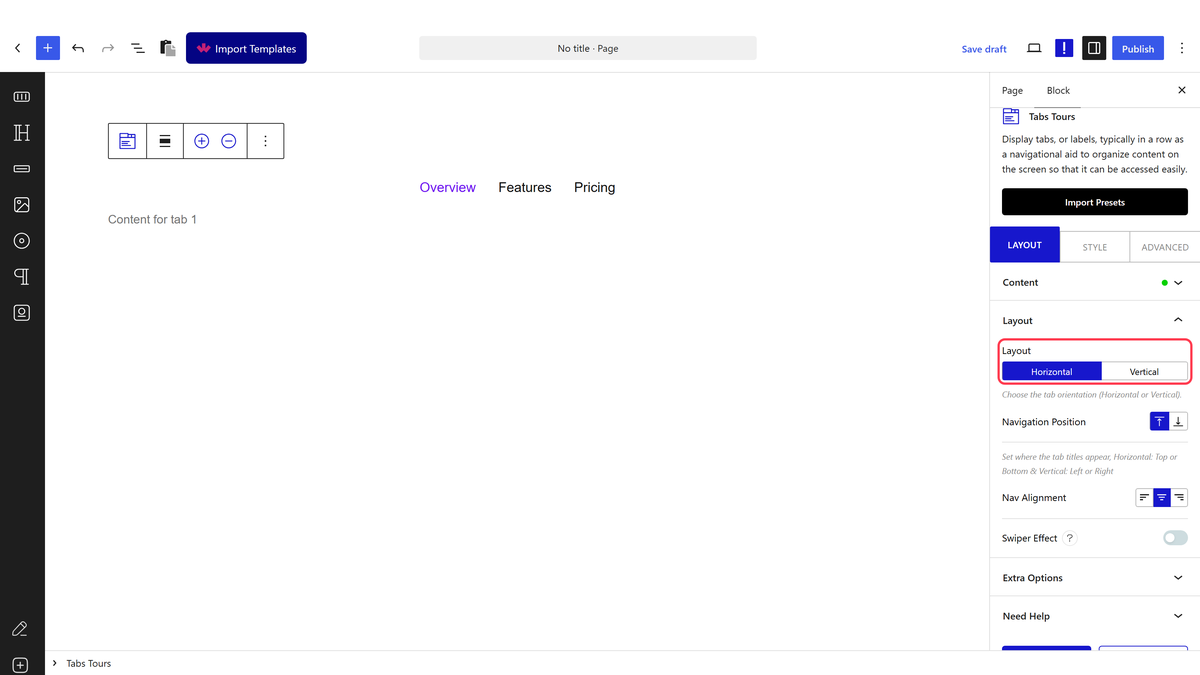
The Layout section controls how the tab navigation is positioned and how tab titles are aligned.

![](https://nexterwp.com/wp-content/uploads/2023/02/tab-tours-layout-new.png)

- **Layout** - Choose **Horizontal** to display tab titles in a row, or [Vertical](https://nexterwp.com/docs/vertical-tabs-in-wordpress/) to place them in a column beside the content.

- **Navigation Position** - For horizontal layout, place the tab navigation at the top or bottom. For vertical layout, place it on the left or right.

- **Nav Alignment** - For horizontal tabs, align the tab titles within the navigation bar.

- **Swiper Effect** (Pro) - Visible only with the Horizontal layout selected. [Add a swiper effect to the tab titles](https://nexterwp.com/docs/wordpress-tabs-with-swiper-effect/) for smooth horizontal navigation.

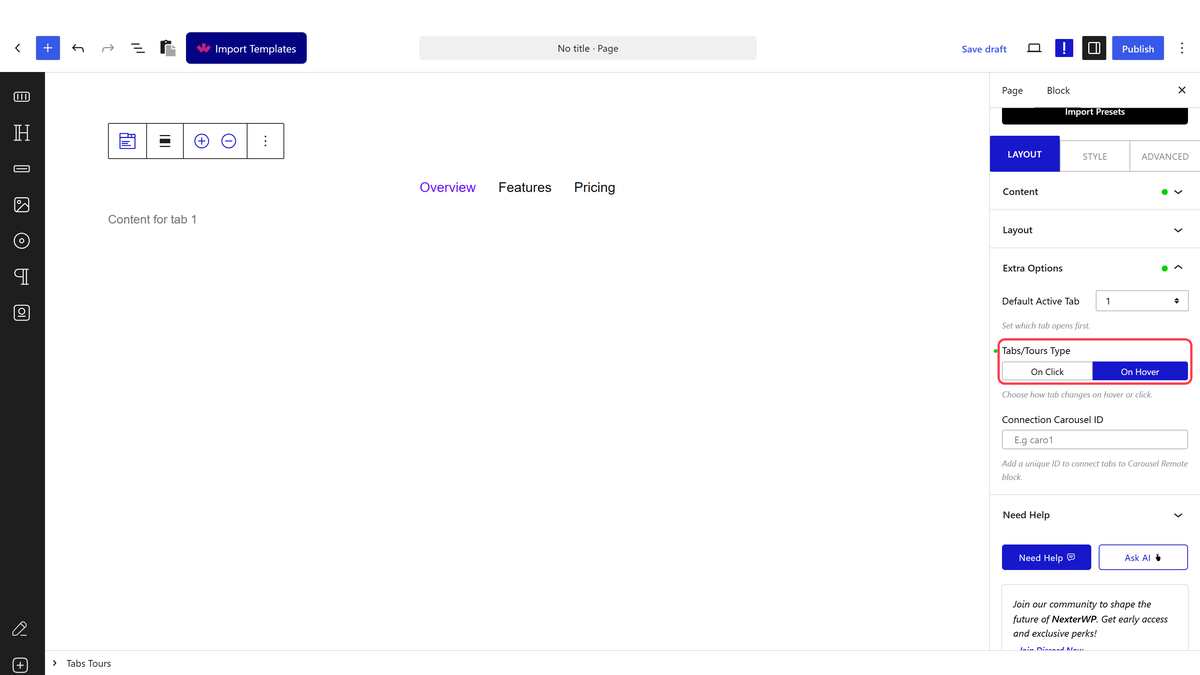
### Extra options (Pro)

Each of the following Pro options has a dedicated doc with full steps.

![](https://nexterwp.com/wp-content/uploads/2023/02/tab-tours-extra-options-new.png)

- [Default Active Tab](https://nexterwp.com/docs/open-specific-tab-by-default-in-wordpress/)

- [Tabs/Tours Type](https://nexterwp.com/docs/vertical-tabs-in-wordpress/)

- [Carousel Connection ID](https://nexterwp.com/docs/connect-carousel-with-wordpress-tabs/) 

## How to style Tabs Block in WordPress?

All styling options for the Tabs Tours block are available under the **Style** tab.

**Tab Title Bar** (Free) – Controls typography, color, title visibility, nav alignment, nav width **(Pro)**, nav equal width **(Pro)**, and full-width nav for the tab title area.

![](https://nexterwp.com/wp-content/uploads/2023/02/tab-tours-style-new.png)

**Tab Title Bar Background** (Free) – Controls the background, border, spacing, margin, and padding for individual tab title backgrounds.

**Main Icon** (Free) – Controls the size, color, and spacing of the main icon on each tab title. Enable full-width to place icons above the title text.

**Outer Icon** (Pro) – Controls the size, color, active color, spacing, and mobile visibility of the additional outer icons on tab titles.

**Navigation Area Background** (Free) – Controls the background, border, padding, and margin for the entire tab navigation area.

**Content** (Free) – Controls the typography and color of the tab content area.

**Content Background** (Free) – Controls the background, border, padding, and margin for the tab content area.

**Responsive Options** – Additional options to style tabs on mobile. Under the **Tab Navigation Responsive** dropdown, you will find three options:

- ***Full width***: Expands all tab titles to take up the full screen width. Use this when you have a small number of tabs.

- ***One by one***: Stacks tab titles vertically one after another. You can adjust the spacing between them.

- ***Force Accordion***: Converts tabs to accordion layout on mobile. You will also find all accordion styling options here. For a different accordion layout, see [how to open WordPress accordion on hover](https://nexterwp.com/docs/wordpress-accordion-on-hover/).

**Extra options** – Style the tab content underline, opacity, and scale or zoom effect.

Advanced tab options are common across all Nexter Blocks blocks. For the full settings reference, see [Add advanced tab in WordPress](https://nexterwp.com/docs/add-advanced-tab-in-wordpress/).